Sync your Shoporama products and data to Clerk. This guide covers setting up data synchronization.
Set up Sync
#
To sync your Shoporama store data with Clerk, you need to create an API access token in Shoporama and configure it in Clerk.
You will need your API Access Token and your Store URL.
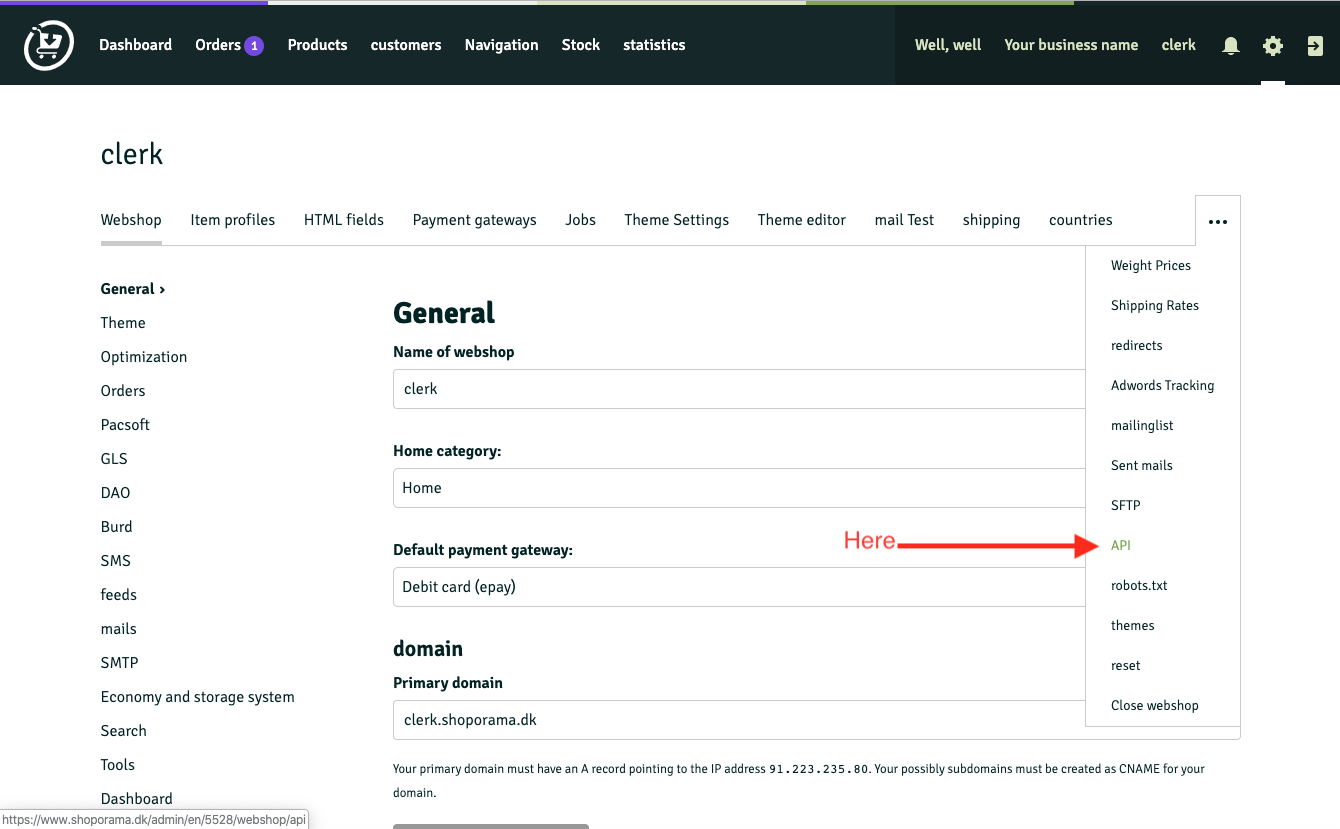
- In Shoporama, go to Settings > API.
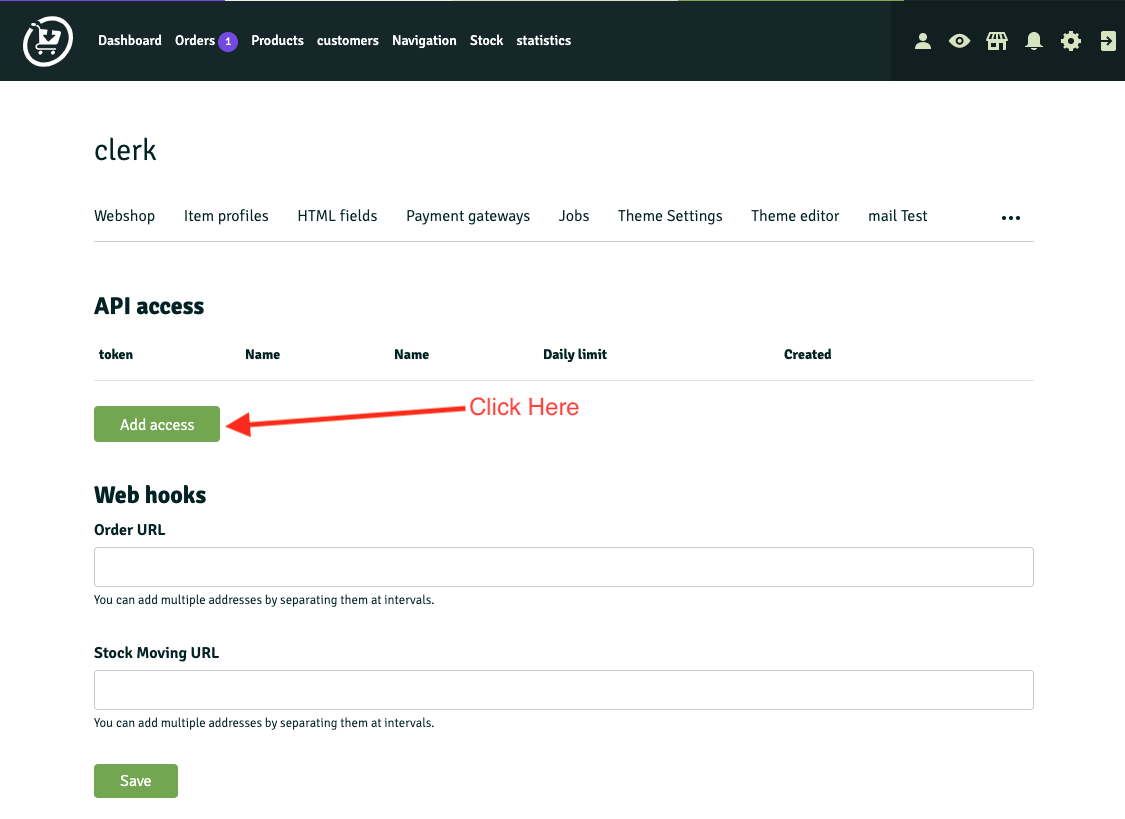
- Click Add access.
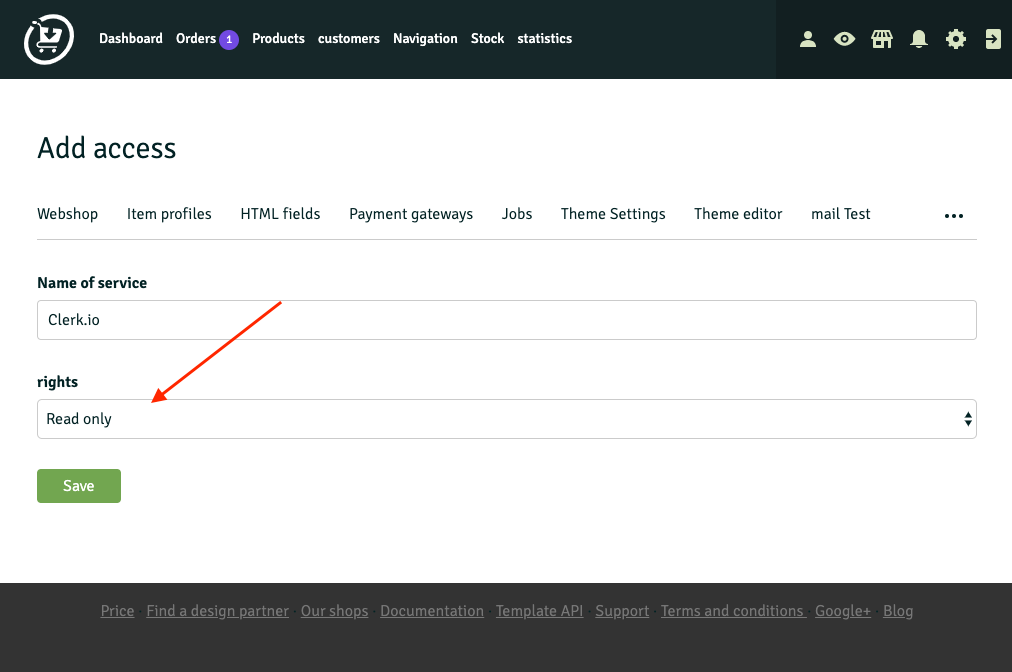
- Name the API account “Clerk.io” and set rights to Read only. Save.
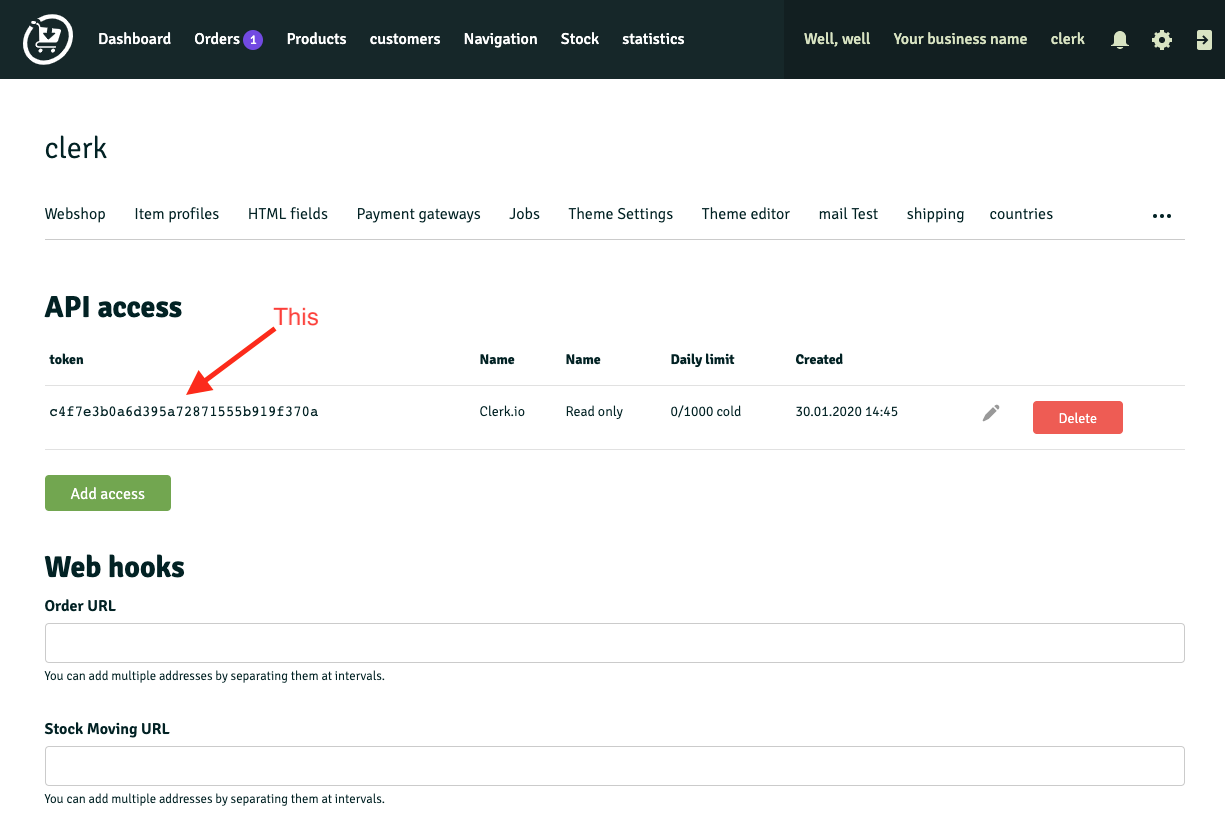
- Copy the generated Access Token.
Go to my.clerk.io > Data > Configuration and paste the Access Token and Store URL into the appropriate fields.
...
Sync your Shopware 6 products and attributes to Clerk. This guide covers setting up data synchronization and customizing product data.
Before syncing data, make sure you have installed and configured the Clerk plugin in your Shopware 6 backend. See the
Get Started guide for installation instructions.
Set up Sync
#
To sync your Shopware 6 store data with Clerk, you need to create an integration in Shopware and configure it in Clerk.
...Sync your SmartWeb Classic products and order data to Clerk. This guide covers setting up a data feed, sending order data, and choosing which products to import.
Set up Sync
#
To sync your SmartWeb Classic store data with Clerk, you need to create a Prisindeks (price index) in SmartWeb Classic and configure it in Clerk.
In SmartWeb Classic, create a Prisindeks: click Opret Eget Prisindeks and name it “Clerk”.
...
Sync your SmartWeb products and attributes to Clerk. This guide covers setting up API access and syncing your catalog.
Enable API Access
#
Before syncing your catalog, you need to enable API access in your SmartWeb store:
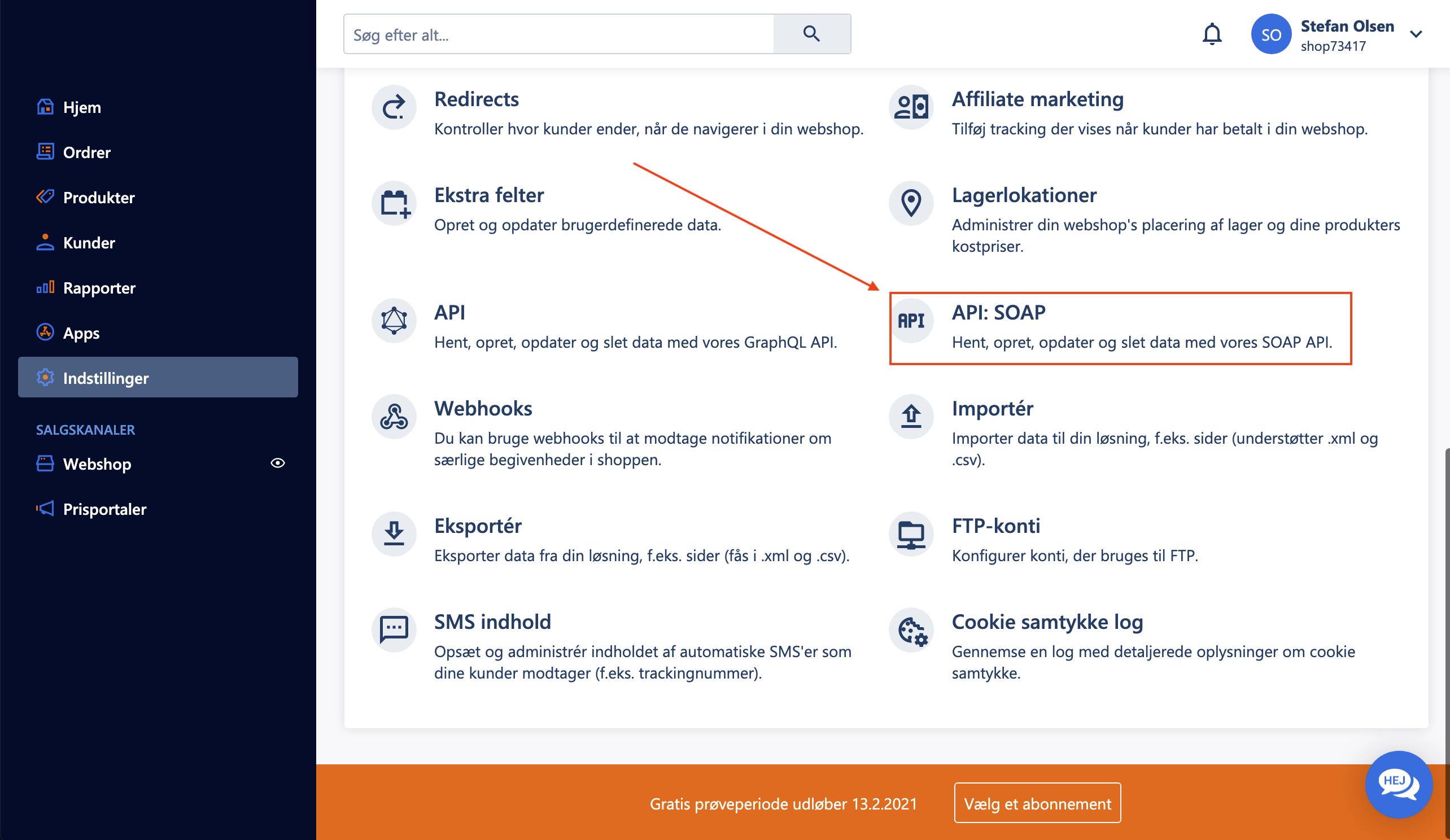
- In your SmartWeb administration, go to Indstillinger > API: SOAP.
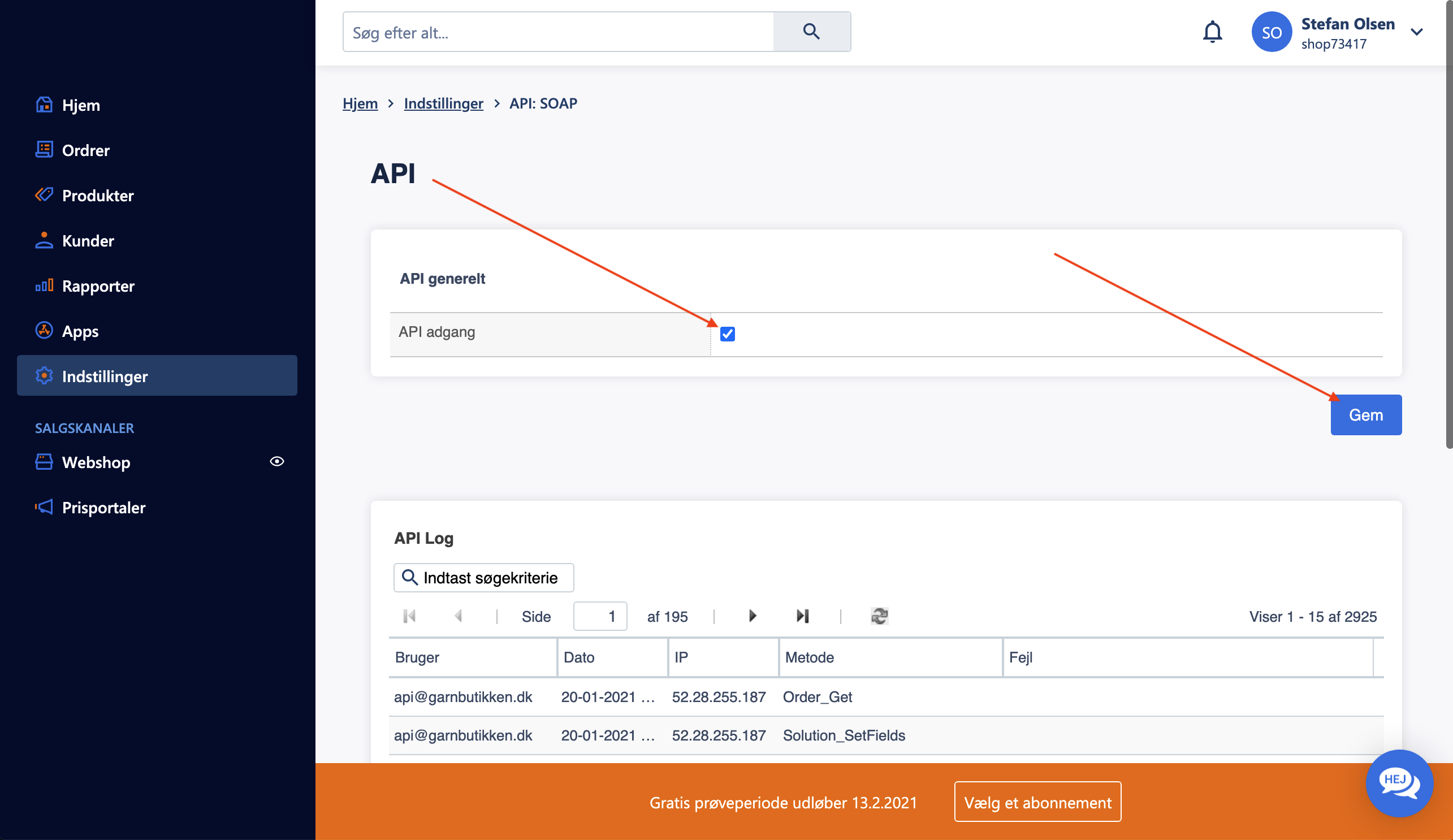
- Under API generelt, check the box for API adgang.
- Click Gem to save the settings.
Create API User
#
To allow Clerk to access your store data, create a dedicated API user:
...Sync your Umbraco products, categories, orders, customers, and pages to Clerk. This guide covers setting up data synchronization.
Before syncing data, make sure you have installed and configured the Clerk.io connector in your Umbraco backoffice. See the
Get Started guide for installation instructions.
Set up Sync
#
To sync your Umbraco store data with Clerk, you need to configure the feed URLs in Clerk.
Log in to
my.clerk.io
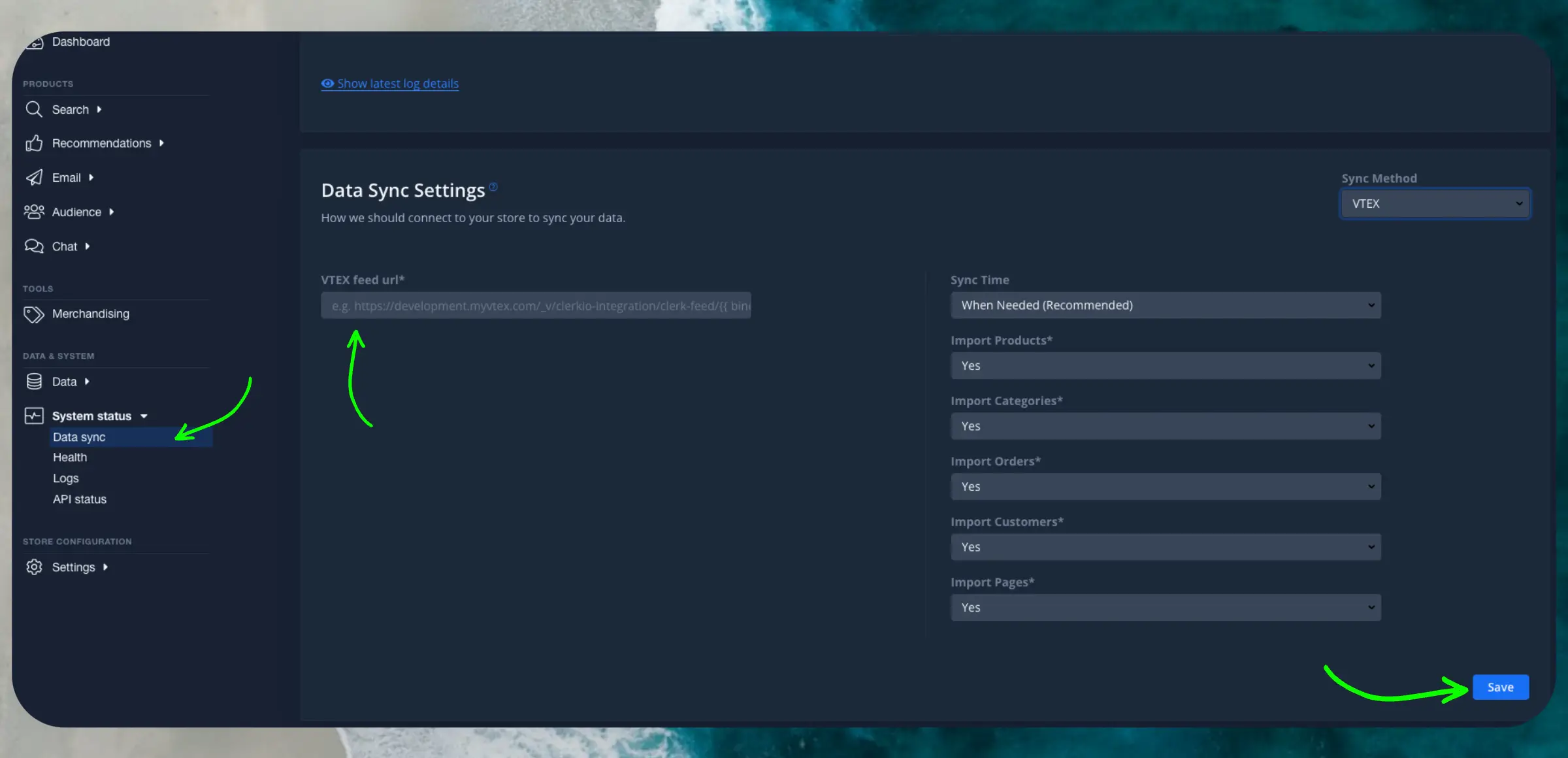
Navigate to System Status > Data sync
...
Clerk.io offers three distinct search solutions that can be used together or separately:
This article explains how to get started when using a
Clerk.js setup in VTEX.
Instant Search
#
Instant Search provides real-time search results as customers type, displayed in a dropdown below the search input field....Sync your VTEX products, categories, and orders to Clerk. This guide covers setting up data synchronization.
Before syncing data, make sure you have installed and configured the ClerkIO Integration module in your VTEX account. See the
Get Started guide for installation instructions.
Set up Sync
#
After configuring the module, you simply need to synchronise your store.
- Go to
my.clerk.io Data -> Configuration -> Once prompted to insert the url, insert the following URL format: https://{{accountName}}.myvtex.com/_v/integration-vtex/clerk-feed/{{bindingId}} and click on save in the bottom left of the page.
- Click on “Start new data sync”. This feed URL is exclusive for the use of ClerkIO.
If you want to validate your store’s feed use this endpoint instead:
https://app.io.vtex.com/clerkiopartnerdk.integration-vtex/v1/{{accountName}}/{{workspace}}/_v/integration-vtex/clerk-feed/{{bindingId}} this endpoint requires VTEX authentication.
...Sync your WooCommerce products, categories, orders, and pages to Clerk. This guide covers the basics and advanced customization options.
Before syncing data, make sure you have installed and configured the Clerk plugin in your WooCommerce backend. See the
Get Started guide for installation instructions.
Set up Sync
#
To sync your WooCommerce store data with Clerk, you need to configure the import URL in Clerk.
In the plugin, copy your Import URL from the General section.
...
Basics
#
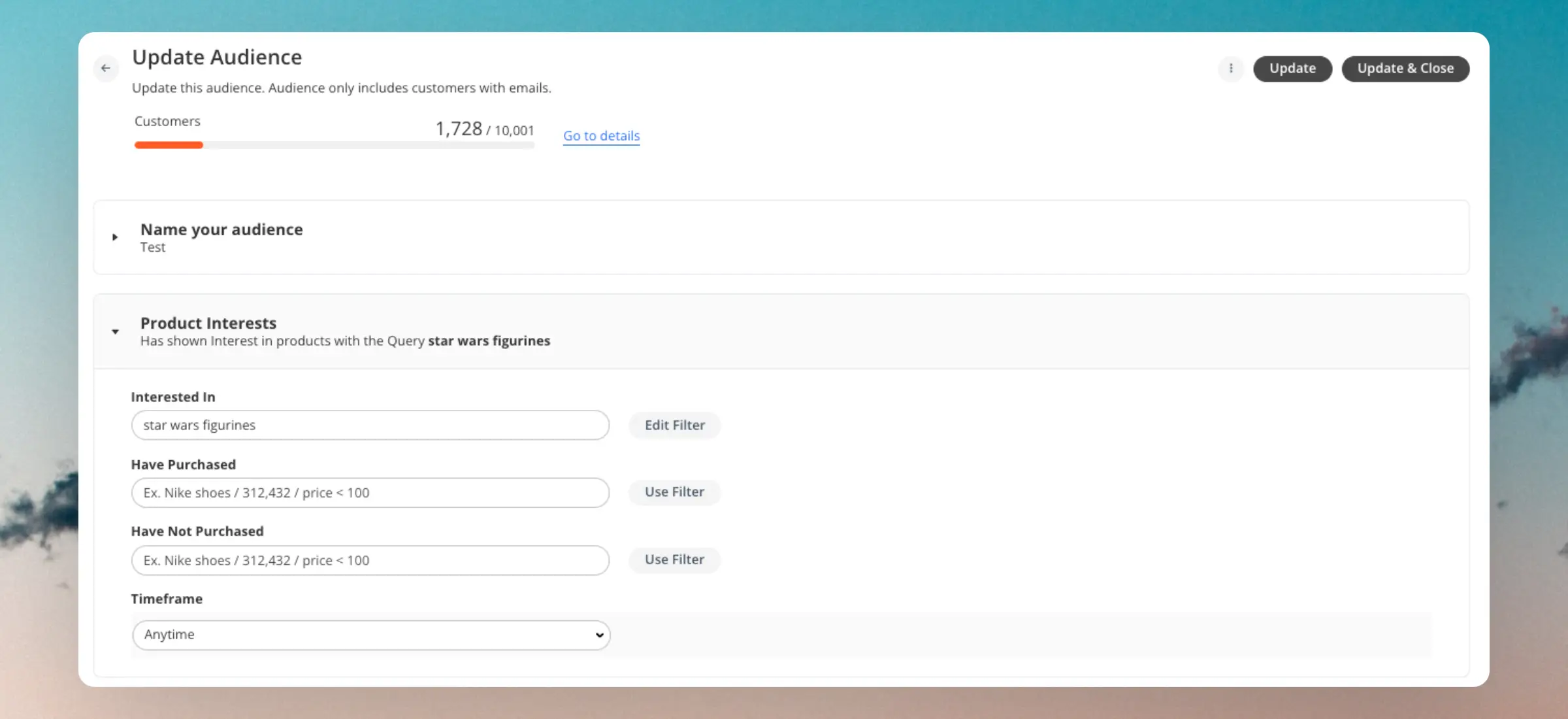
The Purchase Intent section of Audience allows you to find customers with specific purchasing patterns and intent. You have several ways of choosing the products that customers should have an interest in:
- Typing with free text. This uses Clerk’s search engine to find all matching products, and creating the Audience based on those.
- Using
filters to select items based on their attributes like
price > 100. - Writing product IDs separated by commas. This allows you to choose very specific products.
Interested In
#
This is the most powerful feature of Audience as it uses Clerk.io’s AI to intelligently predict which customers are likely to buy the products you want to sell, even if they have not purchased anything similar yet.
...Consider a customer whose washing machine breaks at 10 PM. They need a replacement urgently and have specific requirements: a certain energy rating, dimensions that fit their kitchen space, a budget, and fast delivery. Without Chat, they hit a wall — “leave a message and we’ll get back to you within 24–48 hours” — and by morning they have already bought from a competitor.
With Chat, they describe everything in a single natural message — dimensions, brand preference, budget, and urgency — and get filtered, relevant results immediately, the same night, within seconds.
...