The Clerk.io plugin for Shopware 6 is configured entirely from within the Shopware Admin. Each section controls a different feature on your storefront.
To open the plugin settings, go to Extensions > My extensions, find the Clerk.io plugin, and click ... > Config..
All settings on this page reference Content fields. These fields accept the name of a Clerk.io
Element (e.g. product-page-alternatives). The name must match exactly what is configured in my.clerk.io under the relevant section.
General
#
| Setting | Description |
|---|
| Status | Enable or disable the Clerk.io plugin on this Sales Channel. |
| Public Key | Your Clerk.io Public API key, found in my.clerk.io > Developers > API Keys. |
| Private Key | Your Clerk.io Private API key, found in the same location. |
| Collect Emails | When enabled, Clerk.js automatically captures email addresses entered on the storefront and logs them for personalisation and email triggers. Defaults to true. |
Multi-Language Keys
#
Use this section when you have multiple languages on the same Sales Channel and each language needs its own Clerk.io Store and Public Key.
...Clerk.io offers three distinct search solutions that can be used together or separately:
This article explains how to get started with Search on SmartWeb Classic.
General
#
Use the SmartWeb Classic Design Manager to insert embed codes. To add sync details or start a sync, go to my.clerk.io > Data > Configuration.
Instant Search
#
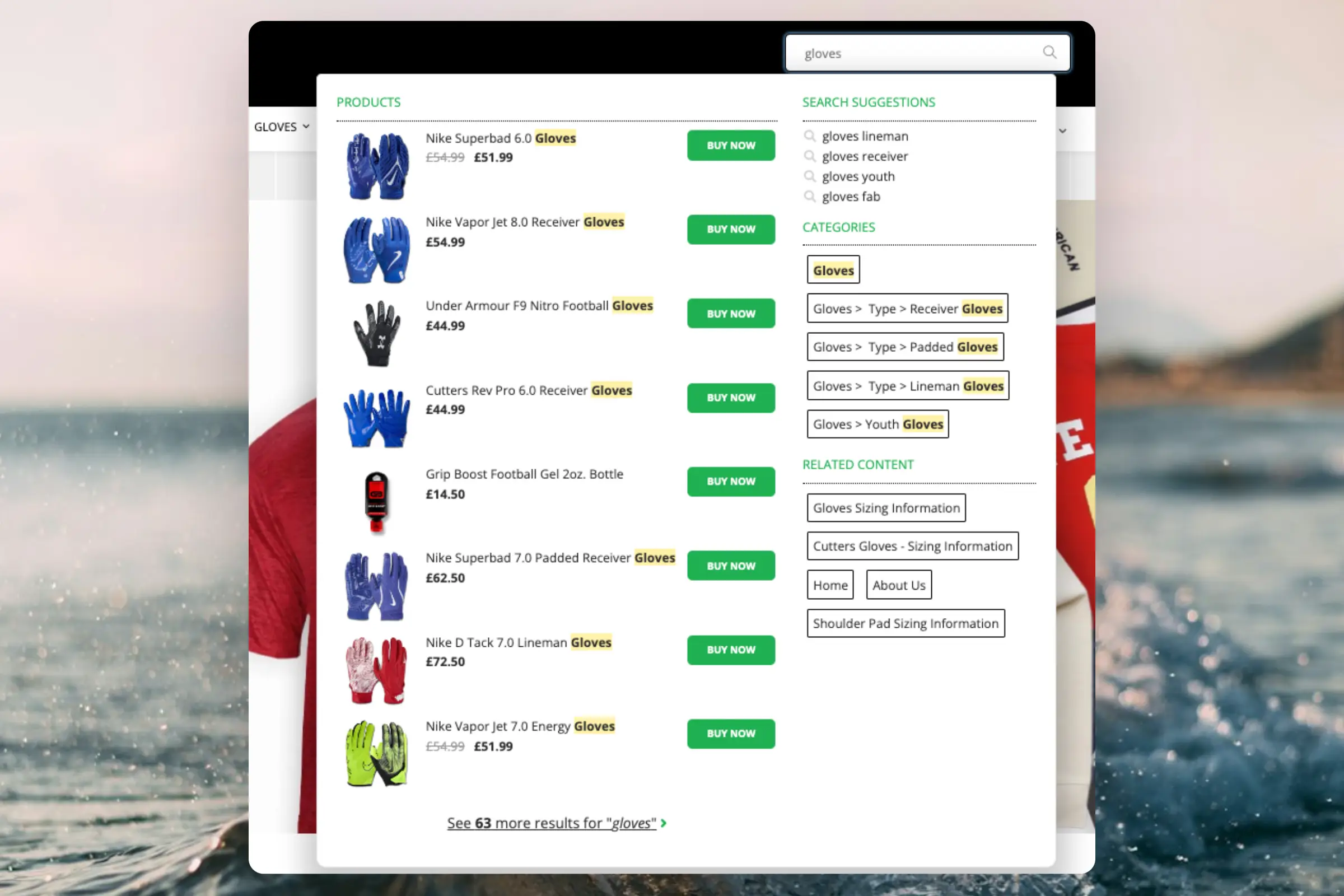
Instant Search provides real-time results as customers type, displayed in a dropdown under the search input.
...Clerk.io offers more than 23 different types of product logics, making it possible for you to display completely automated products on any page. This article explains how to get started when using a
Clerk.js setup in VTEX.
For our full Best Practices, read
this article on which Recommendations to use.
Slider Setup
#
Recommendations are created with
Elements that reference a Design. Below is the basic guide for setting up an Element.
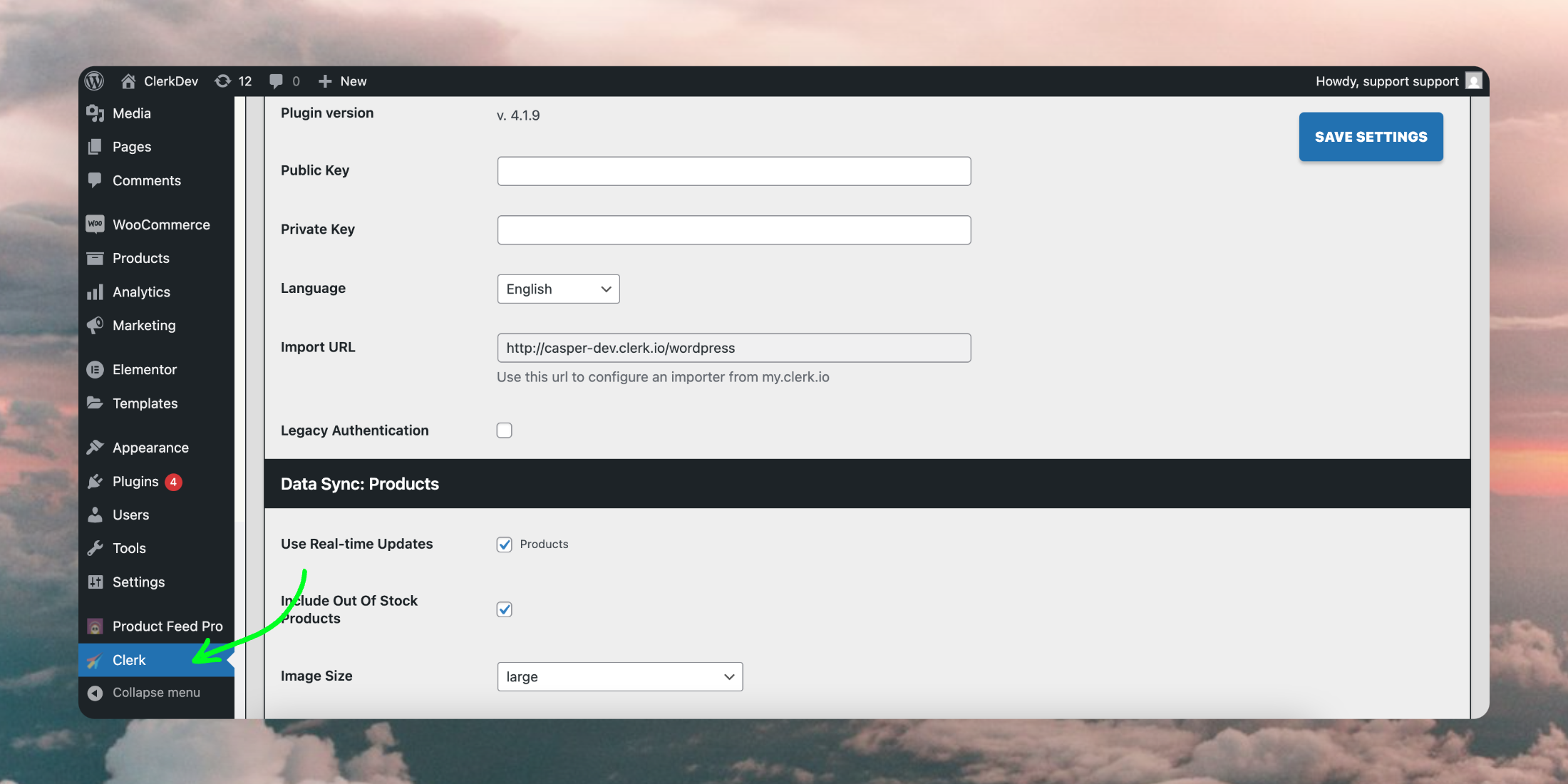
...Configure your WooCommerce plugin settings, manage data sync options, and customize search, recommendations, and logging features. This guide covers all available settings and options.
Once the plugin is successfully
installed in WooCommerce, it will appear in the side menu of your backend:
General
#
Here is a explanation of every option in the General section:
Basics
#
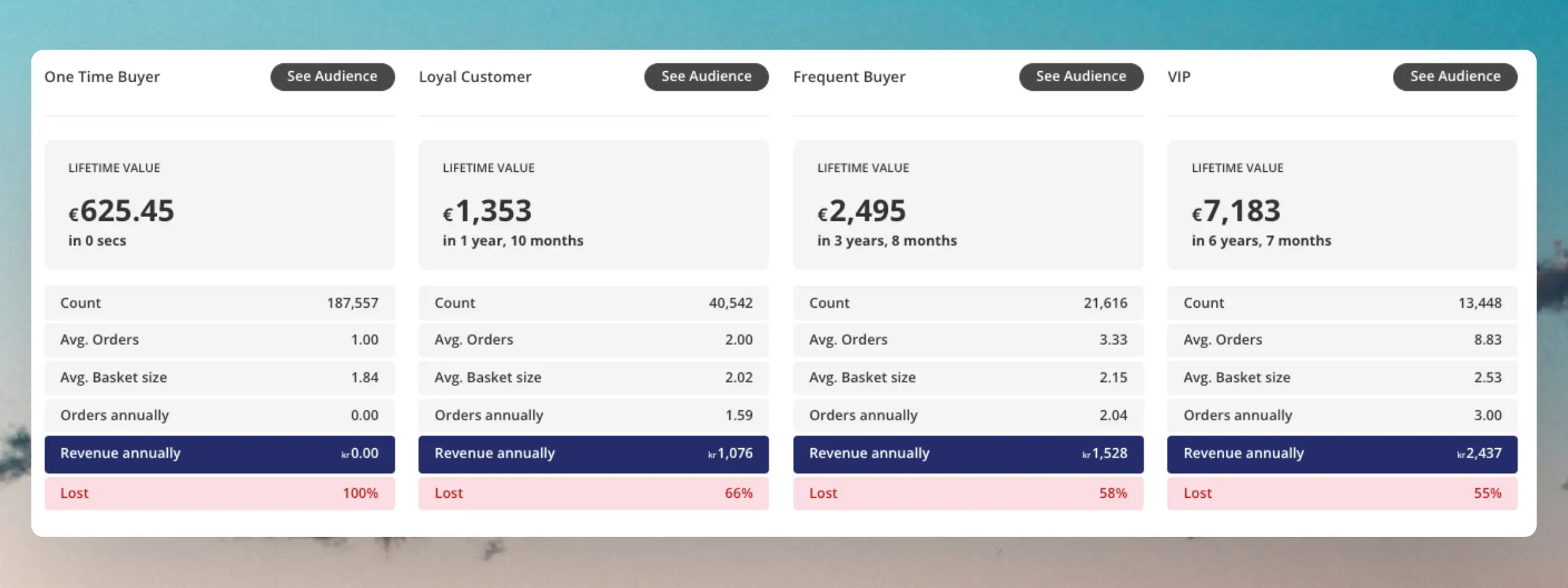
Clerk.io’s AI automatically segments your customers into Loyalty groups based on their purchase behavior. Their placement is primarily defined based on the number of orders and the total revenue they have spent.
These groups can be used to identify how important customers are to retain, and to focus your marketing efforts on the groups you gain most from.
Customers can move in and out of these groups depending on how your total customer base changes over time.
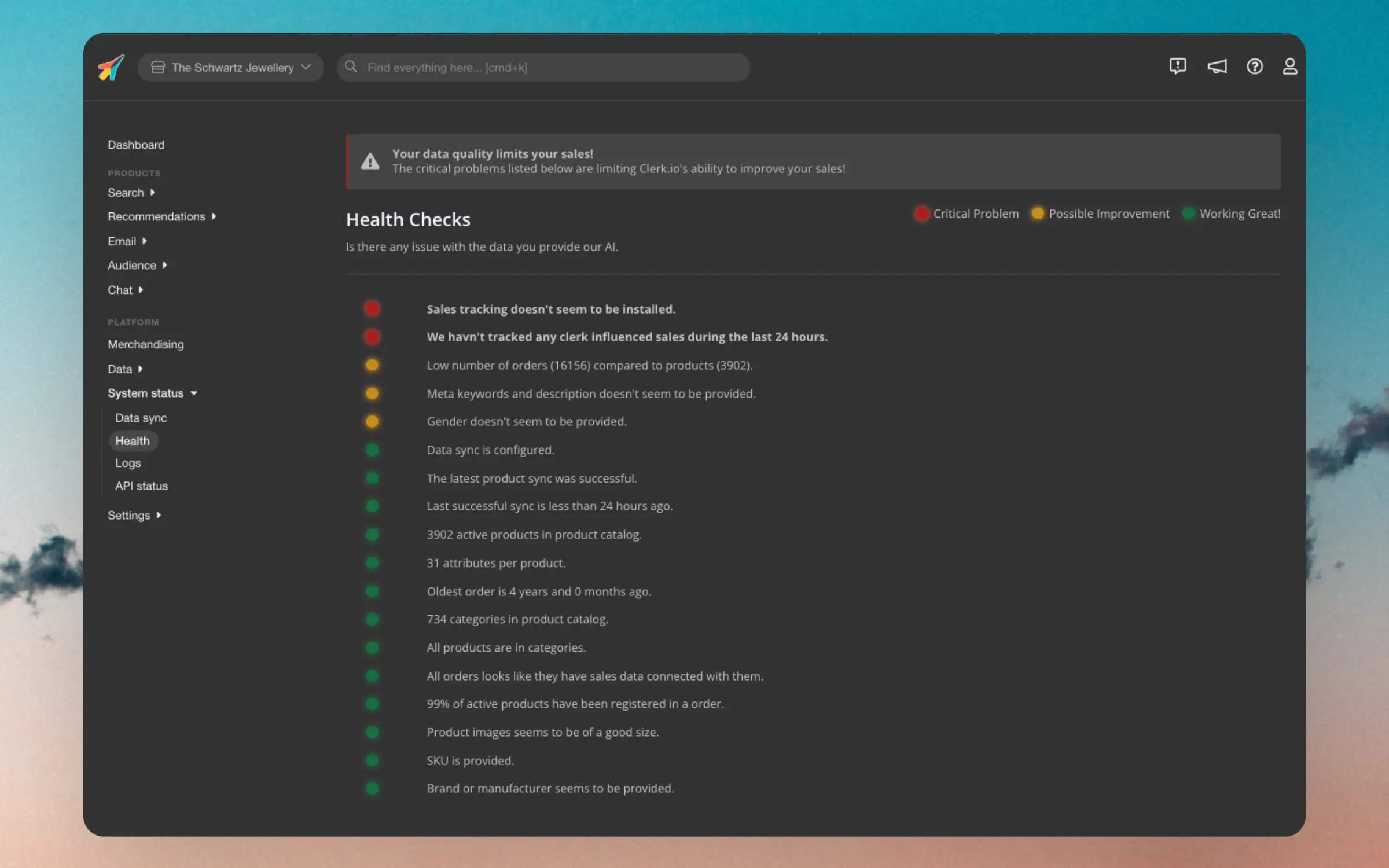
...Sending high quality data to Clerk is essential for getting the best possible results. This dashboard is your one-stop page for monitoring the quality of your data.
Each points of the dashboard has one of 3 statuses:
- Red: Critical for showing the right results.
- Yellow: Could be improved for slightly better results.
- Green: Works as expected.
If you see any issues marked with red, it’s highly advised to fix them as soon as possible, as otherwise you will lose out on valuabe sales through Clerk.
...Clerk is built around a powerful API that offers many different ways to display results to customers. These are called Product Logics and offer various functionalities suited to different use cases.
This article explains the available logics for Email and how they work.
The names of these Product Logics match what you see in the my.clerk.io backend when using
Content. Each of them has a matching Endpoint in Clerk’s API, which you can inspect in our developer docs using the links provided below.
...Basics
#
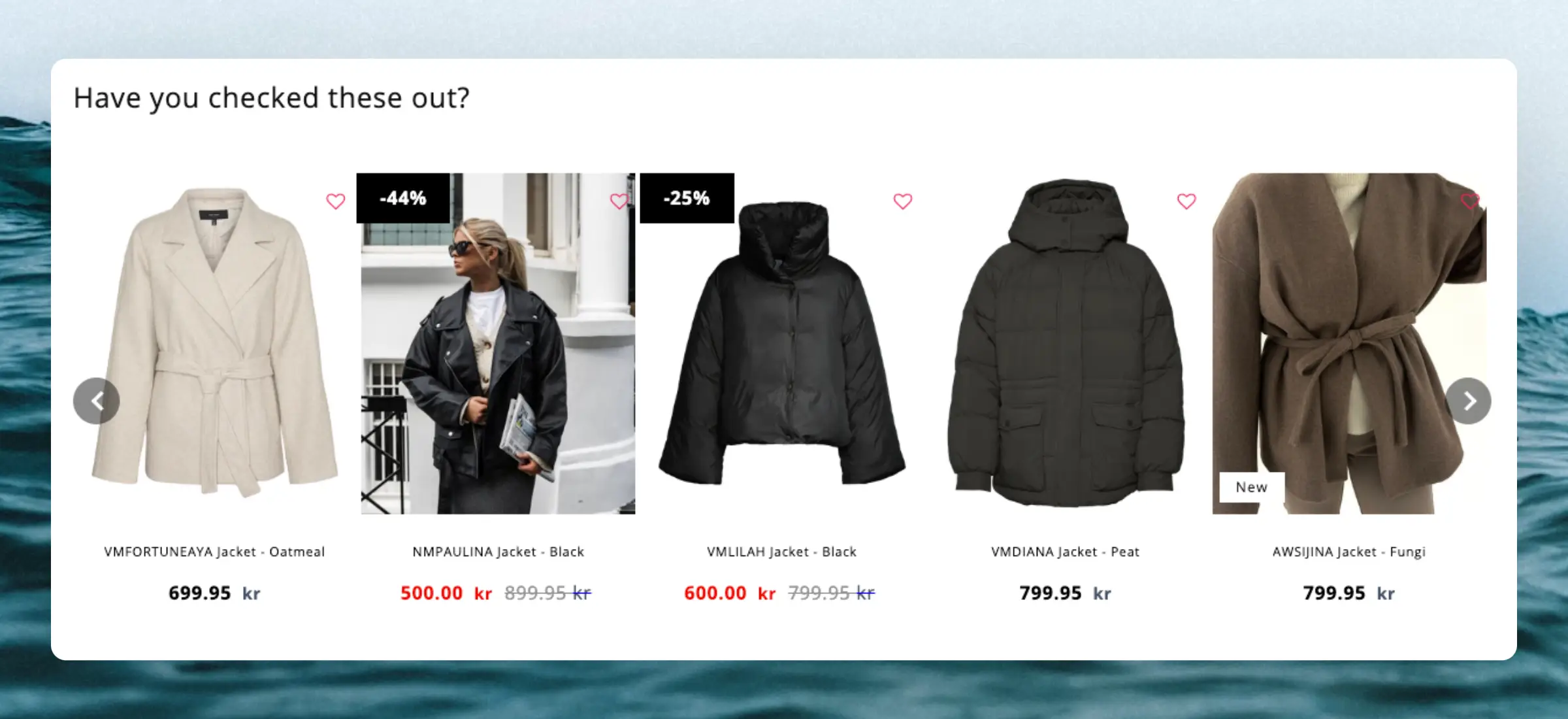
Clerk.js comes with a built-in function for showing products with sliders. This feature shows a row of products with a set of arrows, that lets customers navigate many products with just a few clicks.
It basically works by creating a long, horizontal list of products, and then showing a fixed “window” of products at a time, which is controlled with the buttons.
The slider functionality is coded to show an entire new row of products for each click, to show as many new products as possible with as few clicks as possible.
...Overview
#
This dropdown allows your customers to browse and purchase products directly from your search bar. It combines the best features from modern search engines, with an eCommerce-specific twist:
- Optimised for speed: Shows results in the blink of an eye while visitors are typing
- Semantic search: Understands what the visitor means.
- Auto-corrects spelling mistakes: The visitor should not realise that they made the spelling mistake in the first place.
- Predicts customer behaviour: Matches are sorted based on how likely they are to sell right now.
These functions make searching your webshop from the search bar a seamless experience for the customer and opens up your catalogue in a different way.
...