General
#
Add powerful search functionality to your BigCommerce webshop. Clerk.io offers three complementary search solutions:
- An Instant Search dropdown.
- A Search Page with faceted filters.
- An Omnisearch overlay that combines both.
Instant Search
#
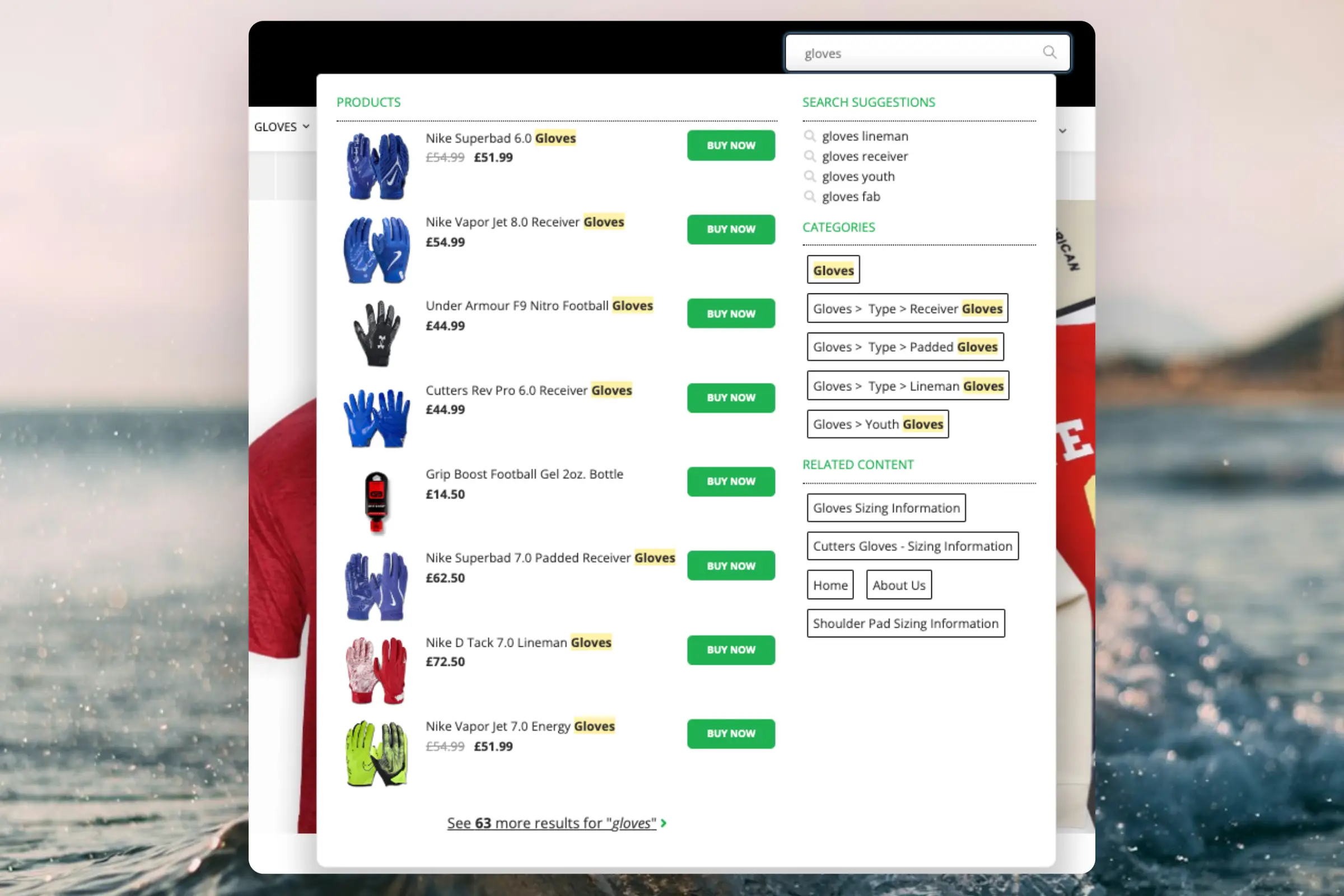
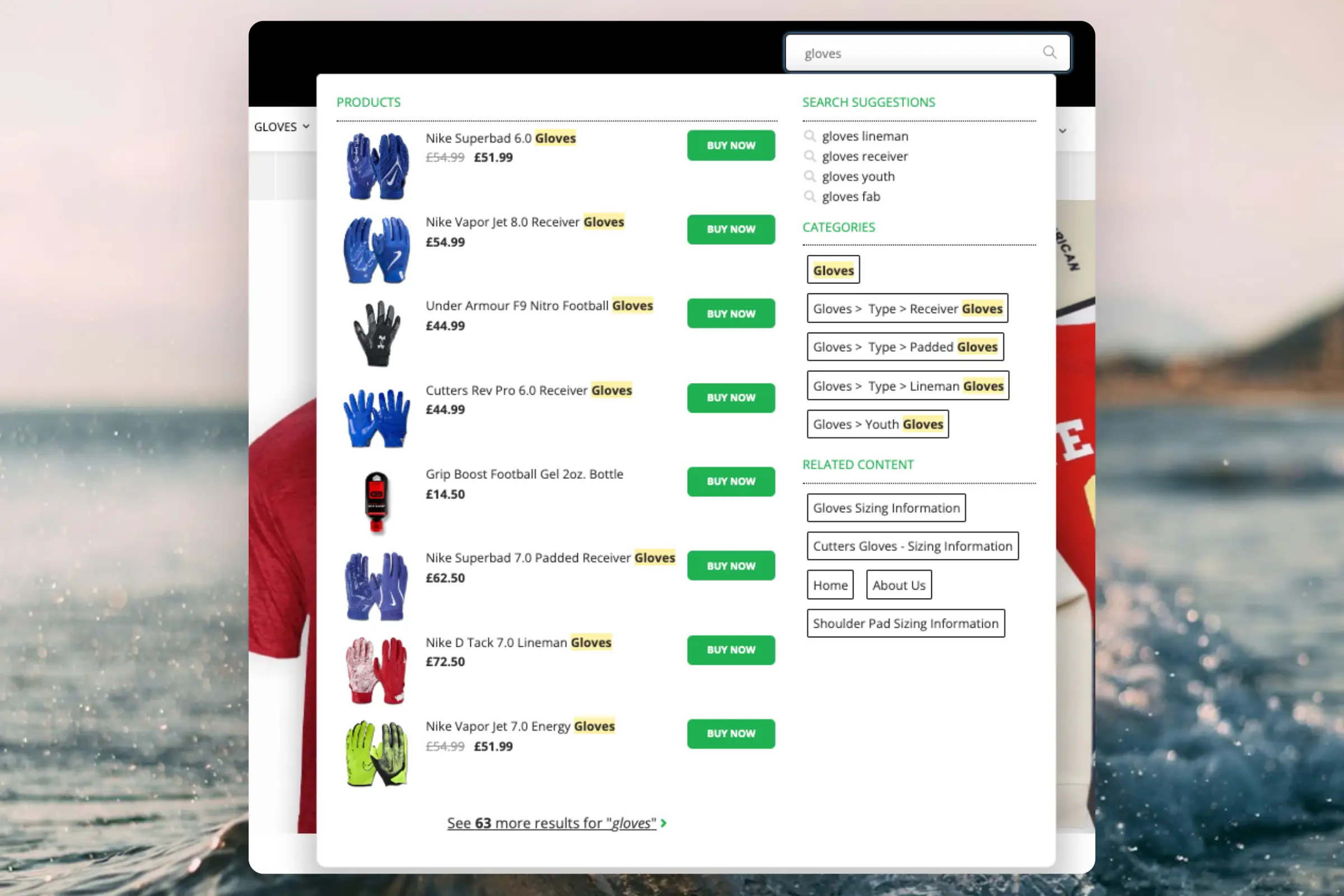
Instant Search provides real-time results as customers type, displayed in a dropdown below the search field.
Create Design
#
Use the
Design Editor or
code designs.
Design Editor
#
- Go to Search > Designs and click New Design.
- Choose Other designs > Instant Search.
- Pick a template to start from.
- Name it and click Create design.
- Adjust the design as needed.
Code Design
#
- Go to Search > Designs and click New Design.
- Choose Other designs > Blank > With code.
- Name it and click Save.
- Build a code design using
Liquid.
Create Element
#
This holds the settings to show the Instant Search dropdown and make it embeddable.
...Clerk.io offers three distinct search solutions that can be used together or separately:
This article explains how to get started when using the Clerk.io DanDomain Classic app.
Instant Search
#
Instant Search provides real-time search results as customers type, displayed in a dropdown below the search input field.Create Design
#
You can either use the
Design Editor to configure it visually, or use
code designs.
...Add powerful search functionality to your DanDomain webshop. Clerk.io offers two complementary search solutions:
- An Instant Search dropdown that shows results as customers type.
- A Search Page with faceted filters for browsing all results.
Instant Search
#
Instant Search provides real-time results as customers type, displayed in a dropdown below the search field.
Create Design
#
Use the
Design Editor or
code designs.
Design Editor
#
- Go to Search > Designs and click New Design.
- Choose Other designs > Instant Search.
- Pick a template to start from.
- Name it and click Create design.
- Adjust the design as needed.
Code Design
#
- Go to Search > Designs and click New Design.
- Choose Other designs > Blank > With code.
- Name it and click Save.
- Build a code design using
Liquid.
Create Element
#
- Go to Search > Elements.
- Click New Element.
- Name it “Live Search”.
- In Element type, select Live-search.
- In Design, select the design you created.
- Click Save.
Add to Website
#
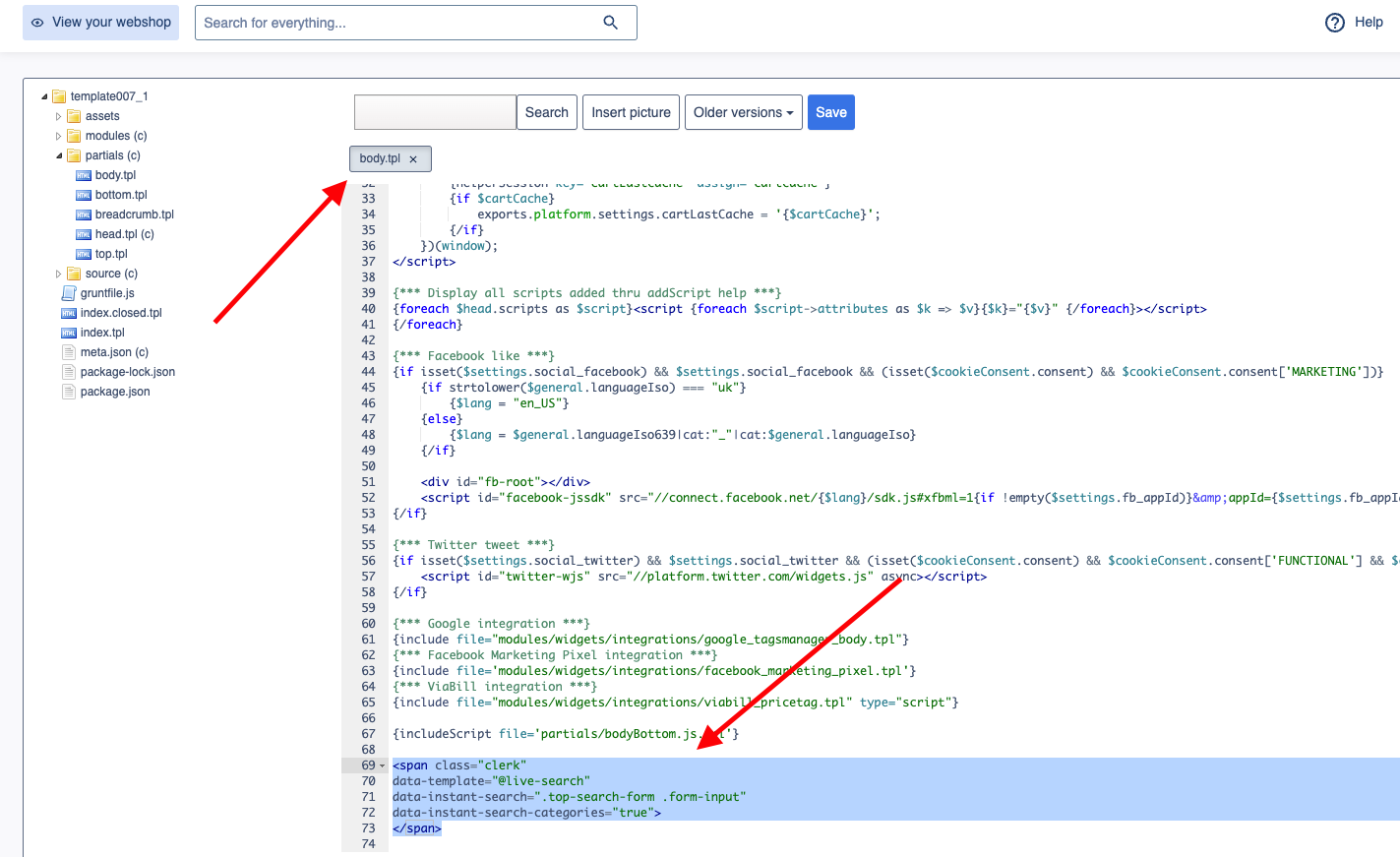
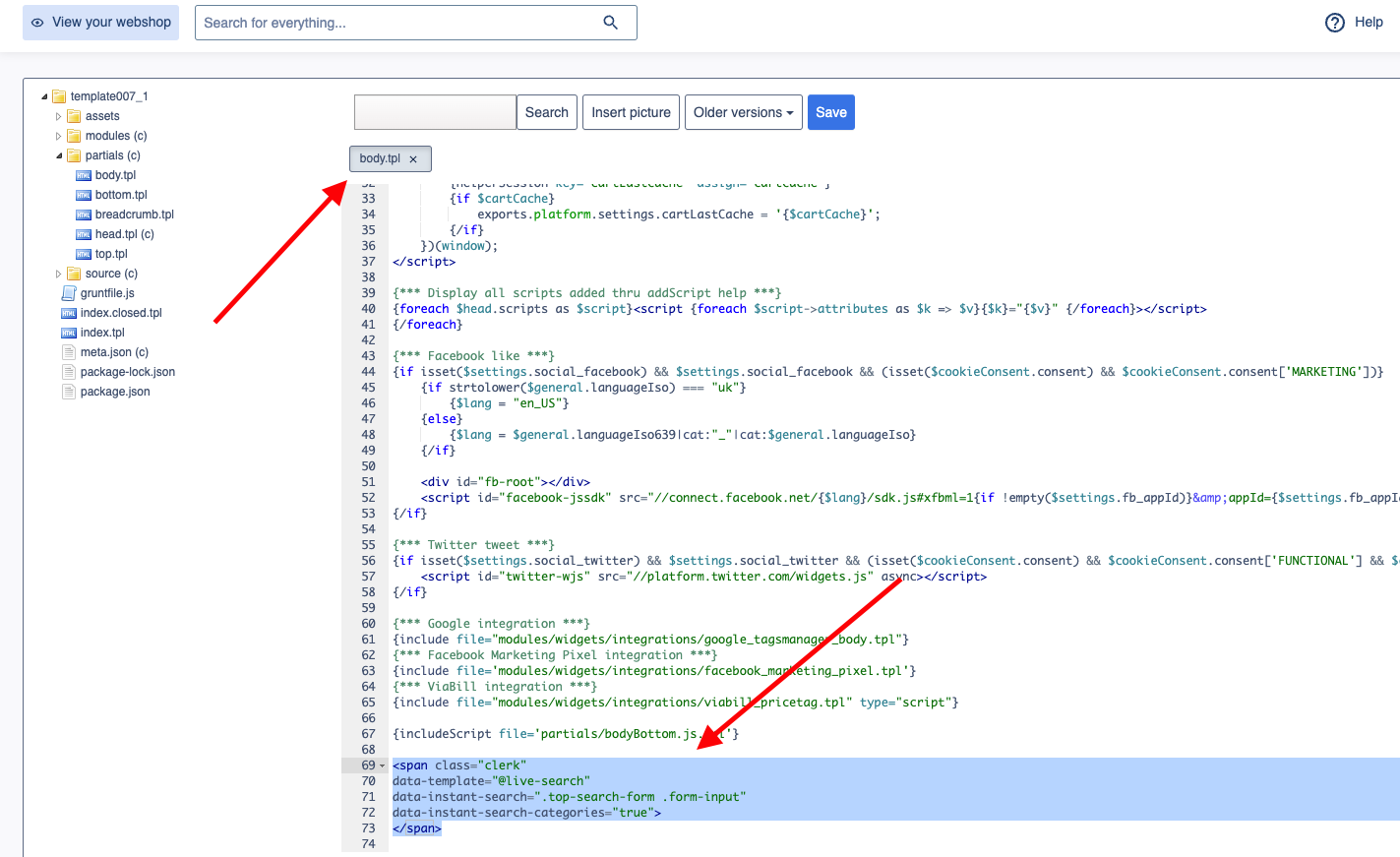
- In the DanDomain Admin, go to Online Store > Design > Aktive designs > Rediger filer > partials.
- Open the
body.tpl file. - Insert the following code and click Gem.
<span class="clerk"
    data-template="@live-search"
    data-instant-search=".top-search-form .form-input"
    data-instant-search-positioning="left"
    data-instant-search-categories="6"
    data-instant-search-pages="6"
    data-instant-search-suggestions="6">
</span>
Troubleshooting
#
If your Instant Search is not showing, it’s likely because your search field has a different identifier than the default.
...Clerk.io offers three distinct search solutions that can be used together or separately:
This article explains how to get started when using a
Clerk.js setup in JTL.
Instant Search
#
Instant Search provides real-time search results as customers type, displayed in a dropdown below the search input field.Create Design
#
You can either use the
Design Editor to configure it visually, or use
code designs.
...Clerk.io offers three distinct search solutions that can be used together or separately:
This article explains how to get started with Search on Lightspeed.
General
#
To incorporate your embed code for either Live Search or Search Page, you’ll need to access your theme files. To do this, click “Design” in the left-side menu, then click “Code bewerken” in the Geavanceerd dropdown
...Clerk.io offers three distinct search solutions that can be used together or separately:
This article explains how to get started with Search on Magento 1.
General
#
To enable Search features, use the Magento extension settings: System > Configuration > Clerk > Settings. To add sync details or start a sync, go to my.clerk.io > Data > Configuration.
...Clerk.io offers three distinct search solutions that can be used together or separately:
This article explains how to get started with Search on Magento 2.
General
#
To enable Search features, use the Magento extension settings: Stores > Configuration > Clerk > Settings. To add sync details or start a sync, go to my.clerk.io > Data > Configuration.
...Add powerful search functionality to your Mystore webshop. Clerk.io offers three distinct search solutions that can be used together or separately: an Instant Search dropdown, a Search Page with Faceted Search filtering, and an Omnisearch overlay that combines both.
General
#
To enable and embed Search features, use your theme or CMS editor to place the provided embed codes.
To add sync details or start a sync, go to my.clerk.io > Data > Configuration.
...Clerk.io offers three distinct search solutions that can be used together or separately:
This article explains how to get started with Search on Prestashop.
General
#
To enable Search features, use the Prestashop module settings. To add sync details or start a sync, go to my.clerk.io > Data > Configuration.
Instant Search
#
Instant Search provides real-time results as customers type, displayed in a dropdown under the search input.
...Add powerful search functionality to your ScanNet webshop. Clerk.io offers two complementary search solutions:
- An Instant Search dropdown that shows results as customers type.
- A Search Page with faceted filters for browsing all results.
Instant Search
#
Instant Search provides real-time results as customers type, displayed in a dropdown below the search field.
Create Design
#
Use the
Design Editor or
code designs.
Design Editor
#
- Go to Search > Designs and click New Design.
- Choose Other designs > Instant Search.
- Pick a template to start from.
- Name it and click Create design.
- Adjust the design as needed.
Code Design
#
- Go to Search > Designs and click New Design.
- Choose Other designs > Blank > With code.
- Name it and click Save.
- Build a code design using
Liquid.
Create Element
#
- Go to Search > Elements.
- Click New Element.
- Name it “Live Search”.
- In Element type, select Live-search.
- In Design, select the design you created.
- Click Save.
Add to Website
#
- In the ScanNet Admin, go to Online Store > Design > Aktive designs > Rediger filer > partials.
- Open the
body.tpl file. - Insert the following code and click Gem.
<span class="clerk"
    data-template="@live-search"
    data-instant-search=".top-search-form .form-input"
    data-instant-search-positioning="left"
    data-instant-search-categories="6"
    data-instant-search-pages="6"
    data-instant-search-suggestions="6">
</span>
Troubleshooting
#
If your Instant Search is not showing, it’s likely because your search field has a different identifier than the default.
...