AI Importer lets you connect Clerk.io to any platform that exposes an API — without predefined configuration or fixed form fields.
The setup happens entirely within Ask Clerk.io. Describe what you want to connect, and Ask Clerk.io guides you through the rest: finding the API, requesting credentials, building the importer, and testing it before handing off to Data Sync.
Go to Ask Clerk.io and tell it which platform you want to import from. Include a URL to your store if you have one — it gives Ask Clerk.io a useful starting point.
These keys are used to access the data of your Store. They are found in my.clerk.io > Developers > API Keys.
They consist of a Public key, which gives access to endpoints exposing non-sensitive data, and a Private Key which allows you to work with data on the Store and access sensitive data, such as customer and order information.
As you probably know, email clients do not support the typical HTML/CSS/JS that run smoothly on all browsers.
For this reason, we use a workaround to produce our Email product recommendations dynamically.
We use a web template engine called Jinja and, through this, we can dynamically print all the product attributes and styles as plain images with links.
Clerk is fully GDPR compliant. This article explains everything you need to know about Clerk and GDPR, and how we make it easy for you to handle GDPR requests.
At
trust.clerk.io, you can review our privacy policy, subprocessors, data management, and much more. The page contains everything needed to understand how Clerk handles your data.
MJML is a markup language designed specifically for building responsive emails. Instead of wrestling with HTML tables and inline styles to get a consistent result across Gmail, Outlook, and Apple Mail, you write clean semantic markup and MJML compiles it into battle-tested HTML that works everywhere.
Clerk.io’s email campaign editor includes a built-in MJML editor, making it the recommended approach for creating email designs that look great on any device or client.
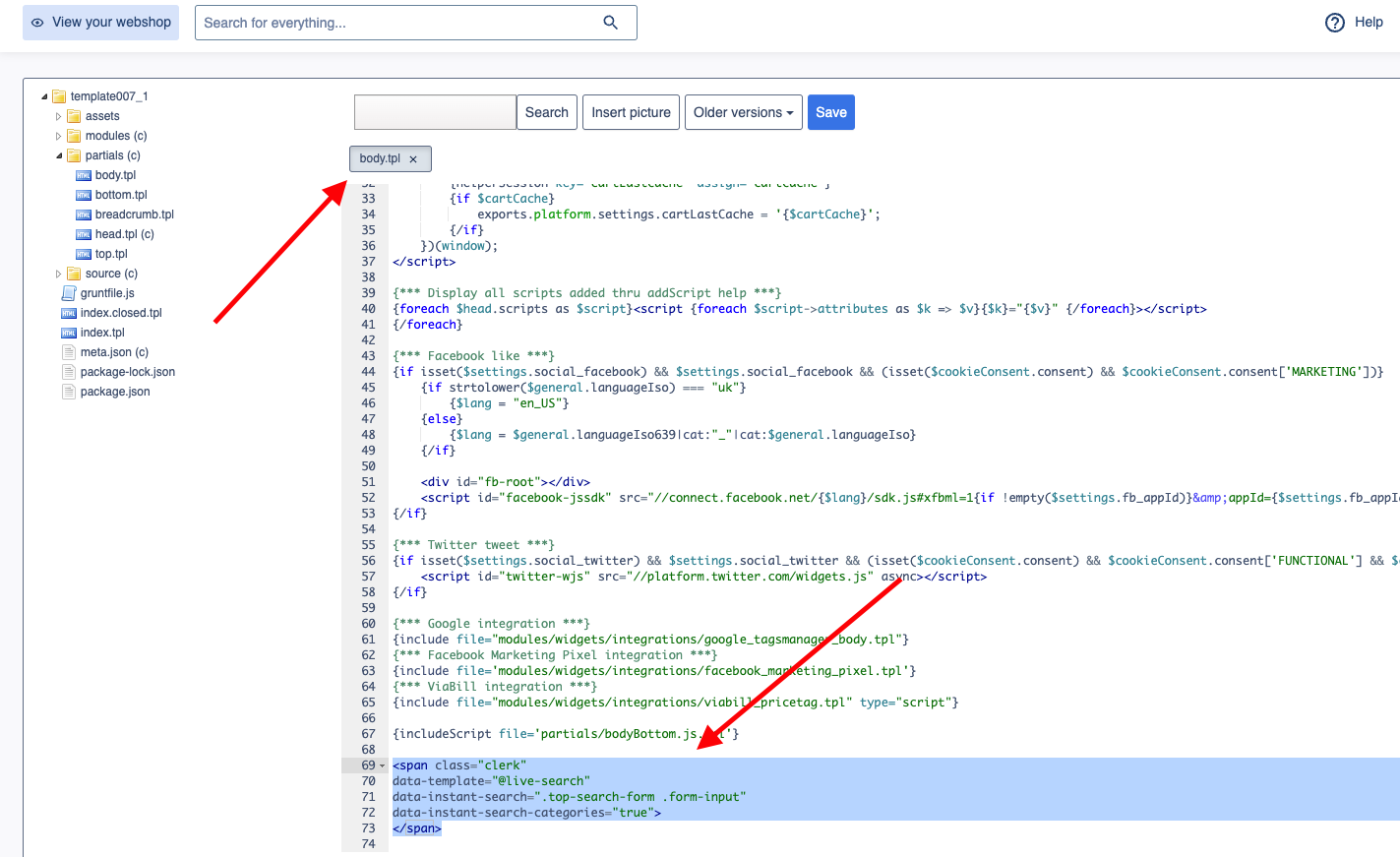
To incorporate your embed code for either Live Search or Search Page, you’ll need to access your theme files. To do this, click “Design” in the left-side menu, then click “Code bewerken” in the Geavanceerd dropdown