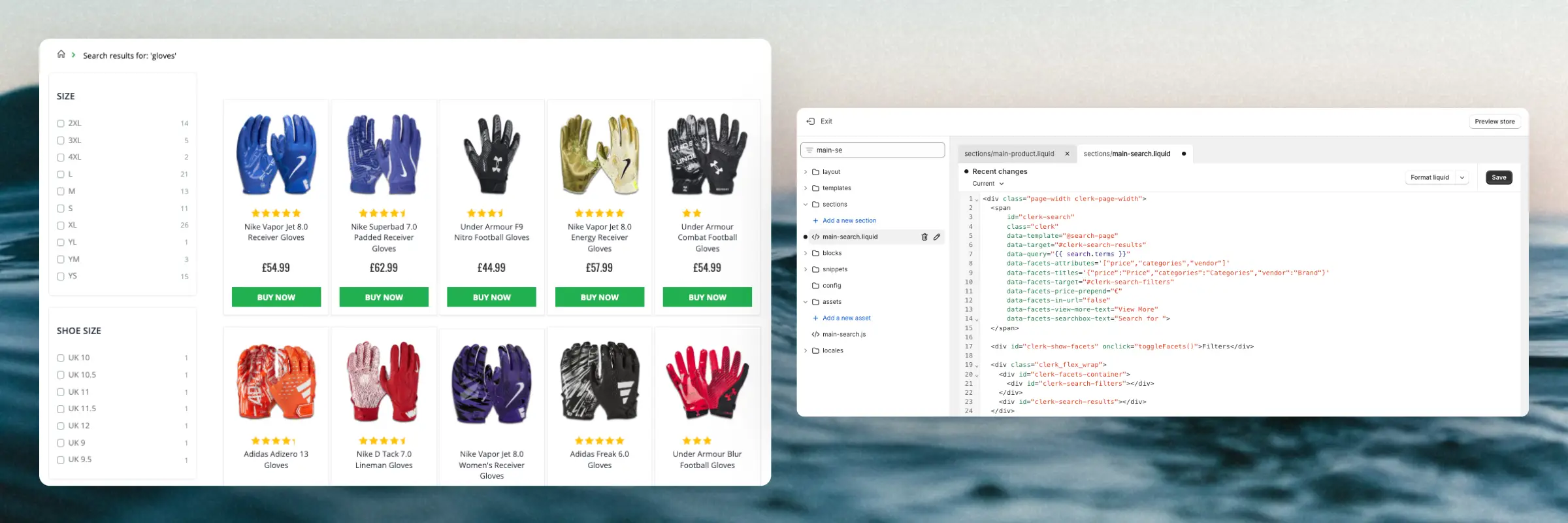
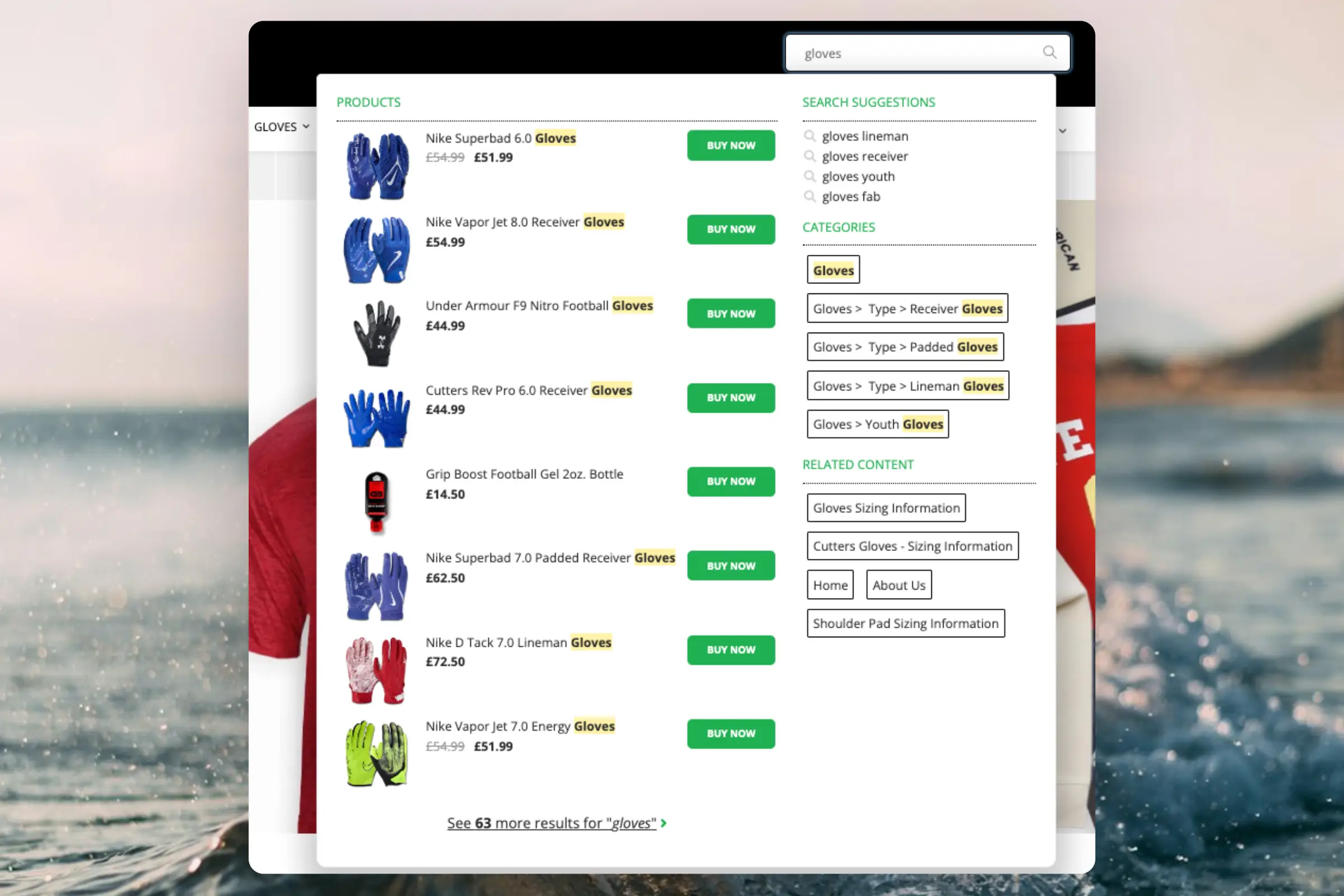
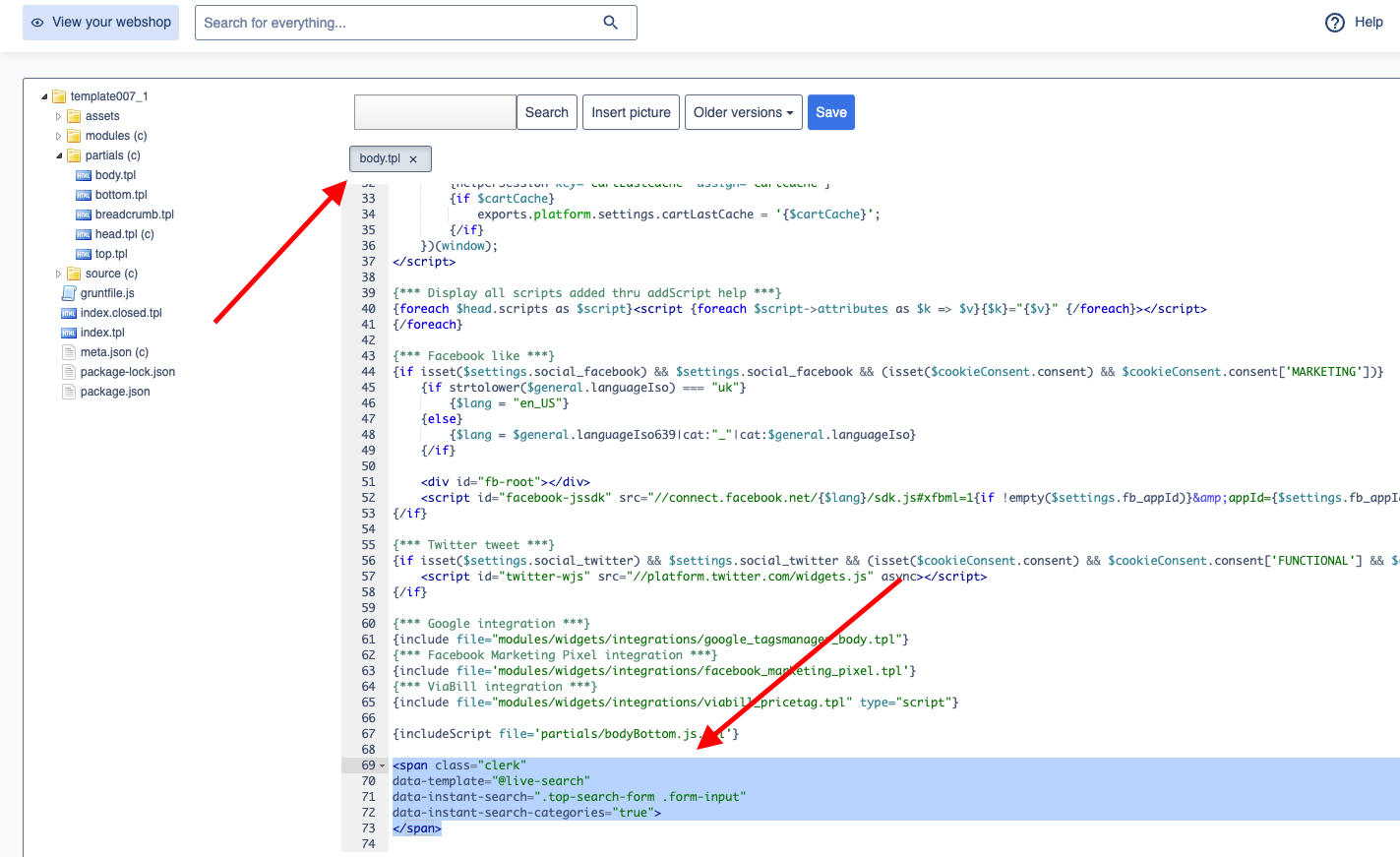
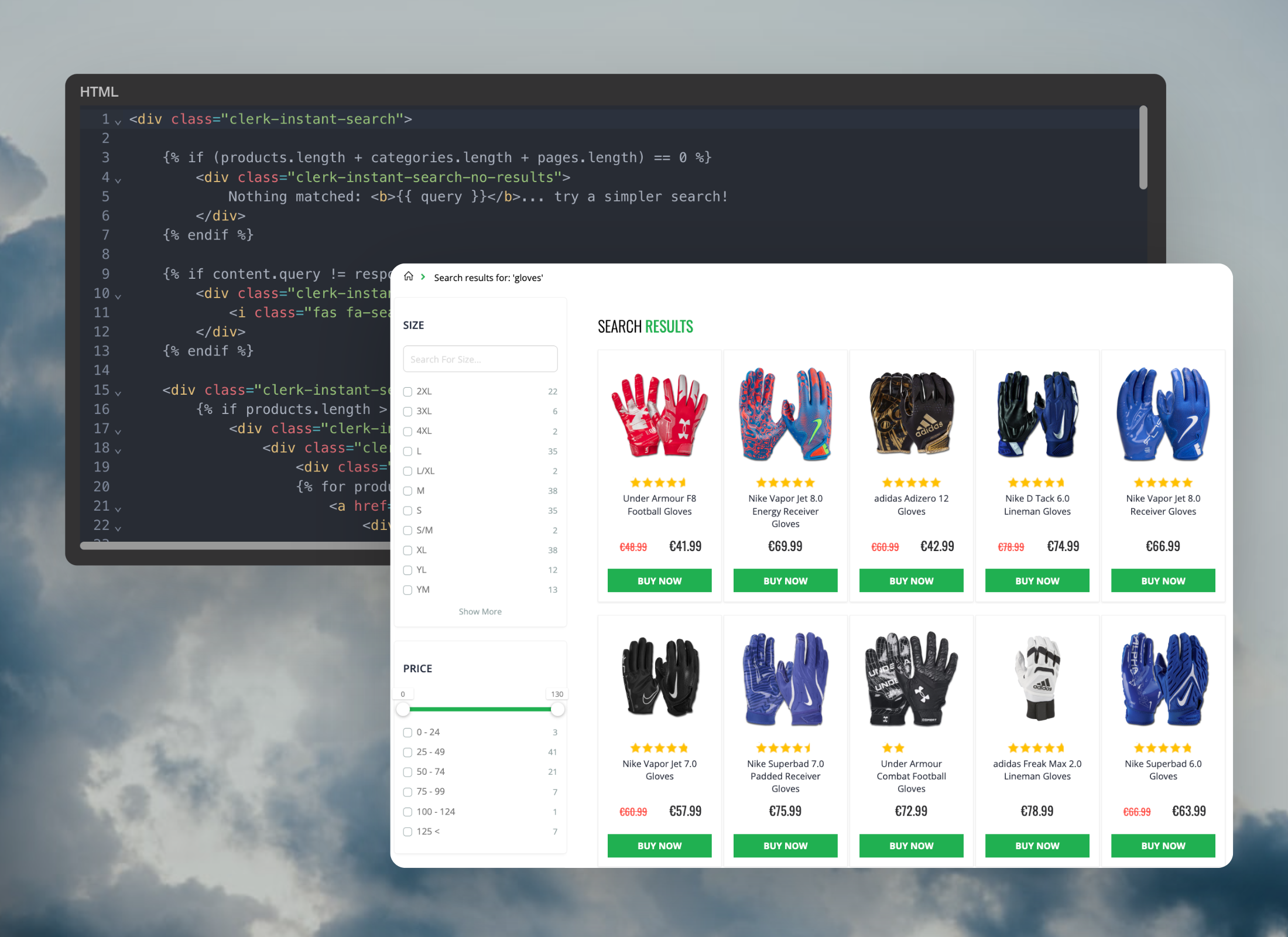
Clerk.io offers three distinct search solutions that can be used together or separately:
This article explains how to get started when using a
Clerk.js setup in Shopify.
Instant Search
#
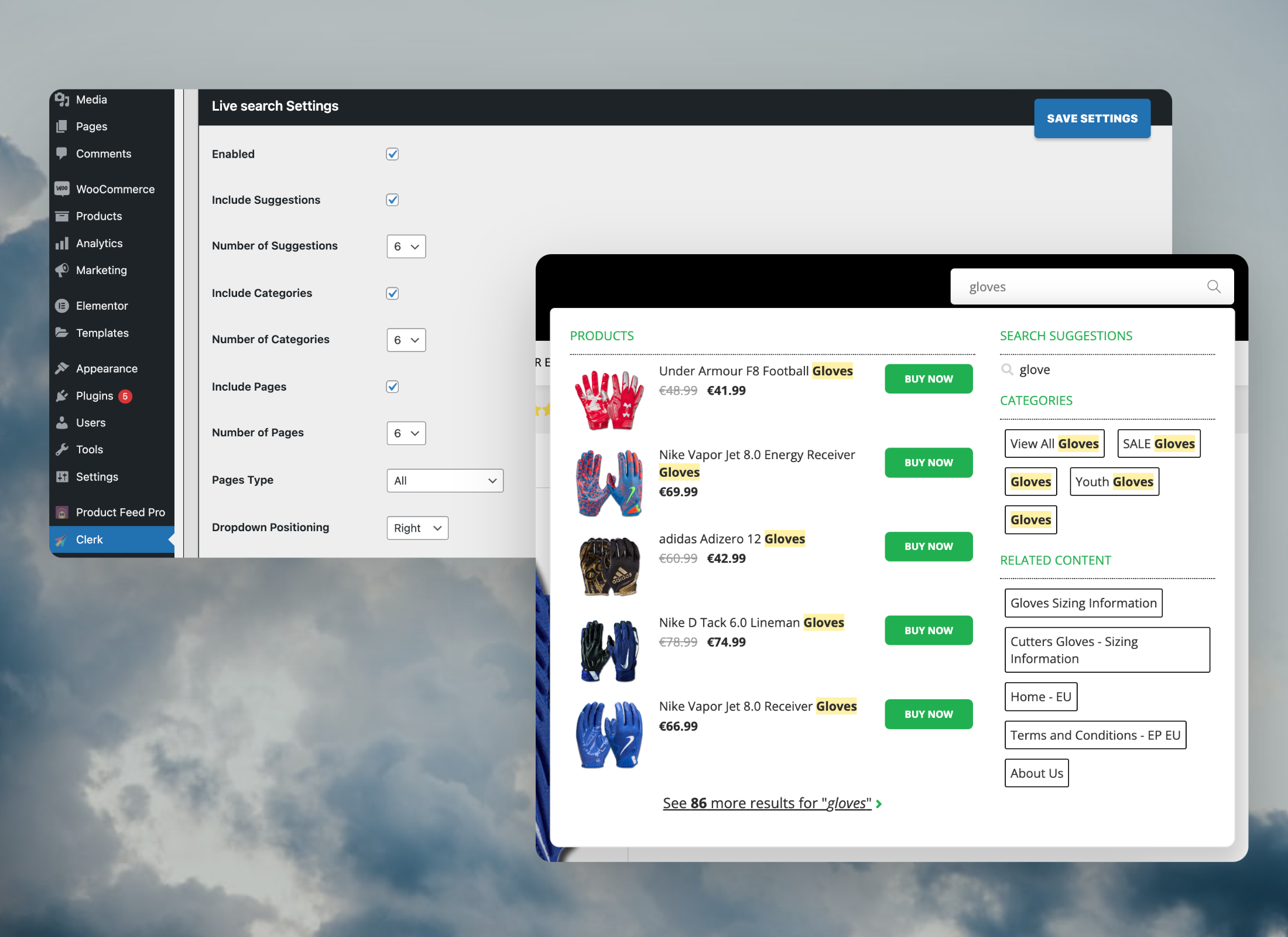
Instant Search provides real-time search results as customers type, displayed in a dropdown below the search input field.Create Design
#
You can either use the
Design Editor to configure it visually, or use
code designs.
...Add powerful search functionality to your Shoporama webshop. Clerk.io offers three distinct search solutions that can be used together or separately: an Instant Search dropdown, a Search Page with Faceted Search filtering, and an Omnisearch overlay that combines both.
General
#
Use the Shoporama theme editor to insert embed codes: Settings > … > Temaer.
To add sync details or start a sync, go to my.clerk.io > Data > Configuration.
...Clerk.io offers three distinct search solutions that can be used together or separately:
This article explains how to get started with Search on Shopware 6.
General
#
To enable Search features, use the Shopware Clerk plugin: Settings > System > Plugins > Clerk.io > ... > Config. To add sync details or start a sync, go to my.clerk.io > Data > Configuration.
...Clerk.io offers more than 23 different types of product logics, making it possible for you to display completely automated products on any page. This article explains how to get started when using a
Clerk.js setup in SmartWeb Classic.
For our full Best Practices, read
this article on which Recommendations to use.
Slider Setup
#
Recommendations are created with
Elements that reference a Design. Below is the basic guide for setting up an Element.
...Add powerful search functionality to your SmartWeb webshop. Clerk.io offers two complementary search solutions:
- An Instant Search dropdown that shows results as customers type.
- A Search Page with faceted filters for browsing all results.
Instant Search
#
Instant Search provides real-time results as customers type, displayed in a dropdown below the search field.
Create Design
#
Use the
Design Editor or
code designs.
Design Editor
#
- Go to Search > Designs and click New Design.
- Choose Other designs > Instant Search.
- Pick a template to start from.
- Name it and click Create design.
- Adjust the design as needed.
Code Design
#
- Go to Search > Designs and click New Design.
- Choose Other designs > Blank > With code.
- Name it and click Save.
- Build a code design using
Liquid.
Create Element
#
- Go to Search > Elements.
- Click New Element.
- Name it “Live Search”.
- In Element type, select Live-search.
- In Design, select the design you created.
- Click Save.
Add to Website
#
- In the SmartWeb Admin, go to Online Store > Design > Aktive designs > Rediger filer > partials.
- Open the
body.tpl file. - Insert the following code and click Gem.
<span class="clerk"
    data-template="@live-search"
    data-instant-search=".top-search-form .form-input"
    data-instant-search-positioning="left"
    data-instant-search-categories="6"
    data-instant-search-pages="6"
    data-instant-search-suggestions="6">
</span>
Troubleshooting
#
If your Instant Search is not showing, it’s likely because your search field has a different identifier than the default.
...Clerk.io offers three distinct search solutions that can be used together or separately:
This article explains how to get started with Search with the
WooCommerce plugin.
Instant Search
#
Instant Search provides real-time search results as customers type, displayed in a dropdown below the search input field.Create Design
#
You can either use the
Design Editor to configure it visually, or use
code designs.
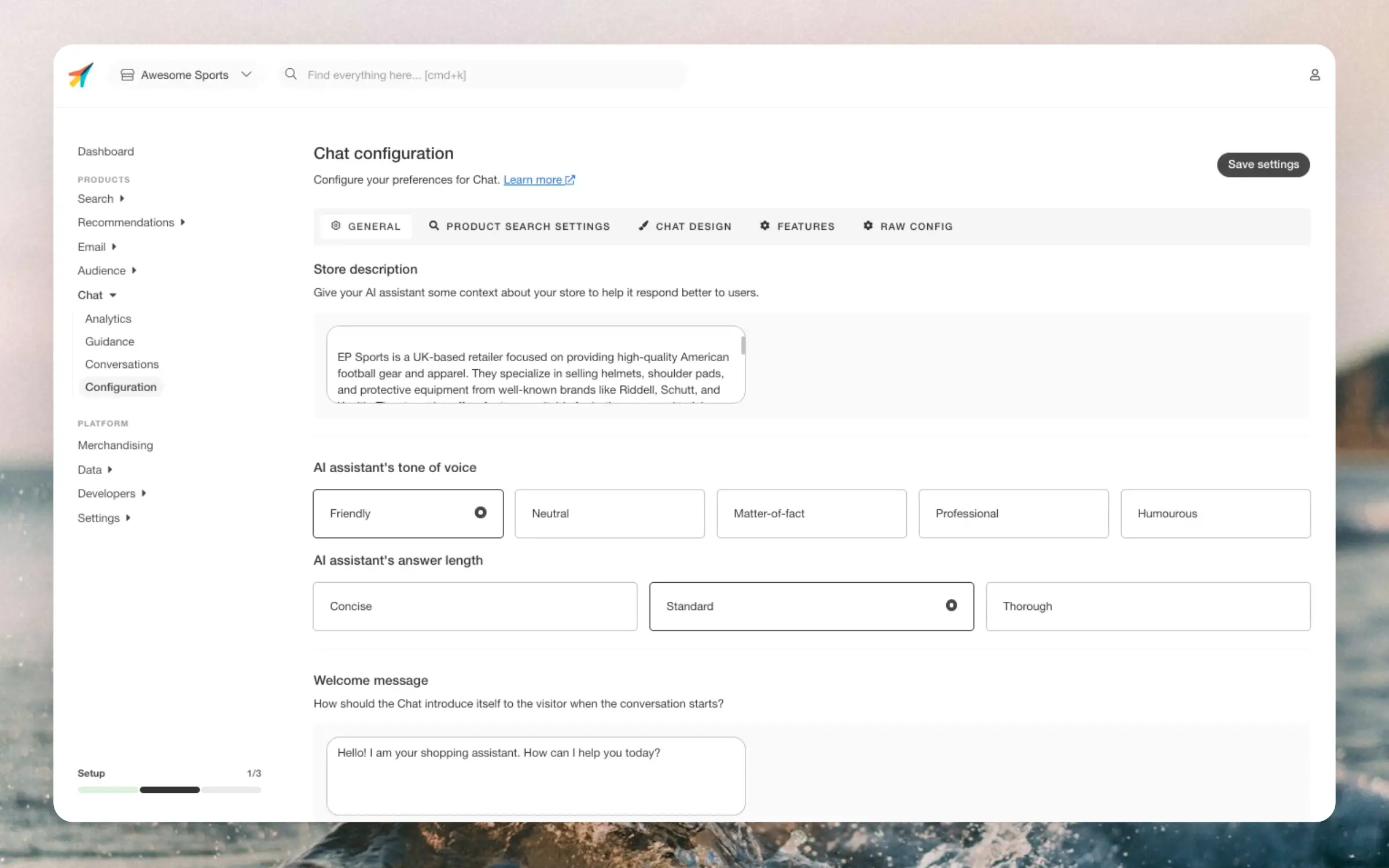
...The Assistant can be configured in my.clerk.io > Chat > ConfigurationThe configuration page is split into tabs (General, Product Search, Design, and Features).
Use the Live Preview panel to see changes instantly while you configure.
Your changes are only saved when you click Save settings.
General
#
Configure the Chat by selecting the tone of voice, the answer length, and the welcome message (and more) to match your brand.
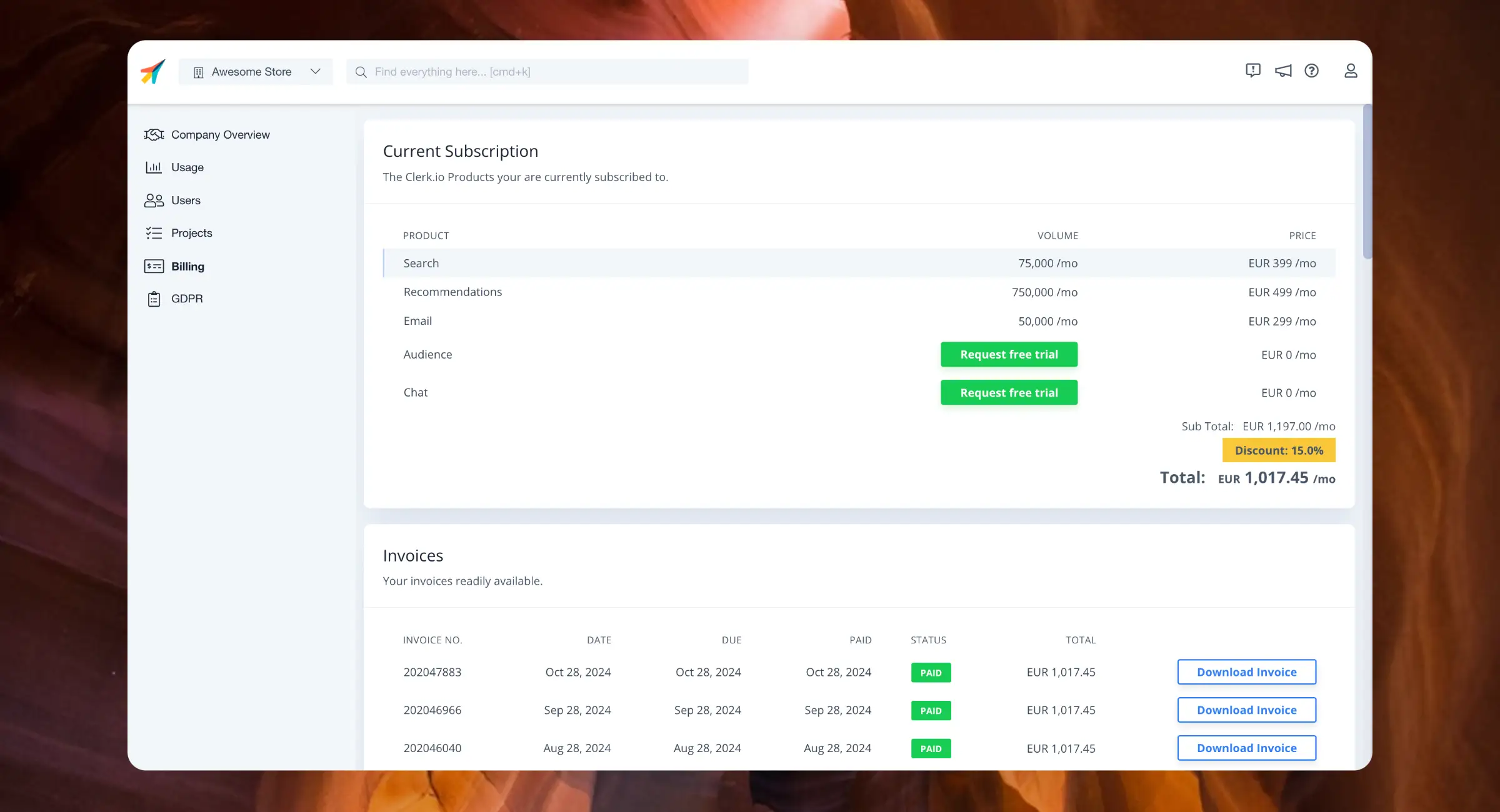
...The Billing page gives you access to all settings related to your subscription and payments.Navigate to the Billing page by clicking the Store dropdown in the upper left corner and then COMPANY NAME > Billing, or simply by searching for billing in the top of the page.
Current Subscription
#
This is a breakdown of the products currently part of your subscription.
It details the volume of usage per month and the price you pay for each, along with any active discounts you have.
...Secrets Management System
#
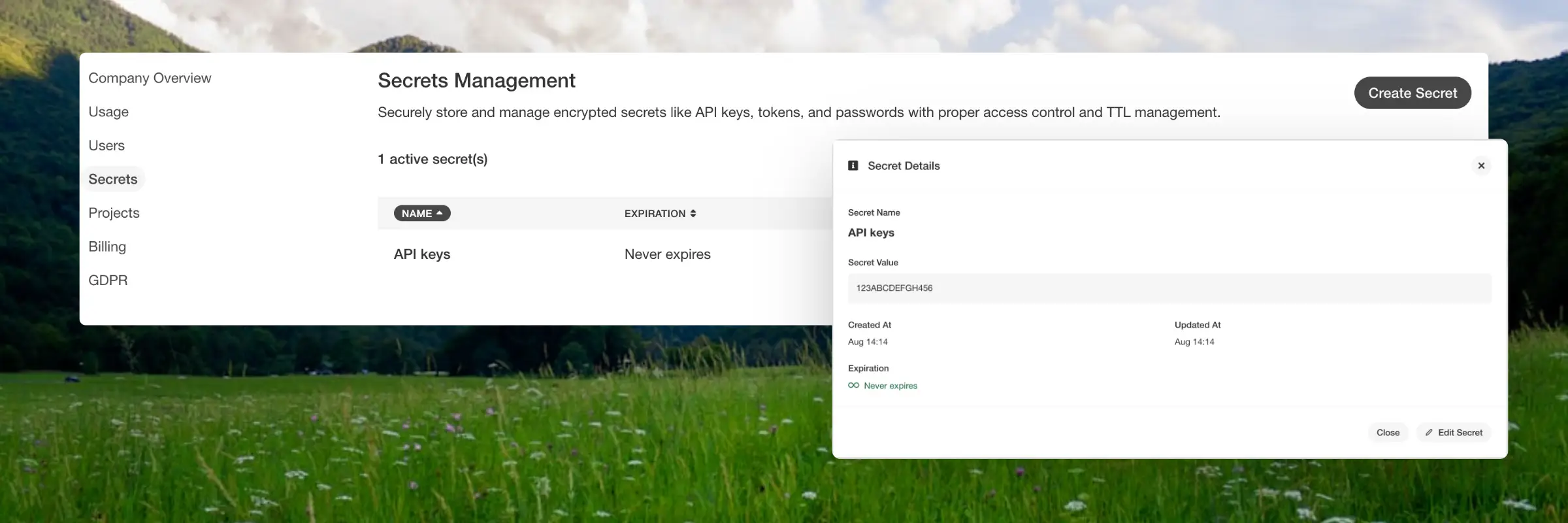
Secrets are stored with AES-256 encryption and can be created, updated, retrieved, and deleted through both the user interface and API. Access to secrets is controlled by role, ensuring that users only see the data relevant to them.
Use Cases
#
You can use it to store API tokens and webhook keys, manage credentials for third party services, or handle sensitive data that comes with expiration requirements.
...