Clerk.io offers three distinct search solutions that can be used together or separately:
This article explains how to get started with Search on Magento 1.
General
#
To enable Search features, use the Magento extension settings: System > Configuration > Clerk > Settings. To add sync details or start a sync, go to my.clerk.io > Data > Configuration.
...Clerk.io offers three distinct search solutions that can be used together or separately:
This article explains how to get started with Search on Magento 2.
General
#
To enable Search features, use the Magento extension settings: Stores > Configuration > Clerk > Settings. To add sync details or start a sync, go to my.clerk.io > Data > Configuration.
...Add powerful search functionality to your Mystore webshop. Clerk.io offers three distinct search solutions that can be used together or separately: an Instant Search dropdown, a Search Page with Faceted Search filtering, and an Omnisearch overlay that combines both.
General
#
To enable and embed Search features, use your theme or CMS editor to place the provided embed codes.
To add sync details or start a sync, go to my.clerk.io > Data > Configuration.
...Clerk.io offers three distinct search solutions that can be used together or separately:
This article explains how to get started with Search on Prestashop.
General
#
To enable Search features, use the Prestashop module settings. To add sync details or start a sync, go to my.clerk.io > Data > Configuration.
Instant Search
#
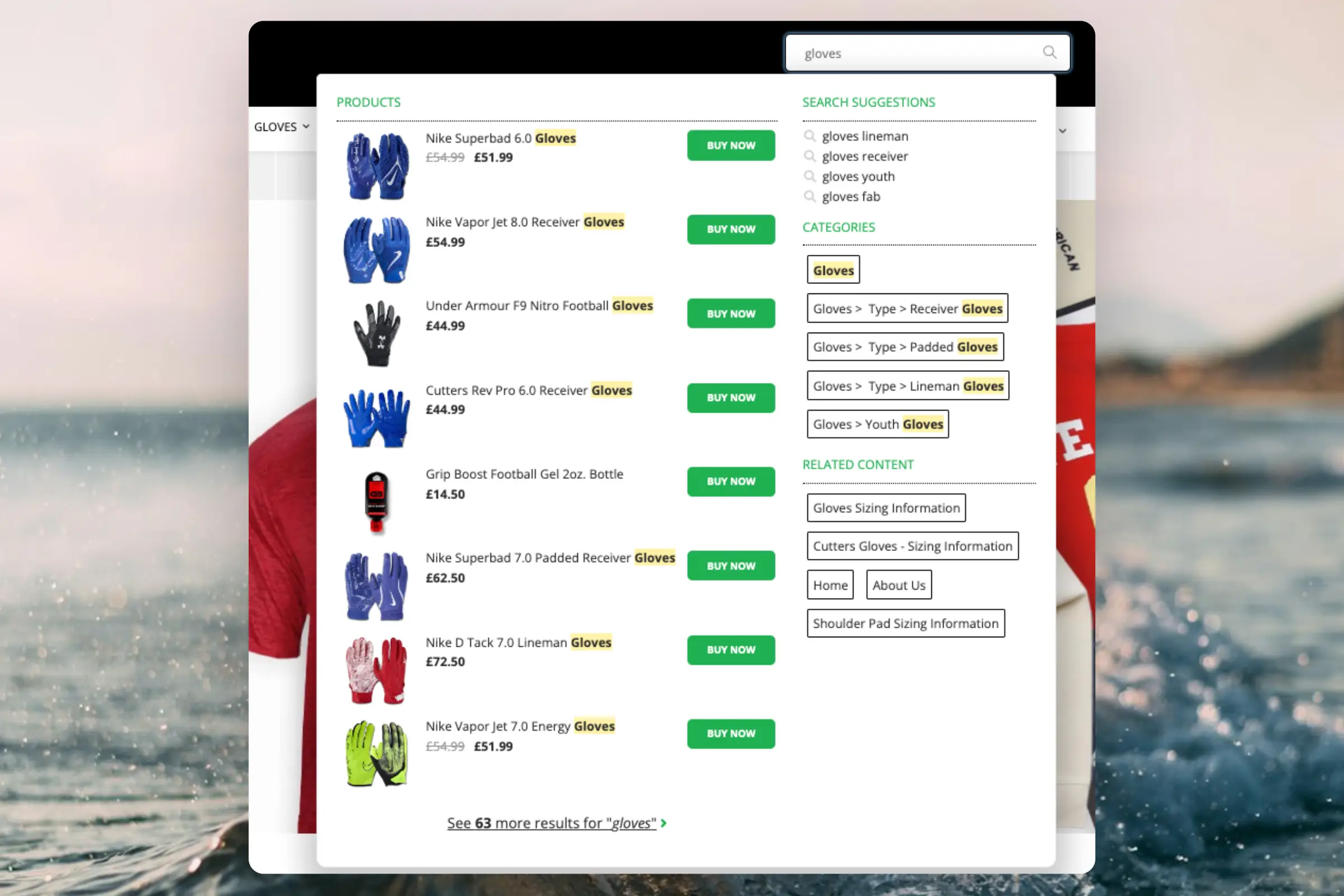
Instant Search provides real-time results as customers type, displayed in a dropdown under the search input.
...Add powerful search functionality to your ScanNet webshop. Clerk.io offers two complementary search solutions:
- An Instant Search dropdown that shows results as customers type.
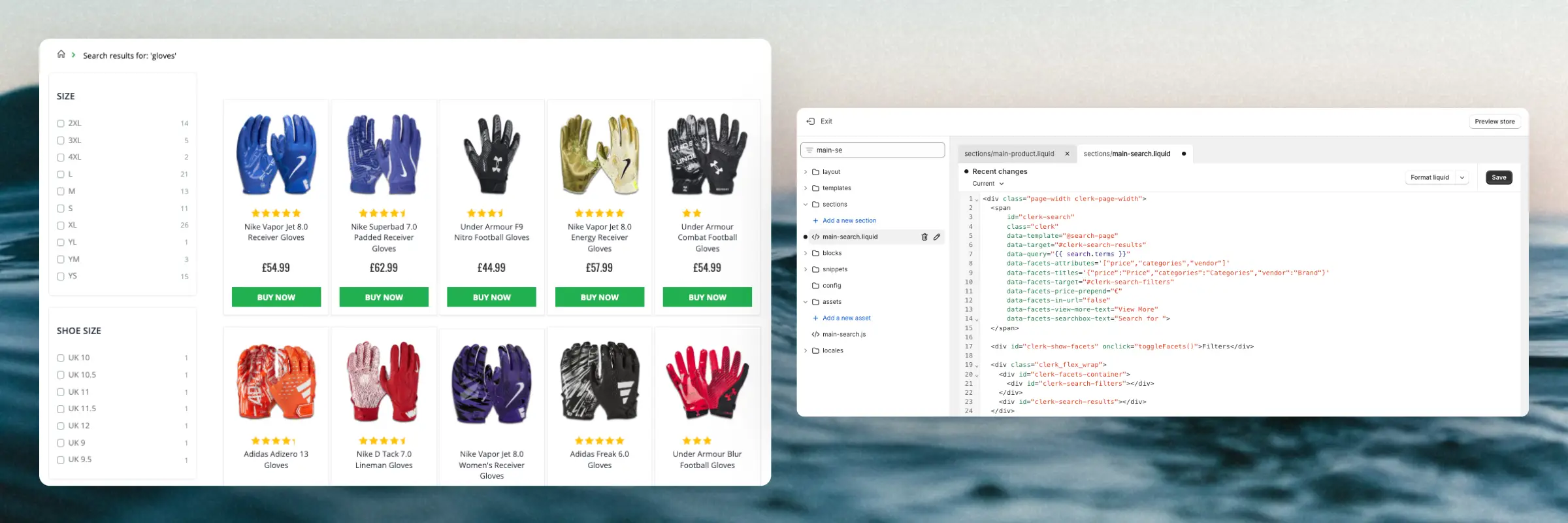
- A Search Page with faceted filters for browsing all results.
Instant Search
#
Instant Search provides real-time results as customers type, displayed in a dropdown below the search field.
Create Design
#
Use the
Design Editor or
code designs.
Design Editor
#
- Go to Search > Designs and click New Design.
- Choose Other designs > Instant Search.
- Pick a template to start from.
- Name it and click Create design.
- Adjust the design as needed.
Code Design
#
- Go to Search > Designs and click New Design.
- Choose Other designs > Blank > With code.
- Name it and click Save.
- Build a code design using
Liquid.
Create Element
#
- Go to Search > Elements.
- Click New Element.
- Name it “Live Search”.
- In Element type, select Live-search.
- In Design, select the design you created.
- Click Save.
Add to Website
#
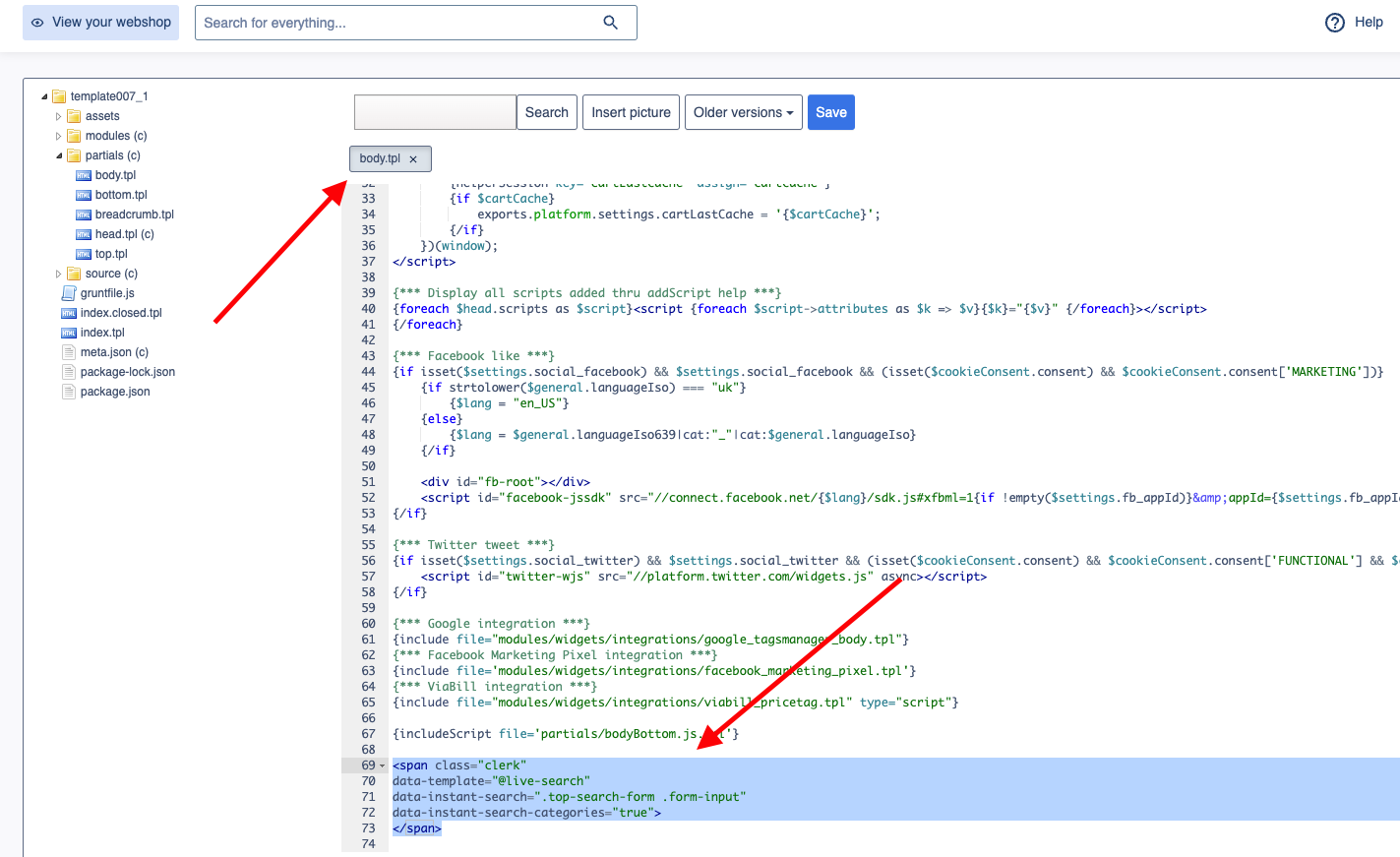
- In the ScanNet Admin, go to Online Store > Design > Aktive designs > Rediger filer > partials.
- Open the
body.tpl file. - Insert the following code and click Gem.
<span class="clerk"
    data-template="@live-search"
    data-instant-search=".top-search-form .form-input"
    data-instant-search-positioning="left"
    data-instant-search-categories="6"
    data-instant-search-pages="6"
    data-instant-search-suggestions="6">
</span>
Troubleshooting
#
If your Instant Search is not showing, it’s likely because your search field has a different identifier than the default.
...Clerk.io offers three distinct search solutions that can be used together or separately:
This article explains how to get started when using a
Clerk.js setup in Shopify.
Instant Search
#
Instant Search provides real-time search results as customers type, displayed in a dropdown below the search input field....Add powerful search functionality to your Shoporama webshop. Clerk.io offers three distinct search solutions that can be used together or separately: an Instant Search dropdown, a Search Page with Faceted Search filtering, and an Omnisearch overlay that combines both.
General
#
Use the Shoporama theme editor to insert embed codes: Settings > … > Temaer.
To add sync details or start a sync, go to my.clerk.io > Data > Configuration.
...Clerk.io offers three distinct search solutions that can be used together or separately:
This article explains how to get started with Search on Shopware 6.
General
#
To enable Search features, use the Shopware Clerk plugin: Settings > System > Plugins > Clerk.io > ... > Config. To add sync details or start a sync, go to my.clerk.io > Data > Configuration.
...Clerk.io offers more than 23 different types of product logics, making it possible for you to display completely automated products on any page. This article explains how to get started when using a
Clerk.js setup in SmartWeb Classic.
For our full Best Practices, read
this article on which Recommendations to use.
Slider Setup
#
Recommendations are created with
Elements that reference a Design. Below is the basic guide for setting up an Element.
...Add powerful search functionality to your SmartWeb webshop. Clerk.io offers two complementary search solutions:
- An Instant Search dropdown that shows results as customers type.
- A Search Page with faceted filters for browsing all results.
Instant Search
#
Instant Search provides real-time results as customers type, displayed in a dropdown below the search field.
Create Design
#
Use the
Design Editor or
code designs.
Design Editor
#
- Go to Search > Designs and click New Design.
- Choose Other designs > Instant Search.
- Pick a template to start from.
- Name it and click Create design.
- Adjust the design as needed.
Code Design
#
- Go to Search > Designs and click New Design.
- Choose Other designs > Blank > With code.
- Name it and click Save.
- Build a code design using
Liquid.
Create Element
#
- Go to Search > Elements.
- Click New Element.
- Name it “Live Search”.
- In Element type, select Live-search.
- In Design, select the design you created.
- Click Save.
Add to Website
#
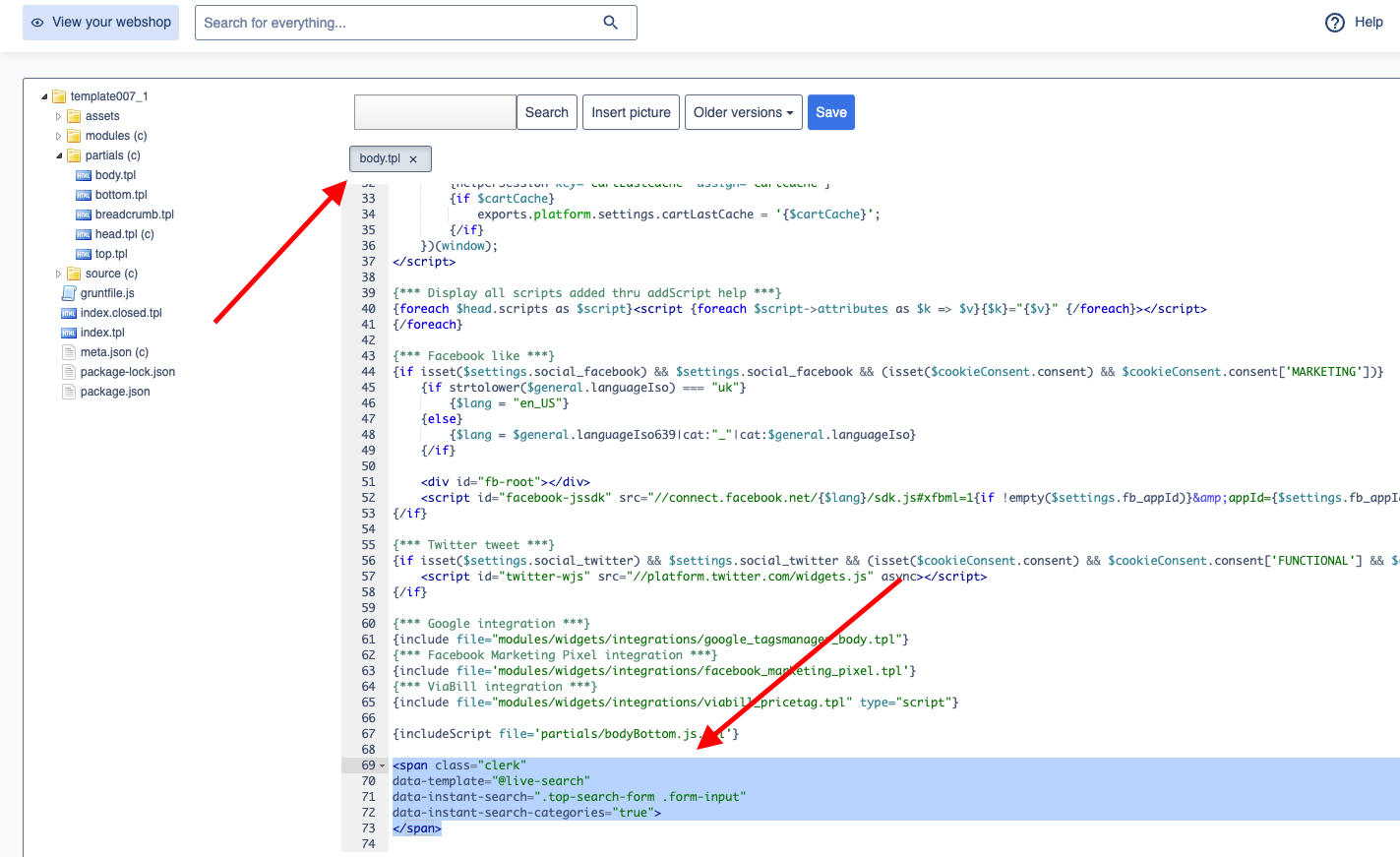
- In the SmartWeb Admin, go to Online Store > Design > Aktive designs > Rediger filer > partials.
- Open the
body.tpl file. - Insert the following code and click Gem.
<span class="clerk"
    data-template="@live-search"
    data-instant-search=".top-search-form .form-input"
    data-instant-search-positioning="left"
    data-instant-search-categories="6"
    data-instant-search-pages="6"
    data-instant-search-suggestions="6">
</span>
Troubleshooting
#
If your Instant Search is not showing, it’s likely because your search field has a different identifier than the default.
...