Basics
#
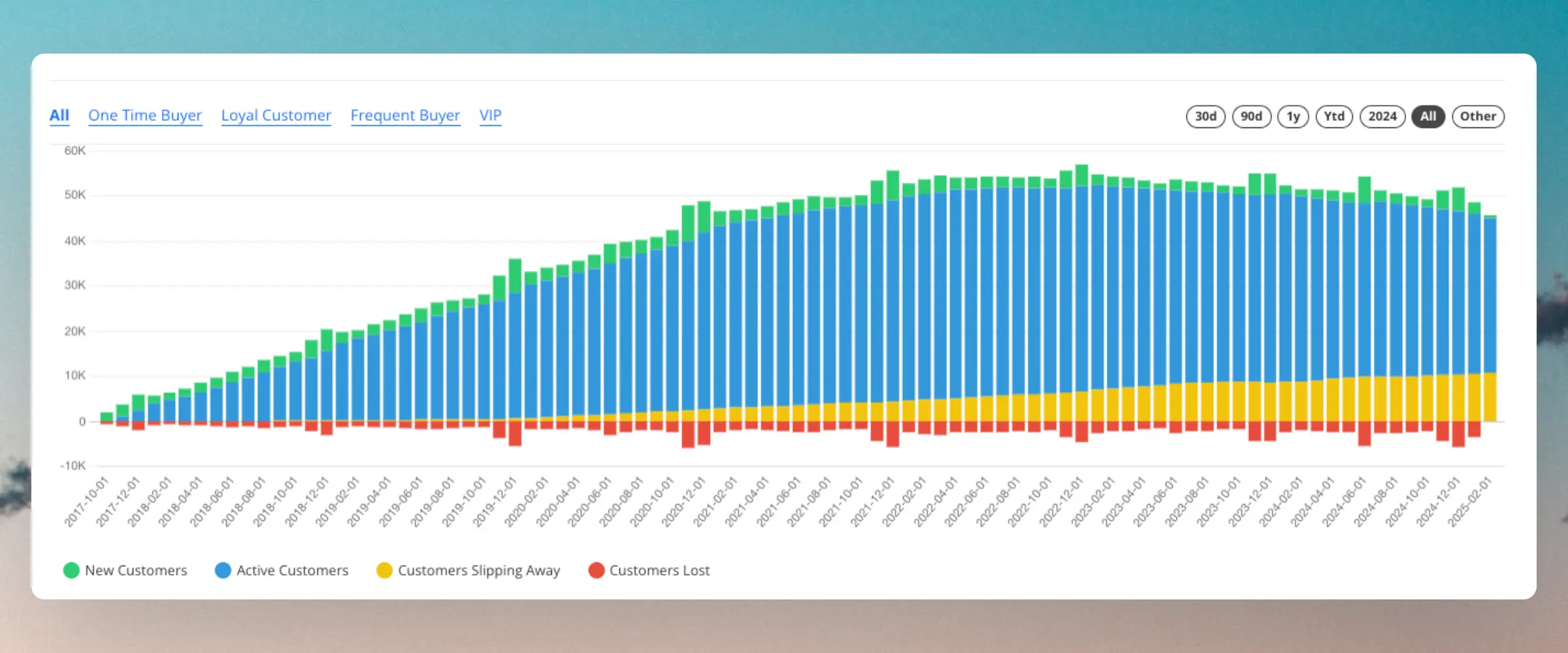
Clerk.io’s AI continuously monitors the purchase behavior of each individual customer, comparing it to the average customer.
Life Cycle groups are then predicted based on how often customers return to your webshop, relative to their normal behavior.
As such, one customer might be Slipping Away after not having placed an order for 3 months, while another customer is still Active, even though they have not placed an order for 6 months. It all depends on how often they normally purchase.
...Adding a Custom Badge
#
This guide shows you how to add a custom badge to the Recommendations slider. The process is similar for Omnisearch, Search page and Live search code designs.
Find the attribute you want to use as a rule to show the badge. For example, ‘on_sale’, or the product being in a specific category such as ‘Black_friday’.
Edit the chosen design for
Recommendations or
Omnisearch.
Insert the code in the chosen space, usually inside the div with the class='clerk-product-image-wrapper'. In the example below, we are using the categories attribute to show the badge, where 123 is the
category ID of the Black Friday category.
...
Clerk.io offers three distinct search solutions that can be used together or separately:
This article explains how to get started when using a
Clerk.js setup.
Instant Search
#
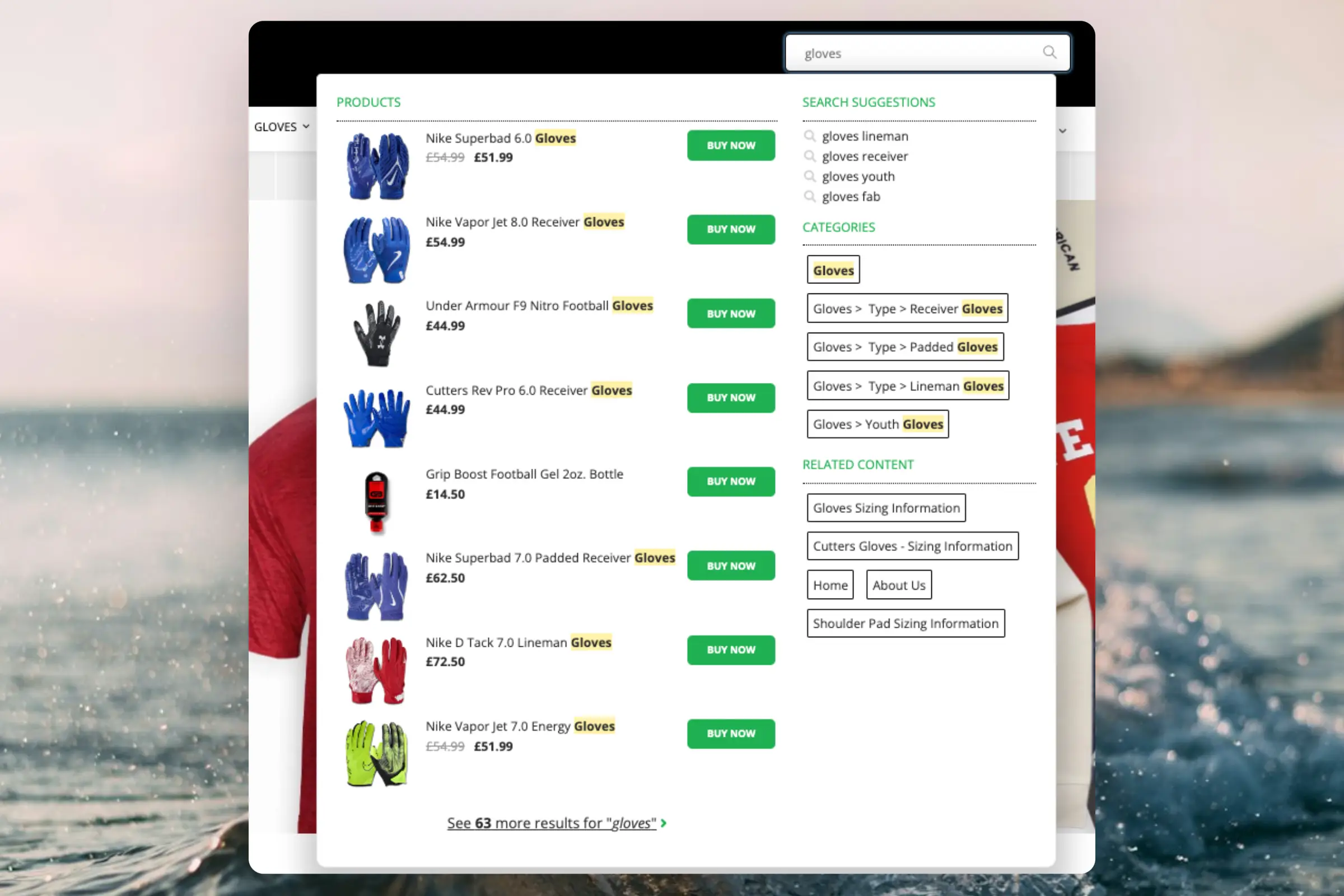
Instant Search provides real-time search results as customers type, displayed in a dropdown below the search input field.Create Design
#
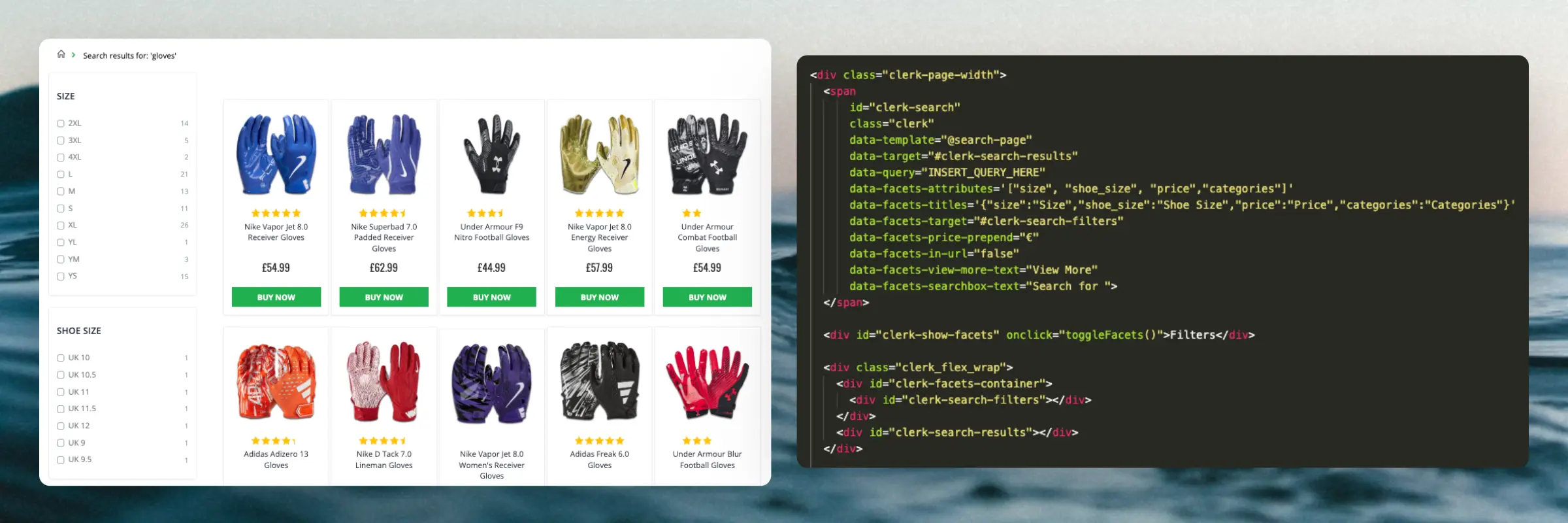
You can either use the
Design Editor to configure it visually, or use
code designs.
...Clerk.io offers more than 23 different types of product logics, making it possible for you to display completely automated products on any page. This article explains how to get started when using a
Clerk.js setup in BigCommerce.
For our full Best Practices, read
this article on which Recommendations to use.
If you have not set up your data sync yet, you can add sync details or start a sync in my.clerk.io > Data > Configuration.
...Clerk.io offers more than 23 different types of product logics, making it possible for you to display completely automated products on any page. This article explains how to get started when using a
Clerk.js setup in DanDomain Classic.
For our full Best Practices, read
this article on which Recommendations to use.
Slider Setup
#
Recommendations are created with
Elements that reference a Design. Below is the basic guide for setting up an Element.
...Clerk.io offers more than 23 different types of product logics, making it possible to display completely automated products on any page. This article explains how to get started when using a
Clerk.js setup in DanDomain.
For our full Best Practices, read
this article on which Recommendations to use.
Slider Setup
#
Recommendations are created with
Elements that reference a Design. Below is the basic guide for setting up an Element.
Following the steps in my.clerk.io > Settings > Setup Guides will automatically create the Elements for our Best Practices.
Create Design
#
Recommendations are shown as a slider by default. This allows customers to see more products with fewer clicks. You can either use the
Design Editor to configure it visually, or use
code designs.
...Clerk.io offers more than 23 different types of product logics, making it possible for you to display completely automated products on any page. This article explains how to get started when using a
Clerk.js setup in JTL.
For our full Best Practices, read
this article on which Recommendations to use.
Slider Setup
#
Recommendations are created with
Elements that reference a Design. Below is the basic guide for setting up an Element.
...Clerk.io offers more than 23 different types of product logics, making it possible for you to display completely automated products on any page. This article explains how to get started when using a
Clerk.js setup in Magento 1.
For our full Best Practices, read
this article on which Recommendations to use.
Slider Setup
#
Recommendations are created with
Elements that reference a Design. Below is the basic guide for setting up an Element.
...Clerk.io offers more than 23 different types of product logics, making it possible for you to display completely automated products on any page. This article explains how to get started when using a
Clerk.js setup in Magento 2.
For our full Best Practices, read
this article on which Recommendations to use.
Slider Setup
#
Recommendations are created with
Elements that reference a Design. Below is the basic guide for setting up an Element.
...Automate and personalise products on any page in Mystore. Clerk.io offers more than 23 different types of product logics, making it possible for you to display completely automated products on any page.
This article explains how to get started when using a
Clerk.js setup in Mystore.
For our full Best Practices, read
this article on which Recommendations to use.
Slider setup
#
Recommendations are created with
Elements that reference a Design. Below is the basic guide for setting up an Element.
...