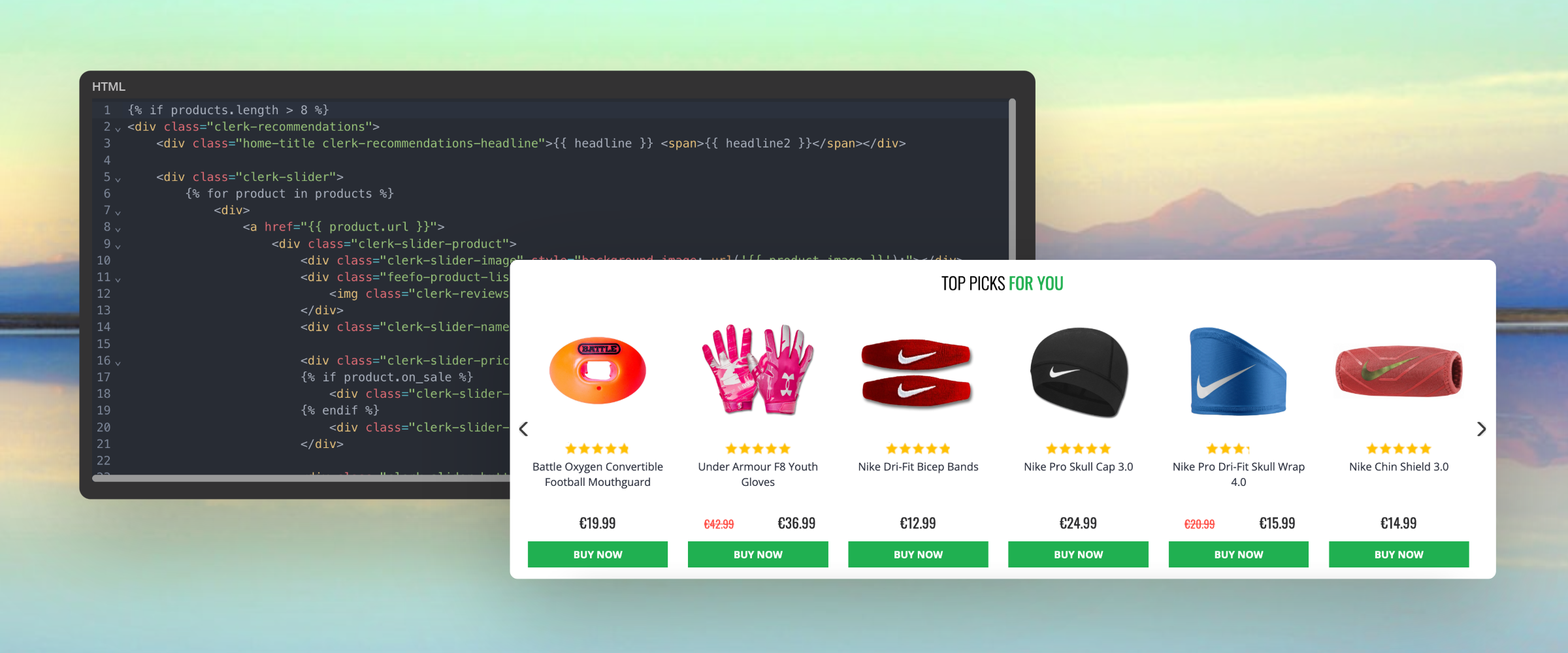
Clerk.io offers more than 23 different types of product logics, making it possible to show completely automated products on any page. This article explains how to get started with Recommendations using the
WooCommerce plugin.
For our full Best Practices on which Recommendations to use, read
this article.
Slider Setup
#
Recommendations are created with
Elements that reference a Design. Below is the basic guide for setting up an Element.
...Basics
#
Most webshops sell a wide variety of products across highly different price ranges. For instance, a furniture store might sell couches ranging from just €200 to €10,000.
There will always be a difference in how much customers are willing to spend on your products, and your marketing needs to reflect this to be effective.
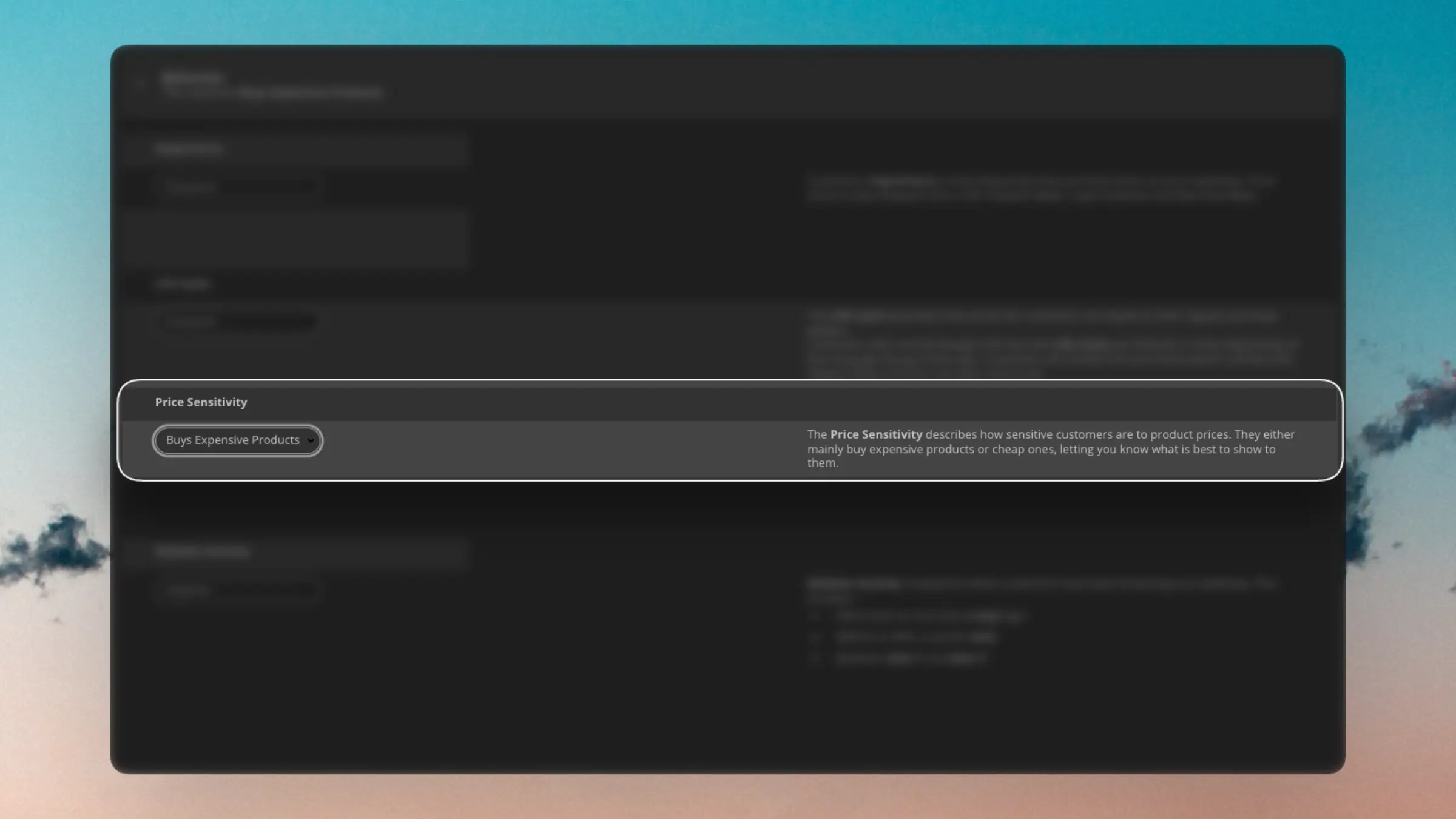
Price Sensitivity allows you to segment customers based on how much they are willing to spend on your products, enabling you to find the perfect segments for various product price ranges.
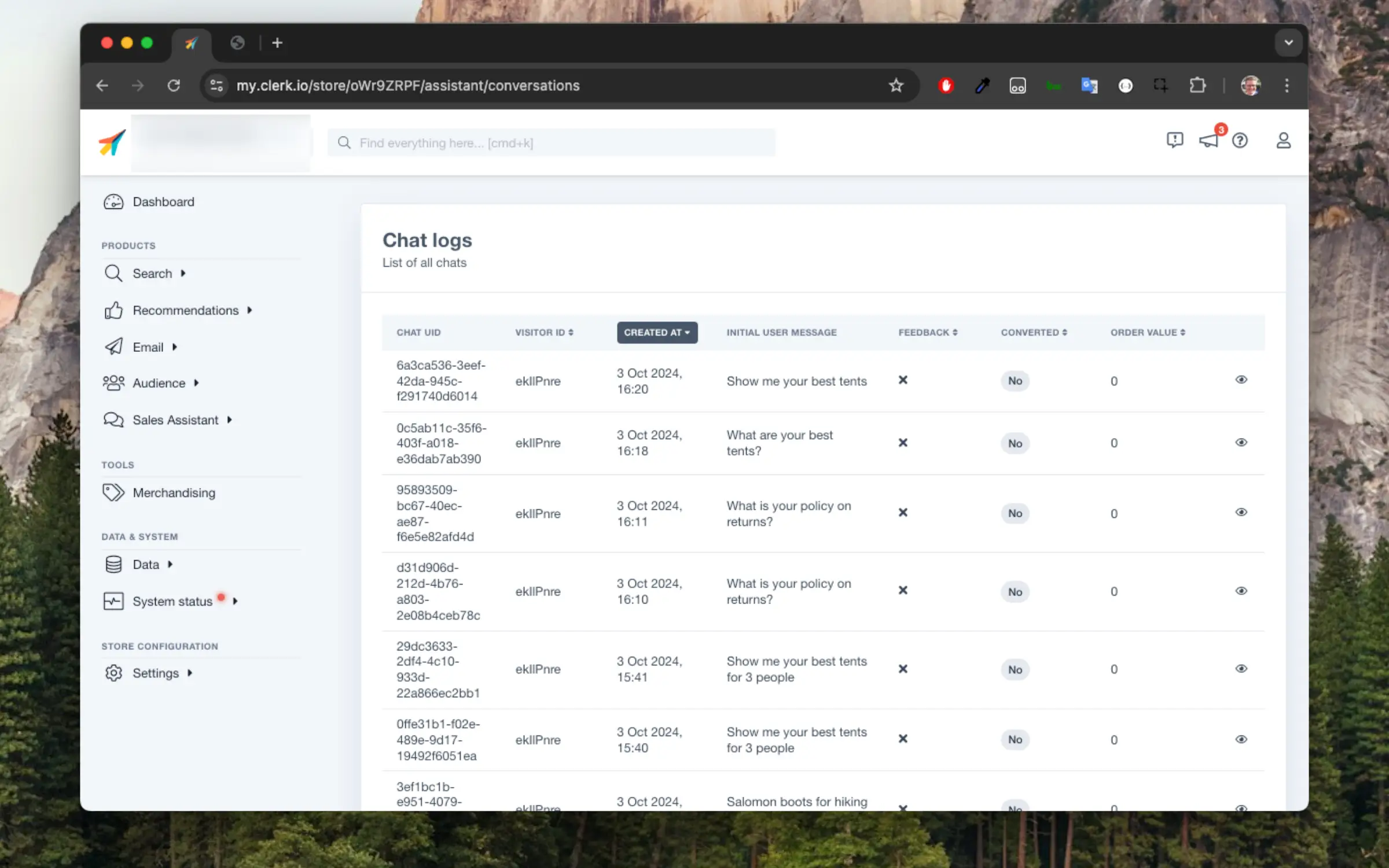
...These can be accessed in my.clerk.io > Chat > Conversations
As visitors start having conversations with the chat assistant, you will see them show up here.
It is divided between conversations made in the Live Store and in the Demo Store.
Clicking on the chat details you can see further information:
Each conversation contains:
- A UID identifying the conversation
- A visitor ID of the visitor or session having the conversation
- The date where the conversation started
- The first message written by the visitor
- Good or bad feedback if the visitor has clicked on thumbs up or down
- Indication of whether the conversation led to a conversion or not
- The order value, if the conversation led to a conversion
Basics
#
Developer Logs help you debug integrations and client‑side usage. You can see requests coming from your site and apps, filter by type, and drill into the details to spot issues quickly.
Find it in my.clerk.io under Developers > Logs for the Store you are working on.
Using filters and search
#
- Start with the type filter to focus on errors and warnings while deploying.
- Use the search bar to find specific messages, endpoints, or identifiers.
- Combine search and type filtering; counts update to reflect the active filters.
Sorting
#
Click the table headers or use the sort menu to order by:
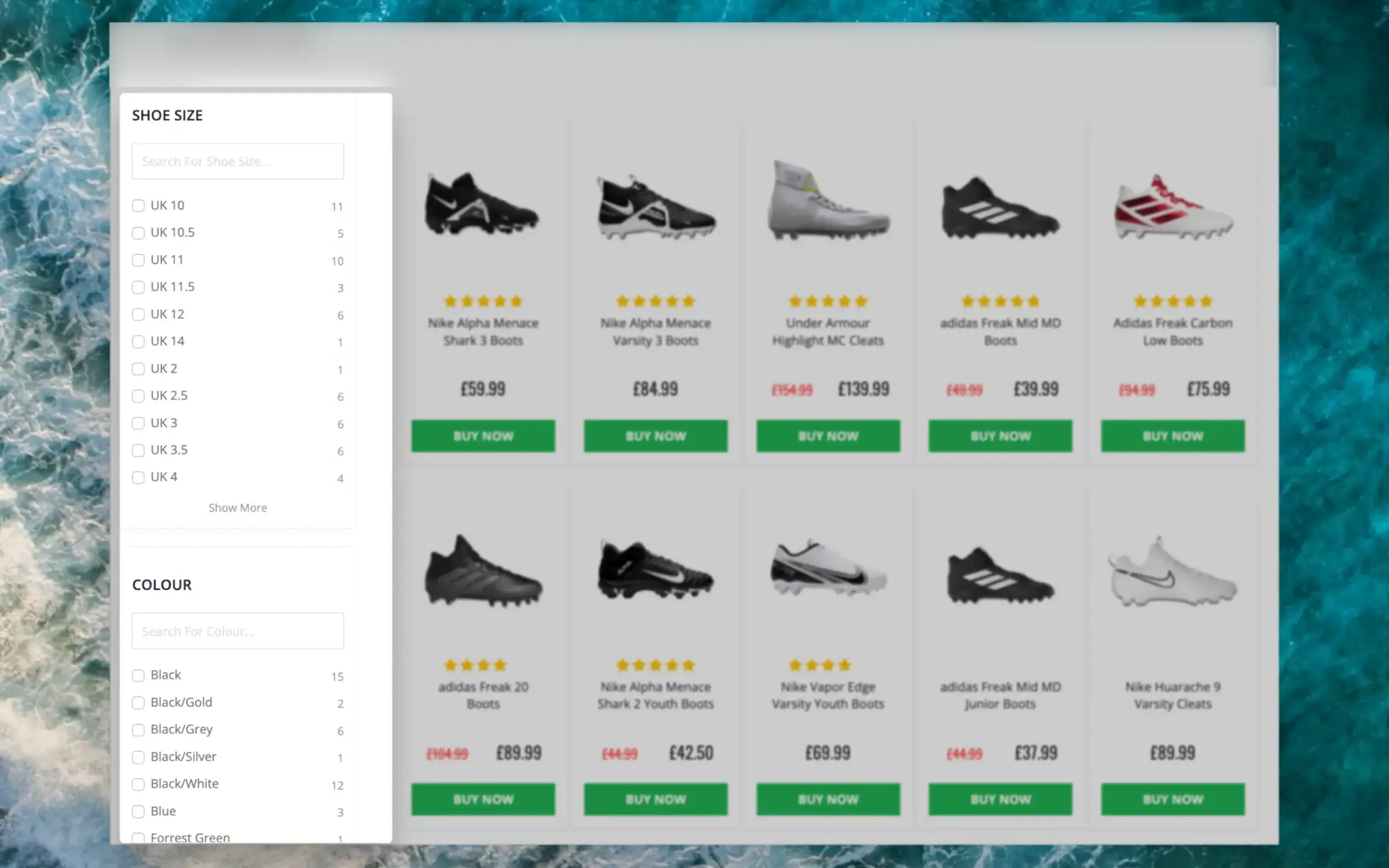
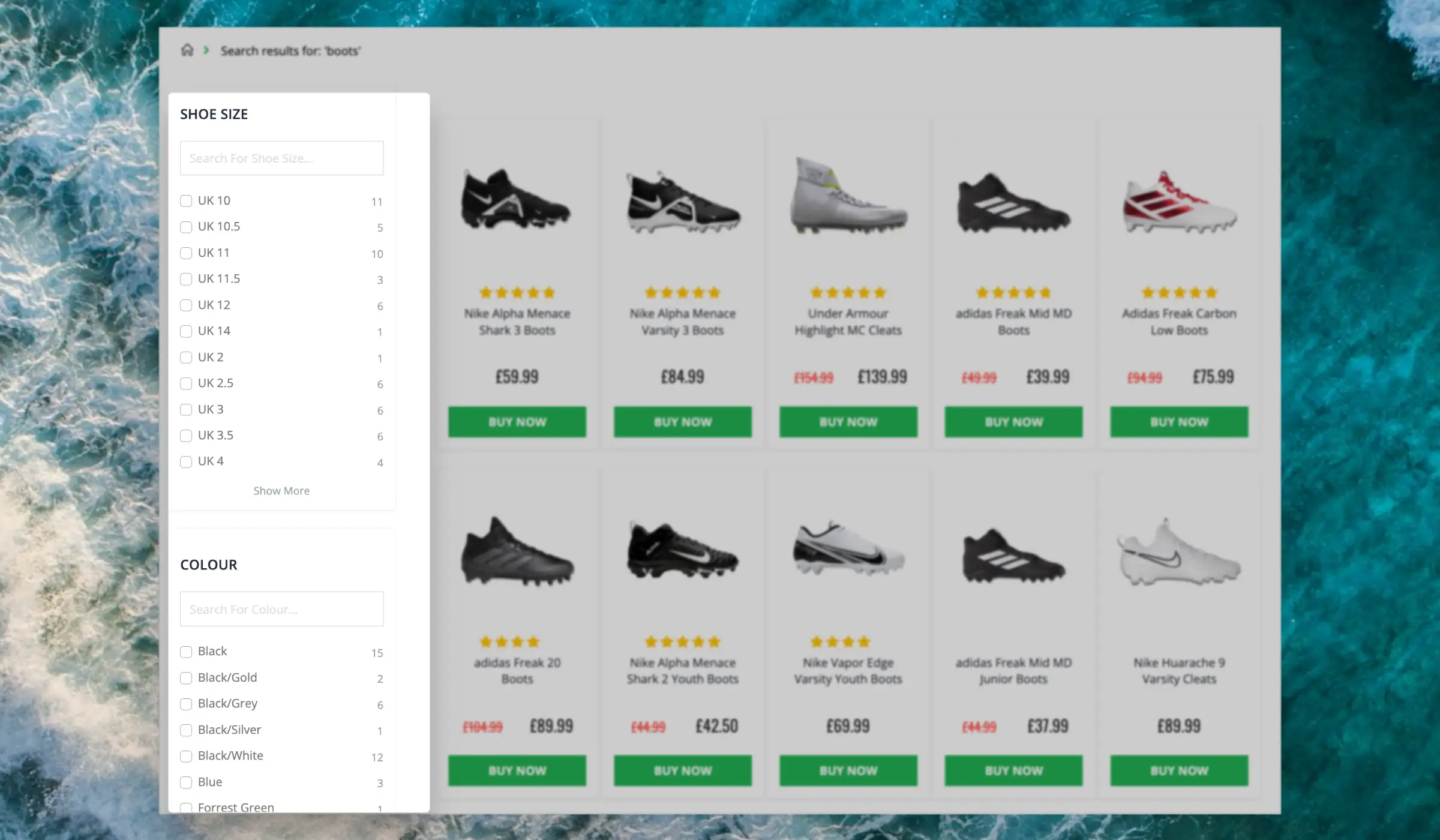
...This intelligent filtering feature makes it effortless for visitors to find the right items, even on the largest category pages.
Facets can be used when using Clerk to show
entire category pages, making it easy for visitors to narrow down results.
Dynamic Attributes
#
When your products include various sets of attributes, Facets will show only the filters that relevant for each individual category page.
E.g. a category for “laptops” will likely show specifications like RAM, storage space, screen size and so on, while a category for “headphones” will include their fit, bluetooth functionalities, EQ features and more.
...This intelligent filtering feature makes it effortless for visitors to find the right items, even in the largest sets of search results.
Facets can be used both in the
Search Page and
Omnisearch layouts. Both of these come with several standard designs to get you started with a great search experience.
Dynamic Attributes
#
When your products include various sets of attributes, Facets will show only the filters that relevant for each individual search.
...Basics
#
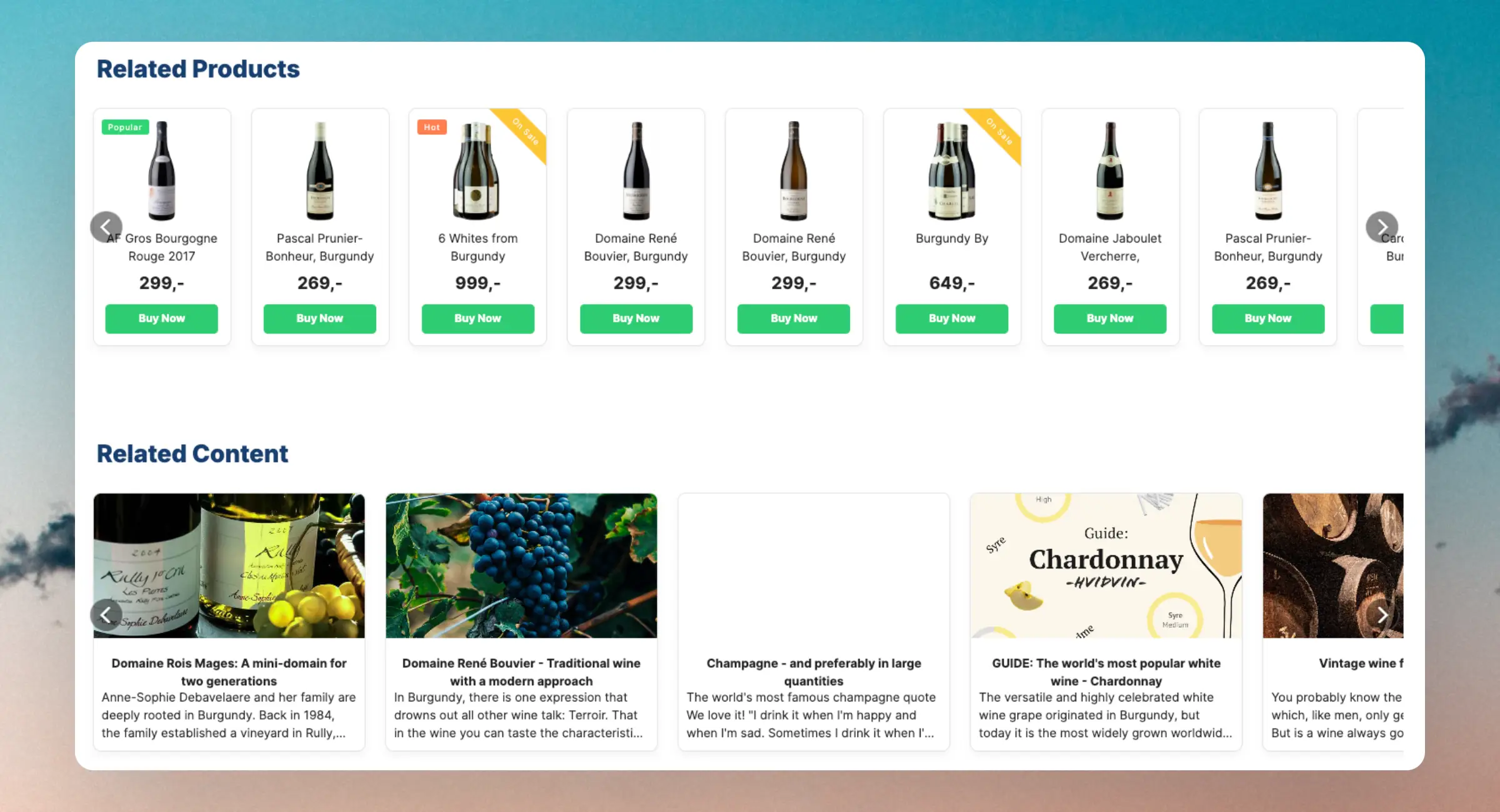
Using Clerk.io’s Recommendations, you can add fully automated banners that enhance content discovery for customers.
They rely on the pages data to automate banners on content pages.
Through several logics that can be used directly on your content pages, categories, and products, you can ensure that customers find blogs and articles that are related to what they are viewing.
Most importantly, it also allows you to sell directly from your content pages, creating a feedback loop of discovery and conversion.
...Overview
#
Clerk collects parcel tracking data connected to your orders, including tracking codes and delivery statuses. This makes it easy to look up delivery progress directly in my.clerk.io and to verify the information that the Chat can use when customers ask about their orders.
This feature exposes existing parcel data in the interface. It does not, by itself, enable the Chat to answer about parcels. For Chat, see Chat > Configuration > Parcel Tracking.
Where to find it
#
- Parcels section: Go to Data > Parcels to browse all parcels across orders. You can search by order ID or tracking code.
- Order details: Open any order in Data > Orders to see the “Parcel Tracking Information” panel listing all parcels attached to that order.
Fields shown
#
Both the Parcels overview and the order details panel show a table with the following fields:
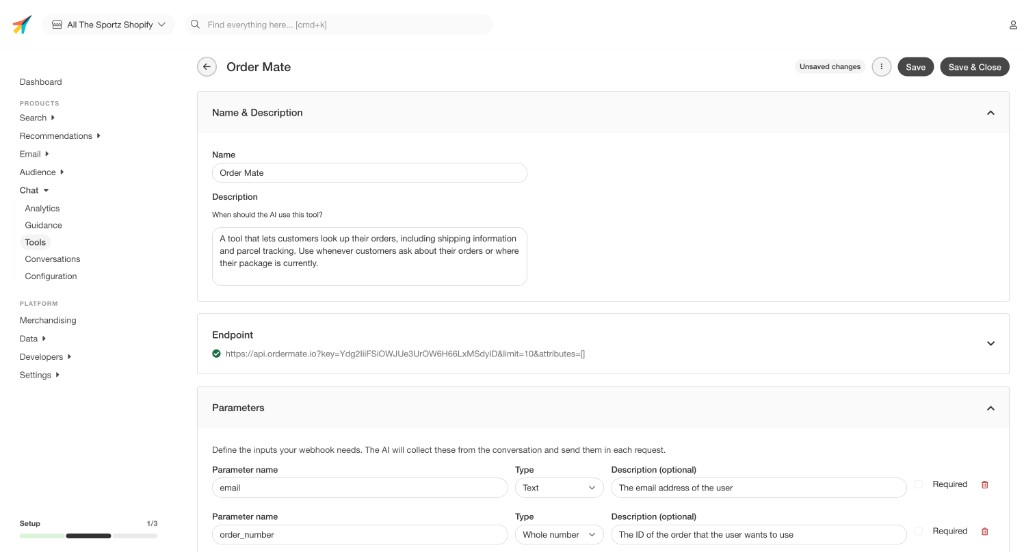
...Tools let Chat call external APIs during a conversation. When a visitor asks something that requires live data — like order status, inventory levels, or loyalty points — Chat can fetch it automatically and respond with actual information from your systems.
Any service that has an API can be connected as a Tool.
Go to Chat > Tools and click + Add another tool to open the tool editor.
...