1-min intro
Get a quick rundown of how Clerk works.
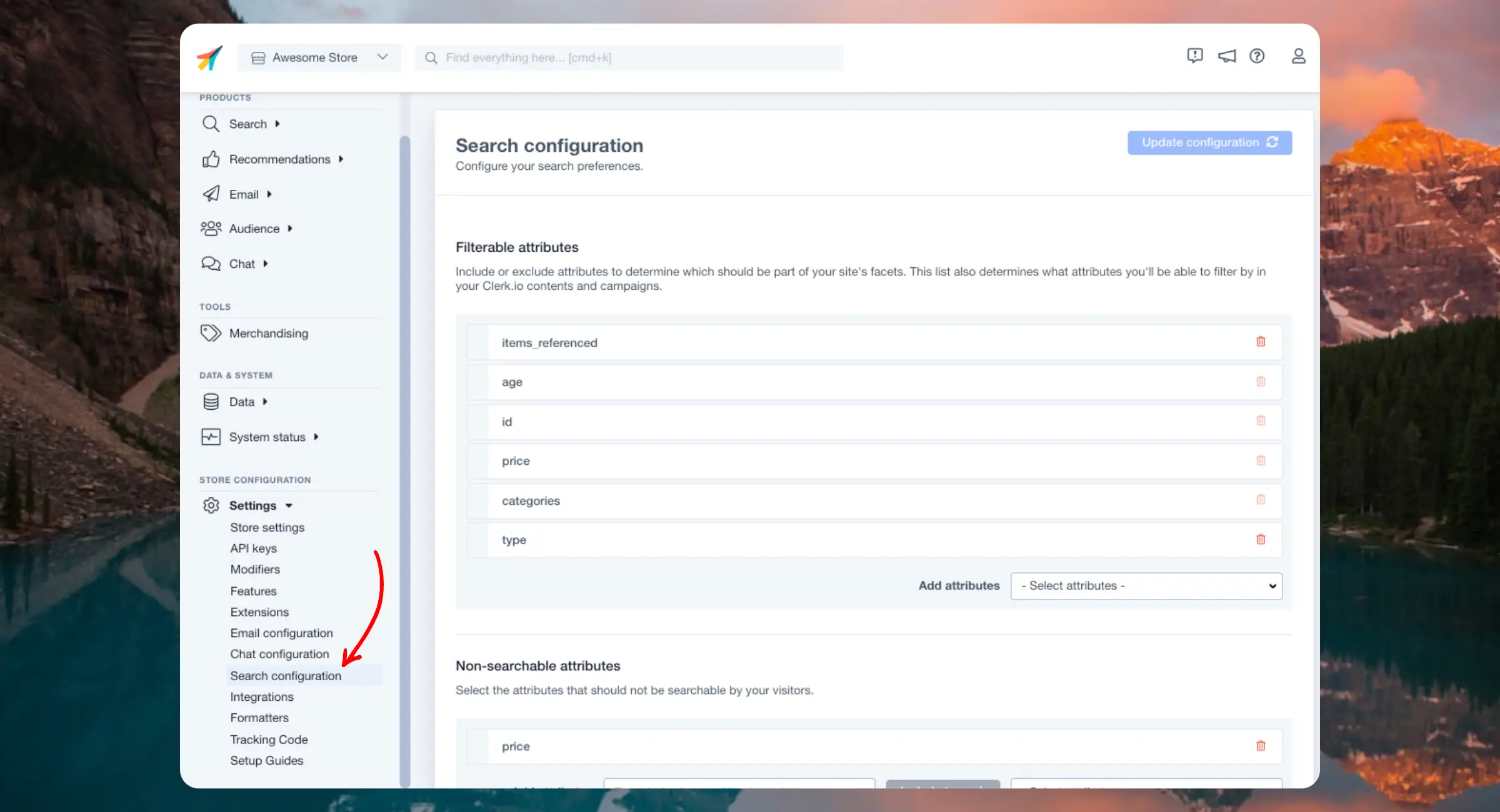
Search comes with several settings that allow you to adjust its behavior.
When you change a setting, it triggers an analysis of your data that must complete before changes take effect.
This process can take up to 15 minutes but may be faster depending on the size of your catalogue. You can monitor the status in Data > Configuration.
The settings require Search 3.0 to be enabled. Afterwards, you can access them in Search > Configuration.
...When a Clerk.io Recommendation is added to a category page that contains a low amount of products, it will show the same products on the page.
To avoid this, you can hide the Recommendation on category pages, by adding an if statement to the Recommendation design code.
Change the number in the if statement to the minimum amount of products needed to show the Recommendation.
{% if products.length > 7 %}

 <!-- Recommendation code -->

{% endif %}
E.g.:
...This code is meant to be a starting point that can be tailored to your needs.
Many browsers support voice search natively, making it fairly straightforward for developers to implement into Clerk.io’s search features.
Below is an example script that can be used to transcribe text using a microphone. Specifically, it will insert text into Clerk.io’s Omnisearch input field.
It adds a button that, when clicked, triggers the browser’s voice recognition API and inserts the text into the input field.
...Here you can find everything you need to know about Clerks products and features.






Add product recommendations to your Act-On email campaigns. This guide walks you through creating email designs, setting up embeds, and inserting recommendations into your templates.
Before you start!
Make sure that you have made the initial integration on the webshop so that Clerk is synced with your product catalog and order history.
The first thing you have to do is create a Design for your emails.
...Add product recommendations to your Active Campaign email campaigns. This guide walks you through creating email designs, setting up embeds, and inserting recommendations into your templates.
Before you start!
Make sure that you have made the initial integration on the webshop so that Clerk is synced with your product catalog and order history.
The first thing you have to do is create a Design for your emails.
...Automatically sync Audiences to Active Campaign lists so your lists are always up to date. You only have to setup the sync once, and then Active Campaign will be kept updated with the Audiences you have chosen, even as they change from day to day.
Clerk never pushes new email addresses to Active Campaign. We update existing contacts and lists, based on email addresses already in the platform.
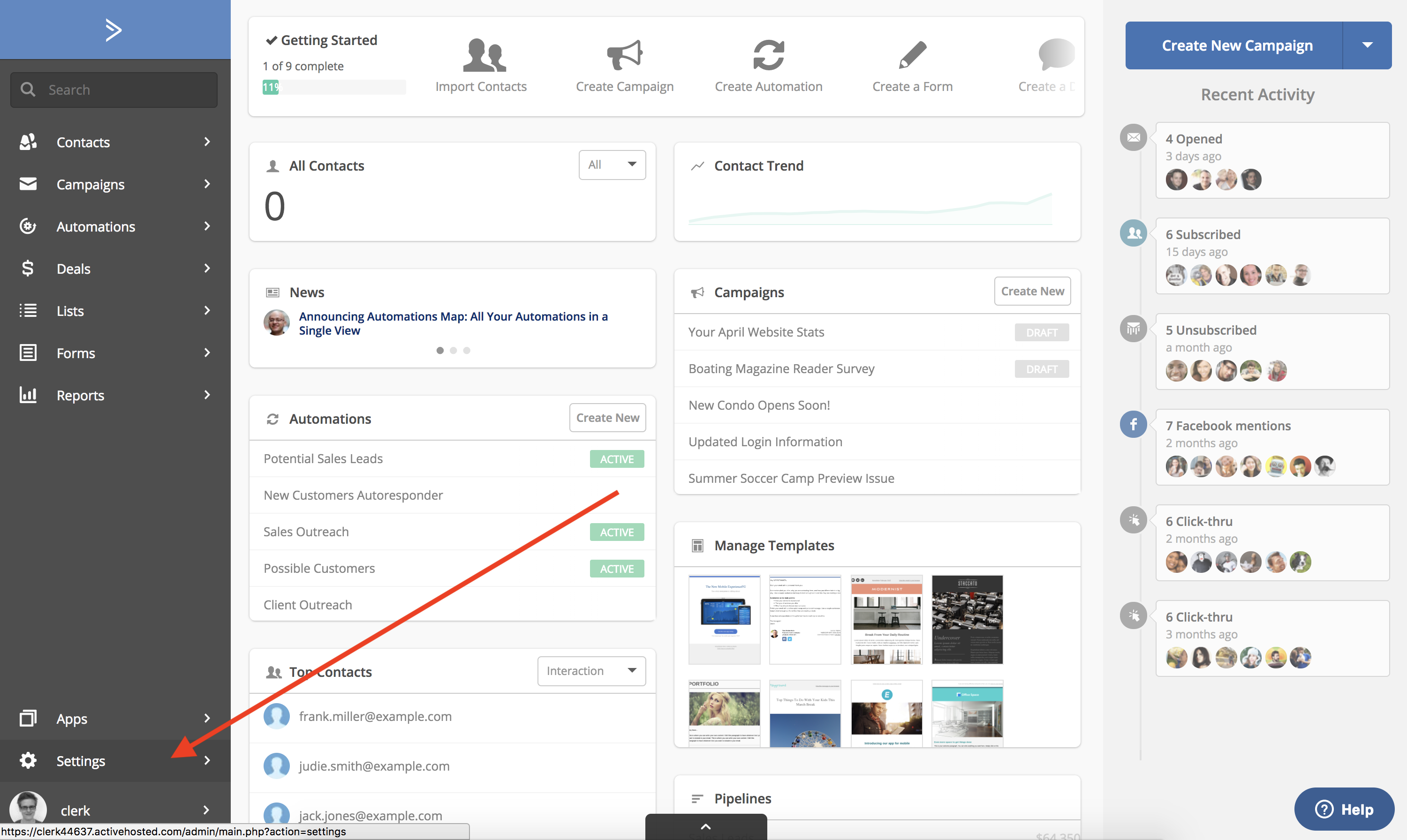
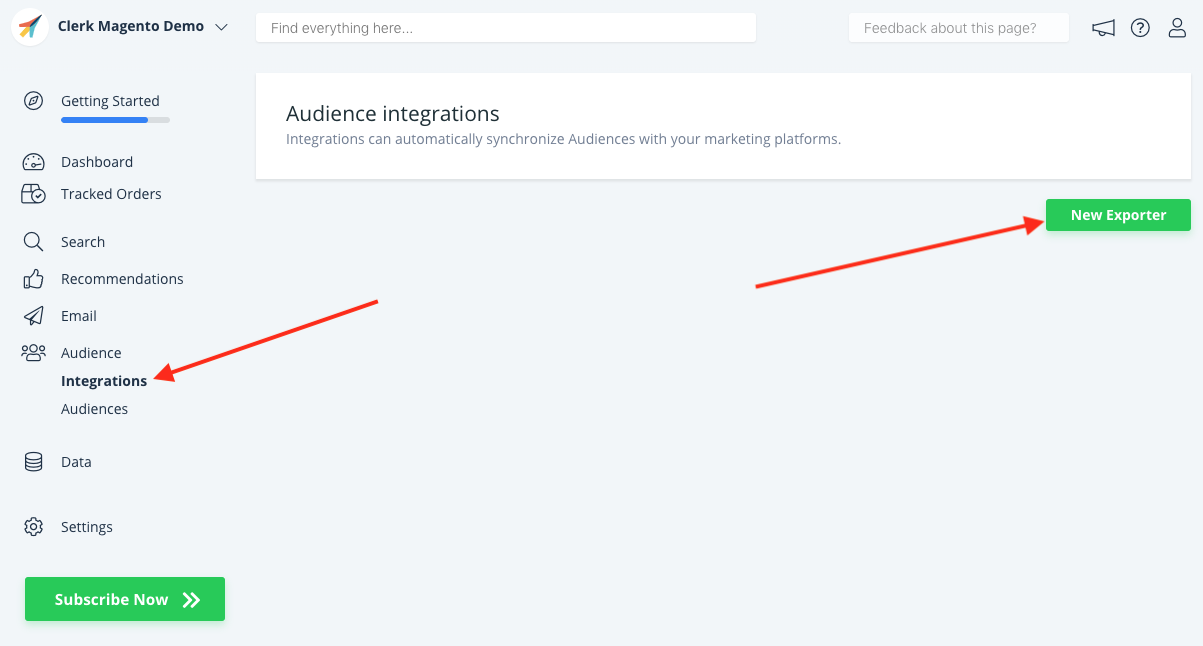
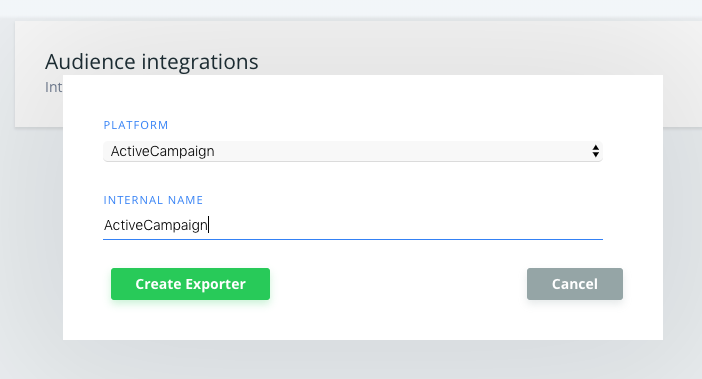
Copy the URL and Key to the Exporter settings.
...