Overview
#
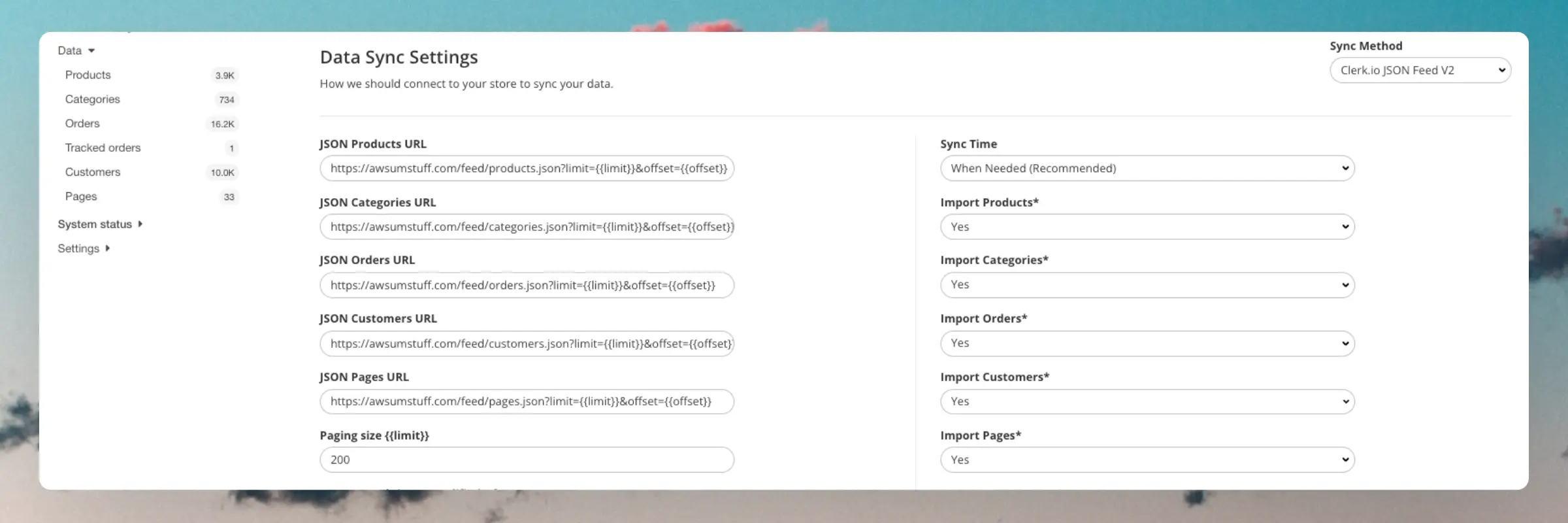
Regardless of your eCommerce platform, and whether we have an integration or not, you can always sync data with Clerk.io through one or more feeds in JSON format.
We support two different variations of the feeds:
- Multiple files for different objects
- A single file containing all objects
The two solutions use the same object structure, but have various features available for securing and importing them, which are outlined in this guide.
...Get Clerk up and running on your BigCommerce store in just a few steps. This guide walks you through connecting your store, installing tracking scripts, and syncing your data.
Connecting your store
#
After following these simple steps you will be able to see your Live Demo, which gives you a personal overview of how Clerk will work on your webshop, before setting up the rest of the system.
...Get Clerk up and running on your DanDomain Classic store in just a few steps. This guide walks you through connecting your store, configuring the app, and syncing your data.
Connecting your store
#
The first step of installing Clerk is connecting your store with your Clerk account.
After following these simple steps you will be able to see your Demo Store, which gives you a personal overview of how Clerk will work on your webshop, before setting up the rest of the system.
...Get Clerk up and running on your DanDomain store in just a few steps. This guide walks you through connecting your store, installing tracking scripts, and syncing your data.
Connecting your store
#
After following these steps you will be able to see your Live Demo, which gives you a personal overview of how Clerk will work on your webshop before setting up the rest of the system.
Add store
#
After logging in to
my.clerk.io, the first thing you need to do is add your store:
...Install the Clerk SDK on your DynamicWeb store. This guide walks you through the installation process.
The Clerk SDK for DynamicWeb is a software development kit, which means you’ll need to make some changes in the code to match your webshop. The SDK provides the files needed to get started with synchronizing your catalog with Clerk.io.
Download the SDK
#
Go to the
Clerk DynamicWeb GitHub repository.
...
Get Clerk up and running on your JTL store in just a few steps. This guide walks you through connecting your store, configuring the plugin, and syncing your data.
Connecting your store
#
The first step of installing Clerk is connecting your store with your Clerk account.
After following these simple steps you will be able to see your Demo Store, which gives you a personal overview of how Clerk will work on your webshop, before setting up the rest of the system.
...Get Clerk up and running on your Lightspeed store in just a few steps. This guide walks you through connecting your store, installing tracking scripts, and syncing your data.
Connecting your store
#
After following these simple steps you will be able to see your Live Demo, which gives you a personal overview of how Clerk will work on your webshop, before setting up the rest of the system.
...Get Clerk up and running on your Magento 1 store in just a few steps. This guide walks you through connecting your store, installing the extension, and syncing your data.
Connecting your store
#
The first step of installing Clerk is connecting your store with your Clerk account.
The video below shows you what to do, step-by-step. Use the rest of the guide as a reference.
After following these simple steps you will be able to see your Live Demo Store, which gives you a personal overview of how Clerk will work on your webshop. Reach out to your Clerk contact person to see the Live Demo.
...Get Clerk up and running on your Magento 2 store in just a few steps. This guide walks you through connecting your store, installing the extension, and syncing your data.
Connecting your store
#
The first step of installing Clerk is connecting your store with your Clerk account.
After following these simple steps you will be able to see your Demo Store, which gives you a personal overview of how Clerk will work on your webshop, before setting up the rest of the system.
...Automatically sync Clerk Audiences to MailChimp so your Mailchimp audiences are always up to date. You only have to setup the sync once, and then MailChimp will be kept updated with the Clerk Audiences you have chosen, even as they change from day to day.
Follow these steps to setup the sync.
Clerk never pushes new email addresses to Mailchimp. We update existing contacts and lists, based on email addresses already in the platform.
In Mailchimp
#
Start by going to Audience in the side menu.
...