Sync Data

1

Sync your Magento 2 products, attributes, and customer data to Clerk. This guide covers customizing product and customer data, choosing which products to import, and managing order sync.

Before syncing data, make sure you have installed and configured the Clerk extension in your Magento 2 backend. See the Get Started guide for installation instructions.

Set up Sync #

To sync your Magento 2 store data with Clerk, you need to configure the data sync settings in Clerk.

...

Automated Flows

1

Set up automated email flows that show relevant products regularly, without you having to do anything after the initial setup. This guide walks you through creating triggers and setting up a best practice flow.

Best practice #

One of our best practices is the automated mail flow.

The idea is to setup emails that show relevant products regularly, without you having to do anything after the initial setup.

A good follow-up flow after a customer has purchased from you is this:

...

Sync Data

1

Sync your MyStore products and data to Clerk. This guide covers setting up data synchronization.

Before syncing data, make sure you have installed and configured the Clerk.io module in your MyStore backend. See the Get Started guide for installation instructions.

Set up Sync #

To sync your MyStore store data with Clerk, you need to create a product feed and configure it in Clerk.

  1. In MyStore, create your product feed and copy its URL.

    ...

Sync Data

1

Sync your PrestaShop products, attributes, and order data to Clerk. This guide covers customizing product data, choosing which products to import, and managing order sync.

Before syncing data, make sure you have installed and configured the Clerk module in your PrestaShop backend. See the Get Started guide for installation instructions.

Set up Sync #

To sync your PrestaShop store data with Clerk, you need to configure the data sync settings in Clerk.

...

Sync Data

1

Sync your ScanNet products and attributes to Clerk. This guide covers setting up API access and syncing your catalog.

Enable API Access #

Before syncing your catalog, you need to enable API access in your ScanNet store:

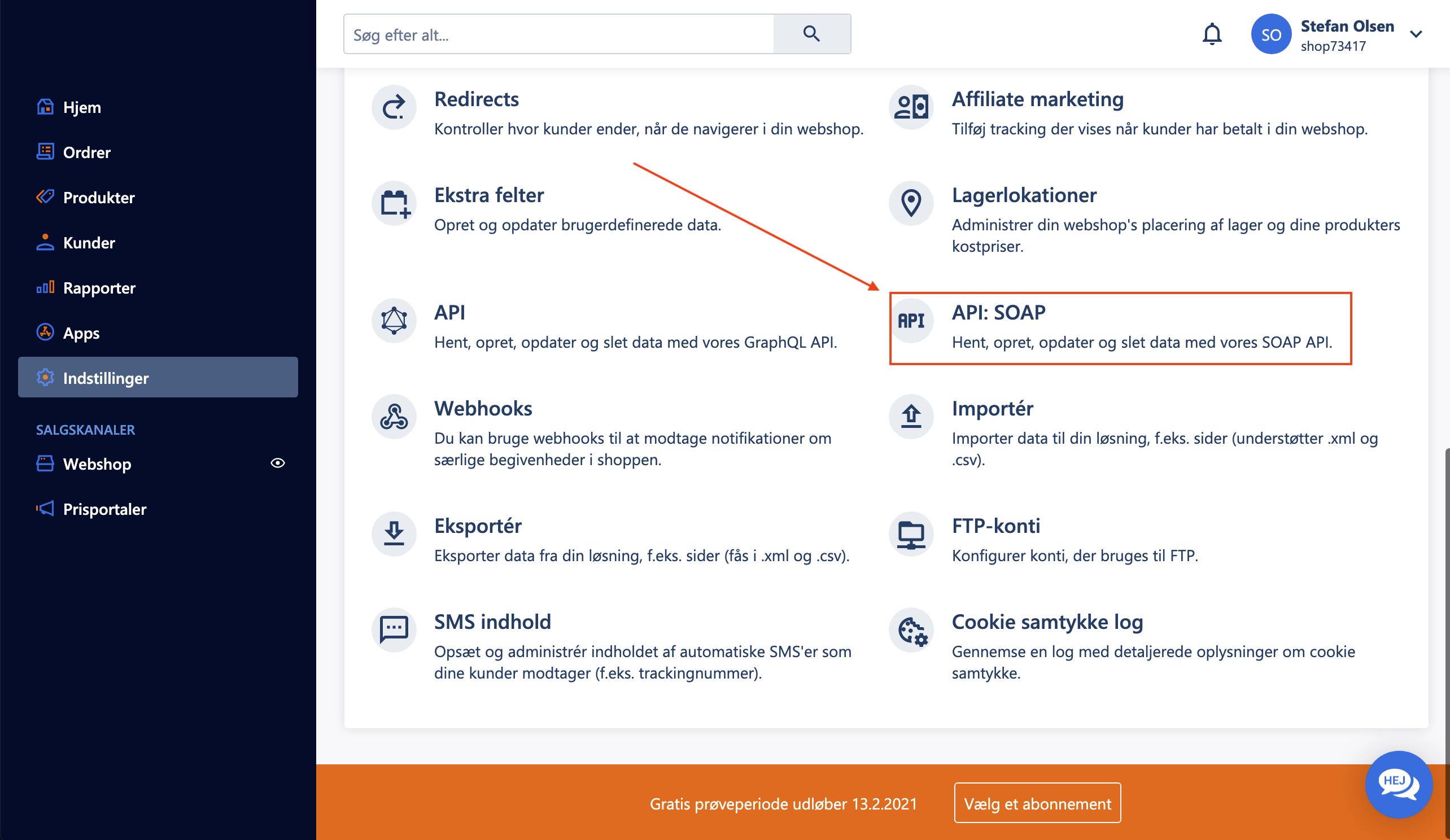
  1. In your ScanNet administration, go to Indstillinger > API: SOAP.
API setup in ScanNet
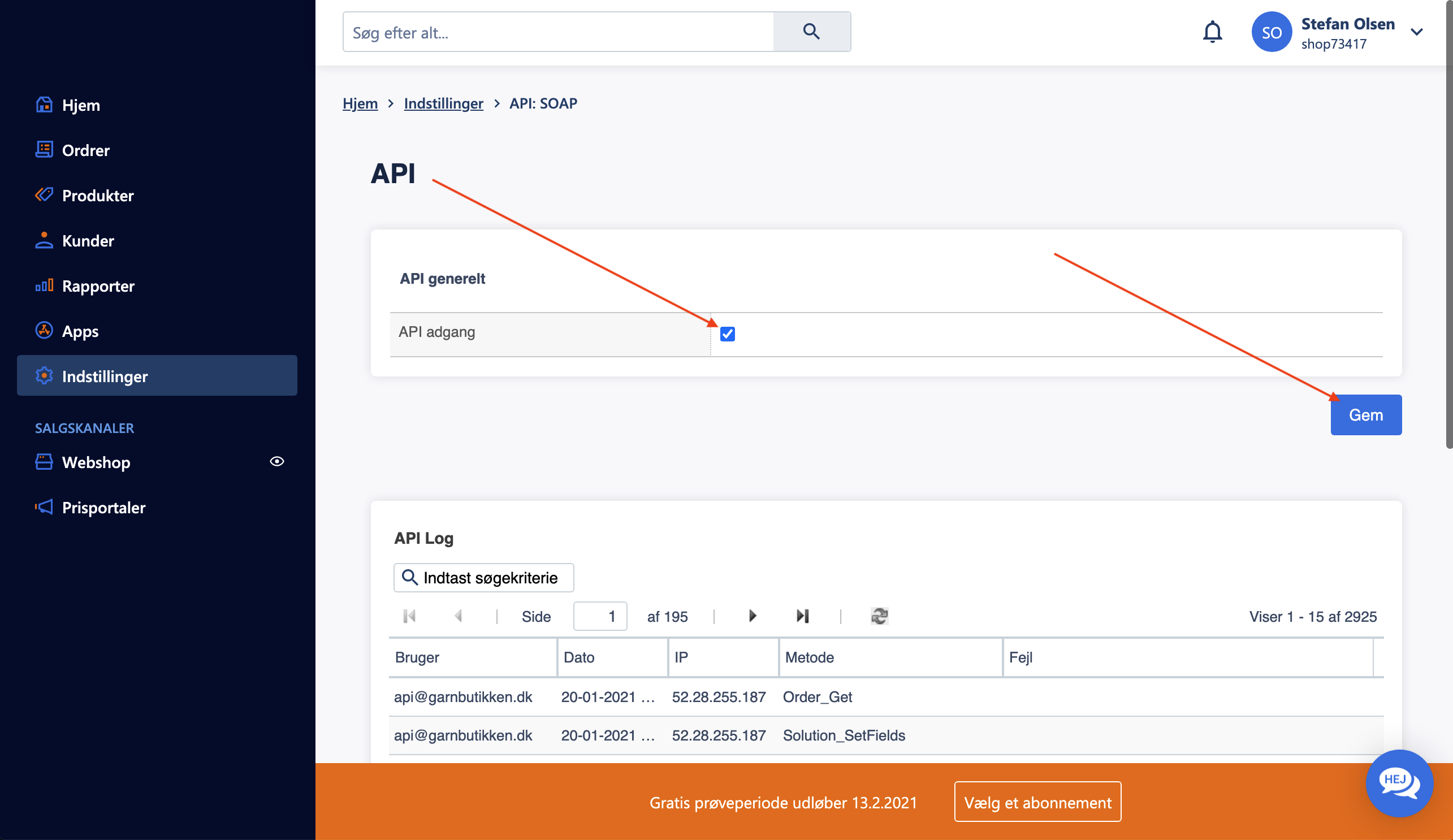
  1. Under API generelt, check the box for API adgang.
  2. Click Gem to save the settings.
Enable API access

Create API User #

To allow Clerk to access your store data, create a dedicated API user:

...

Sync Data

1

Sync your Shopify products, meta-fields, and subscribers to Clerk. This guide covers customizing product data and syncing subscriber information.

Configure Data Sync #

To sync your Shopify store data with Clerk, you need to create a custom app in Shopify and configure it in Clerk.

  1. In Shopify, go to Apps > App and sales channel settings and click Develop apps.
Develop apps page
  1. Click Create app, name it “Clerk.io”, choose the App developer, then click Create app again.

    ...

Sync Data

1

Sync your Shoporama products and data to Clerk. This guide covers setting up data synchronization.

Set up Sync #

To sync your Shoporama store data with Clerk, you need to create an API access token in Shoporama and configure it in Clerk.

You will need your API Access Token and your Store URL.

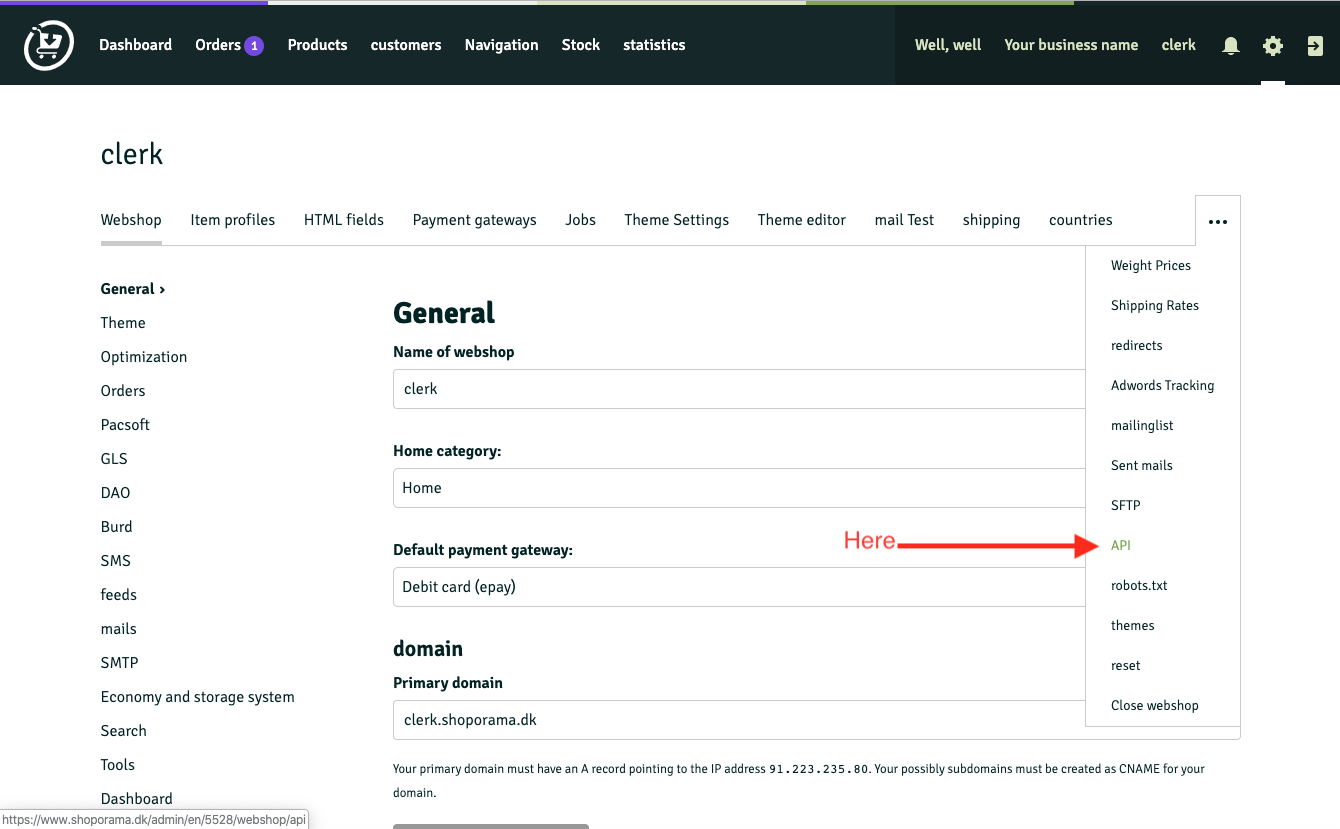
  1. In Shoporama, go to Settings > API.
API setup
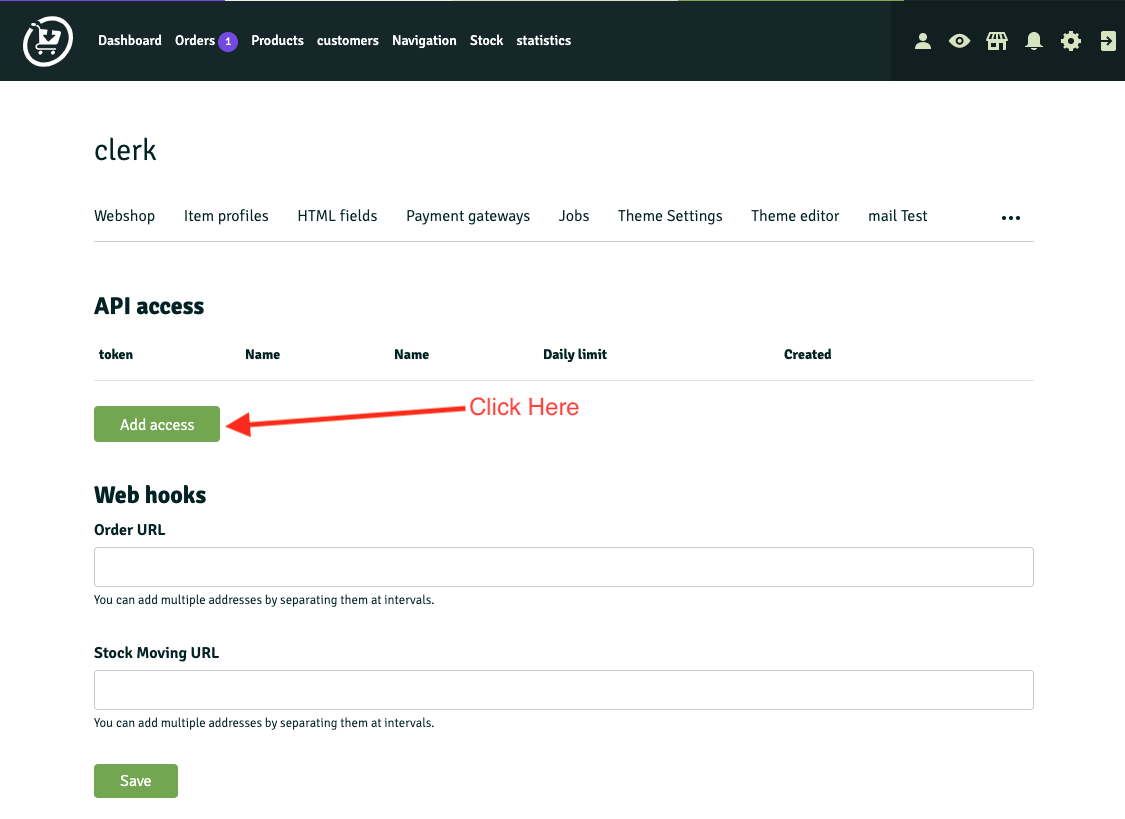
  1. Click Add access.
Add access
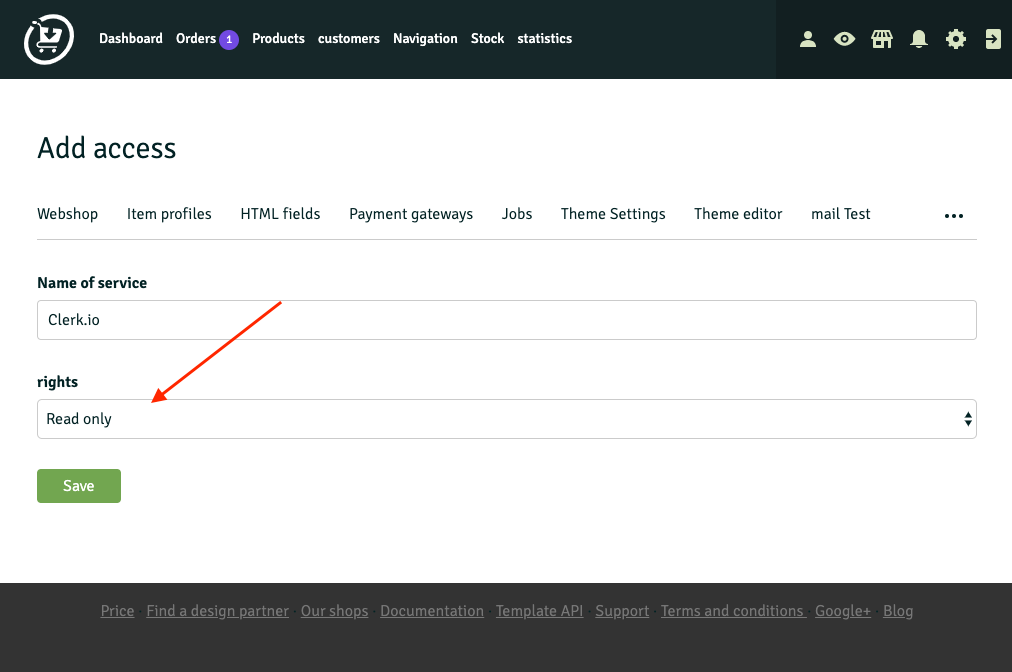
  1. Name the API account “Clerk.io” and set rights to Read only. Save.
Set rights
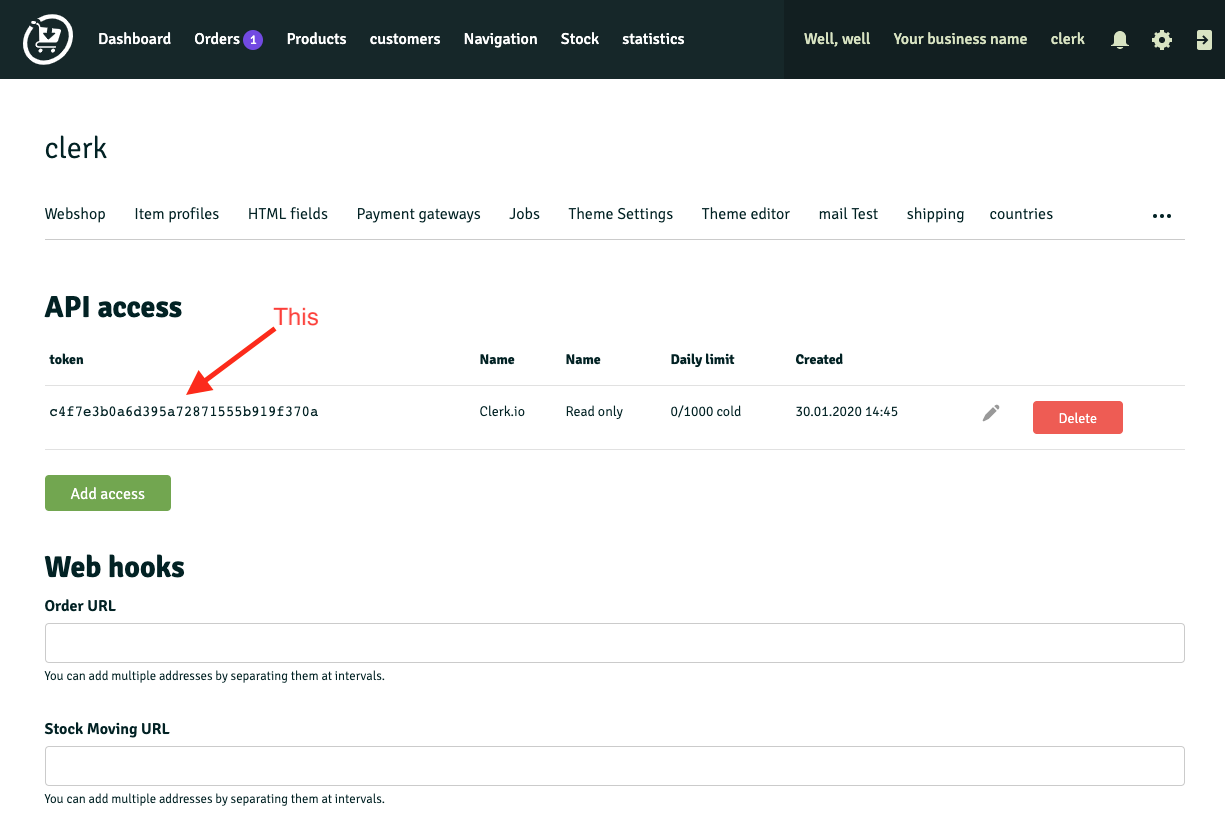
  1. Copy the generated Access Token.
Copy token
  1. Go to my.clerk.io > Data > Configuration and paste the Access Token and Store URL into the appropriate fields.

    ...

Sync Data

1

Sync your Shopware 6 products and attributes to Clerk. This guide covers setting up data synchronization and customizing product data.

Before syncing data, make sure you have installed and configured the Clerk plugin in your Shopware 6 backend. See the Get Started guide for installation instructions.

Set up Sync #

To sync your Shopware 6 store data with Clerk, you need to create an integration in Shopware and configure it in Clerk.

...

Sync Data

1

Sync your SmartWeb Classic products and order data to Clerk. This guide covers setting up a data feed, sending order data, and choosing which products to import.
Set up Sync #

To sync your SmartWeb Classic store data with Clerk, you need to create a Prisindeks (price index) in SmartWeb Classic and configure it in Clerk.

  1. In SmartWeb Classic, create a Prisindeks: click Opret Eget Prisindeks and name it “Clerk”.

    ...

Sync Data

1

Sync your SmartWeb products and attributes to Clerk. This guide covers setting up API access and syncing your catalog.

Enable API Access #

Before syncing your catalog, you need to enable API access in your SmartWeb store:

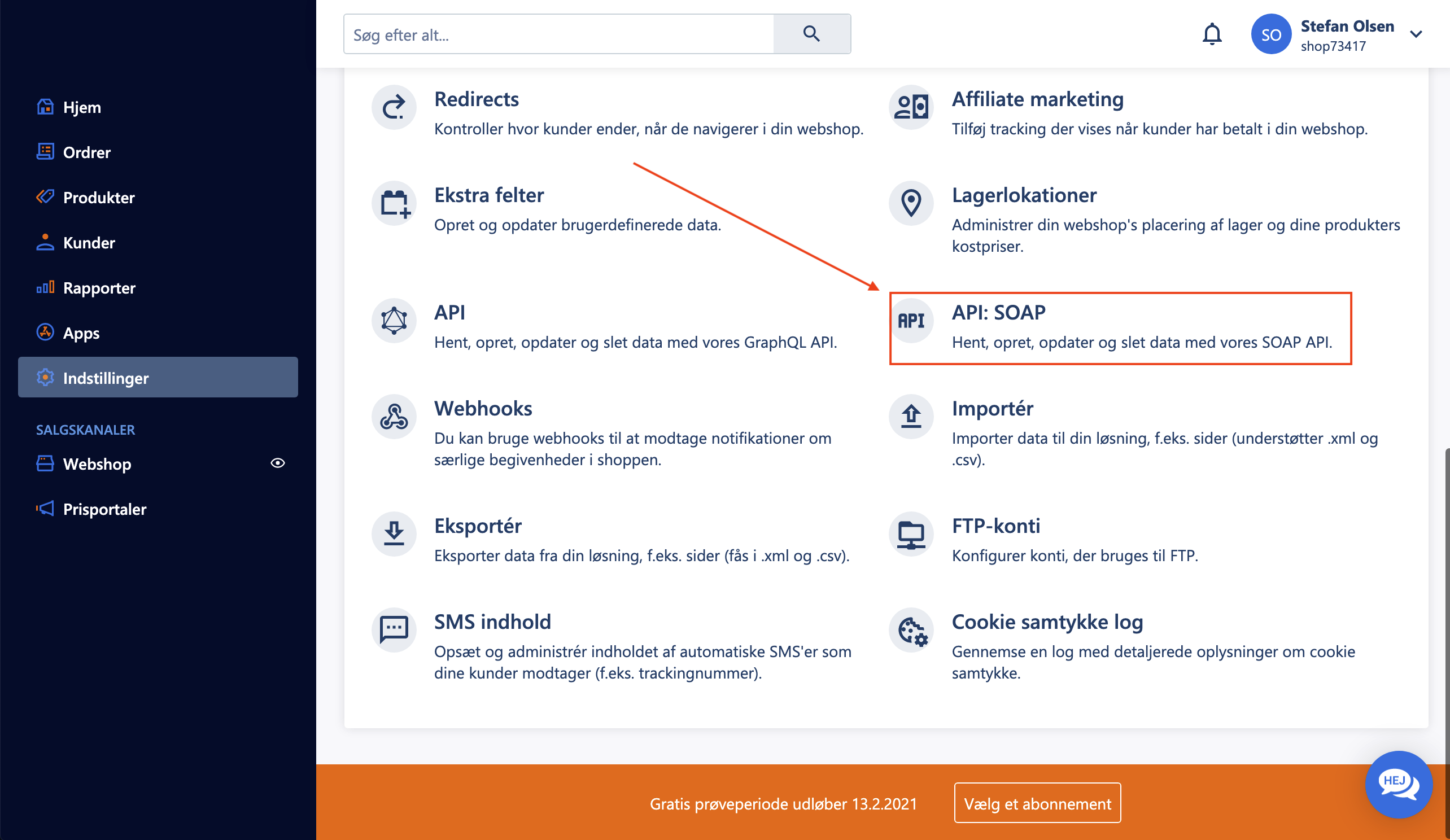
  1. In your SmartWeb administration, go to Indstillinger > API: SOAP.
API setup in SmartWeb
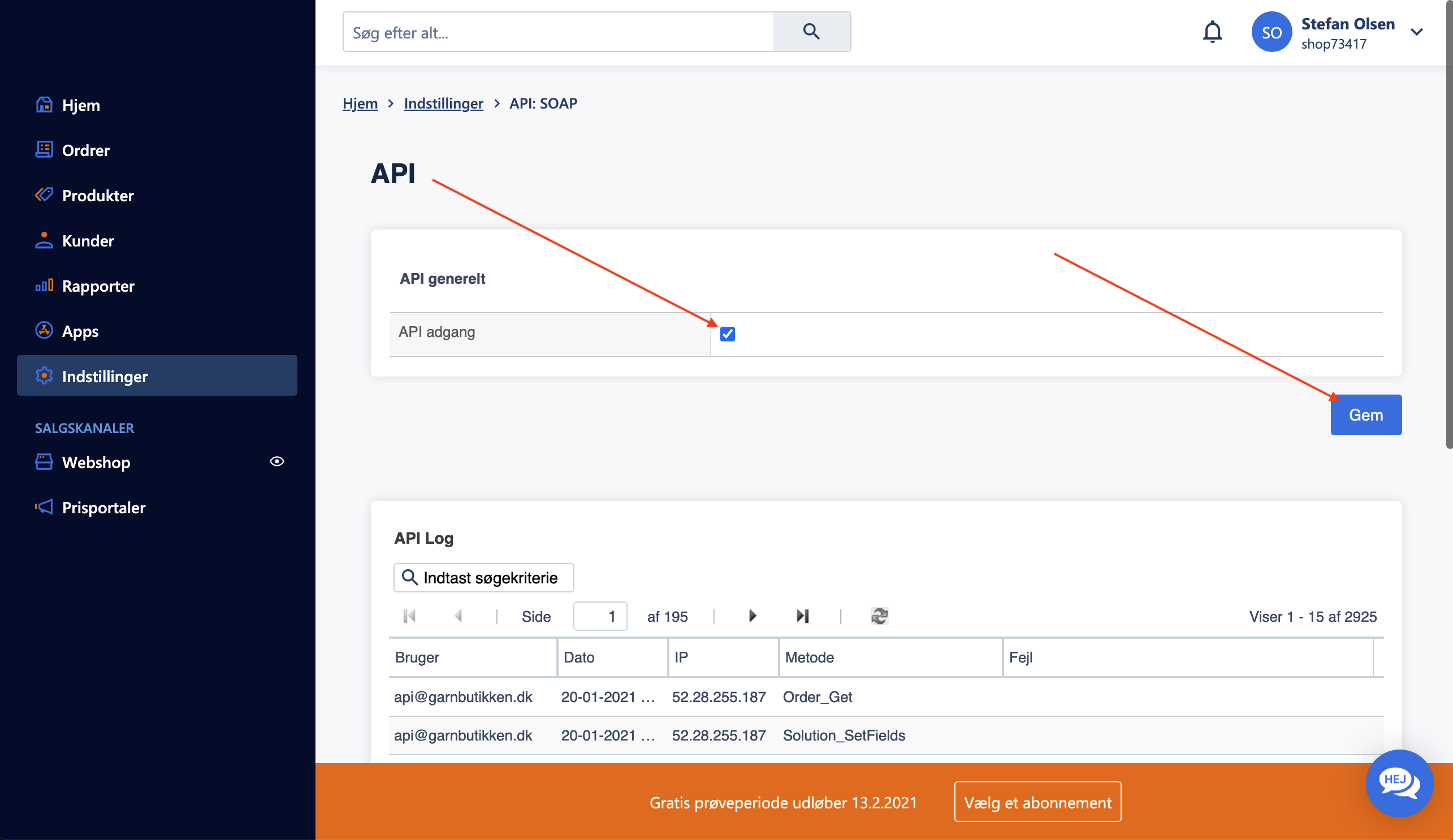
  1. Under API generelt, check the box for API adgang.
  2. Click Gem to save the settings.
Enable API access

Create API User #

To allow Clerk to access your store data, create a dedicated API user:

...