Get Started
Get Clerk up and running on your DanDomain store in just a few steps. This guide walks you through connecting your store, installing tracking scripts, and syncing your data.
Connecting your store #
After following these steps you will be able to see your Live Demo, which gives you a personal overview of how Clerk will work on your webshop before setting up the rest of the system.
Add store #
After logging in to my.clerk.io, the first thing you need to do is add your store:
- Write the Name and Domain of your online store.
- Choose the Language and Currency, and choose DanDomain as the Platform.
- Click Add Store.
Install visitor tracking #
- In your DanDomain administration, go to Online Store > Design > Aktive designs > Rediger filer > partials > head.tpl.
- Insert the following code at the bottom of the file. Replace
INSERT_PUBLIC_API_KEYwith your Public Key from my.clerk.io > Developers > API Keys.
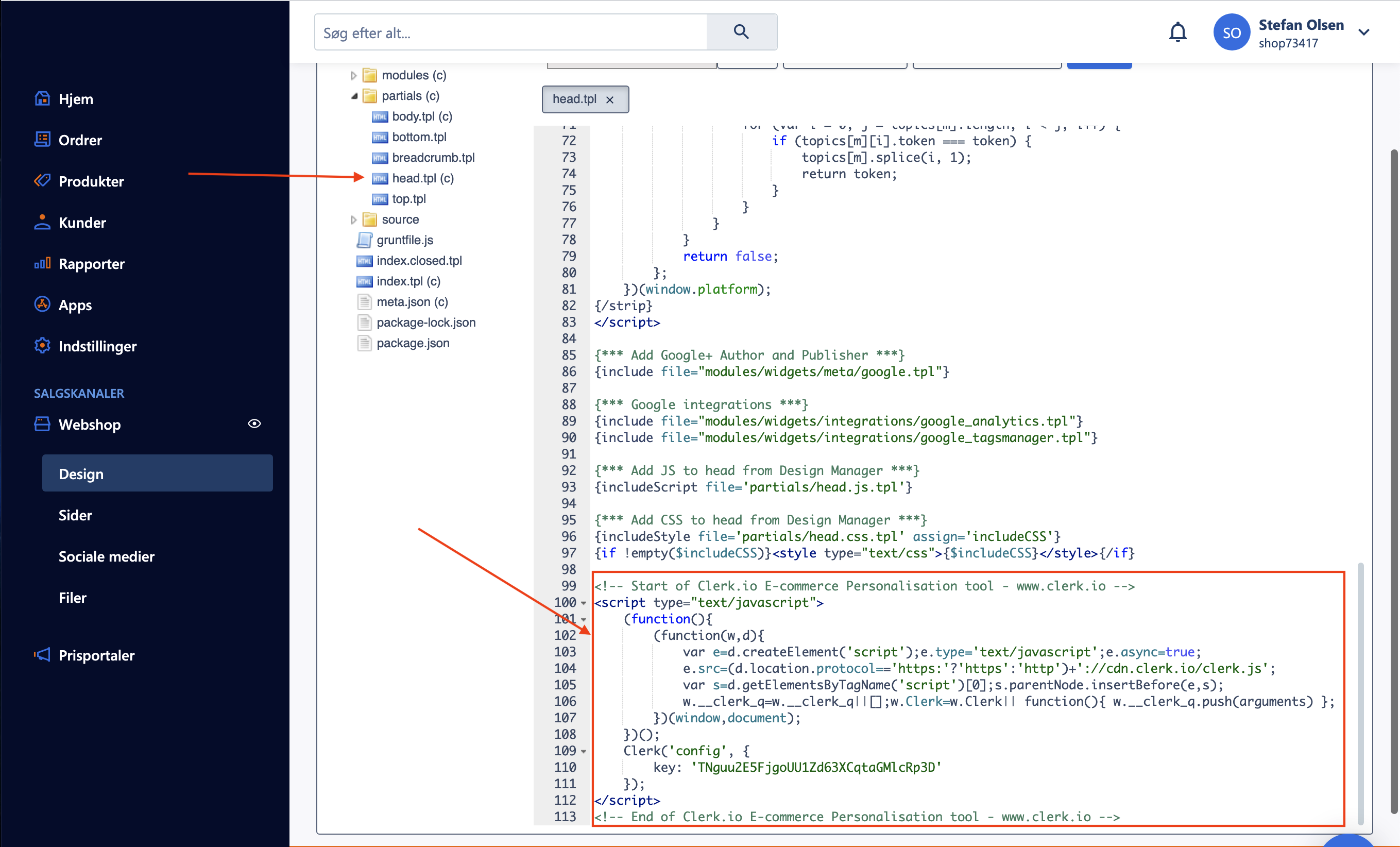
<!-- Start of Clerk.io E-commerce Personalisation tool - www.clerk.io -->
<script type="text/javascript">
    (function(){
        (function(w,d){
            var e=d.createElement('script');e.type='text/javascript';e.async=true;
            e.src='https://cdn.clerk.io/clerk.js';
            var s=d.getElementsByTagName('script')[0];s.parentNode.insertBefore(e,s);
            w.__clerk_q=w.__clerk_q||[];w.Clerk=w.Clerk|| function(){ w.__clerk_q.push(arguments) };
        })(window,document);
    })();
    Clerk('config', {
        key: 'INSERT_PUBLIC_API_KEY'
    });

    {if $user}
      Clerk('call', 'log/email', { email: '{ $user->Email }' });
    {/if}
</script>
<!-- End of Clerk.io E-commerce Personalisation tool - www.clerk.io -->
- Click Gem to save your changes.
Install order tracking #
- In the DanDomain Admin, find the file Modules > Checkout > checkout-approved.tpl.
- Insert the following Order Tracking code at the bottom of the file.
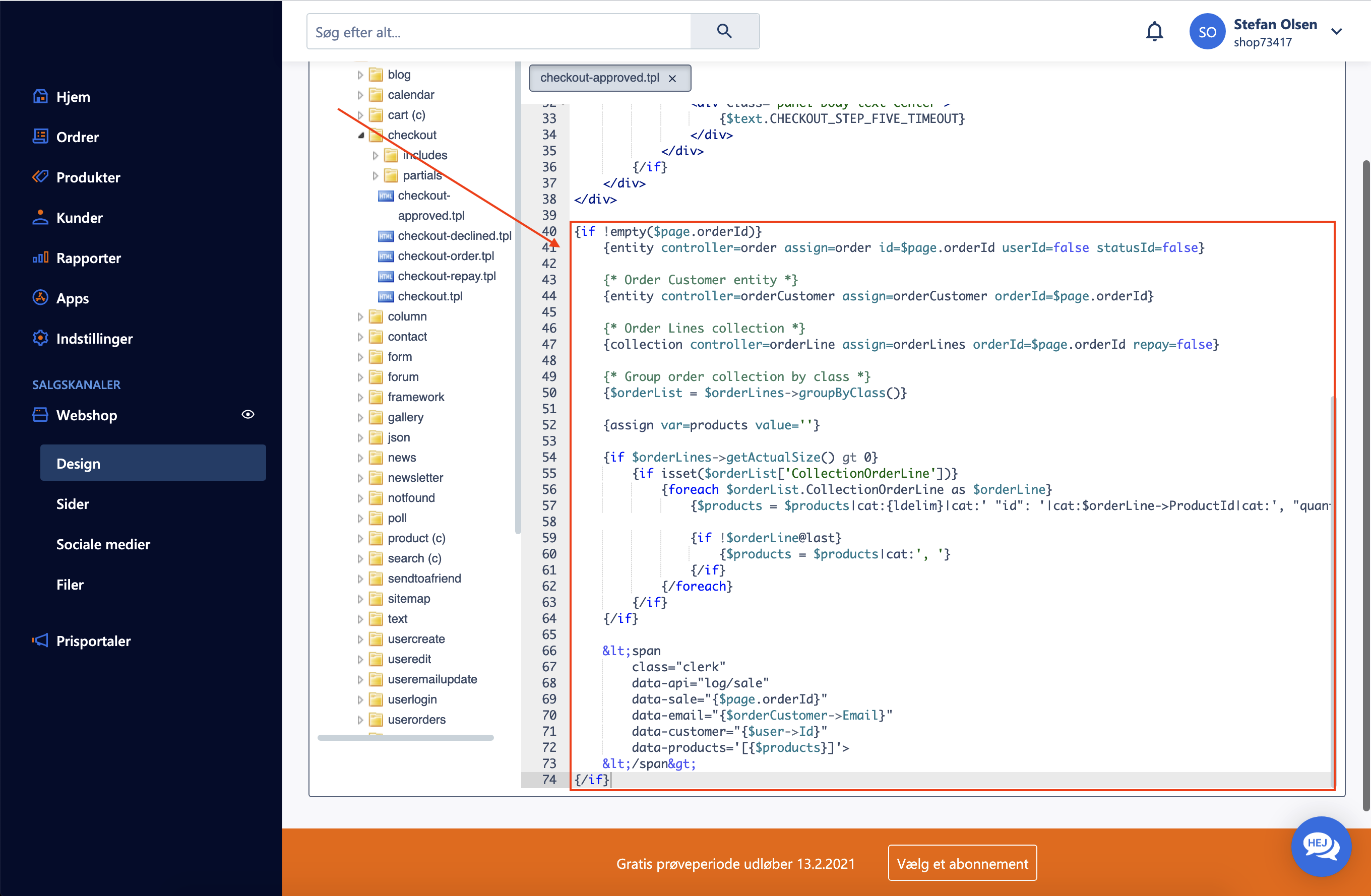
{if !empty($page.orderId)}
{entity controller=order assign=order id=$page.orderId userId=false statusId=false}

{* Order Customer entity *}
{entity controller=orderCustomer assign=orderCustomer orderId=$page.orderId}

{* Order Lines collection *}
{collection controller=orderLine assign=orderLines orderId=$page.orderId repay=false}

{* Group order collection by class *}
{$orderList = $orderLines->groupByClass()}

{assign var=products value=''}

{assign var=total_discount value=0}
{assign var=total_items value=0}

{if $orderLines->getActualSize() gt 0}
    {if isset($orderList['CollectionOrderLine'])}

        {foreach $orderList.CollectionOrderLine as $orderLine}
            {if $orderLine->ProductId}
                {$total_items = $total_items + $orderLine->Amount}
            {else}
                {$total_discount = $total_discount + $orderLine->Price}
            {/if}
        {/foreach}

        {assign var=per_prod_discount value=$total_discount/$total_items}

        {foreach $orderList.CollectionOrderLine as $orderLine}
            {if $orderLine->ProductId}
                {if !$orderLine@first }
                    {$products = $products|cat:', '}
                {/if}
                {assign var=product_price value=$orderLine->Price + $per_prod_discount}
                {$products = $products|cat:{ldelim}|cat:' "id": '|cat:$orderLine->ProductId|cat:', "quantity": '|cat:$orderLine->Amount|cat:', "price": '|cat:$product_price|cat:{rdelim}}
            {/if}

        {/foreach}


    {/if}
{/if}

<span
    class="clerk"
    data-api="log/sale"
    data-sale="{$page.orderId}"
    data-email="{$orderCustomer->Email}"
    data-customer="{$user->Id}"
    data-products='[{$products}]'>
</span>
{/if}
- Click Gem to save your changes.
Sync data #
Syncing data connects your DanDomain store to Clerk, allowing Clerk to access your products, orders, customers, and other store information. This enables Clerk to provide personalized recommendations and search results based on your actual store data. Follow the steps in the Sync Data guide to set up the data sync.