Recommendations
Clerk.io offers more than 23 different types of product logics, making it possible to display completely automated products on any page. This article explains how to get started when using a Clerk.js setup in DanDomain.
For our full Best Practices, read this article on which Recommendations to use.
Slider Setup #
Recommendations are created with Elements that reference a Design. Below is the basic guide for setting up an Element.
Following the steps in my.clerk.io > Settings > Setup Guides will automatically create the Elements for our Best Practices.
Create Design #
Recommendations are shown as a slider by default. This allows customers to see more products with fewer clicks. You can either use the Design Editor to configure it visually, or use code designs.
A design can be reused for any number of Recommendations elements you create.
Design Editor #
- Go to Recommendations > Designs and click New Design.
- Choose Product Slider
- From the list of design templates, choose the one you want to start with.
- Give it a name and click Create design.
- Make any changes you want to the design.
Code Design #
- Go to Recommendations > Designs and click New Design.
- Choose Other designs > Blank > Code.
- Give it a name and click Create design.
- Create a code design from scratch using Liquid code.
Create Element #
This contains all the settings used to display the Recommendations, and make it embeddable in your website. Follow these steps for each Recommendations banner you want to create.
- Go to Recommendations > Elements.
- Click New Element.
- Give it a descriptive name. We recommend naming it based on the page and logic you want to use. E.g., “Home Page / Visitor Recommendations”.
- In Element type, select the product logic you want to use from the dropdown. You can see an overview of all the product logics here.
- In Design select the design you created from the dropdown and choose the number of products you want to show.
- Click Save at the top of the screen.
Add to Website #
- Open the Insert into website tab.
- Here you have two options:
- Using injection allows you to insert the code by using a CSS selector.
- Using embedded code allows you to insert the code into your website manually.
- Pick the option that is easiest for you to use.
Pages #
Below are the specific pages where you should insert Recommendations, and which types you should use, in order to follow our Best Practices.
Homepage #
In my.clerk.io, create 3 Elements with the following logics:
- Visitor Recommendations
- Bestsellers
- Hot Products
In the DanDomain Admin, go to Online Store > Design > Aktive designs > Rediger filer.
Find the file
index.tpl.Since this file generates all pages of the webshop including the homepage, look for an IF-statement that identifies the front page. Look for either:
{$general.isShop and $page.isFrontPage}{if $page.isFrontPage}
Copy the embedcodes inside this IF-statement. This ensures the banners only appear on the homepage.
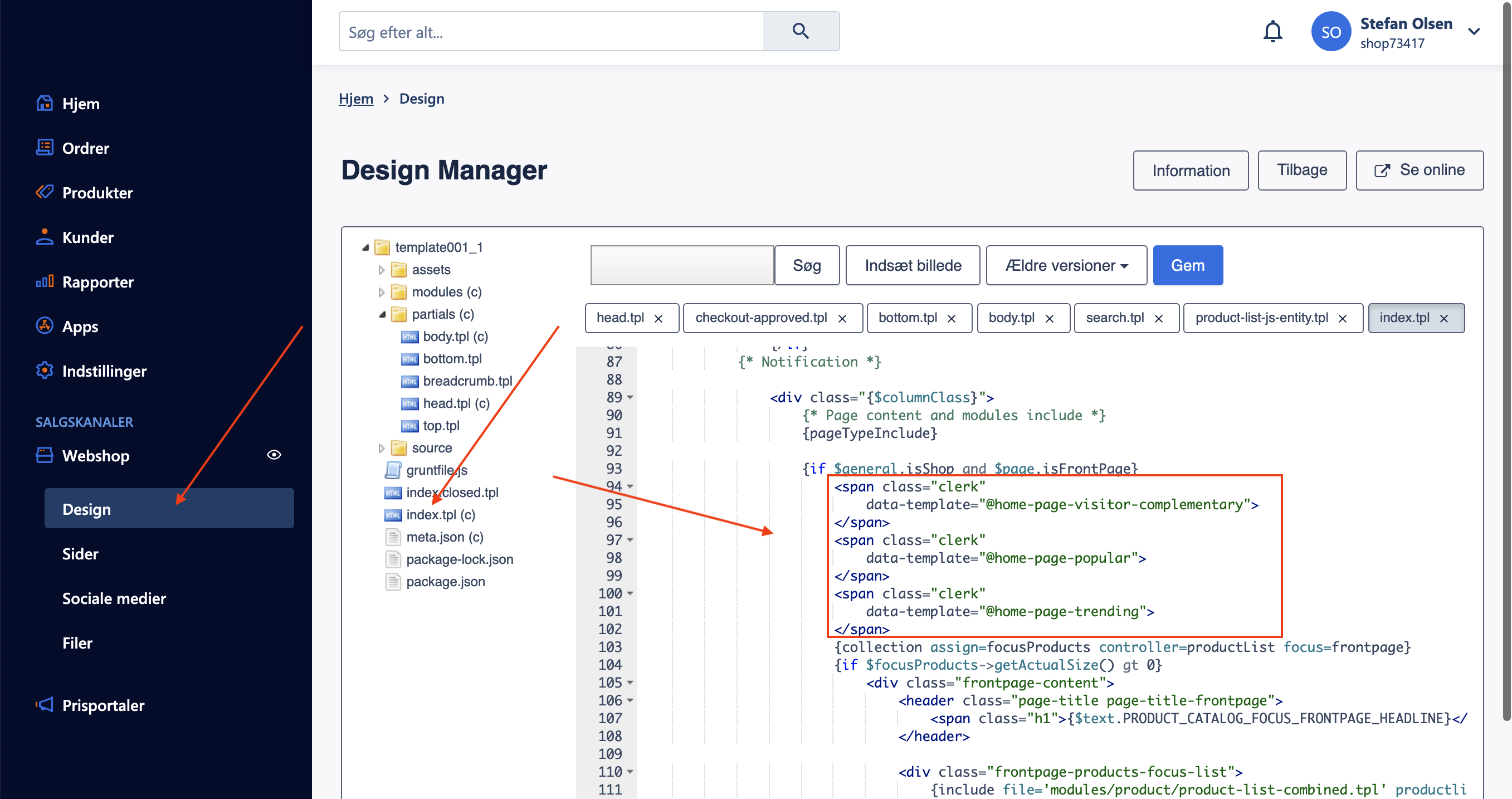
<span class="clerk"
    data-template="@home-page-visitor-recommendations">
</span>
- Click Gem to save.
Product Page #
In my.clerk.io, create 2 Elements with the following logics:
- Best Alternative Products
- Best Cross-Sell Products
In the DanDomain Admin, go to Kontrolpanel > Design Manager > Rediger filer.
Find the file that generates the product page. In standard themes, this is modules > product > product-entity.tpl.
Copy the embedcodes to the bottom of this file and click Gem.
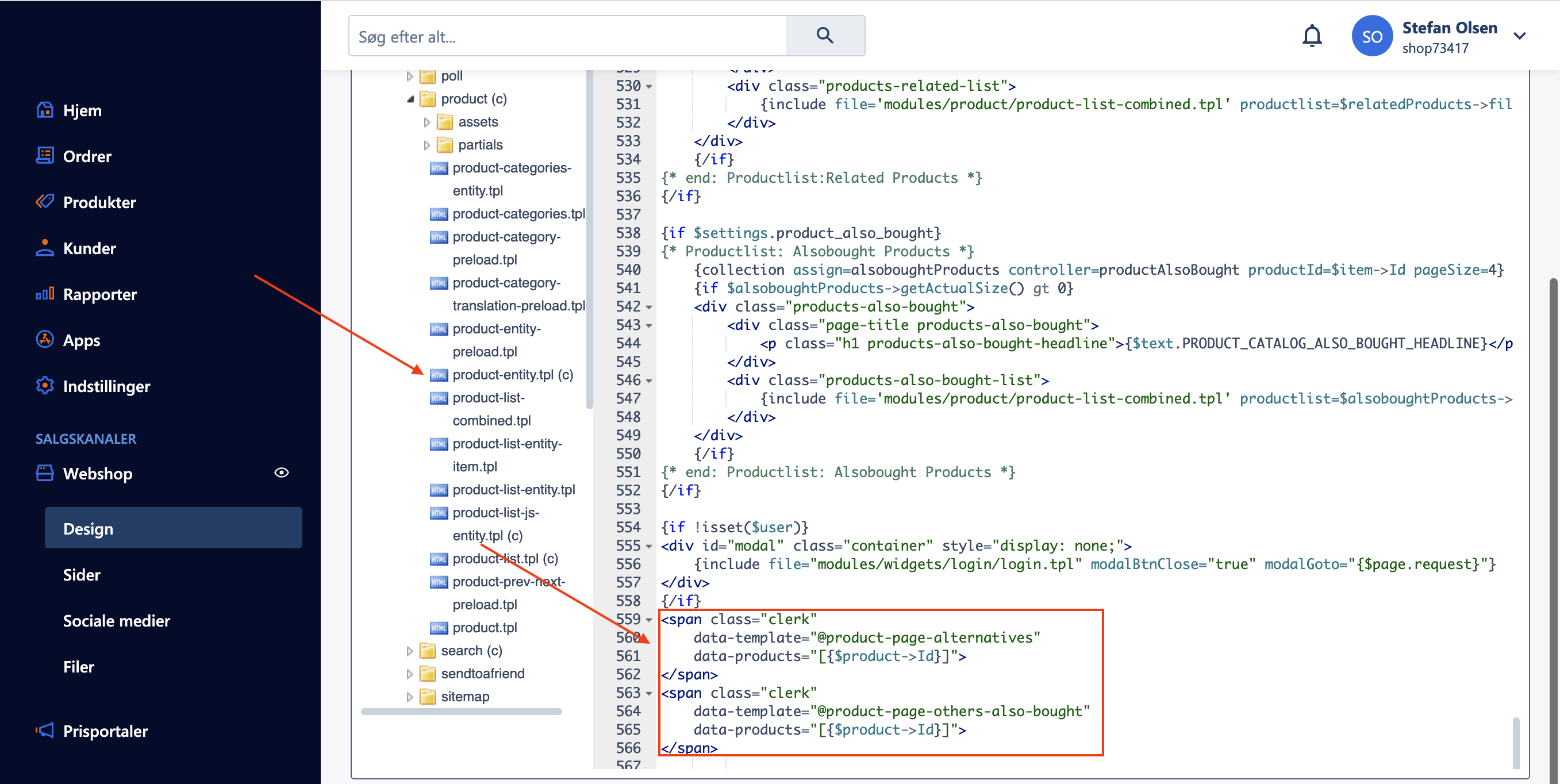
<span class="clerk"
   data-template="@product-page-alternatives"
   data-products="[{$product->Id}]">
</span>
Category Page #
In my.clerk.io, create an Element with the logic Bestsellers In Category.
In the DanDomain Admin, go to Online Store > Design > Aktive designs > Rediger filer.
Find the file that generates your Category pages. In standard themes, this is modules > product > product-list.tpl.
Copy the embedcode to the file, somewhere below the title and description (usually around line 92). Then click Gem.
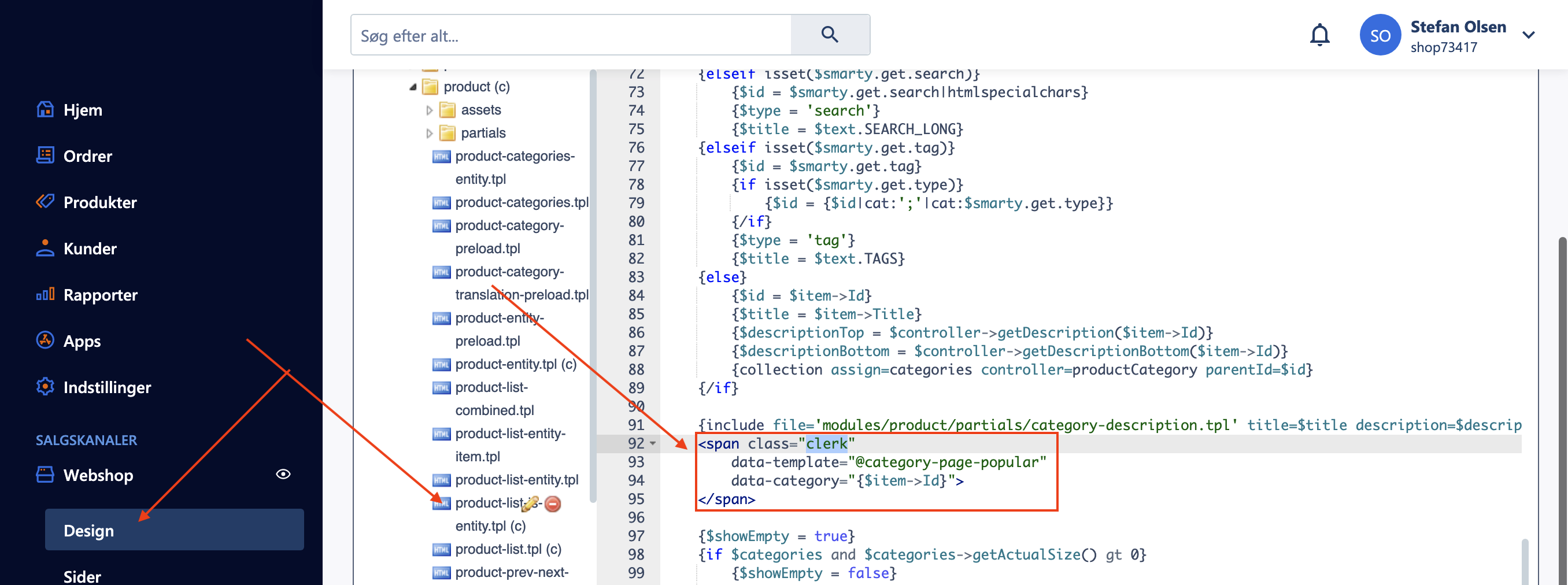
{if $field == 'search'}
{else}
<span class="clerk"
    data-template="@category-page-bestsellers"
    data-category="{$item->Id}">
</span>
{/if}
The IF-statement ensures the banner only shows on category pages and not on the search page, since both use the same template file.
Cart Page #
In my.clerk.io, create an Element with the logic Best Cross-Sell Products.
In the DanDomain Admin, go to Online Store > Design > Aktive designs > Rediger filer.
Find the file that generates the Cart page. In standard themes, this is modules > cart > cart.tpl.
Insert the code at the bottom of the file and click Gem.
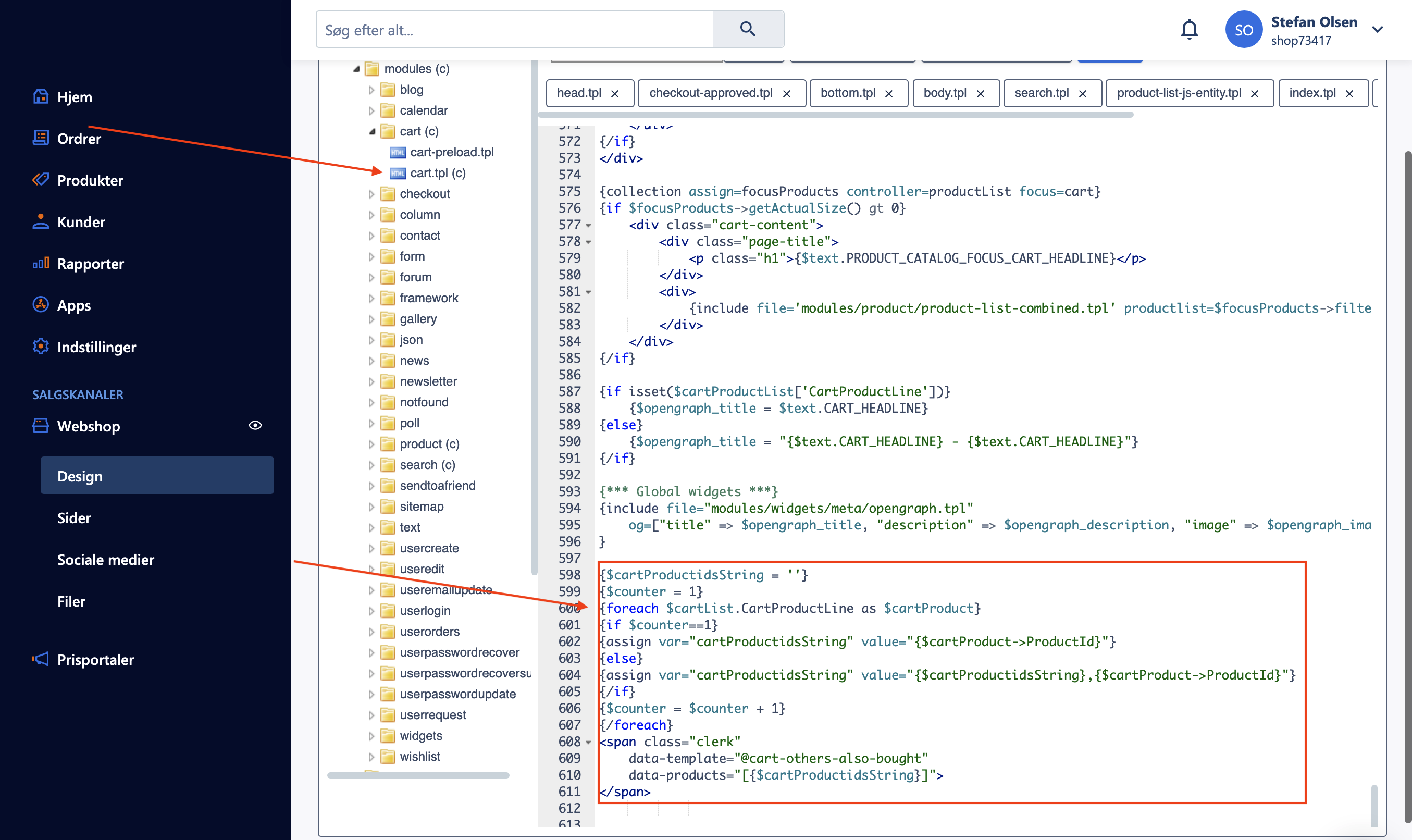
{$cartProductidsString = ''}
{$counter = 1}
{foreach $cartList.CartProductLine as $cartProduct}
{if $counter==1}
{assign var="cartProductidsString" value="{$cartProduct->ProductId}"}
{else}
{assign var="cartProductidsString" value="{$cartProductidsString},{$cartProduct->ProductId}"}
{/if}
{$counter = $counter + 1}
{/foreach}
<span class="clerk"
    data-template="@cart-page-cross-sell"
    data-products="[{$cartProductidsString}]">
</span>
Exit Intent #
In my.clerk.io, create an Element with the logic Visitor Recommendations.
In the DanDomain Admin, go to Online Store > Design > Aktive designs > Rediger filer.
Find partials > body.tpl.
Copy the embedcode to the bottom of the file and click Gem.
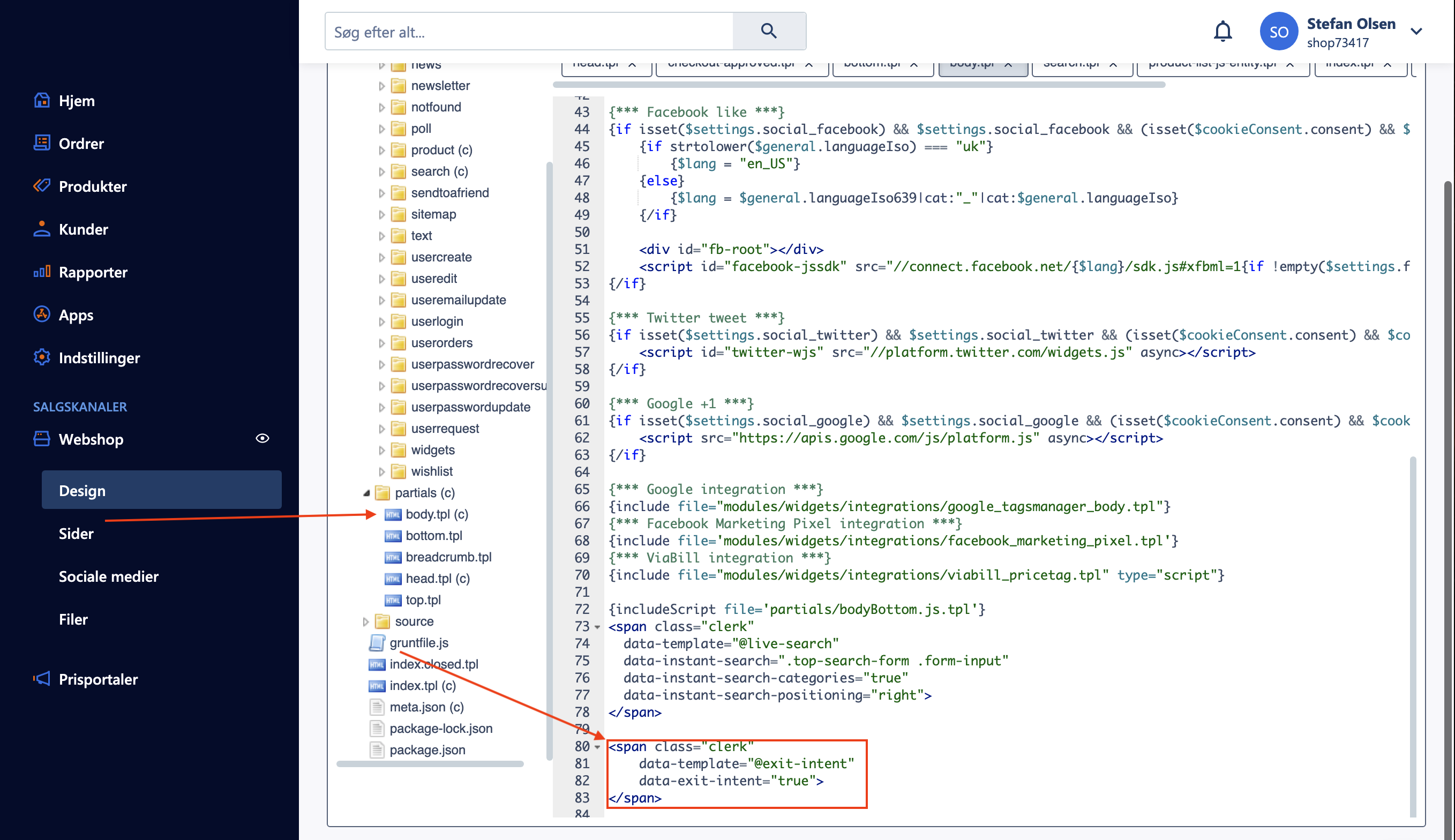
<span class="clerk"
    data-template="@exit-intent-visitor-recommendations"
    data-exit-intent="true">
</span>
After adding this, the Exit Intent popup will show when a customer hovers their mouse over the address bar of their browser.
Add-To-Basket Step #
The Add-To-Basket Step is a complex feature in DanDomain. We recommend getting a DanDomain developer to integrate it, or skip this step if you don’t have developer resources available.
- Create a new CMS page in DanDomain.
- Add the embedcodes to the CMS page.
<span class="clerk"
    data-template="@powerstep-alternatives"
    data-products="[PRODUCT_ID]">
</span>
- Add a redirect rule to this page every time a product is added to the basket.