Search
Add powerful search functionality to your DanDomain webshop. Clerk.io offers two complementary search solutions:
- An Instant Search dropdown that shows results as customers type.
- A Search Page with faceted filters for browsing all results.
Instant Search #
Instant Search provides real-time results as customers type, displayed in a dropdown below the search field.
Create Design #
Use the Design Editor or code designs.
Design Editor #
- Go to Search > Designs and click New Design.
- Choose Other designs > Instant Search.
- Pick a template to start from.
- Name it and click Create design.
- Adjust the design as needed.
Code Design #
- Go to Search > Designs and click New Design.
- Choose Other designs > Blank > With code.
- Name it and click Save.
- Build a code design using Liquid.
Create Element #
- Go to Search > Elements.
- Click New Element.
- Name it “Live Search”.
- In Element type, select Live-search.
- In Design, select the design you created.
- Click Save.
Add to Website #
- In the DanDomain Admin, go to Online Store > Design > Aktive designs > Rediger filer > partials.
- Open the
body.tplfile. - Insert the following code and click Gem.
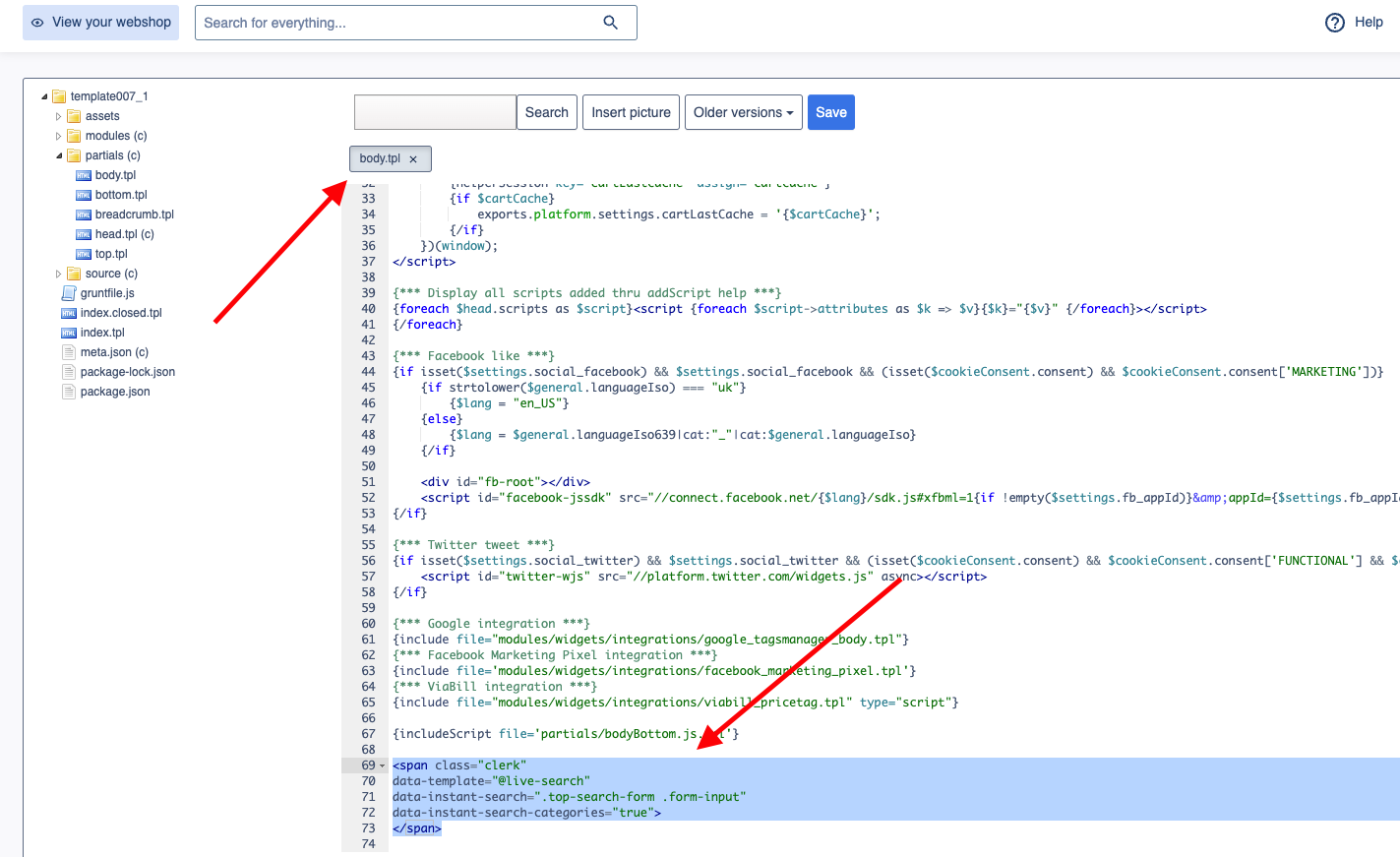
<span class="clerk"
    data-template="@live-search"
    data-instant-search=".top-search-form .form-input"
    data-instant-search-positioning="left"
    data-instant-search-categories="6"
    data-instant-search-pages="6"
    data-instant-search-suggestions="6">
</span>
Troubleshooting #
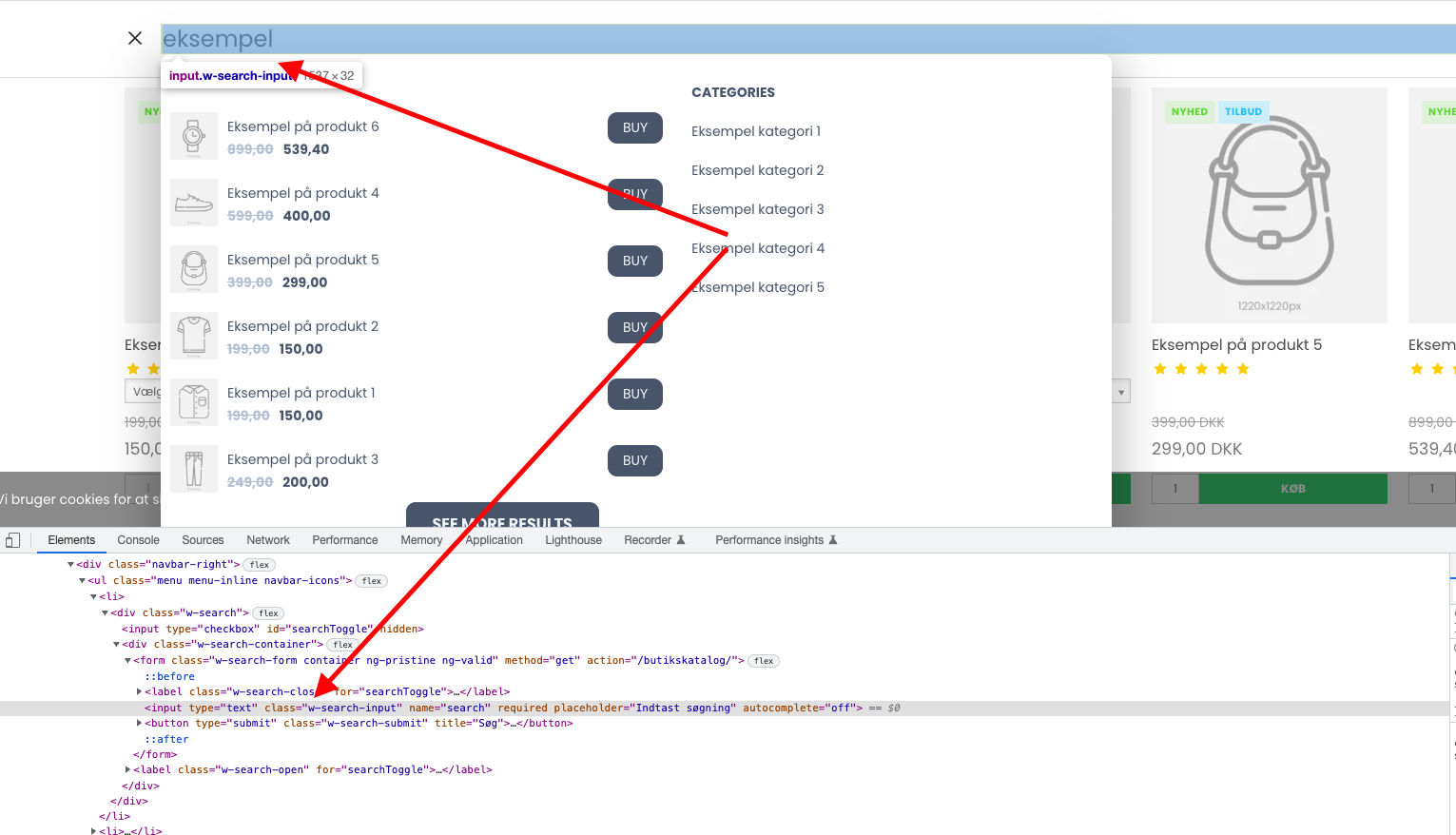
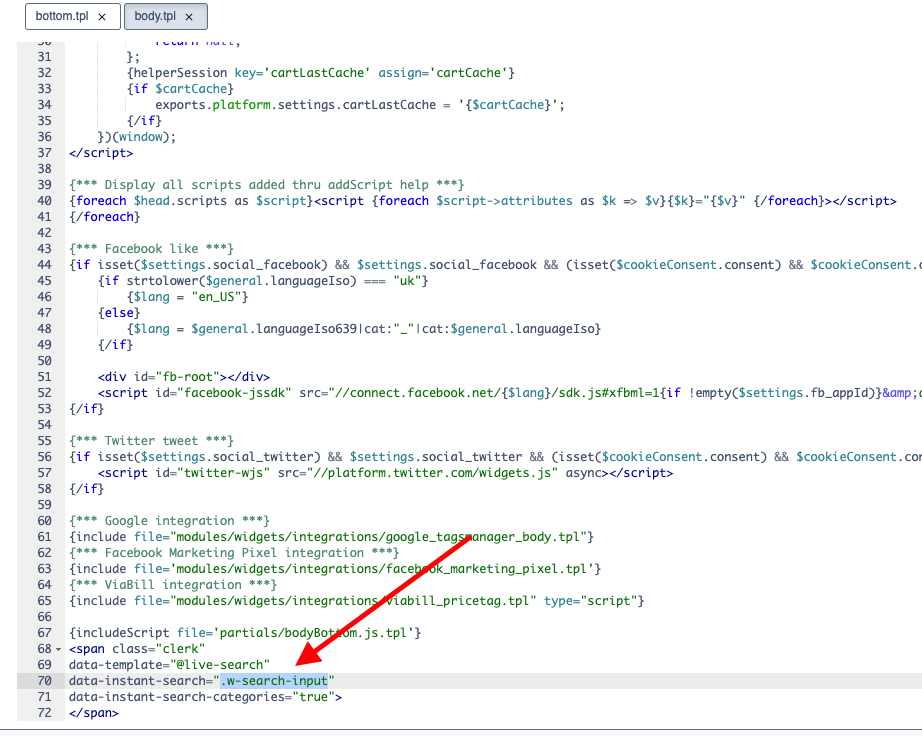
If your Instant Search is not showing, it’s likely because your search field has a different identifier than the default.
- Inspect your search field in a browser and find the unique class or ID.
- Replace the selector in
data-instant-searchwith the class or ID of your input field.
Search Page #
The Search Page provides a full-page search experience with advanced filtering.
Create Design #
Use the Design Editor or code designs.
Design Editor #
- Go to Search > Designs and click New Design.
- Choose Other designs > Search Page.
- Pick a template to start from.
- Name it and click Create design.
- Adjust the design as needed.
Code Design #
- Go to Search > Designs and click New Design.
- Choose Other designs > Blank > With code.
- Name it and click Save.
- Build a code design using Liquid.
Create Element #
- Go to Search > Elements.
- Click New Element.
- Name it “Search Page”.
- In Element type, select Search page.
- In Design, select the design you created.
- Click Save.
Add to Website #
In DanDomain, the file product-list-js-entity.tpl generates both the Search Page and Category Pages. You need to use an IF-statement to separate them.
- In the DanDomain Admin, go to Online Store > Design > Aktive designs > Rediger filer.
- Open modules > product > product-list-js-entity.tpl.
- Insert the following code at the top of the file, near line 35:
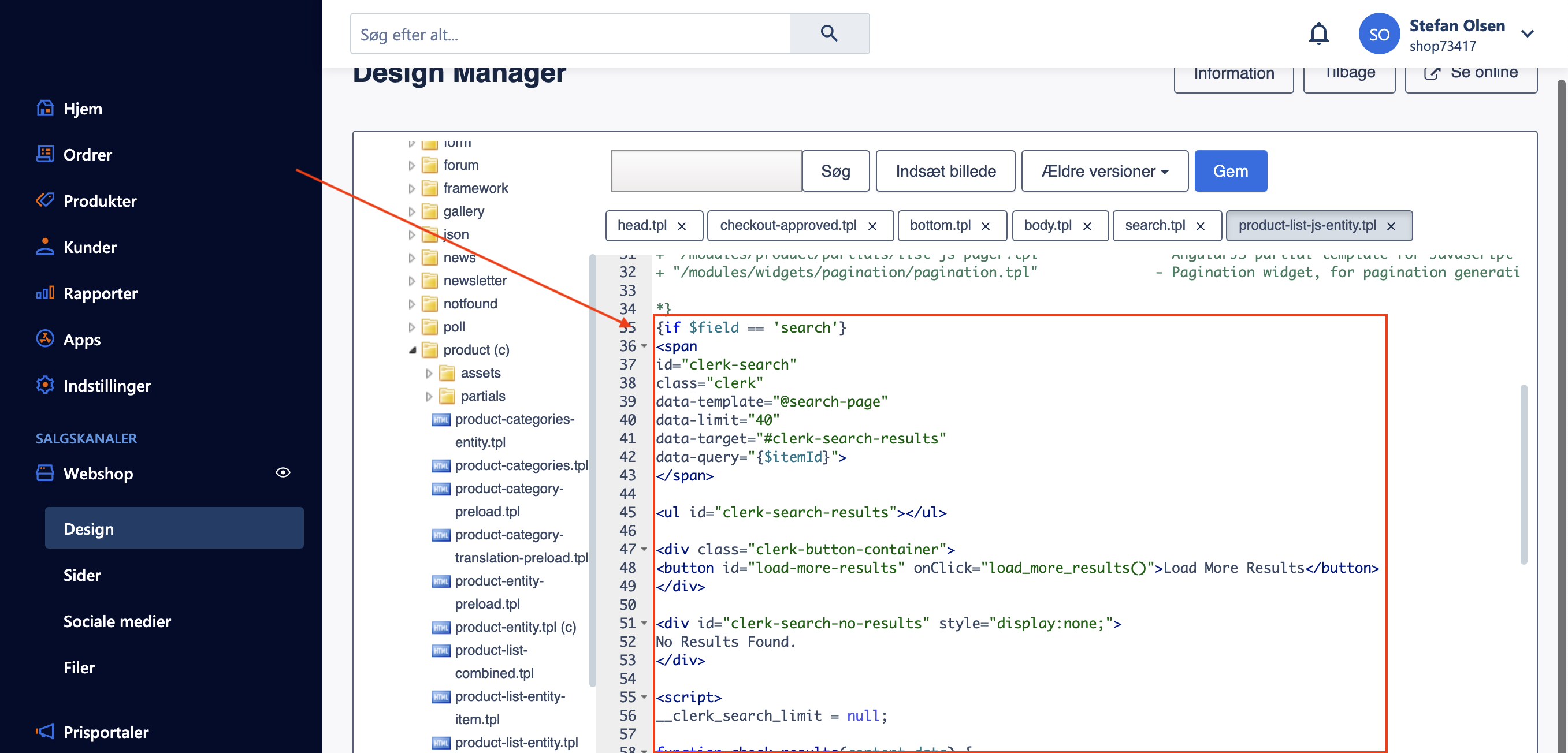
{if $field == 'search'}

<div class="page-width clerk-page-width">
<span
    id="clerk-search"
    class="clerk"
    data-template="@search-page"
    data-target="#clerk-search-results"
    data-query="{$itemId}"
    data-facets-attributes='["price","categories","vendor"]'
    data-facets-titles='{"price":"Price","categories":"Categories"}'
    data-facets-target="#clerk-search-filters"
    data-facets-price-prepend="€"
    data-facets-in-url="false"
    data-facets-view-more-text="View More"
    data-facets-searchbox-text="Search for ">
</span>

<div id="clerk-show-facets" onclick="toggleFacets()">Filters</div>

<div class="clerk_flex_wrap">
  <div id="clerk-facets-container">
    <div id="clerk-search-filters"></div>
  </div>
  <div id="clerk-search-results"></div>
</div>

<script>
function toggleFacets(){
  el = document.getElementById('clerk-facets-container');
  el.classList.toggle('active');
}
</script>


<style>
  #clerk-show-facets {
      width: 70%;
      height: 40px;
      margin: 20px auto;
      background-color: #333;
      color: white;
      text-align: center;
      border-radius: 2px;
      line-height: 40px;
  }

  #clerk-search-results {
      display: block;
      width: 100%;
  }

  .clerk-page-width {
      display: flow-root;
  }

  #clerk-search-results {
      width: 80%;
  }

  #clerk-search-filters {
      width: 20%;
  }

  #clerk-show-facets {
      display: none;
  }
  .clerk_flex_wrap {
      display: flex;
      flex-direction: row;
  }

  .active {
    display: block !important;
  }

  @media only screen and (max-width : 800px) {
    #clerk-search-filters {
      width: 100%;
    }

    #clerk-facets-container {
      display: none;
    }
    #clerk-show-facets {
        display: block;
    }
    .clerk_flex_wrap {
      flex-direction: column;
    }
  }
</style>
</div>

{else}
- At the very bottom of the file, insert the closing IF-statement:
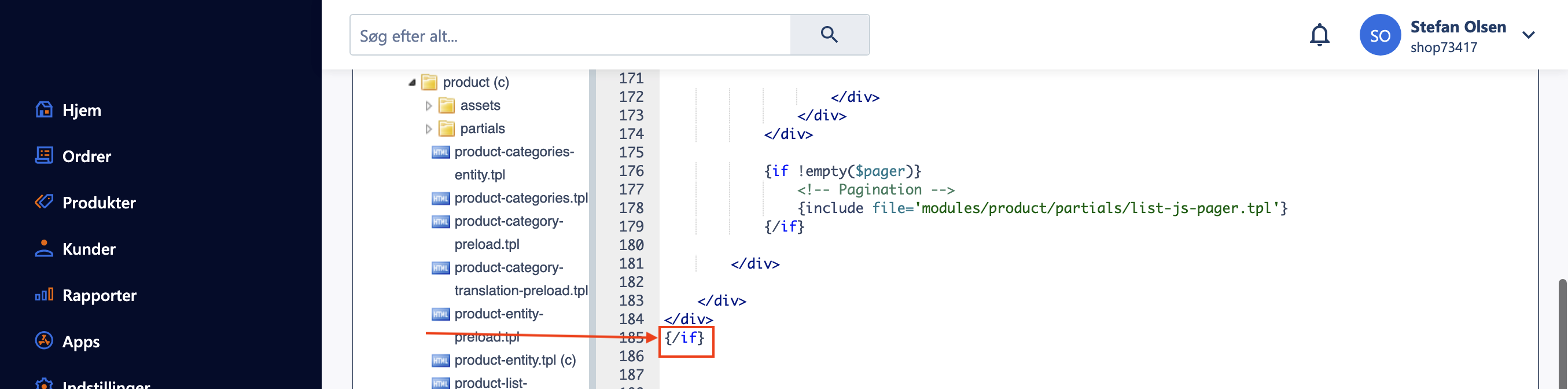
{/if}
- Click Gem to save your changes.
Facets #
Clerk.js includes built-in Faceted Search for the Search Page. Any product attributes sent to Clerk.io can be used as filters.
To enable facets, add the facet attributes to your embed code (as shown in the example above). You can style facets using CSS in the same file.
For a full overview, see the Facets guide.