Design Studio
Design Studio lets you build and refine Clerk.io designs through conversation.
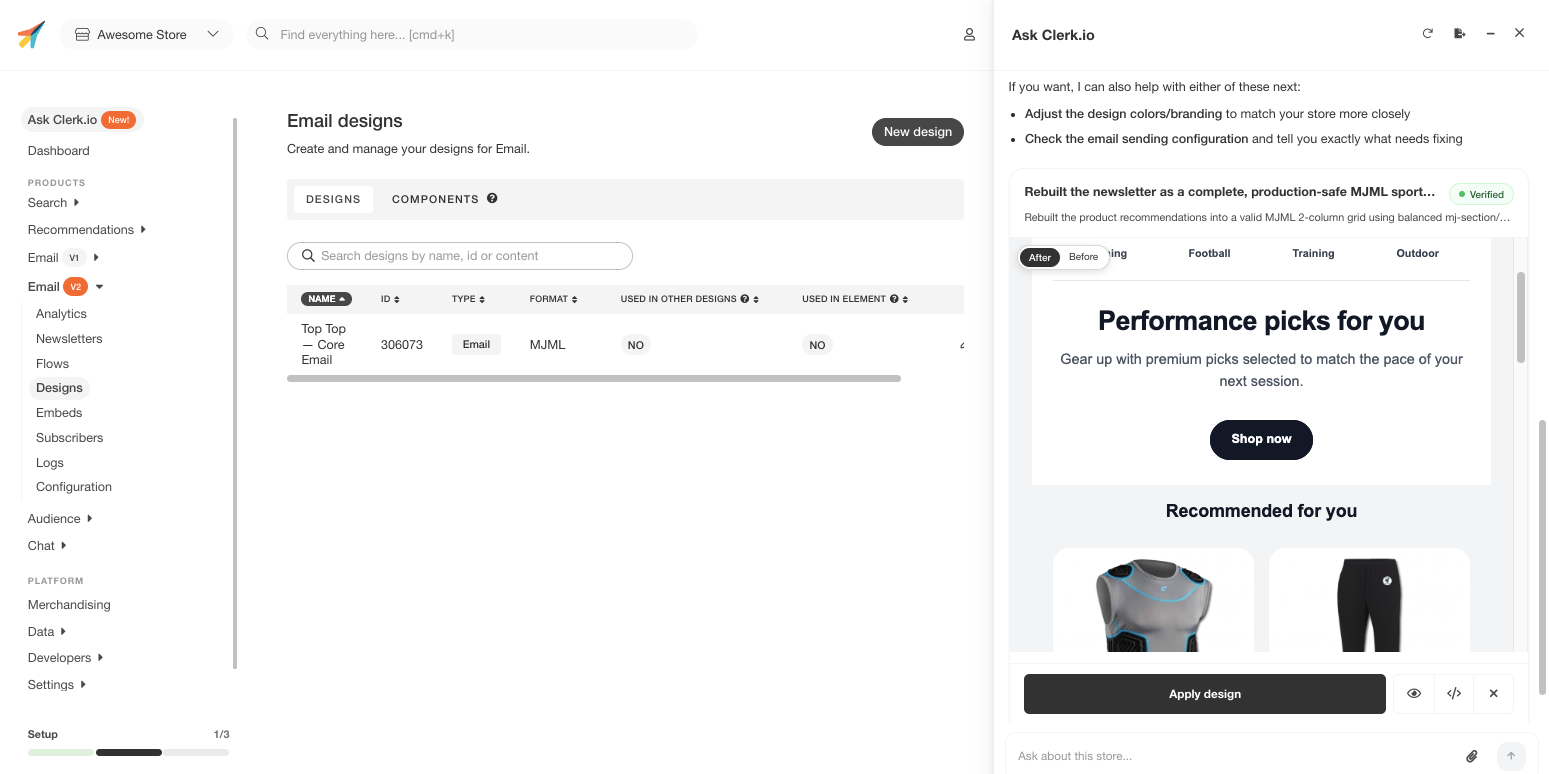
Instead of opening the Design Editor and adjusting components manually, you describe how you want a design to look — and Ask Clerk.io builds it, shows you a preview inline in the chat, and keeps iterating until it matches what you have in mind.
How to start #
Just start a conversation in Ask Clerk.io and describe the design you want.
You can refer to an existing design by name, ask to create a new one from scratch, or point at a specific element on your site. Ask Clerk.io will figure out which design to work with and get started.
Examples of how to begin:
- “Create a new product slider design that matches our website’s style.”
- “Update my Omnisearch design to look like the search on [competitor URL].”
- “Build a recommendations design based on this screenshot.”
Describing how it should look #
The more context you give, the closer the first result will be to what you want.
You can describe the design in plain language — colours, layout, fonts, spacing, whether products should show a badge for sale items, how many columns to use, and so on.
You can also provide context in other ways:
Images — attach a screenshot of a design you want to replicate or use as inspiration. Ask Clerk.io will read the image and extract the visual style.
URLs — ask Ask Clerk.io to browse your site or a competitor’s site and match the look of a specific page or element. It will navigate there and observe the design directly.
Existing designs — reference one of your current designs by name and ask for changes, like adjusting the card layout or switching to a grid instead of a slider.
The preview #
After each change, a preview of the design appears directly in the chat.
This is not a separate preview window — the result shows up inline, right where the conversation is happening. You can see the updated design without leaving the chat or navigating to the Designs section.
If something is off, just describe the correction in your next message. Ask Clerk.io will apply the change and show a new preview.
Iterating #
Design Studio is built for back-and-forth refinement. You are not expected to get it right in a single message.
Typical iteration looks like this:
- Ask for a design based on a description or reference
- Review the preview in the chat
- Ask for adjustments — “Make the product name larger”, “Remove the sale badge”, “Use a two-column grid instead”
- Repeat until the design looks right
- Ask Clerk.io to apply the design
Each iteration builds on the previous one, so you never need to re-explain the full design. Just describe what needs to change.
Applying the design #
When you are happy with the result, ask Ask Clerk.io to apply or publish the design. It will save the changes and connect the design to the relevant element if needed.
You can also ask Ask Clerk.io to publish the design and take it live, or keep it in preview mode while you continue reviewing.