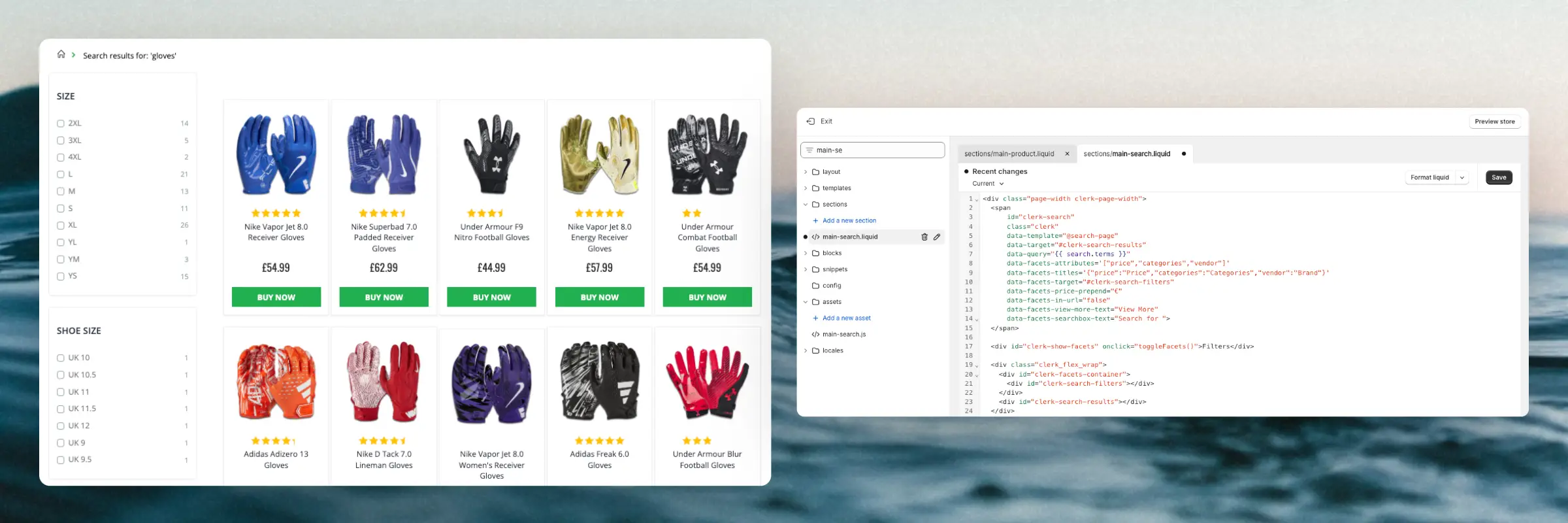
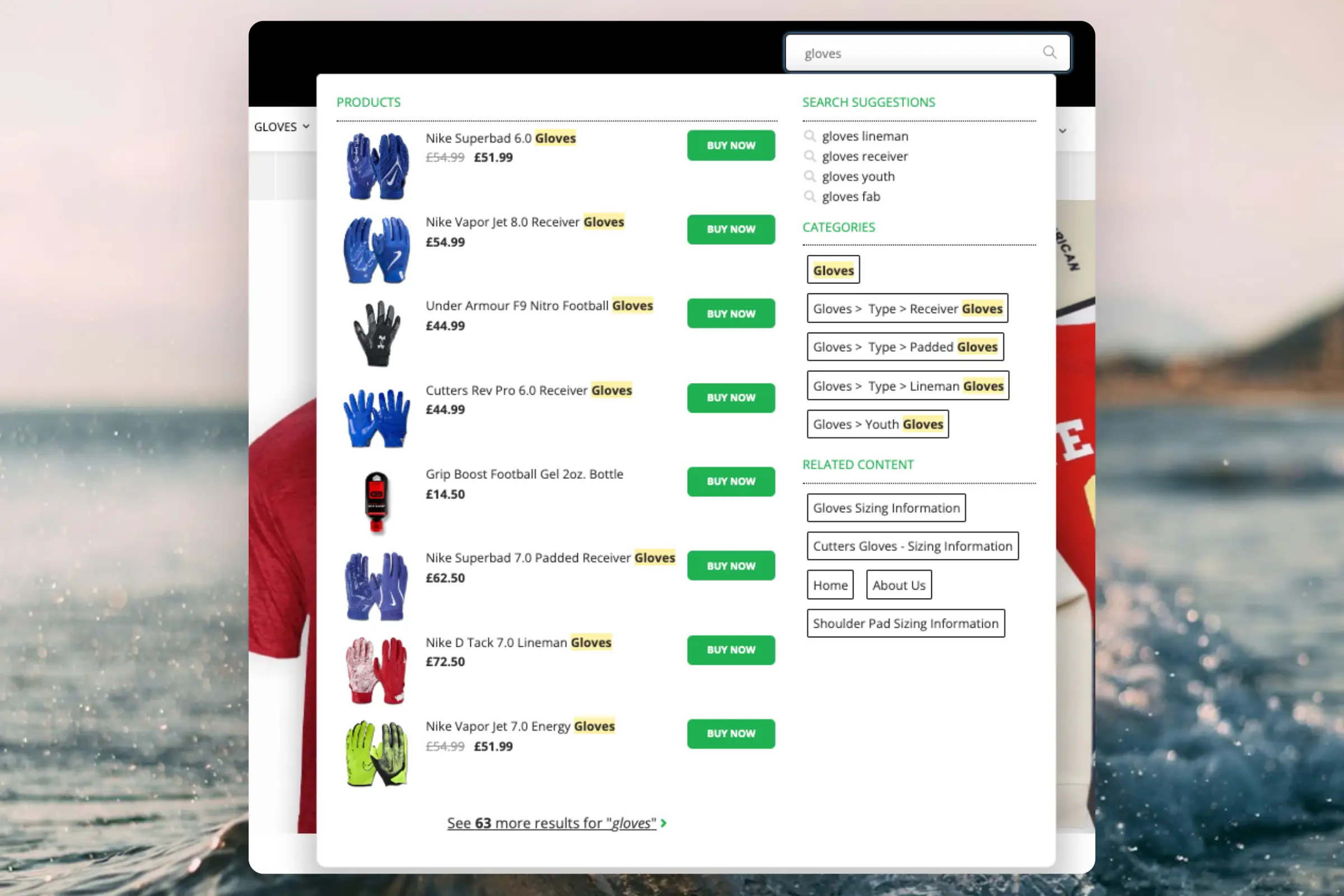
AI Integration

1

AI Importer lets you connect Clerk.io to any platform that exposes an API — without predefined configuration or fixed form fields.

The setup happens entirely within Ask Clerk.io. Describe what you want to connect, and Ask Clerk.io guides you through the rest: finding the API, requesting credentials, building the importer, and testing it before handing off to Data Sync.

Getting started #

Go to Ask Clerk.io and tell it which platform you want to import from. Include a URL to your store if you have one — it gives Ask Clerk.io a useful starting point.

...

API

1

All communication with Clerk occurs through the API:

https://api.clerk.io/v2

Setting up this communication requires 4 steps, which are outlined in this guide. You need to:

  1. Sync data
  2. Retrieve results
  3. Visualize the results
  4. Add tracking

API Keys #

These keys are used to access the data of your Store. They are found in my.clerk.io > Developers > API Keys.

They consist of a Public key, which gives access to endpoints exposing non-sensitive data, and a Private Key which allows you to work with data on the Store and access sensitive data, such as customer and order information.

...

FAQ

1

Running into issues with your email integration? This FAQ covers the most common problems and their solutions, from blocked images to caching issues.

Blocked product images #

As you probably know, email clients do not support the typical HTML/CSS/JS that run smoothly on all browsers.

For this reason, we use a workaround to produce our Email product recommendations dynamically.

We use a web template engine called Jinja and, through this, we can dynamically print all the product attributes and styles as plain images with links.

...

GDPR

1

Clerk.io is fully GDPR compliant. This article explains everything you need to know about Clerk.io and GDPR, and how we make it easy for you to handle GDPR requests.

Trust Center #

At trust.clerk.io, you can review our privacy policy, subprocessors, data management, and much more. The page contains everything needed to understand how Clerk handles your data.

...

MJML Designs

1

MJML is a markup language designed specifically for building responsive emails. Instead of wrestling with HTML tables and inline styles to get a consistent result across Gmail, Outlook, and Apple Mail, you write clean semantic markup and MJML compiles it into battle-tested HTML that works everywhere.

Clerk.io’s email campaign editor includes a built-in MJML editor, making it the recommended approach for creating email designs that look great on any device or client.

...

Search

1

General #

Add powerful search functionality to your BigCommerce webshop. Clerk.io offers three complementary search solutions:

  • An Instant Search dropdown.
  • A Search Page with faceted filters.
  • An Omnisearch overlay that combines both.

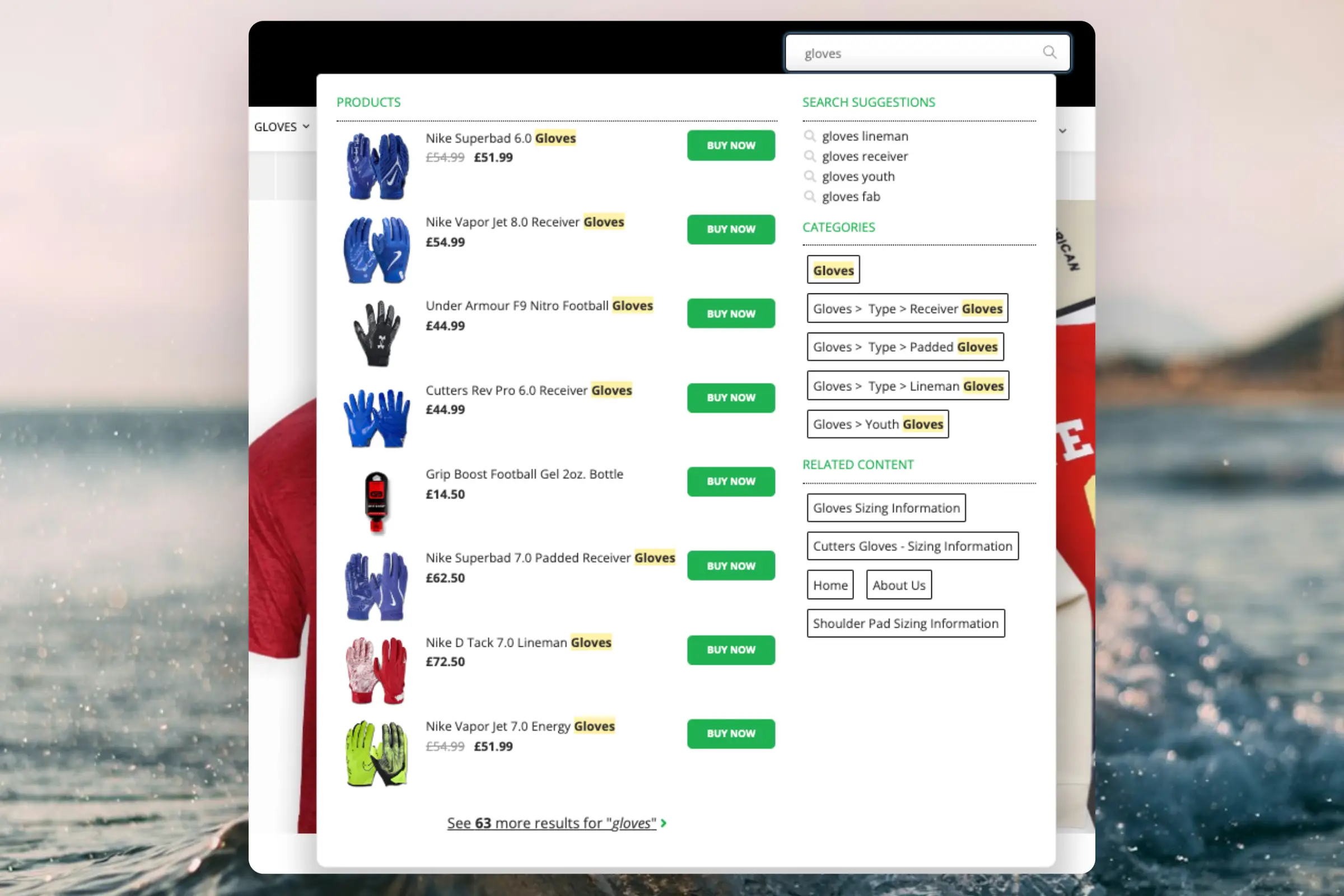
Instant Search provides real-time results as customers type, displayed in a dropdown below the search field.

Create Design #

Use the Design Editor or code designs.

Design Editor #

  1. Go to Search > Designs and click New Design.
  2. Choose Other designs > Instant Search.
  3. Pick a template to start from.
  4. Name it and click Create design.
  5. Adjust the design as needed.

Code Design #

  1. Go to Search > Designs and click New Design.
  2. Choose Other designs > Blank > With code.
  3. Name it and click Save.
  4. Build a code design using Liquid.

Create Element #

This holds the settings to show the Instant Search dropdown and make it embeddable.

...

Search

1

Search code

Clerk.io offers three distinct search solutions that can be used together or separately:

This article explains how to get started when using the Clerk.io DanDomain Classic app.

Instant Search
Instant Search provides real-time search results as customers type, displayed in a dropdown below the search input field.

...

Search

1

Add powerful search functionality to your DanDomain webshop. Clerk.io offers two complementary search solutions:

  • An Instant Search dropdown that shows results as customers type.
  • A Search Page with faceted filters for browsing all results.

Instant Search provides real-time results as customers type, displayed in a dropdown below the search field.

Create Design #

Use the Design Editor or code designs.

Design Editor #

  1. Go to Search > Designs and click New Design.
  2. Choose Other designs > Instant Search.
  3. Pick a template to start from.
  4. Name it and click Create design.
  5. Adjust the design as needed.

Code Design #

  1. Go to Search > Designs and click New Design.
  2. Choose Other designs > Blank > With code.
  3. Name it and click Save.
  4. Build a code design using Liquid.

Create Element #

  1. Go to Search > Elements.
  2. Click New Element.
  3. Name it “Live Search”.
  4. In Element type, select Live-search.
  5. In Design, select the design you created.
  6. Click Save.

Add to Website #

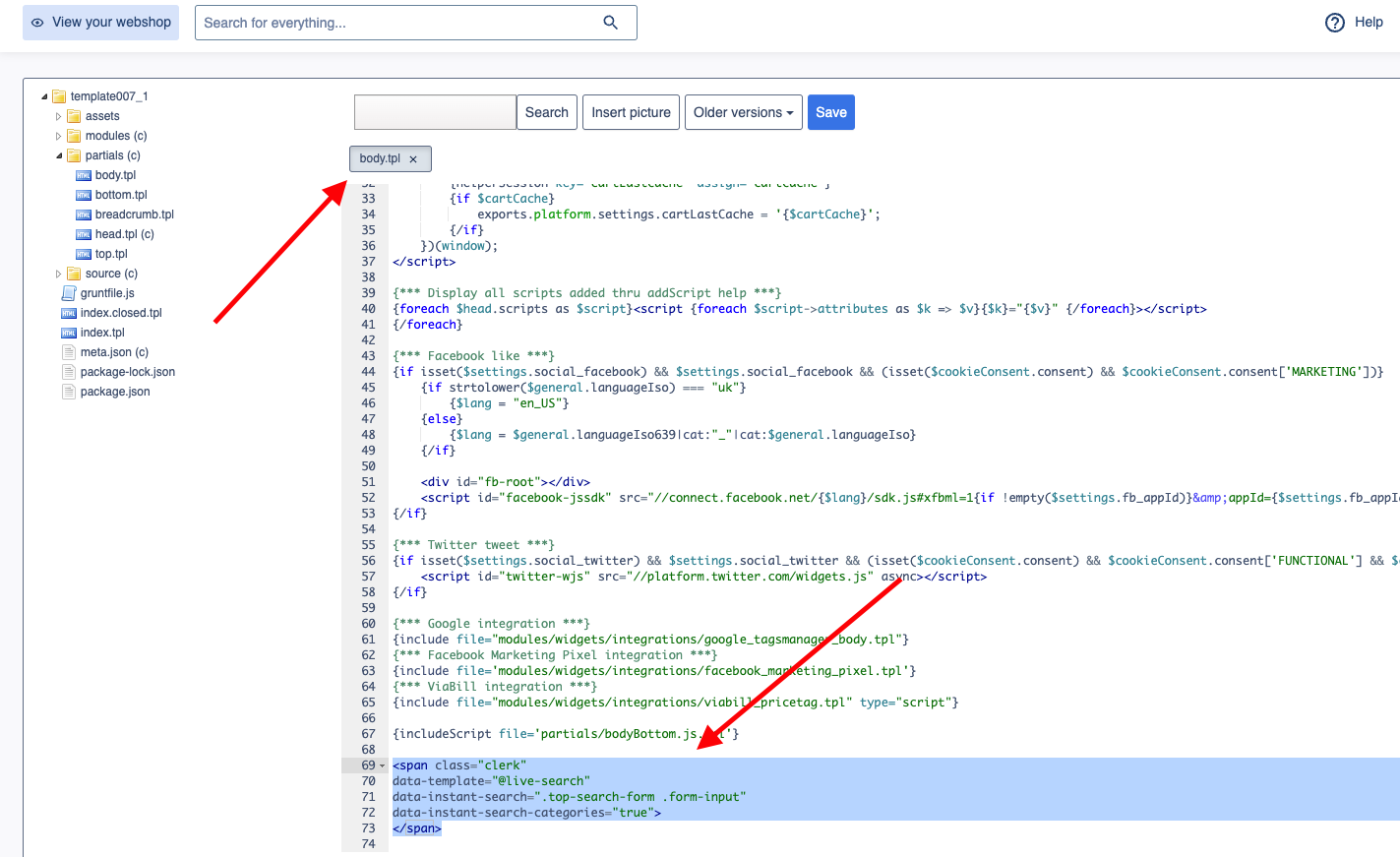
  1. In the DanDomain Admin, go to Online Store > Design > Aktive designs > Rediger filer > partials.
  2. Open the body.tpl file.
  3. Insert the following code and click Gem.
Instant Search code
<span class="clerk" 
    data-template="@live-search" 
    data-instant-search=".top-search-form .form-input" 
    data-instant-search-positioning="left"
    data-instant-search-categories="6"
    data-instant-search-pages="6"
    data-instant-search-suggestions="6">
</span>

Troubleshooting #

If your Instant Search is not showing, it’s likely because your search field has a different identifier than the default.

...

Search

1

Search code

Clerk.io offers three distinct search solutions that can be used together or separately:

This article explains how to get started when using a Clerk.js setup in JTL.

Instant Search
Instant Search provides real-time search results as customers type, displayed in a dropdown below the search input field.

...

Search

1

Clerk.io offers three distinct search solutions that can be used together or separately:

This article explains how to get started with Search on Lightspeed.

General #

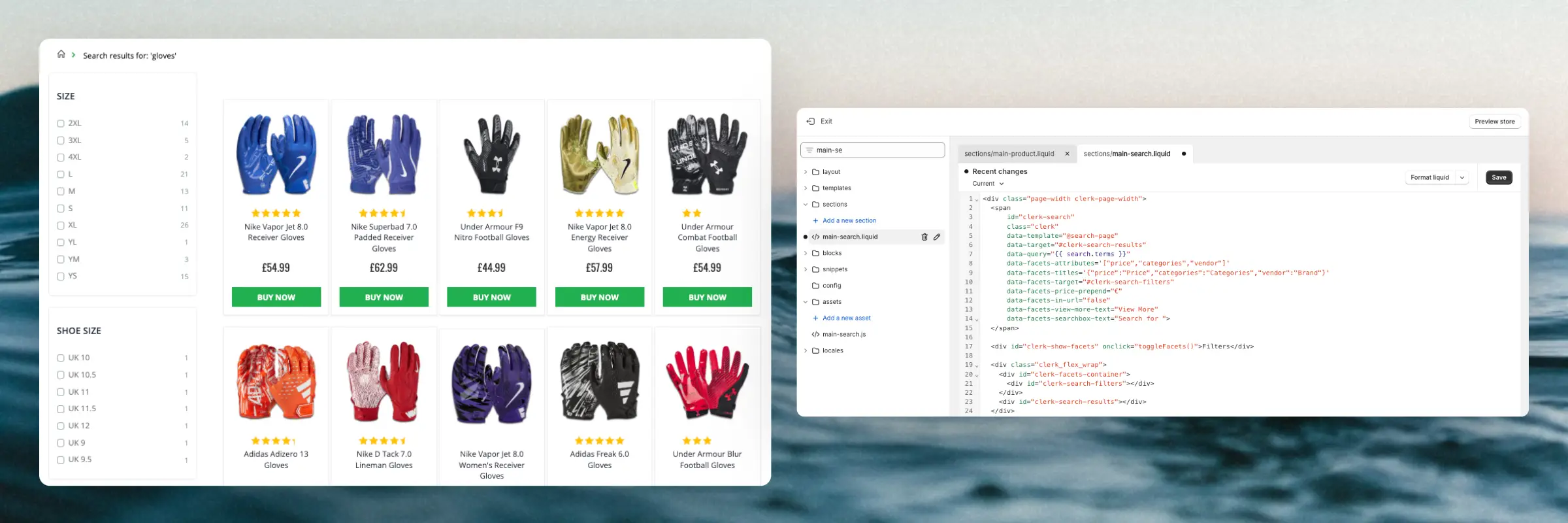
To incorporate your embed code for either Live Search or Search Page, you’ll need to access your theme files. To do this, click “Design” in the left-side menu, then click “Code bewerken” in the Geavanceerd dropdown
...