Automatically sync Audiences to Salesforce so your lists are always up to date. This guide walks you through setting up the integration and syncing your Audiences.
Integration setup
#
To maintain Audiences in Salesforce, you need a Client ID and a Client Secret.
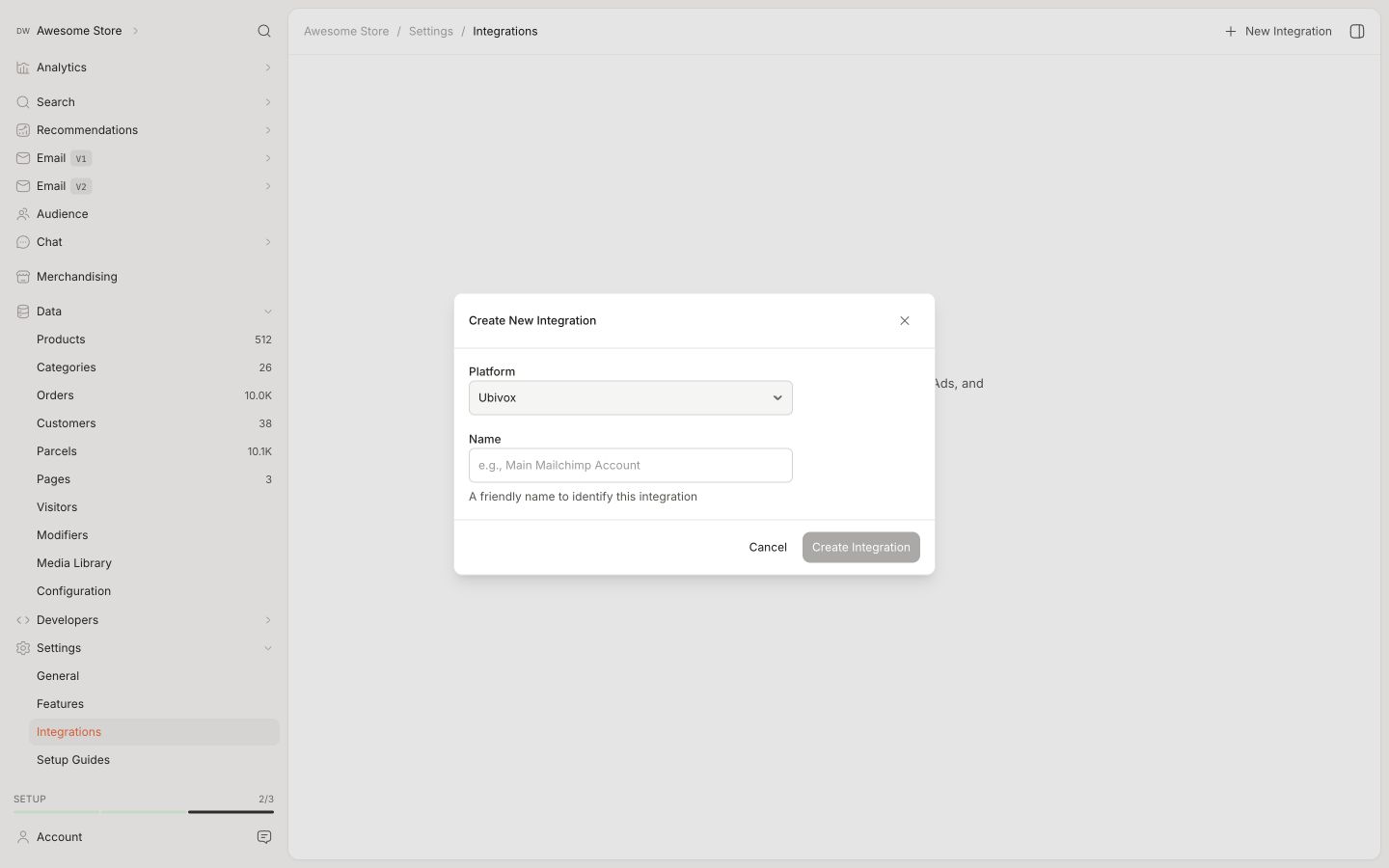
In my.clerk.io, go to Settings > Integrations and click New Integration.
Select Salesforce and give the integration a name.
In the Salesforce backend, start by going to Settings > Setup > Apps > Installed Packages.
...
Automatically sync Audiences to Ubivox so your lists are always up to date. This guide walks you through setting up the integration and syncing your Audiences.
Clerk never pushes new email addresses to Ubivox. We update existing contacts and lists, based on email addresses already in the platform.
Get authentication details
#
In the Ubivox backend start by going to Account -> Security
...
Filter interface
#
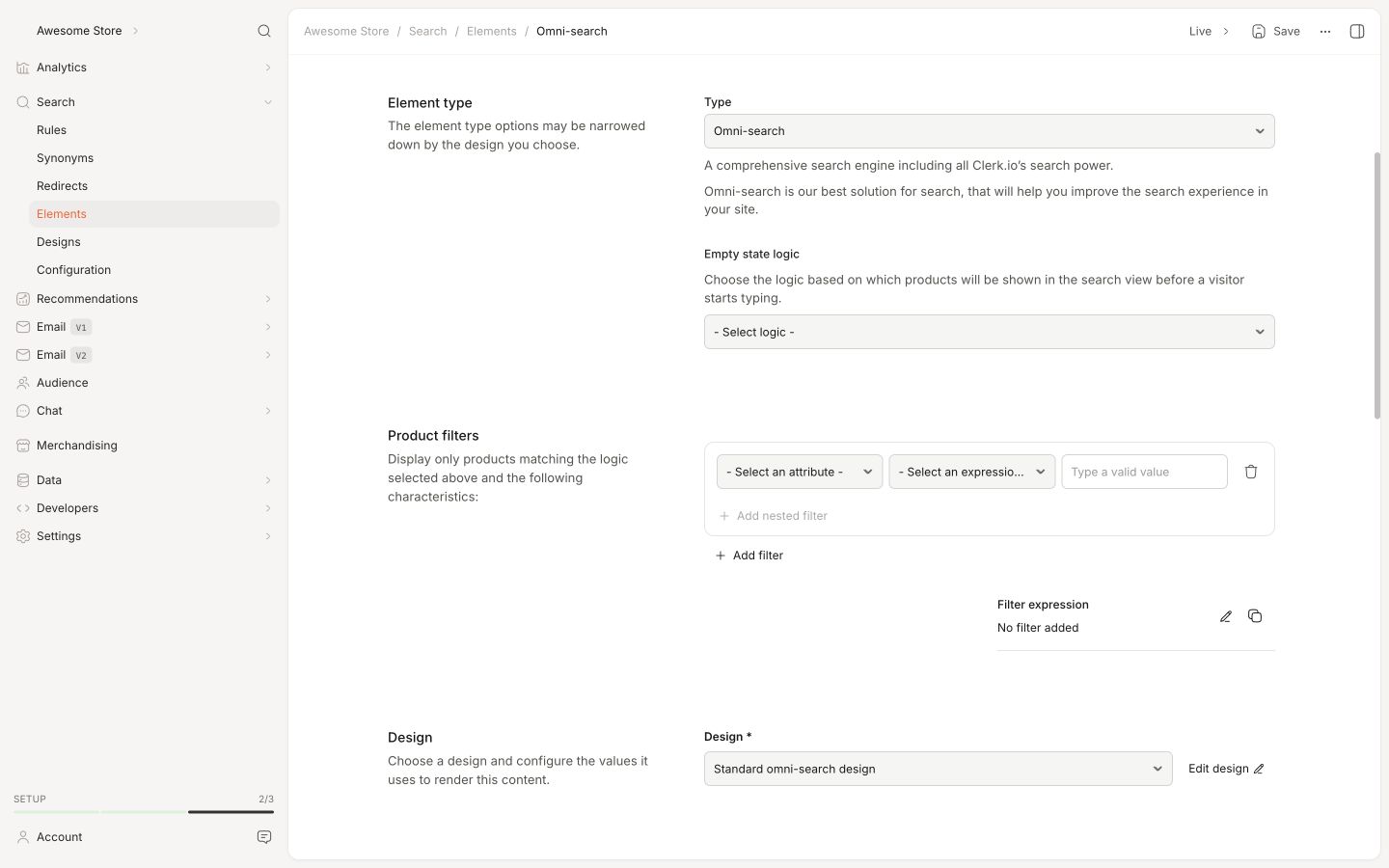
Filters can be used for each Content to narrow down results based on your product-attributes.
You will locate this option in each Content you create for Recommendations, Search or Email, under Content type > Product filters.
Each part of the filter consists of the following:
- An attribute to filter by
- A comparison deciding how the attribute should be compared to the value
- A value deciding what the attribute should be compared to
You can create filters based on any product attributes you send to Clerk. The available comparison operators depend on the type of attribute you filter by.
...