Recommendations Analytics shows how your Recommendations Elements contribute to revenue and which elements deserve attention.Timeframe
#
Use the date-range selector to review 30 days, 90 days, one year, year to date, all data, or a custom period.
Revenue overview
#
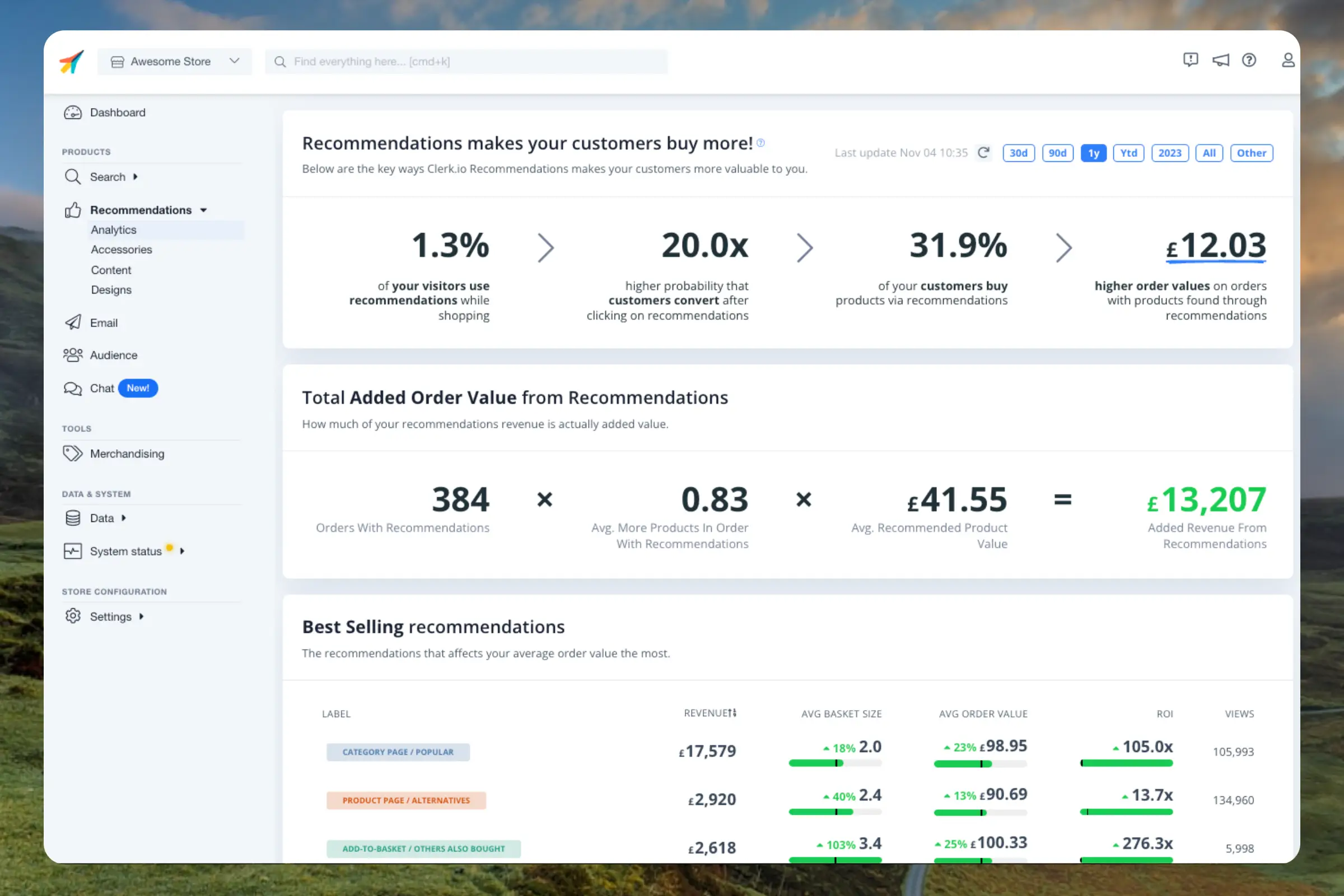
The overview cards show the selected period’s revenue through Recommendations, visitor usage, and orders impacted.
- Revenue through Recommendations: Revenue from products people found with Recommendations. This is the same Recommendations number as on Home.
- Visitor usage: The share of visitors who use Recommendations while shopping.
- Orders impacted: Orders containing at least one product bought through Recommendations.
Revenue is money. Visitor usage and orders impacted are shares, not money, so do not add these figures together.
...Search Analytics shows what visitors search for and how those searches turn into sales. Use it to find demand you can act on.Timeframe
#
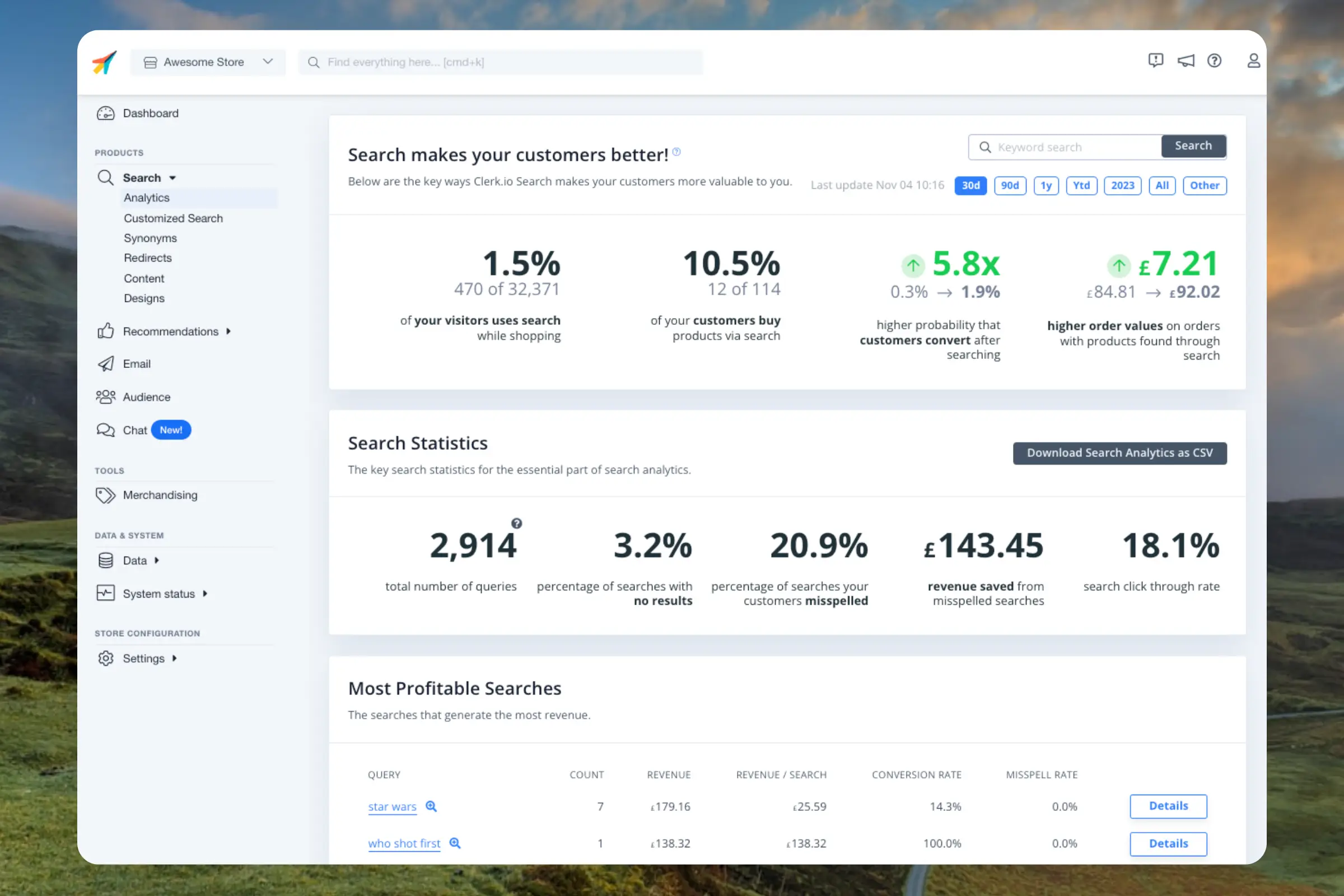
Use the date-range selector to review 30 days, 90 days, one year, year to date, all data, or a custom period. You can also search for a keyword and download the displayed data.
Revenue overview
#
The overview cards show three metrics for the selected period:
...Clerk.io can read, analyse, and act across almost every part of your setup. Below is an overview of what it can do — both in terms of the questions it can answer, and the changes it can make.
All actions require your confirmation before they are applied.
Clerk.io can dig into your numbers in detail. This includes pulling core KPIs like revenue, orders, conversion rate, and average order value — and breaking them down by time period, product, or traffic source.
...This guide covers the setup needed before Clerk.io can send emails on your behalf.
It applies to campaigns, flows, and automated triggers like Abandoned Cart. If you only want to add personalised product recommendations to emails sent from Klaviyo, Mailchimp, or another platform, go to
Embeds instead.
Each concept below explains what it does, when you need it, and how to manage it with Clerk.js or the API where code is required.
...Sync your BigCommerce products and attributes to Clerk. This guide covers customizing product data and choosing which products to import.
Set up Sync
#
Only Store Owners can access the API settings.
To sync your BigCommerce store data with Clerk, you need to create an API account in BigCommerce and configure it in Clerk.
In your BigCommerce admin, go to Settings > API Accounts.
Click Create API Account and choose Create V2/V3 API Token.
...
Sync your DanDomain Classic products, attributes, and order data to Clerk. This guide covers customizing product data, choosing which orders to import, and managing order sync.
Before syncing data, make sure you have installed and configured the Clerk.io app in your DanDomain Classic backend. See the
Get Started guide for installation instructions.
Set up Sync
#
To sync your DanDomain Classic store data with Clerk, you need to configure the import URL in the Clerk app and start the sync.
...Sync your DanDomain products and attributes to Clerk. This guide covers setting up API access and syncing your catalog.
Enable API Access
#
Before syncing your catalog, you need to enable API access in your DanDomain store:
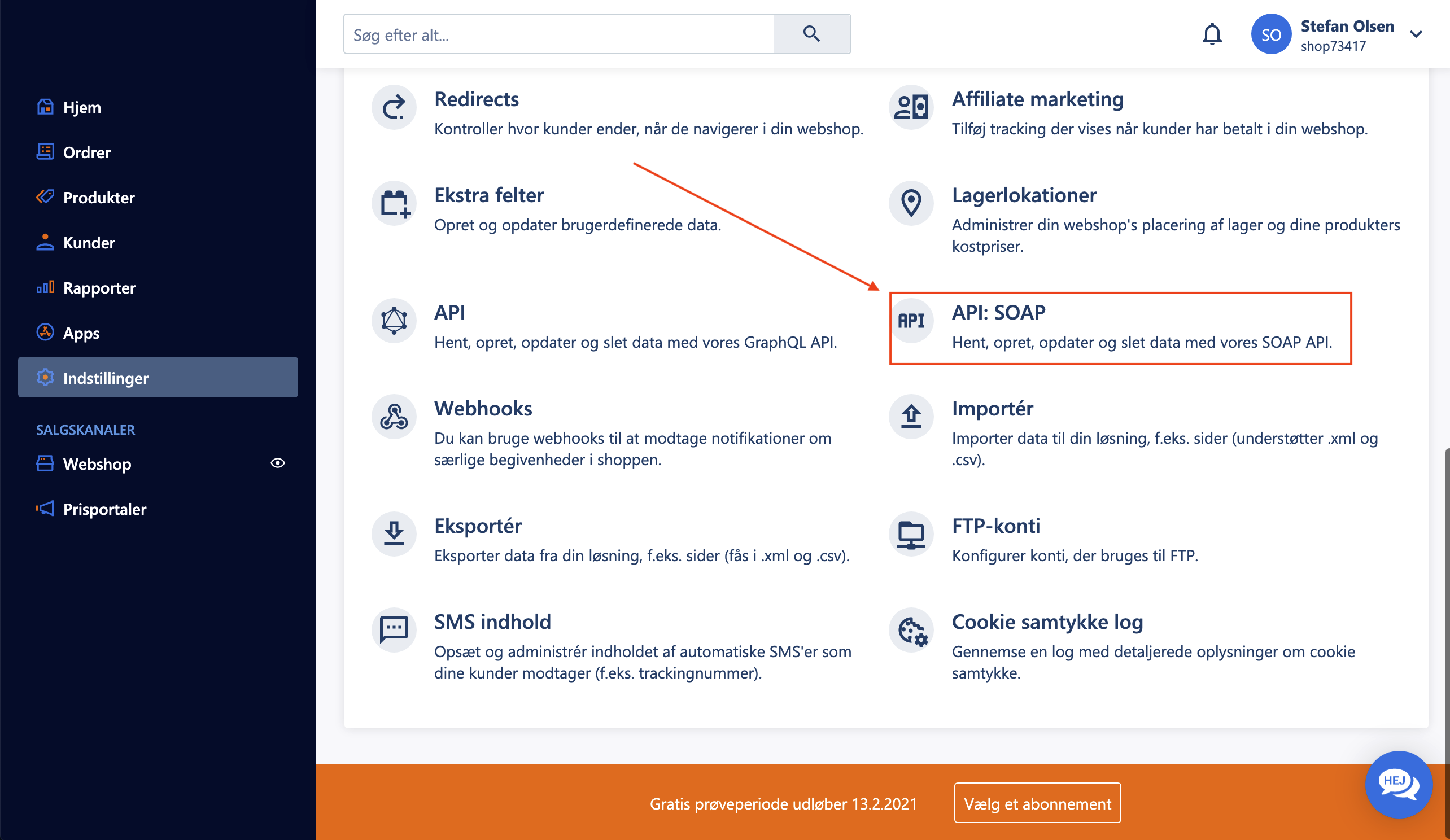
- In your DanDomain administration, go to Indstillinger > API: SOAP.
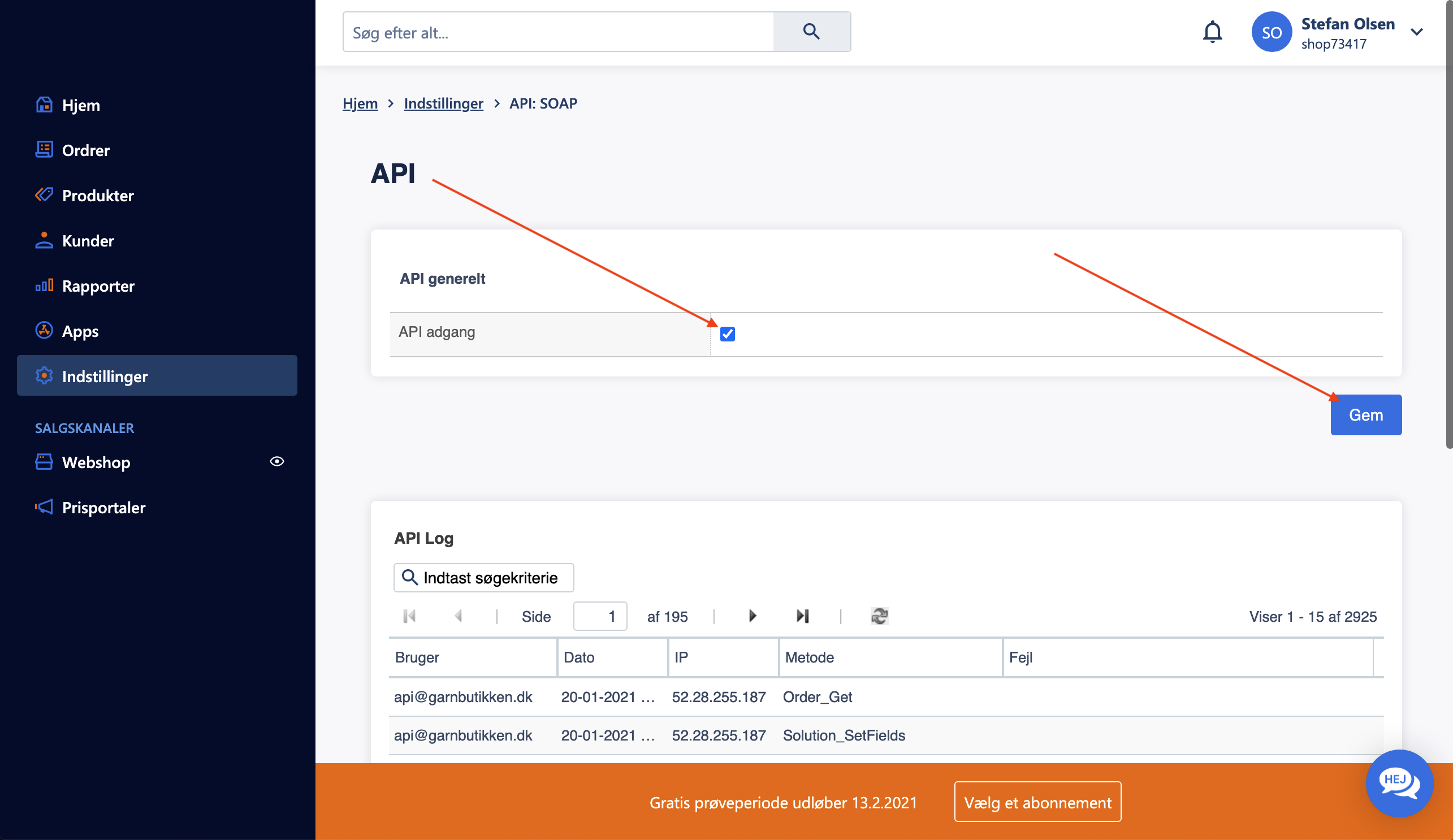
- Under API generelt, check the box for API adgang.
- Click Gem to save the settings.
Create API User
#
To allow Clerk to access your store data, create a dedicated API user:
...