Recommendations
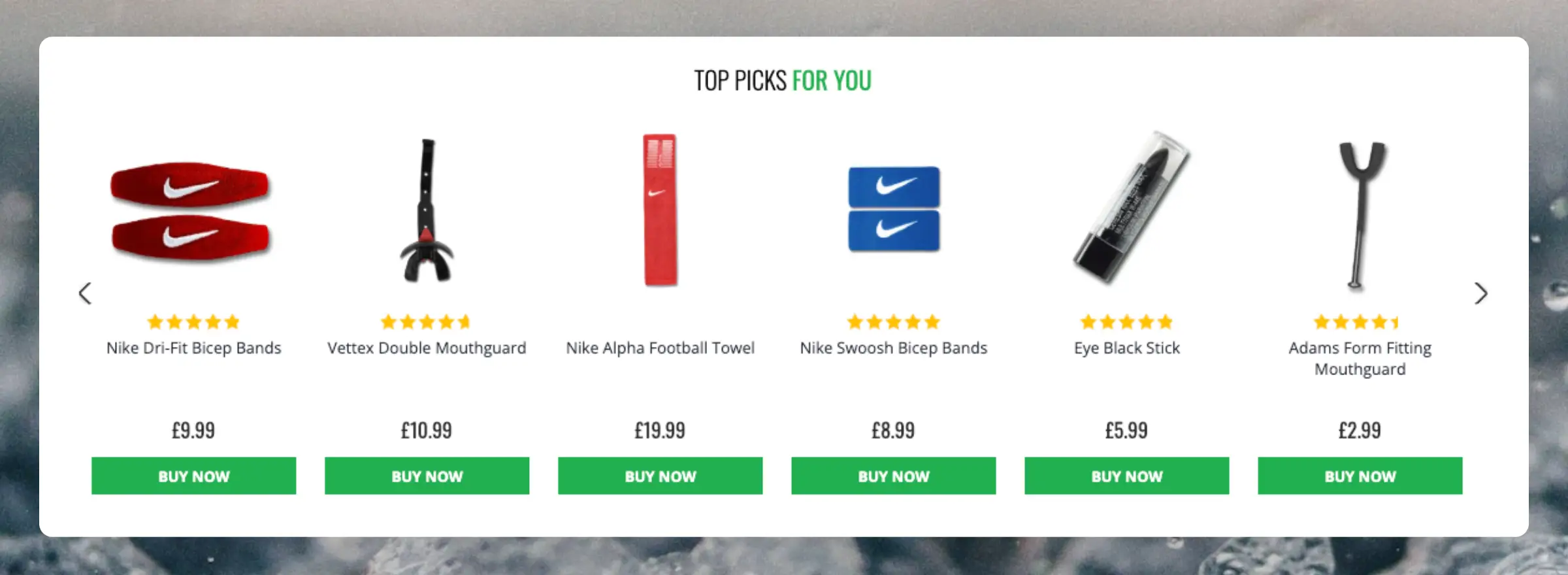
Set up recommendations after syncing your data. Choose the experiences with the Recommendations best practices, then adapt their placement and context to your theme.
Create Elements #
Each Element combines a product logic, a Design, and settings for where it appears.
- Go to Recommendations > Designs > New Design and choose a Product Slider template. Configure it in the Design Editor or use a code Design.
- Go to Recommendations > Elements > New Element.
- Give the Element a descriptive name and choose its Element type, Design, and number of products.
- Save it in In preview.
- Open Insert into website and choose injection or embedded code.
A Design can serve several Elements. Use the generated embed code and Element ID from your own Store. IDs such as @product-page-alternatives are examples, not required names or ideal.shop module IDs.
Identify Context #
Product, category, article, and basket recommendations need IDs that match imported records. Find the ID source separately from the selector that controls placement.
- Open the relevant storefront page and inspect its HTML with browser developer tools.
- Look for an attribute containing the current product, category, or article ID. For baskets, inspect each product row.
- Find the corresponding record in Clerk.io and compare IDs. Do not substitute a SKU, URL slug, or basket line ID unless it is also the imported record ID.
- Repeat on another page and after navigation to confirm that the value changes correctly.
Theme Examples #
These selectors and attributes were identified in Fodmagasinet’s theme. Check them on your webshop before entering them in the Element’s injection ID settings.
| Context | Example selector | Attribute |
|---|---|---|
| Product | .item-page[data-item-id] | data-item-id |
| Category | .item-category-container[data-item-category-id] | data-item-category-id |
| Basket products | #basket_container .basket-item-tr[data-item-id] | data-item-id |
| Blog article | body[data-page-type="blog_post"][data-page-id] | data-page-id |
For example, the Gehwol Lipidro page exposes product ID 262327. Verify it against your own imported record rather than copying the value.
Do not assume body[data-page-id] contains a product or category ID. Verify its meaning on each page type. Where the integration sets reliable Clerk.js context, you can also use
Clerk.js context as the ID source.
Basket IDs #
A basket line ID identifies one basket entry; it may differ from the product ID Clerk.io imported. In the Fodmagasinet example, data-basket-id is a line ID and data-item-id is the product ID.
In injection settings, use the basket product selector and product attribute above. Multiple ID extraction collects the matched product IDs into one list for cross-sell.
To inspect the list in developer tools, this read-only example collects unique IDs from that theme:
const productIds = [...new Set(
  [...document.querySelectorAll('#basket_container .basket-item-tr[data-item-id]')]
    .map(row => row.getAttribute('data-item-id'))
    .filter(Boolean)
)];
console.log(productIds);
For embedded code, supply the current IDs as a JSON array, for example data-products='[123,456]'. Update them and refresh the Element through the documented integration when the basket changes; do not leave a fixed example list in production.
Missing Context #
If no reliable ID exists, ask the theme developer to expose the imported product/category/article IDs and basket product IDs through stable attributes or Clerk.js context. They must update after navigation and basket changes, including the empty-basket state.
Configure Placements #
Choose stable, unique targets inside the webshop’s content area. Avoid generated classes or a module number copied from another webshop.
In Insert into website > Using injection, configure URL targeting, the target selector, and position. Use Before or After for siblings, or Inside first / Inside last for content within the target.
Check that the selector matches once on each intended page, including after dynamic navigation. Use Element settings for the full injection options.
| Page | Setup and placement |
|---|---|
| Homepage | Place visitor recommendations, bestsellers, or trending products between relevant content sections. Use the webshop’s own content width and module targets. |
| Category | Use Bestsellers In Category with the current category ID, near the category introduction or product listing. |
| Product | Use Best Alternative Products before the description and Best Cross-Sell Products below it. Both use the current product ID. |
| Basket | Use Best Cross-Sell Products with all current basket product IDs, inside the checkout content width and above the footer. |
| Article | Place page-based related products after the article content. The article must be imported with the same ID supplied by the page. |
Fodmagasinet Examples #
For product pages with description tabs, .item-page .tabs-outer-container is an example target for alternatives with Before. Cross-sell uses Before .item-page #ratings, placing it after the description and before reviews.
For a product without tabs, inspect the remaining content and choose a stable fallback. In this theme, #ratings can be a fallback when present. Make fallback conditions mutually exclusive so alternatives render once and retain the intended order with cross-sell.
Basket recommendations can use After body[data-page-type="basket"] #basket-form. Confirm that the injected Element remains within the checkout width, above the footer. Provide a separate target or hide the Element if an empty basket omits the form.
For articles, inspect the actual article-content wrapper and insert after the content, before unrelated navigation or footer modules. Homepage and article module IDs, exact layouts, and headlines must be chosen for your own webshop.
If replacing native recommendations, hide or disable their display after verifying the Clerk.io placement. Preserve manually configured product relationships so the webshop can reuse them. Avoid Replace on a wrapper containing unrelated content.
Optional category thresholds need a reliable total or verified pagination information. Counting only visible cards can hide recommendations on later pages of a large category. Choose your own threshold and test the first and last pages.
Purchase Actions #
Reuse the webshop’s native purchase behaviour so variants, basket totals, and errors work consistently. A product-page link is the safe starting point when additional choices are required.
Inspect a native buy control, its event handler, and a purchase request in developer tools using an agreed test basket. Confirm the endpoint, request method, payload, variant requirements, response handling, and basket refresh before connecting a Clerk.io button.
On Fodmagasinet, the verified native flow used /basket/add with items_id and quantity, through ajax_post and basket_add_receive. These endpoint, field, and function names are theme examples; reuse their actual signature and handling from the webshop.
For simple products, test that a single action adds the intended quantity and refreshes the native basket. For products needing size, colour, or another choice, open product.url for selection unless your integration explicitly supports those choices.
Do not infer variant requirements from stock or a zero parent price. Keep native errors visible and actionable. See the variant FAQ for why a response-message adapter is not a general solution.
Card Data #
Use the same verified product-card rules in Search and Recommendations. Inspect imported examples for a simple product, a discounted product, an unavailable product, and a product with variants before adapting a template.
| Value | Display rule |
|---|---|
price | Verify it is the selling price, with the intended currency and tax treatment. Zero parent prices require source investigation. |
| Regular price | Use one confirmed field consistently for both discount badges and strike-through prices. list_price and retail_price are not interchangeable guarantees. |
| Availability | Check the actual field, type, and meaning. Do not copy a condition such as stock == 1 to mean unavailable. |
| Currency | Configure formatting for the Store and language. Do not copy a hard-coded pound or euro symbol into another currency. |
Fodmagasinet’s returned product data uses price and list_price. For example, product 430087 returned both as 99, so it should have no discount badge or old price. Use list_price consistently for that mapping; do not substitute retail_price.
The following minimal Liquid card links to the product page and assumes that the imported price has been validated. It deliberately leaves purchase handling, stock labels, and discount markup to your verified data mapping.
{% for product in products %}
  <a class="ideal-clerk-card" href="{{ product.url }}" data-event-type="product-click">
    <img src="{{ product.image }}" alt="{{ product.name }}" loading="lazy">
    <span>{{ product.name }}</span>
    <span>{{ product.price | money }}</span>
    <span>View product</span>
  </a>
{% endfor %}
For a verified list_price mapping, use the same comparison for both the badge and old price:
{% if product.list_price and product.list_price > product.price %}
  <span class="ideal-clerk-card__badge">Sale</span>
  <del>{{ product.list_price | money }}</del>
{% endif %}
Validate field types and translate the label before using this example. For a discount, require a numeric regular price greater than the selling price. Use that same field for the old price and badge. Do not mix list_price in the badge with retail_price in the old price.
Where imported variant prices are available, show the lowest valid purchasable variant price with a localized From label, such as Fra in Danish. Verify variant availability, tax, currency, and any displayed discount against the same variant.
For example, Fodmagasinet product 285207 returned price: 0, list_price: 0, and variant_prices: [109,65]. Its card can show Fra 65,00 kr. using the verified variant-price array instead of displaying zero. Do not show an old parent price of zero.
This theme’s Liquid display uses product.variant_prices | min | money_eu 2, followed by kr.. Check that your own array contains the intended purchasable variants and adapt the label and currency formatting to your Store.
A calculated card price does not change the imported parent price used for sorting. Correct the source or import mapping if sorting still uses an incorrect or zero price. See the
price FAQ.
Finish with the setup checklist.