Sync Data
Sync your MyStore products and data to Clerk. This guide covers configuring the module and setting up data synchronization.
Before syncing data, make sure you have installed the Clerk.io module in your MyStore backend. See the Get Started guide for installation instructions.
Configure the module #
After installing the module, you need to configure it with your API keys and enable the data you want to sync.
In your MyStore control panel, go to Utvidelser > Dine utvidelser.
Find Clerk.io and click Instillinger to open the module settings.
Go to my.clerk.io > Developers > API Keys and copy Public Key and Private Key.
Paste the keys into the Clerk public key and Clerk private key fields.
Enable Put orders in feed for the first sync so Clerk has access to historical orders.
Enable Add tags to add extra product data to the feed.
Click Oppdater to save. The tracking script is automatically added to your theme.
Once the module is configured with your Public API key, it automatically adds the Clerk.js tracking script and sales-tracking to your webshop.
If Clerk.js and sales-tracking are not being inserted on your webshop, you may be running an old MyStore theme version that requires an extra step. See Clerk.js not inserted in the FAQ.
Set up Sync #
The Clerk.io module generates a data feed that contains your products, categories, orders, and customers. To sync this data with Clerk:
Your feed URL follows this pattern:
https://www.YOUR-DOMAIN.no/twinxml/clerk.phpReplace
YOUR-DOMAINwith your actual webshop domain.Go to my.clerk.io > Data > Configuration.
Paste the feed URL into the Data Feed URL field.
Select the language of your domain.
Click Start Sync and wait for the sync to complete.
If the feed does not contain the expected data, add
live=yesto the URL to force fresh data instead of cached data:https://www.YOUR-DOMAIN.no/twinxml/clerk.php?live=yes
Verify the sync #
After the sync completes, verify that your data has been imported correctly:
Go to my.clerk.io > Data > Products to see your imported products.
Check my.clerk.io > Data > Orders to verify that orders are being synced.
If orders are not appearing, check that Put orders in feed is enabled in the module settings.
Settings reference #
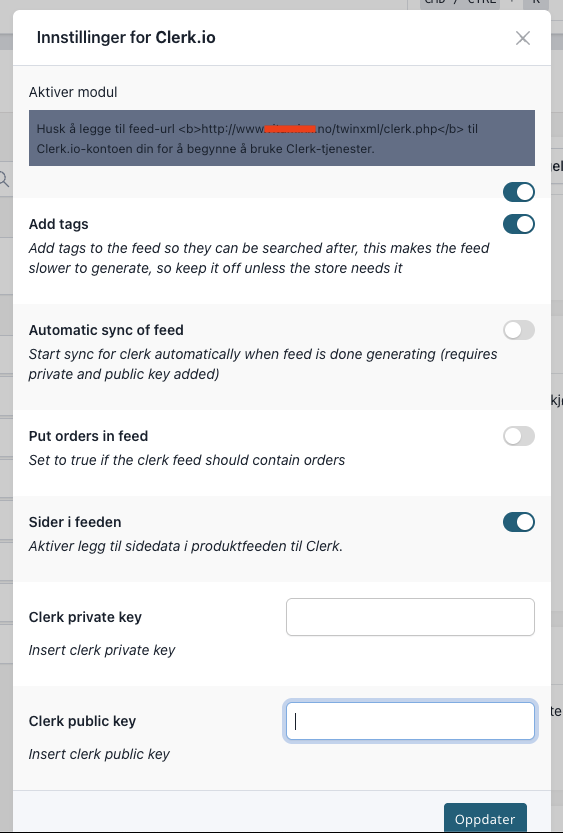
| Setting | Description |
|---|---|
| Add tags | Includes product-specific tags added to products in the MyStore backend as an attribute in the feed. |
| Automatic sync of feed | Automatically triggers the Clerk importer when the feed has been generated. This is often not needed as Clerk can be configured to import feeds at specific intervals automatically. |
| Put orders in feed | Adds order history to the feed. Enable this for the first import so Clerk knows how customers have behaved before Clerk was installed. This setting is automatically disabled after the next sync to avoid having sensitive data in the feed. After installation, orders are tracked in realtime via sales-tracking. |
| Sider i feeden | Adds pages like blog posts and FAQs to the feed, making them searchable in Clerk. |
| Clerk private key | The Private Key used for syncing data. Found in my.clerk.io > Developers > API Keys. |
| Clerk public key | The Public Key added to Clerk.js to initialise Clerk on the website. Found in my.clerk.io > Developers > API Keys. |