Tools (Coming soon)
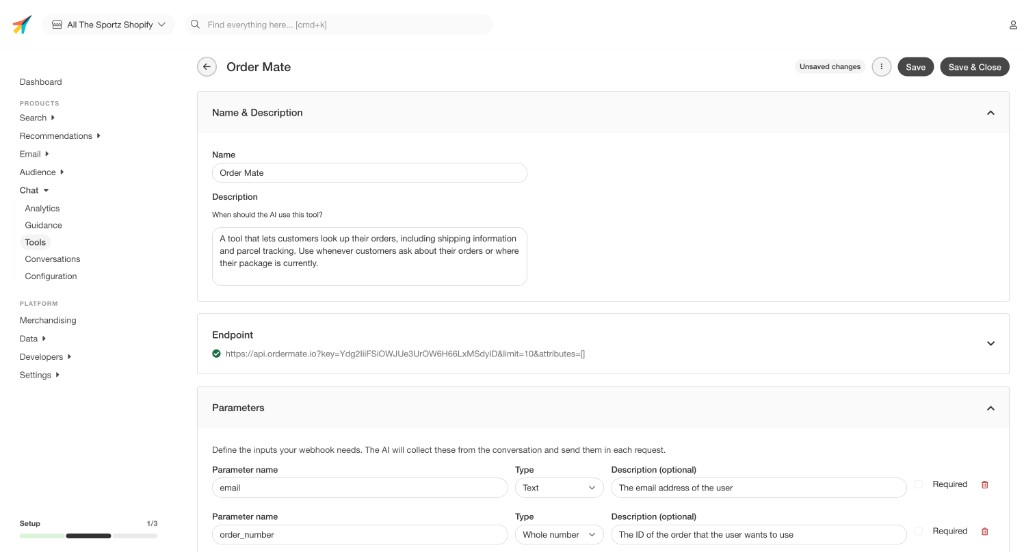
Tools let Chat call external APIs during a conversation. When a visitor asks something that requires live data — like order status, inventory levels, or loyalty points — Chat can fetch it automatically and respond with actual information from your systems.
Any service that has an API can be connected as a Tool.
Go to Chat > Tools and click + Add another tool to open the tool editor.
Name & Description #
Give the tool a name to identify it, and a description that tells Chat when to use it.
The description is the most important part. It acts as an instruction to the AI — similar to telling a new employee when they should look something up in an external system. Be specific about the situation that should trigger this tool. For example:
“When a customer asks about an order, use the order data available in product_data to provide information about their order.”
The clearer the description, the more reliably Chat will use the tool correctly.
Parameters #
Parameters define the data points that need to be included in the API call. When a tool is triggered, Chat checks whether it already has the required values from the conversation. If not, it asks the visitor to provide them before making the request.
For each parameter, define:
- Name — The variable name referenced in the URL or request body
- Type — Tells Chat what data type it should collect, e.g. a text string or a whole number.
- Description — Tells Chat what this parameter represents and what to ask for
A good description makes it clear what the visitor should provide. For example, a parameter named order_number with the description “The ID of the order the user is asking about” gives Chat everything it needs to ask the right question.
Mark a parameter as Required if the API call cannot work without it.
Endpoint #
This is where you define the actual API call Chat will make when the tool is triggered.
Method: Choose GET, POST, PUT, or DELETE depending on what your API requires.
URL: Enter the full endpoint URL. Query parameters can be added directly inline in the URL, which is usually enough for GET requests. Query parameters can be static or based on the parameters you have asked Chat to collect, using {{parameter_name}} For example:
https://api.omate.com/orders?key=abc123&e={{email}}&id={{order_number}}
Request body: Available for POST and PUT requests. Define the full body in whatever format your API expects. Parameters can also be referenced here if needed, just like in the URL.
Custom headers: Add any headers your API requires, such as authentication tokens or content type overrides.
Timeout: Set how long Chat should wait for a response before giving up. Options range from 3 seconds to 10 minutes.
Test #
Once configured, use the Test section at the bottom of the editor to verify the connection. Enter real values for each parameter and click Test request to run the call.
A successful test confirms that Chat will be able to use the tool reliably during live conversations.