Tools
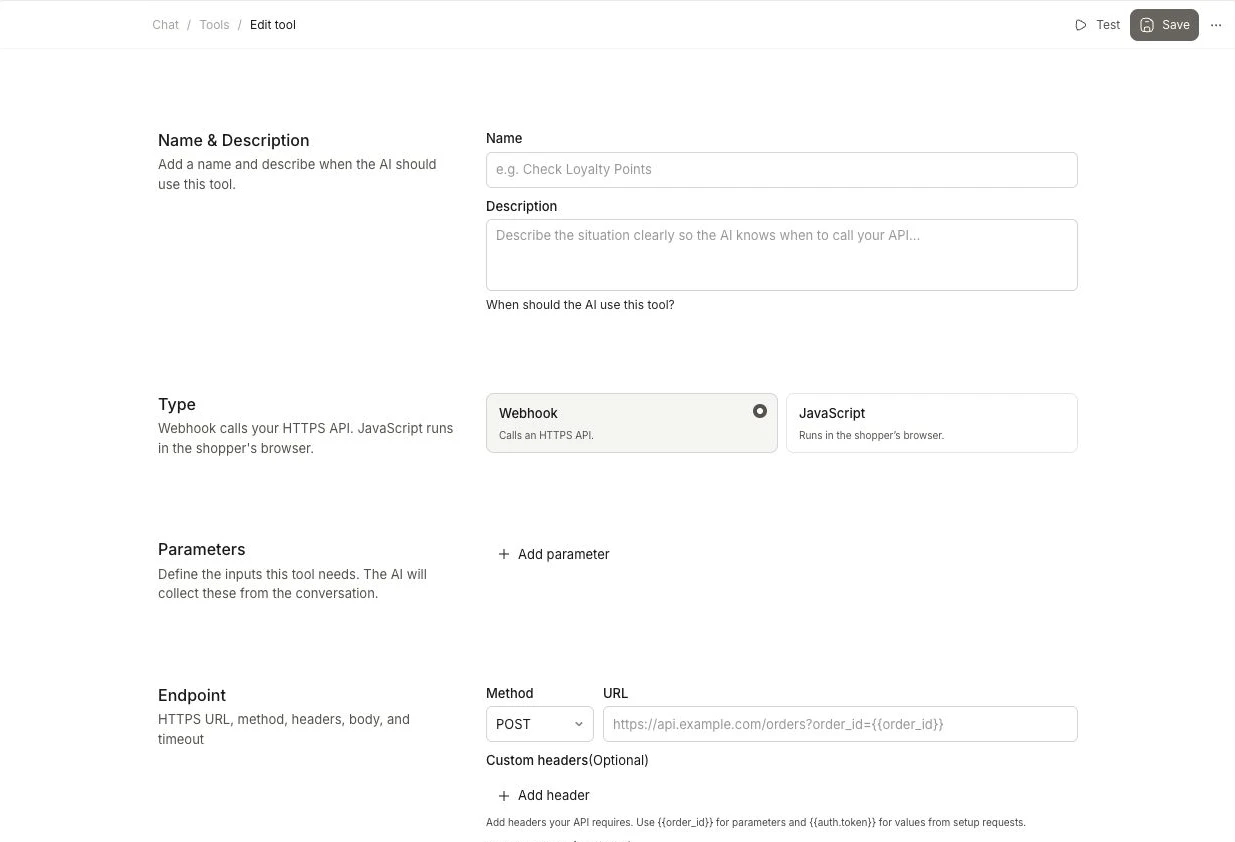
Tools extend what Chat can do during a conversation. A webhook can fetch live data from an external service, while a JavaScript tool can run code in the shopper’s browser and carry out an action on your storefront.
Name & Description #
Go to Chat > Tools and click + Add another tool to open the tool editor. Give the tool a clear name and describe when Chat should use it.
The description acts as an instruction to the AI. Be specific about the situation that should trigger the tool. For example:
“When a customer asks about an order, use the order data available in product_data to provide information about their order.”
A clear description helps Chat use the tool correctly and avoid calling it for unrelated questions.
Tool type #
Choose Webhook or JavaScript in the Type section. Webhook calls an HTTPS API. JavaScript runs in the shopper’s browser.
Build with Ask #
If you do not want to set up the tool yourself, ask Ask Clerk.io to propose a webhook or JavaScript tool. Describe what Chat should do, then review and confirm the proposed name, description, parameters, and configuration before using it.
Webhooks #
In Type, select Webhook. Webhook tools call your HTTP API. Use them when a service can provide the data or perform the action Chat needs through an endpoint.
Parameters #
Define the values Chat needs before it can run the tool. Chat collects these values from the conversation and asks the visitor for any required value that is missing.
For each parameter, define:
- Name — The variable name used by the endpoint or JavaScript function.
- Type — The kind of value Chat should collect, such as text or a whole number.
- Description — What the value represents and what Chat should ask the visitor for.
Use the same parameter names in your request or JavaScript code as in the parameter list. For example, a parameter named order_id must be read as order_id in the corresponding template or function.
Mark a parameter as Required when the tool cannot work without it.
Endpoint #
Configure the HTTP request that Chat sends when a webhook tool runs.
Method: Choose GET, POST, PUT, or DELETE, depending on what your API requires.
URL: Enter the full endpoint URL. Query parameters can be static or can use values collected from the conversation with {{parameter_name}}. For example:
https://api.example.com/orders?email={{email}}&id={{order_number}}
Custom headers: Add any headers your API requires, such as authentication tokens or content type overrides.
Request body: For POST and PUT requests, enter the body in the format your API expects. You can use parameters here as well.
Timeout: Choose how long Chat should wait for a response before giving up. The available options range from 3 seconds to 10 minutes.
Save and Test #
Click Save when the tool is ready.
Open Test from the page toolbar or its actions menu. In the test popup, enter sample values for the configured parameters, run the test and inspect the response. Close the popup to return to the editor.
JavaScript #
In Type, select JavaScript. JavaScript tools run in the shopper’s browser and can connect Chat to functionality that already exists on your storefront, such as:
- adding a product to the cart
- reading the current cart
- applying a discount code
- opening checkout
- opening a size guide
- saving a product to a wishlist
- opening a store locator or click-and-collect flow
These are custom actions, not built-in operations. You need to connect each tool to the matching functionality in your storefront.
Parameters #
Define the values Chat needs before it can run the tool. Chat collects these values from the conversation and asks the visitor for any required value that is missing.
For each parameter, define:
- Name — The variable name used by the JavaScript function.
- Type — The kind of value Chat should collect, such as text or a whole number.
- Description — What the value represents and what Chat should ask the visitor for.
Use the same parameter names in your request or JavaScript code as in the parameter list. For example, a parameter named order_id must be read as order_id in the corresponding template or function.
Mark a parameter as Required when the tool cannot work without it. Read the collected values from the args object in your function.
Code #
Write an asynchronous function that the storefront runs when Chat calls the tool. The editor provides the function with the collected arguments and the storefront context.
Use the args object to read the values defined in Parameters. Then call the storefront code that performs the action, such as adding an item to the cart or opening checkout. Return a clear result so Chat can tell the visitor what happened.
The exact JavaScript depends on your storefront. Make sure the function handles missing, invalid, or unavailable values safely.
Save and Test #
Click Save when the tool is ready.
Test JavaScript tools on a test or preview storefront before making them available to visitors. Verify both the storefront action and the message Chat gives after the action completes.