Media Library
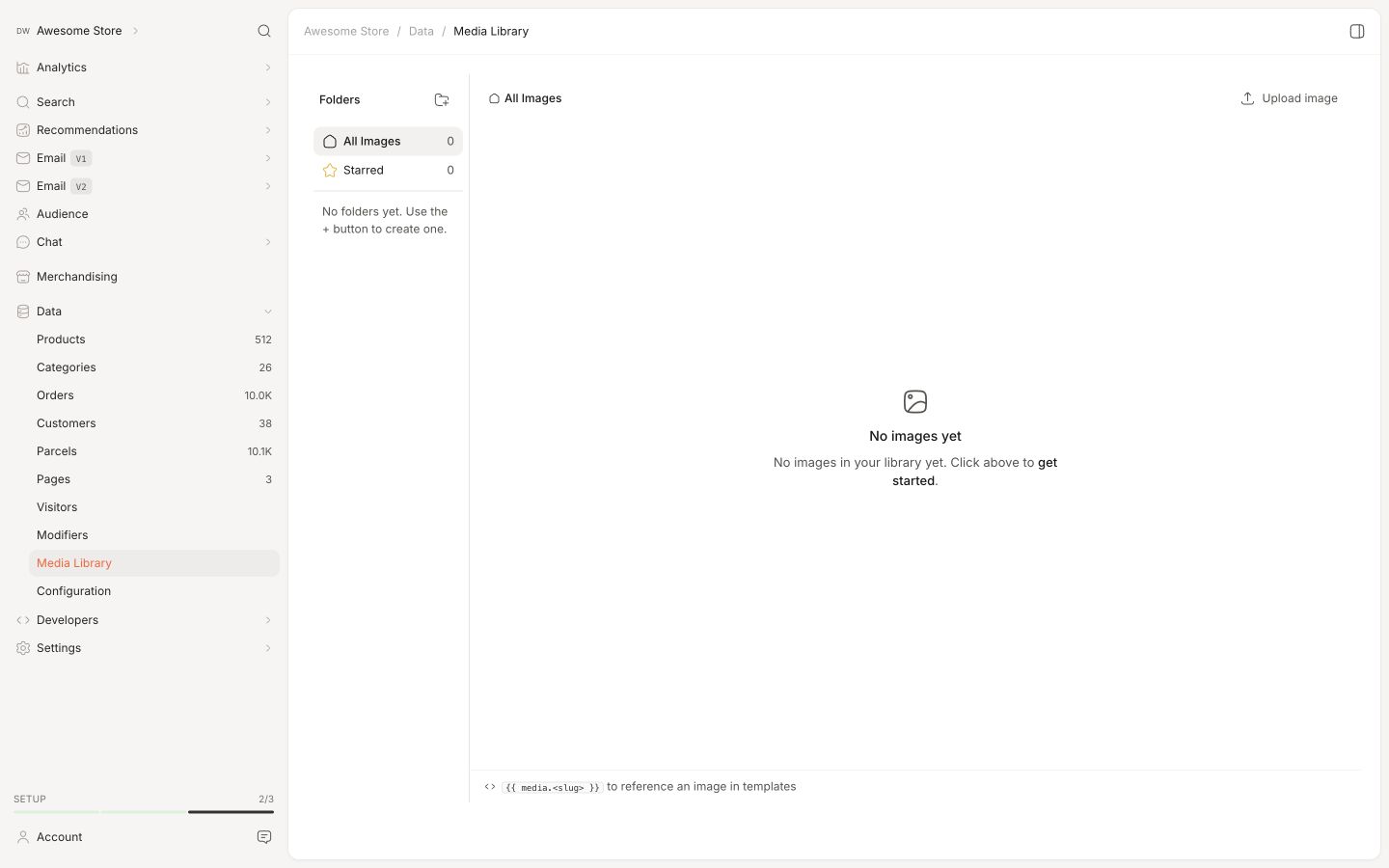
The Media Library lets you upload images to Clerk.io’s servers so they can be referenced directly inside your email designs and templates.
This is useful when you want to include static visuals — a banner, a logo, a seasonal header — inside an email campaign or flow without relying on an external image host.
Uploading Images #
Go to Data > Media Library and click Upload image. Select the image file from your computer and it will be uploaded and stored by Clerk.io.
Each uploaded image gets a slug — a short identifier based on the filename — and a template reference in the format {{ media.slug }}.
For example, an image uploaded as reviews-banner.png gets the template reference {{ media.reviews-banner }}. Drop that reference into any email design wherever an image URL is expected, and Clerk.io will resolve it to the hosted file at send time.
Using Images in Designs #
Once an image is uploaded, copy its template reference from the Media Library and use it in your email design’s HTML like this:
<img src="{{ media.reviews-banner }}" alt="Reviews banner">
If you are building your design through Ask Clerk.io Design Studio, you can attach the image directly in the chat and ask it to include the image in the design. It will upload the image to the Media Library and use the template reference automatically.
Managing Images #
Click any image in the Media Library to view its details: slug, file size, dimensions, and the full template reference.
From the detail view you can also edit the slug or delete the image entirely. If you delete an image that is referenced in an active design, that reference will resolve to a broken image at send time — so make sure to update any designs that use it before deleting.