Profit
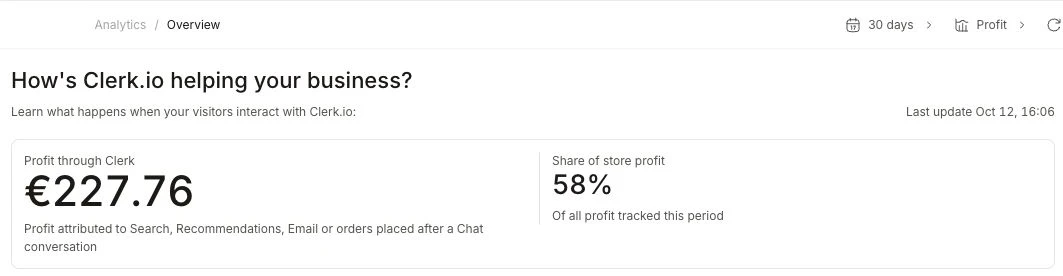
Clerk.io is built to help you grow your bottom line. Profit reporting lets you see the profit associated with sales through Clerk.io directly in your dashboard, using detailed profit data or estimates based on your margins.
You can start at the level that fits your business. Use actual profit for each sale, send profit with your product feed, or create estimates with AI Modifiers. You do not need an existing profit-tracking setup to get started.
Choose your approach #
These three approaches let you work with the data you have today and add more detail as your profit tracking develops.
| Approach | Best suited to | What you provide |
|---|---|---|
| Order lines | Stores tracking profit for individual sales | Actual profit per unit for each order line, sent with sales tracking |
| Product feed | Stores with known product costs or margins | Profit per unit for each product |
| AI Modifiers | Stores without existing profit data | Estimated product profit calculated from an assumed margin |
Profit priority #
You can use these approaches together. Clerk.io chooses the profit value separately for each order line, in this order:
- Sales tracking wins: If you send
profiton the order line with sales tracking, Clerk.io always uses that value. This includes zero, even when the product has a different profit value. - Product profit is the fallback: If you omit
profitfrom the order line, Clerk.io uses the product’s numericprofitattribute. This can come from your product feed or be calculated by an AI Modifier.
Product-feed values and AI Modifier values both provide product-level profit. Neither replaces a profit value sent with sales tracking. If neither source provides profit data, Clerk.io shows a dash.
Order lines #
Send the actual profit per unit with each order line when your profit tracking accounts for discounts, special offers, or other differences between sales. This gives Clerk.io the value for that specific sale.
Sale payload #
With Clerk.js installed, add profit to each product in the data-products attribute of your sales-tracking snippet. Place the snippet on your order confirmation page, using the values from the completed order.
<span
  class="clerk"
  data-api="log/sale"
  data-sale="order-123"
  data-products='[
    {
      "id": "112234",
      "quantity": 2,
      "price": 99.0,
      "profit": 31.5
    }
  ]'>
</span>
Both price and profit are amounts per unit. This line has a value of 2 × 99 = 198 and a profit of 2 × 31.5 = 63. The profit value is validated as a number and stored on the order line.
Replace the example order ID, product ID, quantity, price, and profit with the actual order data. See Clerk.js tracking setup for the rest of the setup.
You can omit profit when you do not track it for each sale. Clerk.io then falls back to the product’s numeric profit value from your feed or an AI Modifier, as explained in
Profit priority.
Product feed #
Include a numeric profit attribute on each product in your feed. Calculate the value from your product costs or a known margin before sending it to Clerk.io.
This value is a fallback when no profit was reported with the sale. A missing or non-numeric product attribute means there is no product profit data; it is not treated as zero.
For example, if a product’s unit price is €100 and its profit margin is 40% of that price, send profit: 40. This is a profit of €40 per unit. See
Data Feeds for how to import your catalogue.
AI Modifiers #
If you do not have profit data to send, use an AI Modifier to calculate the profit attribute from an assumed margin. Describe the calculation in plain language, then check the results in the preview before applying it.
For example, a fixed 50% margin sets profit to price × 0.5. A €100 product gets an estimated profit of €50 per unit.
You can also describe different margin assumptions for product groups using attributes available in your catalogue. See the example prompts in Modifiers for a category-based margin estimate.
These figures are estimates based on your assumptions. AI Modifiers creates the calculation; it does not establish your actual costs. You can start with estimates and replace them with more precise product or sale-level data later.
Profit calculation #
The profit attribute contains a monetary amount per unit, not a percentage. Clerk.io calculates each product line as quantity × profit per unit.
For example, three units with a profit of €4 each give a line profit of €12. Negative profit remains negative. A missing value is shown as a dash, while zero means the supplied profit is zero.
Historical profit #
Product-level profit is read when Clerk.io calculates profit. Adding it also makes profit available for existing order history, without backfilling or re-importing the orders.
Historical profit can change: Updating product-level profit changes historical profit calculated from those values. This also matters when you change a margin estimate in a modifier. A value supplied with the sale still takes precedence.
View your results #
Once your store provides profit data, you can review profit across analytics and inspect the individual orders behind it.
- Open Analytics > Overview, Analytics > Search, Analytics > Recommendations, or Analytics > Email.
- Open the metric dropdown in the page header, which shows Revenue or Profit.
- Select Profit to view performance in profit. Select Revenue to return to revenue.
Your selection is remembered as you move between these analytics pages. Stores without profit data do not see the metric dropdown or profit fields on orders.
Open Data > Orders to see profit alongside order value and on each product line.