Setup
This guide covers the setup needed before Clerk.io can send emails on your behalf.
It applies to campaigns, flows, and automated triggers like Abandoned Cart. If you only want to add personalised product recommendations to emails sent from Klaviyo, Mailchimp, or another platform, go to Embeds instead.
Each concept below explains what it does, when you need it, and how to manage it with Clerk.js or the API where code is required.
Choose the right setup path #
Use the section that matches the task you need to complete:
- Check the setup: Open Setup Status to find missing configuration or broken tracking.
- Send from your domain: Configure the Sender Domain and verify its DNS records.
- Prepare recipients: Import existing subscribers, then collect new subscribers through forms, popups, and checkout.
- Configure email sending: Set up Store Personalization, Email Designs, Email Identification, and Cart Tracking.
The setup is task-based. For example, Abandoned Cart requires email identification and cart tracking, while a one-off campaign requires a sender domain, subscribers, and an email design.
Setup Status #
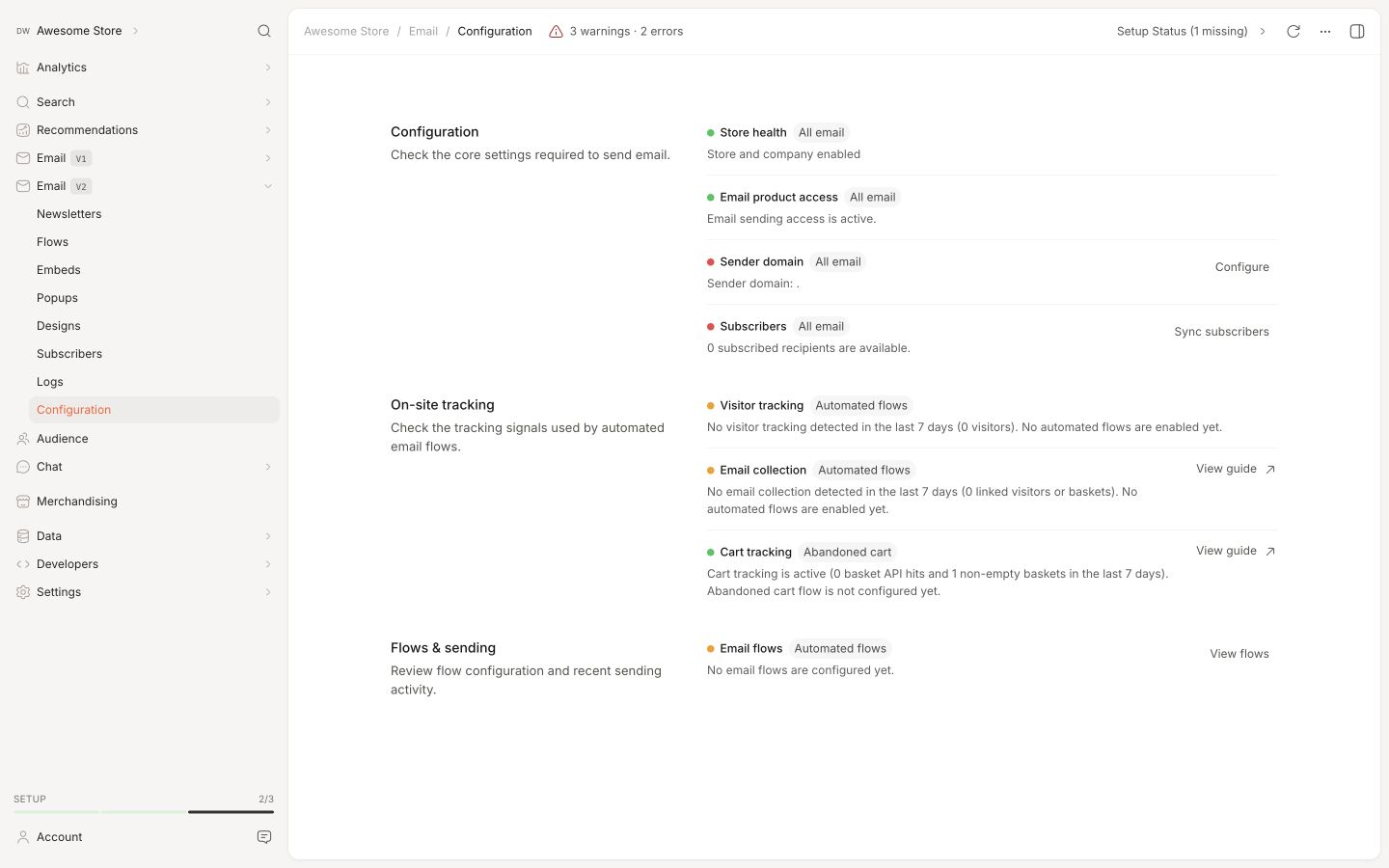
The Setup Status tab gives you a live overview of your email setup.
Find it in Email > Configuration > Setup Status. It shows whether the required parts are configured, whether tracking is working, and whether emails are being sent as expected.
Each item has a coloured dot. Green means everything is in order, red means something is missing or broken, and orange is a warning worth checking.
The checks are grouped into three areas:
Configuration covers the core setup. This includes whether email sending is enabled, which sender domain is configured, how many subscribed recipients are available, and whether active flow steps have email designs.
On-site tracking shows whether visitor tracking is running. It also shows how many visitors or baskets have been linked to an email address in the last seven days.
Flows & sending shows whether active flows are configured, how many flow events are pending, how many emails have been sent recently, and whether the send queue is healthy.
Start here when emails are not sending as expected. It is the closest thing email setup has to a dashboard that quietly taps the fuel gauge.
Sender Domain #
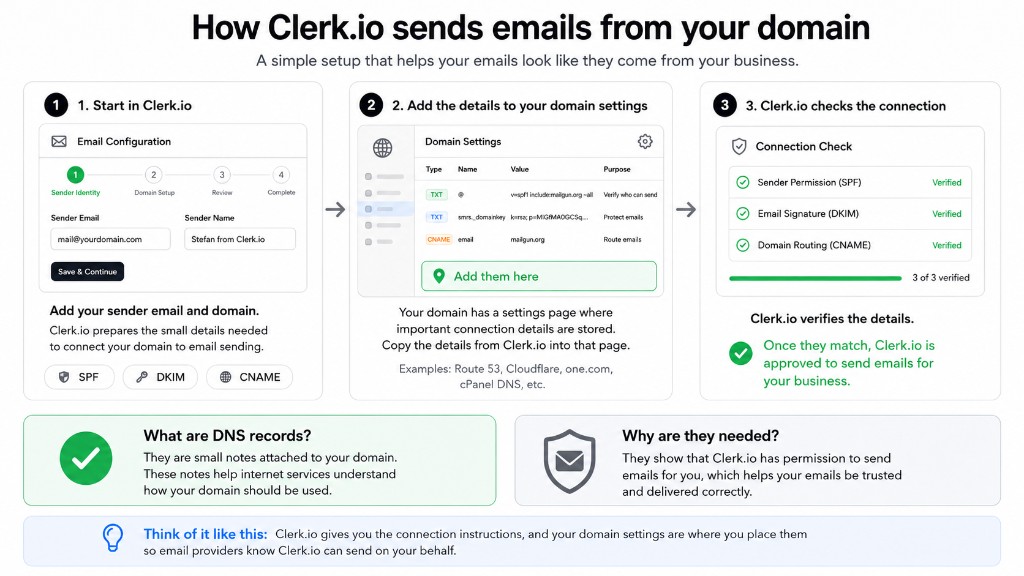
The sender domain is the domain Clerk.io uses when sending emails for your store.
Before Clerk.io can send from that domain, you need to authenticate it with DNS records. These records tell receiving mail servers that Clerk.io is allowed to send emails on your behalf.
Without this proof, emails can be rejected or sent to spam. Mail servers are suspicious by profession, and frankly they have seen things.
DNS Records #
Add the required DNS records in your domain host. This is usually where you manage your domain, such as Cloudflare, GoDaddy, Route 53, or a similar provider.
Clerk.io uses three types of DNS records:
- SPF declares which services can send email from your domain.
- DKIM adds a signature so recipients can verify the email came from you and was not changed in transit.
- CNAME is used for tracking opens and clicks in your campaigns.
SPF records: A domain can only have one SPF TXT record. If you already have one, merge the directive, e.g. include:mailgun.org, into the existing record instead of creating a second one.To find your records, go to Email > Configuration > Domain Setup and follow the guide for your hosting provider.
After entering your Sender Email and Sender Name, Clerk.io generates the exact record values. Add them to your domain host, then return to Email > Configuration > DNS Records and click Verify Now.
Subscribers #
A subscriber is an email address that has opted in to receive marketing emails.
Clerk.io needs subscribers before it can send campaigns. A flow can identify a visitor and know exactly what they browsed, but it still cannot send marketing email to someone who has not subscribed.
Set up subscribers in two steps:
- Import existing subscribers from your webshop or email provider, so you bring across everyone who already opted in.
- Collect future sign-ups directly in Clerk.io through the signup points on your website.
Email identification and subscription are separate. collect_email and log/email link a visitor to an email address; they do not subscribe that address to marketing. A website signup must call subscriber/subscribe after the visitor opts in.
Import existing #
Find all the places where existing subscribers are stored. Your webshop may hold checkout newsletter sign-ups, while an email provider such as Klaviyo or Mailchimp holds subscribers collected through forms and popups.
Use your webshop integration to import subscriber status where supported. Check its Sync Data guide and confirm the imported customer records include the correct subscription status.
First, connect your email platform in Settings > Integrations. Then go to Email > Configuration > Sync Subscribers and enable the toggle for the integration.
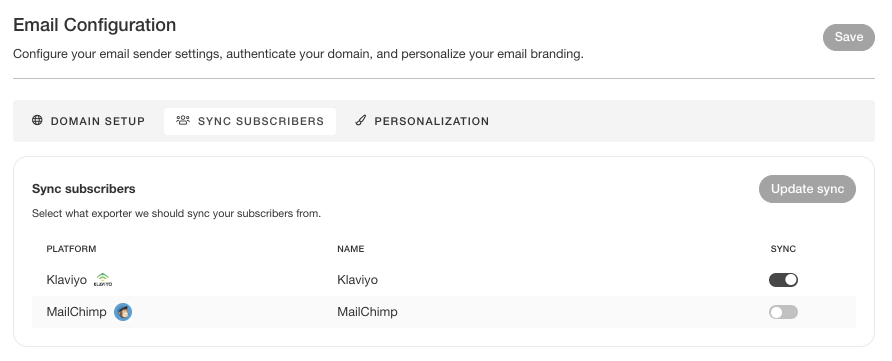
To find the guide for a specific email platform, use the integrations menu in the sidebar and follow its Sync Data guide.
If your source cannot be connected directly, use a
CSV import or include subscribers in your
data feed using subscribed: true on customer records.
Import people who have subscribed, rather than marking every customer as subscribed. Check the result in Email > Subscribers before moving on to website collection.
If you will send emails only through Clerk.io, we recommend stopping subscriber sync from your webshop or previous email provider after the initial import. First, verify that existing subscribers have been imported and all website signup points send new subscribers directly to Clerk.io.
Then disable the relevant subscriber sync and rely on frontend collection: embedded forms, email popups, and checkout opt-ins. This avoids conflicting subscriber states between Clerk.io and the other platform, such as a later sync overwriting a signup or unsubscribe.
Stop syncing subscriber status while keeping any product, category, order, or other customer data sync you still need. See subscriber syncing.
Double opt-in #
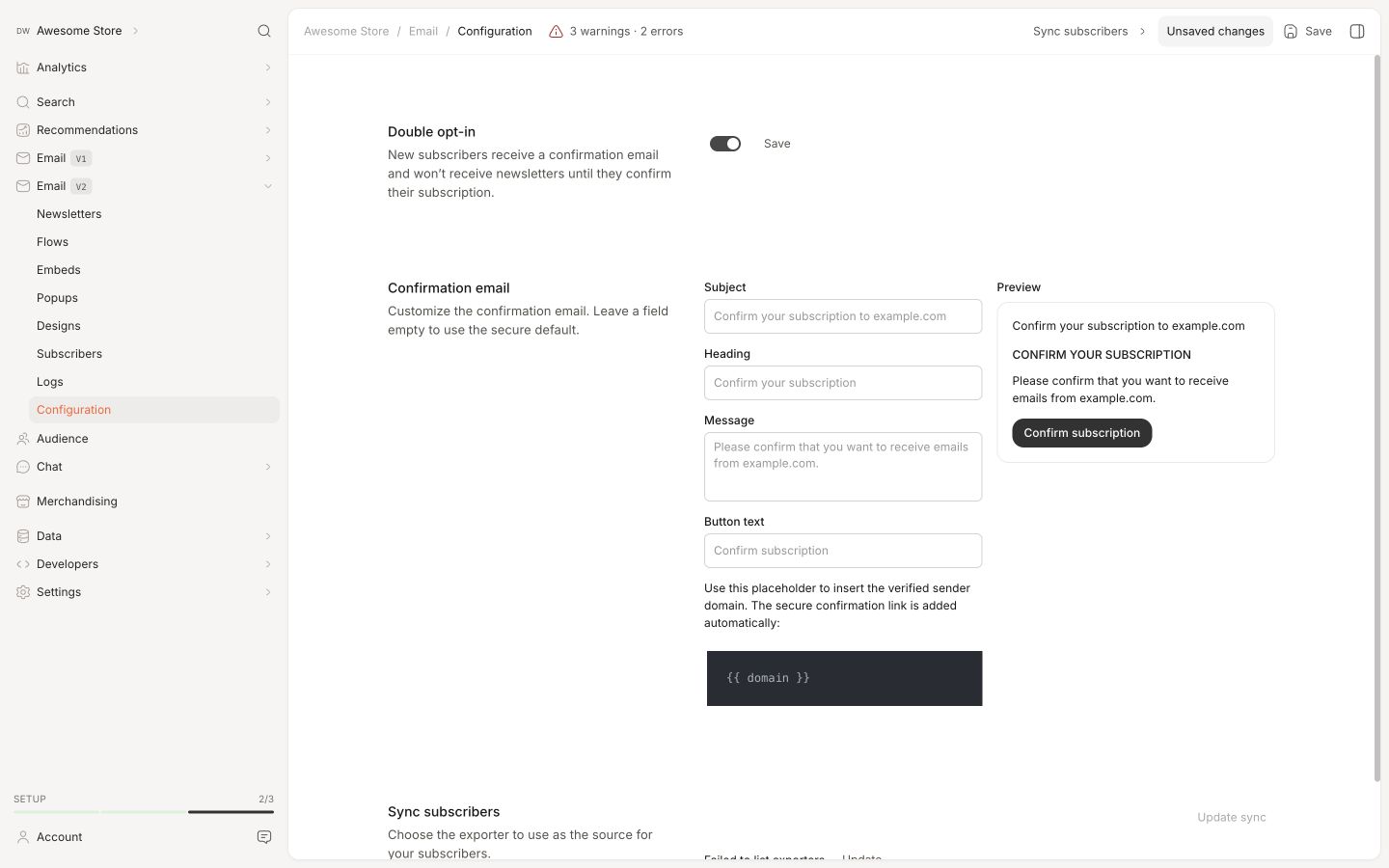
Double opt-in requires new subscribers to confirm their email address before Clerk.io sends them newsletters. This is useful when your business operates in Germany or another market where confirmed consent is required.
To enable it, go to Email > Configuration > Sync Subscribers, turn on Double opt-in, and save your changes.
After a visitor subscribes, Clerk.io sends a confirmation email. The subscriber does not receive newsletters until they click the confirmation link.
The confirmation email includes a live preview while you edit it. You can customize the Subject, Heading, Message, and Button text. The email uses your store’s verified sending domain by default, and the secure confirmation link is added automatically.
Leave a field empty to use the secure default for that part of the confirmation email.
Collect subscribers #
After the initial import, connect each signup point so future subscribers reach Clerk.io. A store may need all three methods below.
- Embedded form: Place an HTML signup form in the footer or near the bottom of a page.
- Email popup: Configure a popup in my.clerk.io to appear after a time delay or at a chosen scroll depth.
- Checkout opt-in: Connect the checkout’s existing newsletter checkbox and email field to Clerk.io with JavaScript.
Replacing a footer form does not update the popup or checkout. Check each signup point separately, including any that still send subscribers to your previous email provider.
Embedded form #
An embedded form lets visitors opt in directly from your website. Install and configure Clerk.js before adding the form.
The example below subscribes the entered email address globally. Place it in your footer, homepage, or another page section, then adjust the text and styling to match your store.
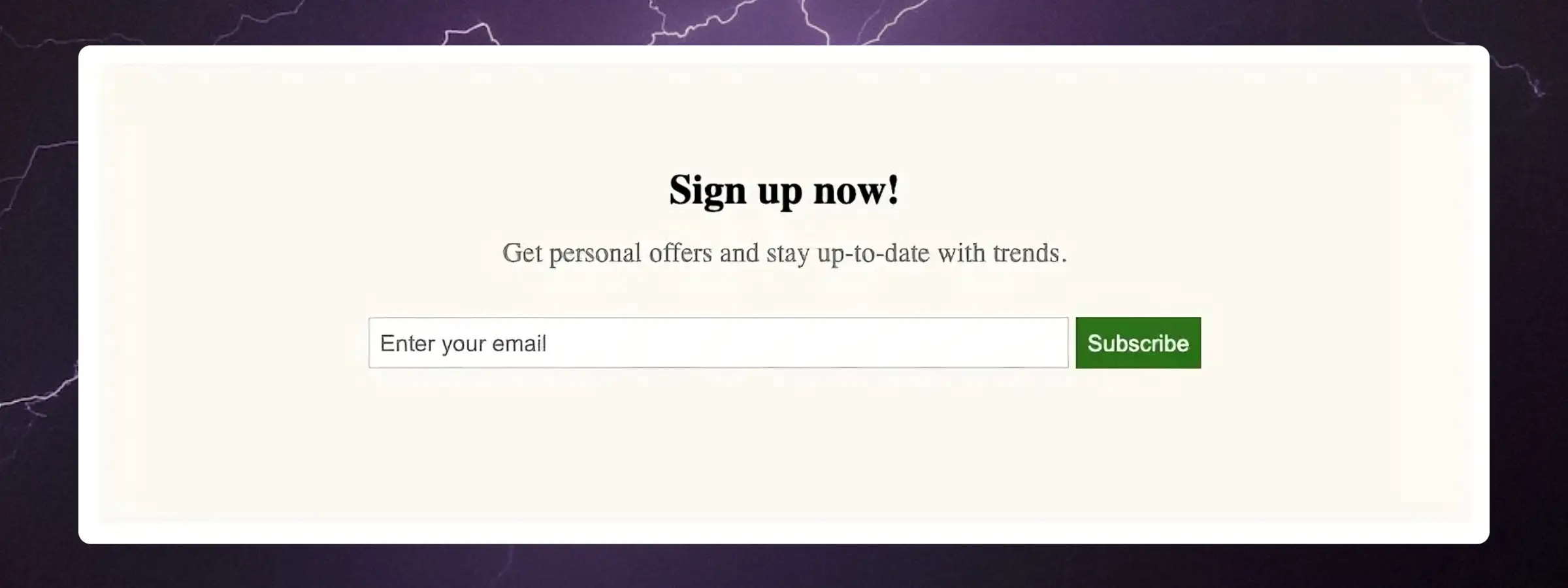
<div class="clerk-sign-up">
   <h2 class="clerk-sign-up-headline">Sign up now!</h2>
   <div class="clerk-sign-up-subtitle">Get personal offers and stay up-to-date with trends.</div>
   <div class="clerk-input-wrapper">
      <input type="email" id="clerk-add-subscriber-input" placeholder="Enter your email" aria-label="Email address" required>
      <button type="button" id="clerk-add-subscriber-btn" onclick="add_subscriber()">Subscribe</button>
   </div>
   <div id="clerk-subscribe-message"></div>
</div>

<script>
   function add_subscriber() {
      var clerk_btn = document.getElementById("clerk-add-subscriber-btn");
      var clerk_input = document.getElementById("clerk-add-subscriber-input");
      var clerk_message = document.getElementById("clerk-subscribe-message");
      if (!clerk_input.reportValidity()) return;
      Clerk("call", "subscriber/subscribe", {
         email: clerk_input.value.trim(),
         redirect: false
      },
      function(response) {
         clerk_message.style.color = "#008001";
         clerk_message.innerText = "Signup received. If confirmation is required, check your email.";
         clerk_btn.innerText = "Signup received!";
         clerk_btn.style.opacity = "0.5";
         clerk_btn.disabled = true;
      },
      function(response) {
         clerk_message.style.color = "#EE360E";
         clerk_message.innerText = "Could not subscribe. Please try again.";
      });
   }
</script>

<style>
   .clerk-sign-up {
      width: 50%;
      padding: 60px 0;
      max-width: 800px;
      min-width: 500px;
      margin: 40px auto;
      background-color: #FEFAF4;
   }
   .clerk-sign-up-headline {
      margin: 0 14px 14px;
      text-align: center;
   }
   .clerk-sign-up-subtitle {
      margin: 14px 14px 28px;
      text-align: center;
      color: #808080;
   }
   .clerk-input-wrapper {
      margin: 10px auto;
      text-align: center;
   }
   #clerk-add-subscriber-input {
      height: 28px;
      width: 50%;
      padding: 0 0 0 6px;
      border: 1px solid #D3D3D3;
   }
   #clerk-add-subscriber-btn {
      height: 30px;
      background-color: #008001;
      border: 1px solid #008001;
      color: white;
      cursor: pointer;
   }
   #clerk-subscribe-message {
      height: 20px;
      margin: auto;
      text-align: center;
   }
</style>
To subscribe to a specific list, add list_id. List IDs are found in Email > Subscribers > Lists.
Clerk("call", "subscriber/subscribe", {
  email: "customer@example.com",
  list_id: "FSY27248"
});
Read more in Subscribers.
Email popup #
Go to Email > Popups in my.clerk.io to collect subscribers through a popup. Choose all subscribers or a specific list, customize the design, and set the display timing.
The popup appears after a time delay or when the visitor scrolls a chosen percentage of the page. See Email Popups for details.
Checkout opt-in #
If your checkout offers a newsletter checkbox, connect that existing control to Clerk.io. Keep the native checkout fields and order handlers intact; add a listener that observes the customer’s actions.
The listener needs two things: a valid address in the checkout email field and a deliberate selection of the newsletter checkbox. Typing an address for an order, loading a prechecked checkbox, or setting it with JavaScript must not initiate subscription.
The basic flow is:
- Find the checkout form, email field, and newsletter checkbox.
- Record when the customer actively selects the checkbox.
- Call
subscriber/subscribewhen both consent and a valid email are present.
Make sure the webshop’s existing Clerk.js installation is loaded and configured on checkout. Clerk("call", ...) uses its configured store key automatically.
The example below shows the concept. Replace the selectors with those used by your checkout and load the script after its fields exist. Scope the selectors to the checkout form so footer or login fields cannot trigger signup.
<script>
(function () {
  var form = document.querySelector("form.checkout-form");
  if (!form) return;

  var email = form.querySelector('input[name="email"][type="email"]');
  var newsletter = form.querySelector('input[name="newsletter"][type="checkbox"]');
  if (!email || !newsletter) return;

  var optedIn = false;

  function subscribe() {
    if (!optedIn || !newsletter.checked) return;
    if (!email.value.trim() || !email.checkValidity()) return;

    Clerk("call", "subscriber/subscribe", {
      email: email.value.trim(),
      redirect: false
    });
  }

  newsletter.addEventListener("change", function (event) {
    if (!newsletter.checked) optedIn = false;
    if (!event.isTrusted) return;
    optedIn = newsletter.checked;
    subscribe();
  });

  // Also handle customers who select the checkbox before entering an email.
  email.addEventListener("blur", function (event) {
    if (event.isTrusted) subscribe();
  });
})();
</script>
Paste this as one standalone HTML script block, outside other <script> blocks. If your platform expects raw JavaScript, omit the opening and closing tags.
For a complete implementation, add duplicate-request handling and success/error callbacks with inline feedback and a retry path. If checkout replaces its fields dynamically, adapt the listeners to the platform’s events or use event delegation.
A successful request means Clerk.io accepted the signup. With double opt-in, the visitor still needs to confirm their email before receiving newsletters.
This example subscribes before order completion and leaves the webshop’s native checkout handlers intact. Unticking later does not cancel a request already sent or unsubscribe an address already accepted.
If signup should happen only after a completed order, use the platform’s successful-order event or backend instead. Check how the webshop stores and syncs its newsletter flag so later syncs preserve the intended subscriber status.
Test both input orders, invalid emails, unchecked or prechecked consent, and signup failures. Confirm the result in Email > Subscribers and verify that signup failures do not interrupt checkout.
Using the API #
Use the API when your sign-up form or backend should manage subscribers directly.
Call subscriber/subscribe to add an email address as a subscriber:
curl -X POST https://api.clerk.io/v2/subscriber/subscribe \
  -H 'Content-Type: application/json' \
  -d '{
    "key": "your-public-api-key",
    "email": "customer@example.com"
  }'
To subscribe to a specific list, include list_id:
curl -X POST https://api.clerk.io/v2/subscriber/subscribe \
  -H 'Content-Type: application/json' \
  -d '{
    "key": "your-public-api-key",
    "email": "customer@example.com",
    "list_id": "FSY27248"
  }'
Read the full reference at docs.clerk.io/reference/subscriberssubscribe.
Unsubscribing #
Unsubscribing is how recipients opt out of marketing emails.
Every marketing email must include a way for recipients to unsubscribe. How you manage it depends on whether the recipient clicks a link in an email or whether your backend handles the opt-out.
Using an external platform — Keep using your existing platform’s unsubscribe link. Klaviyo, Mailchimp, or your other platform handles the opt-out and keeps the subscriber list in sync.
Sending through Clerk.io — Add Clerk.io’s unsubscribe link to the design. If you use Ask Clerk.io, ask it to include an unsubscribe link and it will add one for you.
Using unsubscribe links #
For designs you build manually, use the link below.
The {{ email }} variable is replaced with each recipient’s address at send time. Replace YOUR_PUBLIC_API_KEY with the Public Key from Developers > API Keys.
<a href="https://api.clerk.io/v2/subscriber/unsubscribe?key=YOUR_PUBLIC_API_KEY&email={{ email }}&redirect=true">Unsubscribe</a>
To unsubscribe from a specific list only, add list_id:
<a href="https://api.clerk.io/v2/subscriber/unsubscribe?key=YOUR_PUBLIC_API_KEY&email={{ email }}&list_id=FSY27248&redirect=true">Unsubscribe from this list</a>
To redirect to your own confirmation page after unsubscribing, add redirect_url:
<a href="https://api.clerk.io/v2/subscriber/unsubscribe?key=YOUR_PUBLIC_API_KEY&email={{ email }}&redirect=true&redirect_url=https://yoursite.com/unsubscribed">Unsubscribe</a>
Using the API #
Use subscriber/unsubscribe to unsubscribe an email address programmatically.
This is useful for custom unsubscribe pages or backend workflows.
curl -X POST https://api.clerk.io/v2/subscriber/unsubscribe \
  -H 'Content-Type: application/json' \
  -d '{
    "key": "your-public-api-key",
    "email": "customer@example.com"
  }'
This unsubscribes globally. To unsubscribe from a specific list only, include list_id:
curl -X POST https://api.clerk.io/v2/subscriber/unsubscribe \
  -H 'Content-Type: application/json' \
  -d '{
    "key": "your-public-api-key",
    "email": "customer@example.com",
    "list_id": "FSY27248"
  }'
Read the full reference at docs.clerk.io/reference/subscribersunsubscribe.
Store Personalization #
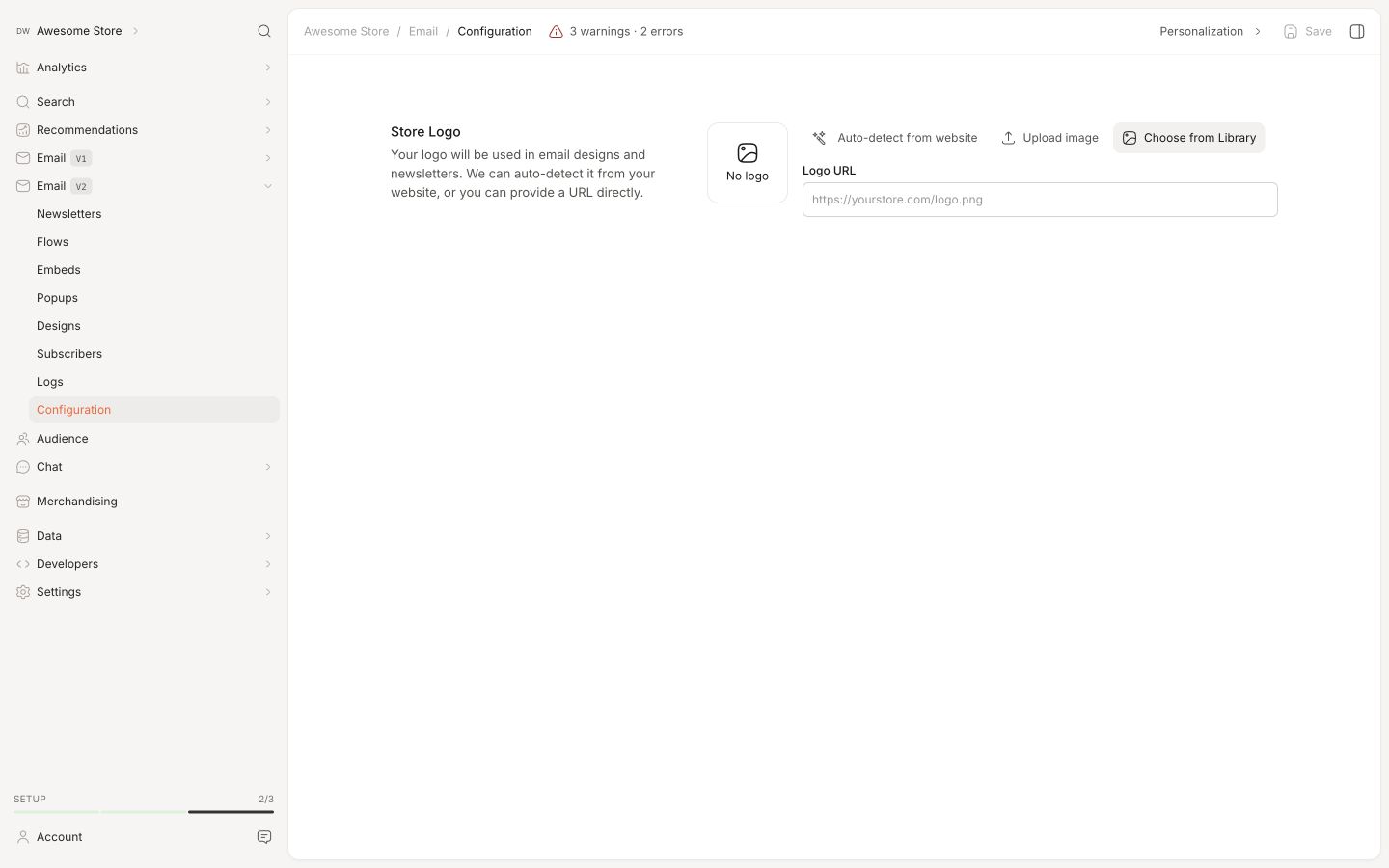
Store personalization controls the default brand assets Clerk.io uses in email designs.
Go to Email > Configuration > Personalization to set your store logo. You can upload an image manually or use Auto-detect from website to let Clerk.io find it on your storefront.
The logo set here is used as the default logo in Clerk.io-built email designs. If you build designs manually, you can still reference the logo URL directly in the template markup.
Email Designs #
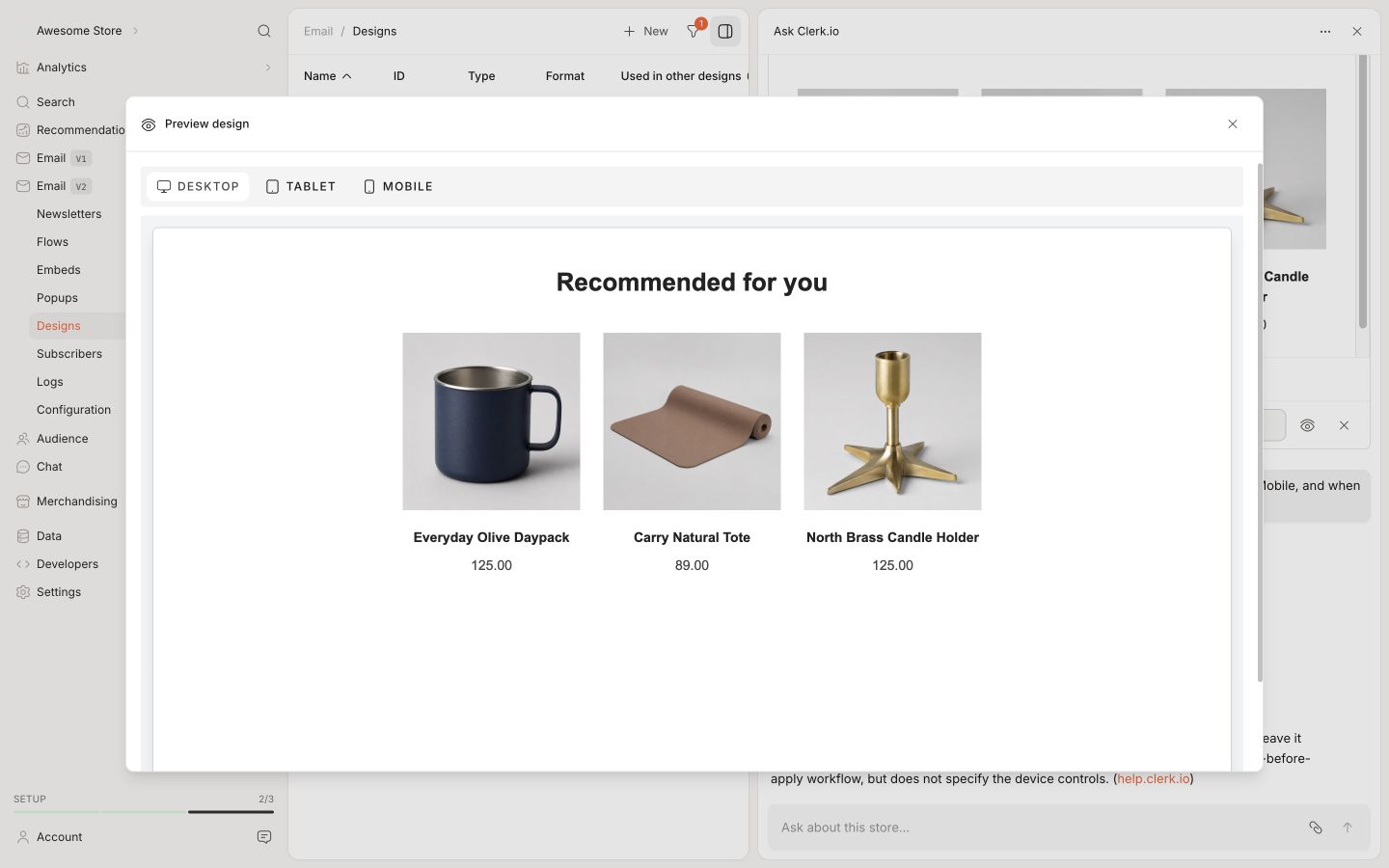
An email design is the visual template Clerk.io uses to build the email it sends.
Every campaign and automated flow needs a design. The design controls layout, colours, text, product blocks, unsubscribe links, and anything else the recipient sees.
With Ask Clerk.io #
The easiest way to create a design is with Ask Clerk.io Design Studio.
Describe what you want in plain language, such as layout, colours, which products to show, and how sale prices should look. Design Studio builds a preview inline in the chat for you to review and refine.
You can also point it at your site or attach a screenshot. It will use that as a visual reference, which is considerably faster than explaining your shade of green like it is a suspect in a police lineup.
Read more in the Design Studio guide.
With MJML #
Use the built-in MJML editor when you want more control over the markup.
MJML compiles to HTML that renders consistently across Gmail, Outlook, Apple Mail, and other email clients. See the MJML Designs guide for a full walkthrough and examples.
All email designs in Clerk.io are responsive. They adapt automatically to desktop, tablet, and mobile.
Static Images #
Use the Media Library for static images like banners, logos, and seasonal headers.
Images uploaded there get a template reference like {{ media.your-image }} that you can use in any design.
You can also attach an image directly in Ask Clerk.io and ask it to upload the image and use it in the design.
Email Identification #
Email identification links a visitor session to an email address.
It is required for automated flows like browse abandonment, welcome series, and Abandoned Cart. Without it, Clerk.io may know what a visitor did, but not who to email about it.
Every visitor on your site gets a visitor ID. At first, that visitor ID is anonymous. Email identification connects it to an email address when the visitor types their email or returns while logged in.
Using Clerk.js #
Use collect_email to let Clerk.js detect email fields automatically.
If you use one of Clerk.io’s installable plugins, activate collect_email directly from the plugin settings. This applies to DanDomain Classic, Magento 1, Magento 2, PrestaShop, Shopware 6, VTEX, and WooCommerce.
For other setups, enable it in your Clerk.js config:
Clerk('config', {
  key: 'your-public-api-key',
  collect_email: true
});
Clerk.js will monitor email input fields and log the address when a visitor types one in.
This works for checkout fields, newsletter sign-ups, login forms, and other <input type="email"> elements.
This identifies the visitor; it does not subscribe them to marketing. To collect a newsletter opt-in on checkout, use the
checkout listener to call subscriber/subscribe separately.
If a customer is already logged in, log their email once per session with Clerk('call', 'log/email').
if (!sessionStorage.getItem('clerk_email_logged')) {
  Clerk('call', 'log/email', {
    email: 'CUSTOMER_EMAIL'
  });
  sessionStorage.setItem('clerk_email_logged', '1');
}
Replace CUSTOMER_EMAIL with the real email address from your platform. Only render the script when an email address is available.
Using the API #
Use log/email to associate a visitor ID with an email address.
Call it once per session when an email address is available. This applies when a customer logs in and when they return already logged in.
curl -X POST https://api.clerk.io/v2/log/email \
  -H 'Content-Type: application/json' \
  -d '{
    "key": "your-public-api-key",
    "email": "customer@example.com",
    "visitor": "SESSION_VISITOR_ID"
  }'
Replace SESSION_VISITOR_ID with the visitor ID for the current session.
When using the API, you are responsible for generating and maintaining the visitor ID. See the Tracking guide for details.
Cart Tracking #
Cart tracking tells Clerk.io what a visitor currently has in their cart.
It is required for Abandoned Cart emails. When a visitor leaves without buying, Clerk.io can only send the cart contents if the cart has been tracked.
Call cart tracking whenever the cart changes. This includes when a product is added, removed, or when the cart is fully updated.
With Clerk.js #
If you use the Magento 1, Magento 2, PrestaShop, or WooCommerce plugin, cart tracking is handled automatically.
For other setups, notify Clerk.io of the current cart contents using the set method. Each call is tied to the current visitor session.
Clerk('cart', 'set', [1234, 5678, 42]);
Read more in the Shopping Cart integration.
With the API #
Use log/cart/update to set the cart to its current state.
Call it whenever the cart changes, passing the full list of products currently in the cart.
curl -X POST https://api.clerk.io/v2/log/cart/update \
  -H 'Content-Type: application/json' \
  -d '{
    "key": "your-public-api-key",
    "visitor": "SESSION_VISITOR_ID",
    "products": [
      {"id": 1234, "quantity": 2},
      {"id": 5678, "quantity": 1}
    ]
  }'
You can also pass email instead of, or in addition to, visitor if the email address is already known.