Campaigns
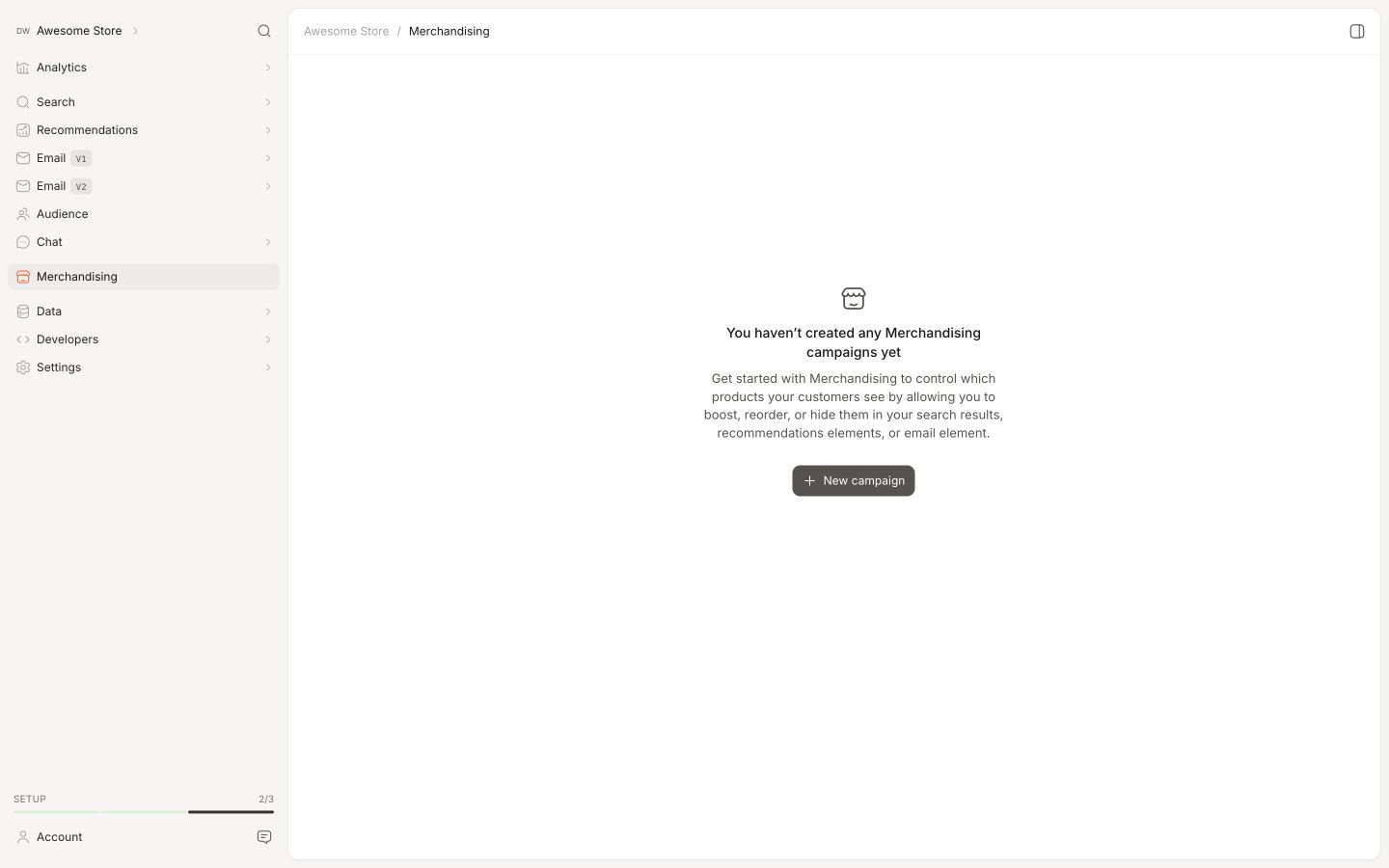
Merchandising gives you a high degree of control over the products shown by Clerk, like boosting products on sale, prioritising specific brands, hiding out-of-stock products and much more.
Basic Info #
Campaigns always have a Name of your choice. Optionally, you can add a Description for reminding yourself and your colleagues of the campaigns purpose.
Scheduling #
Decide whether a campaign should run indefinetely or during a specific timeframe. Scheduling is particularly useful if you only want to influence results during a period like the week of Black Friday or during your Christmas sales.
Using scheduling means that you don’t accidentally forget to turn off the campaign when it’s no longer applicable.
Selecting Products #
When configuring Triggers and Rules, you should pick products in a way that keeps your campaigns up-to-date even as your catalogue changes.
You can handpick products with Product List, it’s recommended to write keywords with Search or use Filters to select products dynamically.
Doing this will keep your campaigns relevant, even when products go out-of-stock and new ones are added to your catalogue.
Product List #
This is the simplest way to choose products for your campaign. Simply search for the products you want, and click on them to select them.
You can select as many products as you want. If products later dissappear from your catalogue, they will no longer be included in the results.
Product order #
When a rule uses Product list, you can set the order of the selected products directly in the product picker. This is the order shoppers see when the rule places those products in results.
- Open Merchandising and edit the campaign.
- Under Rules, click the button showing the rule’s selected products to open the product picker.
- Grab the dotted handle beside a selected product and drag it to the position you want. The row follows your cursor, and a dashed box shows where it will land.
- Release the row in the dashed box. Repeat for any other products you want to move.
- Close the picker and click Save on the campaign.
To reorder with a keyboard, focus a product row and press Alt + ↑ or Alt + ↓. Screen readers announce the move.
For example, move a selected product from fourth to first to place it before the other hand-picked products. You can change this order without removing and selecting the products again. The rule still controls where the products are placed in results.
Search #
Choose products using free-text. Simply type in keywords that match the products you want to include, like “Nike sneakers”, “strawberry whey powder” or “macbook pro”.
Any products matching these keywords at any point in time, will be part of the campaign.
Filters #
These can be used to dynamically choose products based on their attributes. Any products matching the filters at any given time, will be part of the campaign.
The Filter interface lets you choose any number of attributes, like products on sale with a price below €100 that are also high-margin items.
Dynamic Values #
When a campaign uses When Seeing Products Matching, you can make a filter use an attribute from the product the visitor is viewing. This lets the same campaign adapt to each product page instead of using one fixed value.
In the campaign’s Filters section, configure each filter with:
- The product attribute to filter on, such as brand, product type or tags.
- The condition, such as is or contains.
- Fixed value to enter one specific value, or Current product to use the product being viewed.
- The value to compare, or the attribute to use from the current product.
For example, choose Current product and use the current product’s type to show products that fit the same type. You can combine this with other filters, such as a fixed price condition.
The filter expression can still be edited manually. Dynamic values use the {{ attribute_name }} format, where attribute_name is replaced by the matching attribute on the product being viewed.
Product counts are not shown in the editor for filters that use current product values because there is no current product until a visitor opens a product page. These values are resolved on the site from the product being viewed.
Current product values are available for Merchandising campaign rules only. Audience, email and content filters are unchanged.
Customer Values #
A rule’s product filter can compare a product attribute with an attribute from the identified customer. This lets one rule choose different products for each visitor or email recipient, based on their country, gender or customer group.
Customer values work in storefront Search and Recommendations widgets, Email Embeds, AI Newsletters and Flows.
- Open Merchandising and edit the campaign.
- Under Rules, open the rule’s product selection.
- Open the Filter tab and click Add filter.
- Choose the product attribute and condition to compare.
- Set the value source to Customer and choose the customer attribute.
- Close the product selection and click Save on the campaign.
For example, compare a product’s available countries with the customer’s country to select products that can be shipped to them. Both attributes must contain compatible values for the comparison to match.
If you track the customer’s gender and send it to Clerk.io, you can compare it with a product’s gender attribute to select matching products. This requires gender data on both the customer and the products, with compatible values.
You can also use a customer group to select relevant products.
You can combine this with a customer attribute trigger. The trigger decides when the campaign runs; the customer value decides which products the rule selects.
Identification
Customer values require the customer’s email and the chosen attribute on their customer record in Clerk.io. An email identifies the customer; it does not supply a missing country, gender or group value.
For newsletters and flow emails, the rule uses the recipient’s customer attributes. Make sure the chosen attribute is available on their customer record in Clerk.io.
Clerk.js handles this automatically for stores that already report customer logins or identifications to Clerk.io. A campaign click carrying the customer’s email also counts as an identification.
For a logged-in customer, the email is remembered across page loads during the browsing session. It is never persisted in cookieless or private mode.
For custom integrations, see Customer Context below.
Missing values
If the customer’s email is unknown, or the customer has no value for the selected attribute, the customer-based rule is skipped. This does not cause an error. Existing rules keep their current behaviour.
A regional rule therefore only restricts products for customers who can be identified and have the required attribute. Anonymous visitors do not receive that restriction.
Triggers #
These control where your campaigns should be active. Triggers range from anywhere, down to a specific banner on a specific product page.
Campaigns can be run on any of the selected Triggers, or only when all trigger criteria are met.
Below are all of the currently available Triggers.
Cross-Platform #
Used to target all Clerk elements or handpick specific ones based on their Content IDs or API endpoints.
- Anywhere: All Clerk elements across your site, emails and Chat.
- Only for Specific Content: Any selected Content block you have created across Search, Recommendations and Email.
- For Specific API Endpoint: Endpoints like recommendations/complementary or search/predictive. This is usually only needed for serverside setups.
- For Specific API Parameter: Allows for triggering the campaign programmatically.
- When Customer Attribute …: Targets when the identified Customer has attributes that match your conditions.
- When Customer is in Audience …: Targets when the identified Customer belongs to one or more selected Audiences.
Search #
Specialised for results shown in Instant Search, the Search Page or Omnisearch.
- On All Searches: Any searches made by visitors.
- When a Search: Specific word(s) of your choice either for an exact or close match, or when the query simply contains the word(s). This can also be left empty to target the empty-state in Omnisearch, before a query has been typed in.
Chat #
Specialised for results shown in Chat when it searches for products.
- On All Chat Searches: Impacts all products shown in Chat when it searches for them.
- When a Chat Search…: Impacts only products shown in Chat when they are found with specific keywords. Choose word(s) for an exact or close match, or target queries that simply contain the word(s).
Recommendations #
Specialised for onsite elements that use Recommendations logics, like Bestsellers on the homepage or Cross-Sell on the product pages.
- When Seeing Category: Select a specific category page by its name. Applies to the logics Bestsellers & Trending in Category regardless of its shown as a banner or the full category page.
- On All Categories: Same as above, but on every category page.
- When Seeing Products Matching: Applies to the logics Best Cross-Sell and Best Alternatives on the product pages matching your selection.
- On All Recommendations: All Recommendations elements on the site.
Email #
Specialised for email marketing, both when embedding products and using Clerk to send the emails.
- Only for Specific AI Campaign: Selected by its name.
- Only for Specific Newsletter: Selected by its name.
- Only for Specific Trigger: Selected by its name.
- Only for Specific Embedded Email: Selected by its Embed name.
- On All AI Campaigns: Targets any active AI Campaigns.
- On All Newsletters: Targets any active Newsletters.
- On All Triggers: Targets any active Triggers.
- On All Embedded Emails: Targets any active Email Embeds.
Rules #
These decide how your results are influenced by changing their position in results. Position simply means whether a product is shown as the 1st result, 10th, 34th and so on.
Rules can range from very broad, like boosting all products on sale, to very narrow like pinning a pair of Nike sneakers in the alternatives banner for another, similar pair.
Forcing #
Disregards existing logic, including filters and other Merchandising rules. Products can also be forced into results where they would otherwise not be shown.
- Pin: The most aggressive rule. It forces one or more products to the top, regardless of other logic.
Sorting #
Changes the order of results while only showing products that were already in the result set.
For example, if you promote your Nike Air 2.0 sneakers, they will not show for searches on “t-shirts”, but they will get more exposure for searches on “sneakers”.
Sorting rules influence results while keeping the intelligence of Clerk.io’s AI intact.
- Adjust position in results: Moves matching products up by a percentage. A 50% adjustment moves a product shown at position 20 to position 10; 100% moves it to position 1.
- Promote in results: Spreads selected products throughout the results, such as placing a high-margin item every 3rd product from the 2nd result.
- Promote to position: Places selected products starting at a specific position, such as showing 3 Adidas products from the 4th result.
- Bury below others: Selected products will be shown after other products. E.g. show out-of-stock products in the bottom of search results.
- Promote slightly (Outdated): Selected products are prioritised a bit more, but it will not have a large impact on results. We recommend using Adjust position in results instead.
- Give a significant boost (Outdated): Selected products are prioritised a lot more, often leading to these being shown in top results. We recommend using Adjust position in results instead.
- Give a custom boost (Outdated): Pick a custom multiplier to prioritise products with. We recommend using Adjust position in results instead.
Removing #
Picks out specific products that can be shown, hiding others that do not match the criteria.
- Show Only: Only the selected products will be shown, even if other matches exist.
- Remove any: Hides the selected products entirely.
Scopes #
Clerk uses product and category IDs to apply campaigns. Multiple Store campaigns only work as intended if these IDs are consistent across your Stores.
Campaigns can be added to a single Store or multiple ones at the same time. This gives you the freedom to influence results across your whole business, or simply the parts that matter.
Each campaign can be configured with a Scope based on where you want it to run. Use the Edit scope menu to select Stores that the campaign should run on.
From the Merchandising overview, you can see and create campaigns for the current Store from the Single Store page and use the Multiple Stores page for cross-account campaigns.
Additional Details #
These details explain the edge cases that matter when configuring or troubleshooting reorder rules:
- Promote in Results, Promote to Position, and Adjust Position only reorder products already in the current result window. Pin can add products that are not in the organic results.
- Rule priority is Pin, Promote to Position, Promote in Results, then Adjust Position. Products are moved, not duplicated.
- Keep these limits separate:
- API
limit: products returned on each page. - Promote to Position
limit: products inserted in its block. - Adjust Position Max depth: how far down the ranked list matching products can be found.
- API
- Merchandising runs before pagination. Keep the page size consistent when using Load more, and check the first page together with the next page.
- The underlying Search service does much of the heavy lifting for Merchandising, so the Search version affects the result window. Search v2 applies reorder rules to the full endpoint result before slicing to the API
limit; Search v3 applies them to a bounded fetched window before slicing. A deeply ranked product may therefore be reachable in Search v2 but outside Search v3’s window. Use Pin when the product must appear.
For Developers #
Campaigns can be triggered and disabled programatically as well, giving you more control of where to apply them. Use-cases include triggering campaigns when certain customer groups log in or when a desired basket size has been met.
Customer Context #
For customer-based rules in a custom storefront integration, set the visitor’s known email in Clerk.js before making the calls that should use it:
Clerk('context', 'email', 'customer@example.com');
Replace the example with the identified visitor’s email. You can also pass their email on the storefront API call itself. Clerk.io uses it to look up the customer’s attributes without waiting for a customer-to-visitor mapping.
API Trigger #
Create the Campaign with the For Specific API Parameter trigger. Copy its Campaign ID for use in API calls.
Include the parameter merchandising in API calls. This should be sent as a list of one or several Campaign IDs:
$ curl -X POST \
       -H 'Content-Type: application/json' \
       -d '{"key":      "your_api_key",
            "visitor":  "aR9Km32l",
            "limit":    4,
            "labels":   ["Most Popylar"],
            "merchandising": ["boost-bracelets", "high-margin"]' \
       http://api.clerk.io/v2/recommendations/popular
Clerk.js Trigger #
Include the parameter data-merchandising in your embedcode. This should contain a list of one or several Campaign IDs:
<span class="clerk"
  data-template="@home-page-popular"
  data-merchandising="['boost-bracelets', 'high-margin']"
></span>
Disable In API #
If Clerk.io shows unexpected results, its often a good starting point to disable all Merchandising campaigns for an API call, to check if that is the cause.
You can do this by adding the parameter flags=disable.merchandising to your API call:
https://api.clerk.io/v2/recommendations/popular?key=your_api_key&flags=disable.merchandising=true
This will disable all Merchandising campaigns for that API call, without disrupting the rest of your Clerk.io setup.