Facets
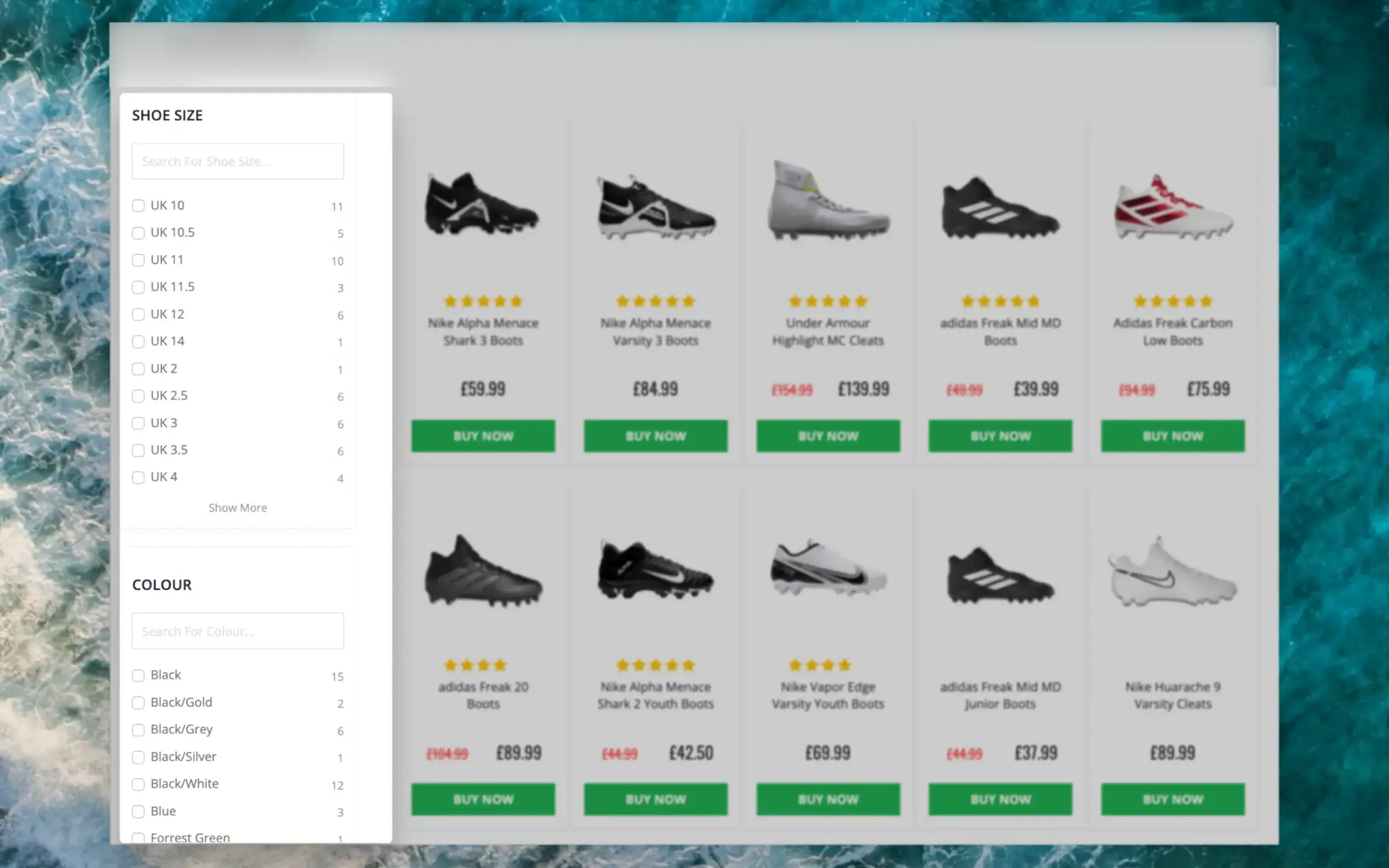
This intelligent filtering feature makes it effortless for visitors to find the right items, even on the largest category pages.
Facets can be used when using Clerk to show entire category pages, making it easy for visitors to narrow down results.
Dynamic Attributes #
When your products include various sets of attributes, Facets will show only the filters that relevant for each individual category page.
E.g. a category for “laptops” will likely show specifications like RAM, storage space, screen size and so on, while a category for “headphones” will include their fit, bluetooth functionalities, EQ features and more.
Make sure to only import the relevant attributes for each product in your catalogue, and Facets will be dynamic for every page depending on the products in it.
Automatic ranges #
Attributes that are numbers will be recognized by facets, and shown as a combination of a range selector and several predefined ranges.
These are dynamic and will change depending on each result set. E.g. if a set contains products priced between €10 - €150, buckets will likely range between €10-€30 and €140+.
By default, this is how prices are handled.
Facet order #
You can change the order of facet attributes in the facet editor tables and in an Element’s facet list under its design or insertion settings.
Grab an attribute’s dotted handle and drag it to the position you want. A dashed box shows where it will land. Release the row to move it. You can also focus a row and press Alt + ↑ or Alt + ↓; screen readers announce the move.
This controls the order of the facet attributes, such as showing brand before price, rather than the values inside each facet.
For developers #
Facets are part of the Clerk.js UI kit that makes it easy to add functionality to your site.
They are integrated directy into the snippet that displays results:
<div id="clerk-category-filters"></div>

<span
  class="clerk"
  data-template="@category-page-grid"
  data-category="156"
  data-facets-target="#clerk-category-filters"
  data-facets-attributes='["price","categories","brand"]'
  data-facets-titles='{"price": "PRICE_LABEL", "categories": "CATEGORIES_LABEL", "brand": "BRAND_LABEL"}'
  data-facets-in-url="true">
</span>
Parameters #
Facets consist of two parameters that are added to the snippet:
data-facets-attributes: A list of attributes that have the potential of being shown for category pages where they are relevantdata-facets-titles: An array of attributes and associated titles that configures how they are shown to end users.
URL Filtering #
You might want to send pre-filtered category pages in your marketing, and Facets make this very easy. By simply adding the parameter data-facets-in-url to your category page snippet, facets will be added to the URL.
When you open the URL, the facets will already be selected:
https://awesomestore.com/sneakers?brand=nike&size=42
You can read more about the technical aspects of Facets in our developer docs