Configuration
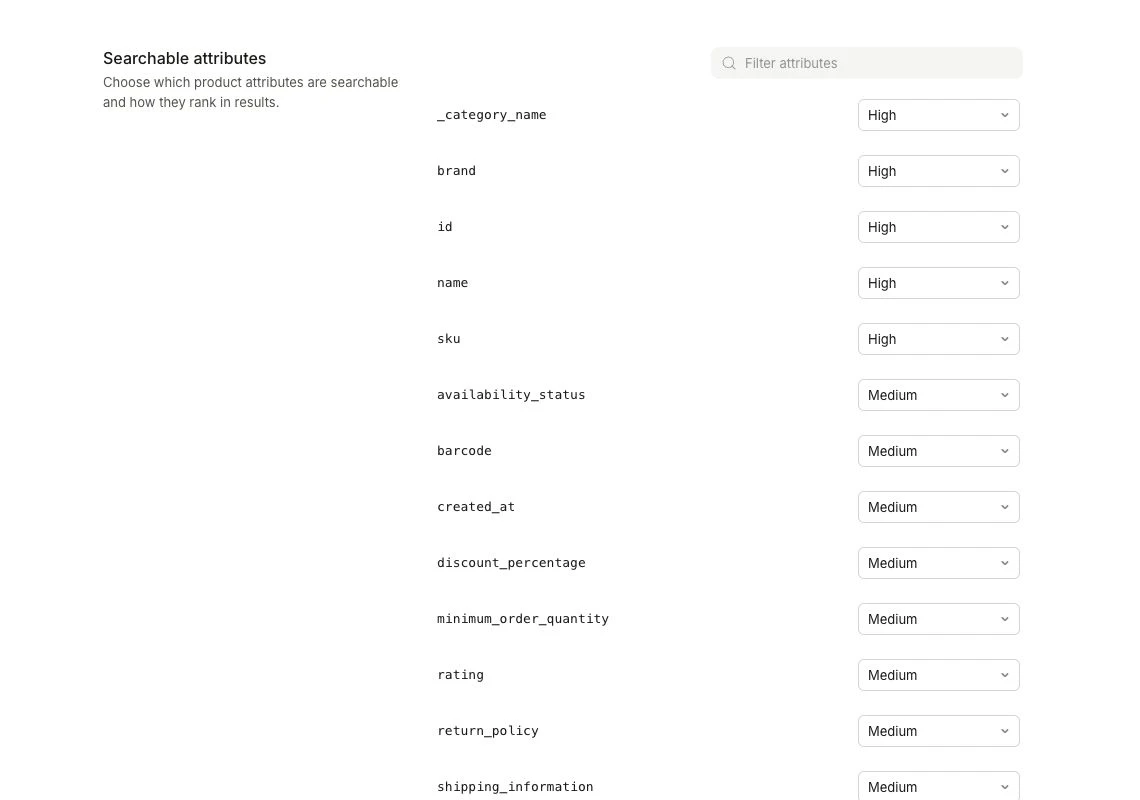
Search comes with several settings that allow you to adjust its behavior.
When you change a setting, it triggers an analysis of your data that must complete before changes take effect.
This process can take up to 15 minutes but may be faster depending on the size of your catalogue. You can monitor the status in Data > Configuration.
The settings require Search 3.0 to be enabled. Afterwards, you can access them in Search > Configuration.
Searchable attributes #
Choose which product attributes shoppers can search and how strongly each attribute affects matching.
Find an attribute in Searchable attributes and choose its Search relevance:
| Relevance | Effect |
|---|---|
| High | Give matches in this attribute higher relevance. |
| Medium | Use normal relevance. |
| Low | Give matches in this attribute lower relevance. |
| Not searchable | Exclude its text from search matching. |
For example, set brand and _category_name to High when these are important to your catalogue. Use lower relevance for supporting text. Avoid making every attribute High, so product popularity can still help rank results.
Use Not searchable for fields such as internal IDs or margin values that you need for display or filtering but do not want shoppers to search through.
Wildcard rules #
Wildcard rules can keep groups of attributes out of search. Choose Create a rule for a pattern such as *url or child*. Rows marked Rule show these patterns. Use Edit on a rule to change it.
For more specific patterns, *_url matches attributes ending in _url, and child_* matches attributes starting with child_.
Sortable attributes #
Add the product attributes you want to make available for sorting results. This section follows Searchable attributes.
Filterable attributes #
Attributes in this list become available as filters/facets across Search, Omnisearch and Merchandising. If a product attribute doesn’t appear when you configure facets or create a Merchandising rule, add it here and wait for the configuration analysis to finish.
- Add attributes from the list of available product attributes.
- Changes can take up to 15 minutes to apply depending on catalogue size.
Exact Match Behaviour #
By default, Clerk.io returns all relevant results for searches on your site. However, in specific cases — like searching for an SKU or EAN number — you may expect only a single match.
Search v3 required: This feature is only available for Stores using Search v3. You can check this in Settings > Features > Early access features.
By including attributes in this list, you configure Clerk.io to return a single result when the query matches a value in those attributes. This also disables auto-correction to ensure only the exact match is displayed.
The most common ones are sku and ean, but any synced attributes can be used.
When adding an attribute you have two options:
- Return single exact match, best used for unique identifiers like SKUs or product IDs where you want to return a specific product.
- Return multiple exact match, ideal for attributes like category IDs, where many products share the same value.
Facet Price Buckets #
Here you can define the price range which will be used in the Search filters. If left blank, Clerk.io will calculate them dynamically based on your product data price range.
Enter comma-separated prices in Add buckets, for example 0,50,100,150,200. Leave it empty to calculate ranges dynamically from product data.
Custom dictionary #
The custom dictionary lets you define search terms that would otherwise be treated as separate words instead of a single concept.
Enter a term in Add term and click Add. You can enter multiple terms separated by commas.
For example, if your catalog includes products from the sneaker brand D.A.T.E., you might want to add “D.A.T.E.” and “D. A. T. E.” to the custom dictionary.
Criteria #
Clerk.io detects a query as a unique identifier when:
- It’s alphanumeric and includes at least one of the following characters: “-+/&_.0123456789”.
- It has at least 4 characters.
- It does not contain spaces or quotes.
If Clerk.io finds a single exact match in any of the unique identifier attributes, that product is returned immediately, overriding any customized search or merchandising rules. Otherwise, the query is treated as a regular search.
Settings override #
Settings override lets you adjust advanced Search index settings by adding a JSON object in Search > Configuration.
These settings control how Clerk.io reads, ranks, filters, sorts and returns search results. They are advanced settings and should normally only be changed when you know exactly which Search behavior you want to adjust.
Changing them can affect all Search results for the Store. A small typo in JSON can also prevent the override from being saved.
Advanced setting: Use Settings override carefully. If you are unsure whether an override is needed, contact Clerk.io support before changing it.
Store-specific attributes #
Attributes such as brand, color, size, sku, price, or custom category fields depend on the data synced to each Store.
This means displayedAttributes, filterableAttributes, searchableAttributes and sortableAttributes can look different from Store to Store.
Attributes that start with an underscore, such as _all_categories, _category_name or _price_range, are generated by Clerk.io and are available for all Stores.
Example #
The example below shows the structure of a Settings override. Your Store will likely use different attributes.
{
  "displayedAttributes": [
    "_all_categories",
    "_category_name",
    "_price_range",
    "brand",
    "categories",
    "description",
    "id",
    "image",
    "name",
    "price",
    "stock",
    "url"
  ],
  "searchableAttributes": [
    "high_relevance",
    "medium_relevance",
    "low_relevance"
  ],
  "filterableAttributes": [
    "_all_categories",
    "_category_name",
    "_price_range",
    "brand",
    "categories",
    "price",
    "stock"
  ],
  "sortableAttributes": [
    "created_at",
    "name",
    "price"
  ],
  "rankingRules": [
    "sort",
    "words",
    "typo",
    "attribute",
    "proximity",
    "clerk.popularity:desc"
  ],
  "stopWords": [],
  "nonSeparatorTokens": [],
  "separatorTokens": [],
  "dictionary": [],
  "synonyms": {},
  "distinctAttribute": null,
  "proximityPrecision": "byAttribute",
  "typoTolerance": {
    "enabled": true,
    "minWordSizeForTypos": {
      "oneTypo": 3,
      "twoTypos": 8
    },
    "disableOnWords": [],
    "disableOnAttributes": [
      "high_relevance.id",
      "high_relevance.sku"
    ],
    "disableOnNumbers": false
  },
  "faceting": {
    "maxValuesPerFacet": 100,
    "sortFacetValuesBy": {
      "*": "alpha"
    }
  },
  "pagination": {
    "maxTotalHits": 1000000
  },
  "embedders": {},
  "searchCutoffMs": null,
  "localizedAttributes": null,
  "facetSearch": true,
  "prefixSearch": "indexingTime"
}
Available settings #
displayedAttributes controls which attributes Clerk.io can return in Search results.
Use it when you want Search results to include only the fields needed by your designs, API responses or frontend logic.
searchableAttributes controls which attributes are searched when a visitor types a query.
The order matters. Attributes earlier in the list are treated as more important for text relevance.
filterableAttributes controls which attributes can be used for filters, facets and rules that narrow results.
Add an attribute here if it should be selectable as a facet or usable in filtering logic. Store-specific product attributes must exist in your synced data before they can be used.
sortableAttributes controls which attributes Search results can be sorted by.
Add fields such as price, created_at or name if you want to use them for sorting.
rankingRules controls the order of relevance rules used to rank matching results.
Rules near the top have the strongest influence. Custom rules like clerk.popularity:desc can be used to push popular products higher after the preceding relevance checks.
stopWords lists words that should be ignored in search queries.
This can be useful for very common words that do not help shoppers find products, such as “the” or “and”.
nonSeparatorTokens lists characters that should not split a word.
For example, adding @ can help Clerk.io treat a term containing that character as one connected value.
separatorTokens lists characters that should split words.
Use this when your product data contains characters that should clearly divide one term from another.
dictionary lists terms that should be treated as a single word or concept.
This is useful for brand names, abbreviations or product terms that are normally split into several parts.
synonyms maps one query term to equivalent words or phrases.
Use synonyms when shoppers often search for different words that mean the same thing in your catalogue.
distinctAttribute groups results by a shared attribute and returns one result per unique value.
This is useful when variants are indexed as separate products, but you only want one result per parent product or group.
proximityPrecision controls how strictly word closeness is evaluated.
byWord compares the exact distance between matching words. byAttribute checks whether matching words appear in the same attribute.
typoTolerance controls how Search handles misspellings.
You can enable or disable typo tolerance, set the minimum word length for one or two typos, and disable typo tolerance for specific words, attributes or numbers.
faceting controls how facet values are returned.
maxValuesPerFacet sets how many values each facet can return. sortFacetValuesBy controls whether facet values are sorted alphabetically or by result count.
pagination controls the maximum number of results Search can return for a query.
maxTotalHits is the upper limit available for paginated results.
embedders is reserved for advanced semantic search setups.
Leave it empty unless Clerk.io support has advised you to configure it.
searchCutoffMs sets a maximum time, in milliseconds, that Search can spend on a query before returning the best results found so far.
Use null to keep the default behavior.
localizedAttributes can define language-specific handling for matching attribute patterns.
Leave it as null unless your Store has a specific multilingual indexing setup.
facetSearch controls whether facet values can be searched.
When enabled, shoppers and integrations can search within facet values, such as finding a specific brand inside a long brand filter.
prefixSearch controls whether partial words can match while a shopper is typing.
indexingTime enables prefix matching for faster search-as-you-type behavior. disabled turns prefix matching off.