Rules
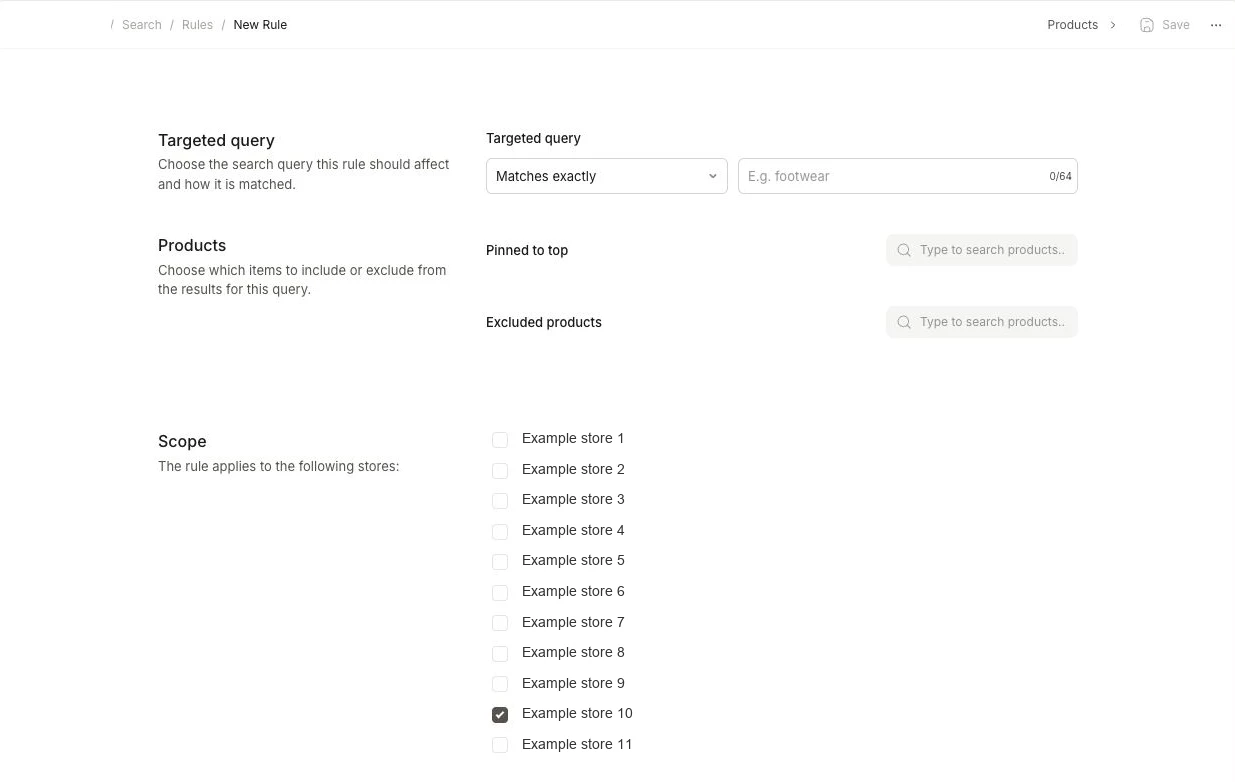
Rules is a feature that allows you to pick specific queries, and fully tailor the results to show for them.
This can be used for specific use-cases that require you to always show a certain set of results, like when customers search for “mystery box” and you want to associate a particular product, category and explanatory blog post.
Each rule has its own enabled state. Disable a rule temporarily when you do not want it to apply, then enable it again without deleting the rule.
Target Query #
Searches can be configured to either apply when a query matches exactly, like a search for “mystery box”, when the query simply contains the chosen word(s) like “best mystery box adventures” or to manipulate the Omnisearch empty state before the user types a query.
Result Types #
Each section corrosponds to a specific type of result returned by Clerk, and will work as long as you are showing that type in your search results.
You can customize results for any of these types, through separate sections:
- Products
- Categories
- Pages
- Suggestions
Criteria #
Use Pinned to top in the Products section to place selected products before other matches for the targeted query. Other matching products can still appear below them.
Use Excluded products to remove selected products from the targeted query’s results. This does not remove them from other searches.
When you include or exclude types, you simply need to search for them in the slide-in window, to select them as part of your customisation.
Notice: The “limit” you have configured in your Element or API calls, control how many results are returned, even if you add more results than this. Also, Merchandising campaigns are prioritised if they clash with your settings.
List order #
You can reorder entries in the result lists, including search suggestions. In Products, the inclusion list is named Pinned to top.
Grab an entry’s dotted handle and drag it to the position you want. A dashed box shows where it will land. Release the row to move it. You can also focus a row and press Alt + ↑ or Alt + ↓; screen readers announce the move.
Reordering an excluded entry keeps it excluded. It does not add the entry back to search results.
Scope #
Each Rules can be configured with a Scope based on where you want it to apply.
In Scope, check the stores where the rule should apply and uncheck the stores where it should not apply. Store selection is directly in the form.
Click Save to save the rule.
From the Rules overview, you can create and manage Rules for the current Store using the In This Store page or for multiple stores through the Multiple Stores page for cross-account searches..
Shared Rules generally only make sense for Stores using the same language.
For Developers #
The below feature requires knowledge of the API and is primarily used for debugging.
Disable In API #
If Clerk.io shows unexpected results, its often a good starting point to disable all Rules modifications for an API call, to check if that is the cause.
You can do this by adding the parameter flags=disable.customsearch to an API call:
https://api.clerk.io/v2/search/search?key=your_api_key&query=star+wars&flags=disable.customsearch=true
This will disable all Rules modifications for that API call, without disrupting the rest of your Clerk.io setup.